Back to Integrations
integrationAirtable node
integrationTwilio node

Airtable and Twilio integration

Save yourself the work of writing custom integrations for Airtable and Twilio and use n8n instead. Build adaptable and scalable Data & Storage, Communication, and Development workflows that work with your technology stack. All within a building experience you will love.

How to connect Airtable and Twilio

  • Step 1: Create a new workflow
  • Step 2: Add and configure nodes
  • Step 3: Connect
  • Step 4: Customize and extend your integration
  • Step 5: Test and activate your workflow

Step 1: Create a new workflow and add the first step

In n8n, click the "Add workflow" button in the Workflows tab to create a new workflow. Add the starting point – a trigger on when your workflow should run: an app event, a schedule, a webhook call, another workflow, an AI chat, or a manual trigger. Sometimes, the HTTP Request node might already serve as your starting point.

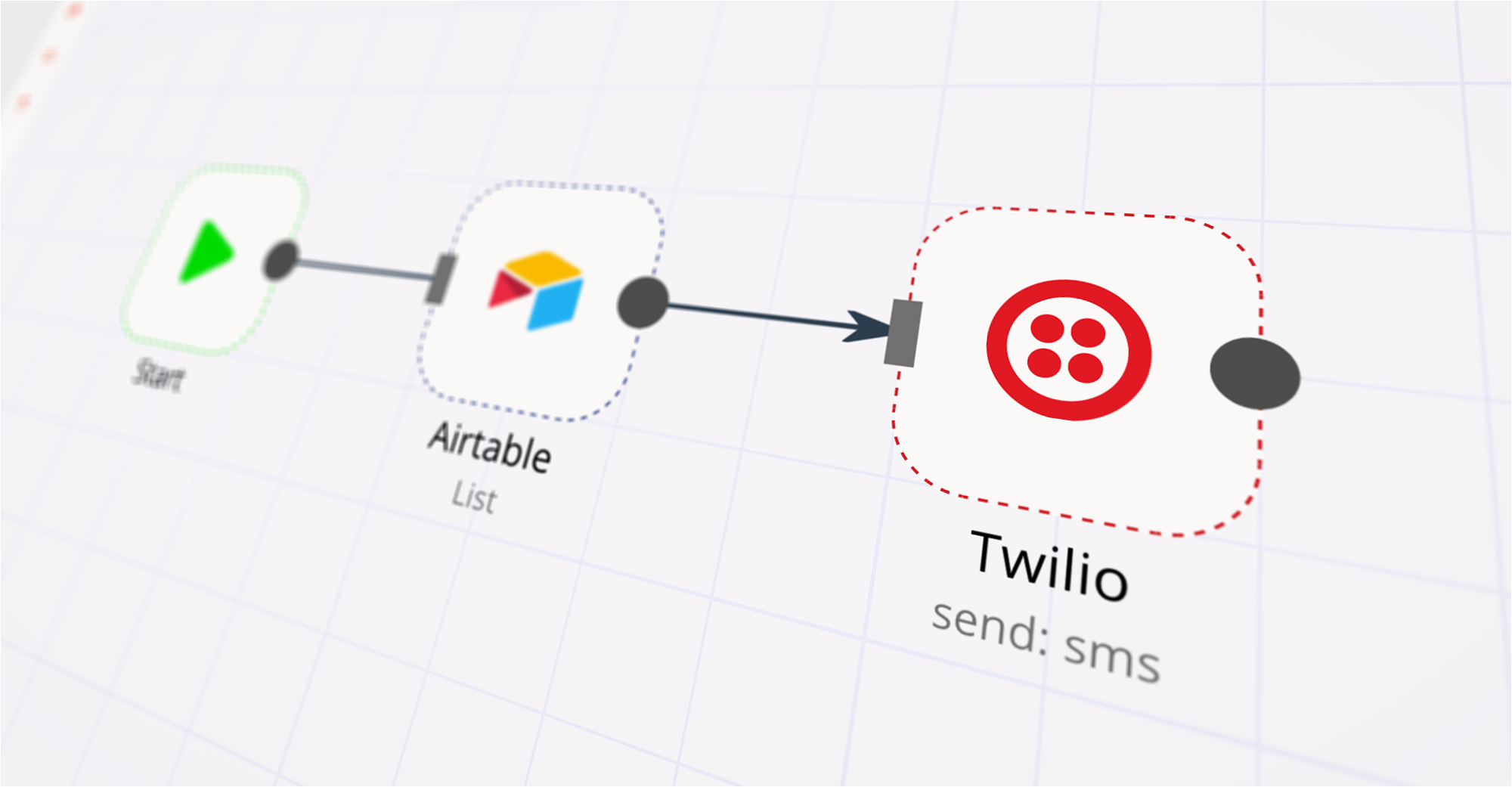
Airtable and Twilio integration: Create a new workflow and add the first step

Step 2: Add and configure Airtable and Twilio nodes

You can find Airtable and Twilio in the nodes panel. Drag them onto your workflow canvas, selecting their actions. Click each node, choose a credential, and authenticate to grant n8n access. Configure Airtable and Twilio nodes one by one: input data on the left, parameters in the middle, and output data on the right.

Airtable and Twilio integration: Add and configure Airtable and Twilio nodes

Step 3: Connect Airtable and Twilio

A connection establishes a link between Airtable and Twilio (or vice versa) to route data through the workflow. Data flows from the output of one node to the input of another. You can have single or multiple connections for each node.

Airtable and Twilio integration: Connect Airtable and Twilio

Step 4: Customize and extend your Airtable and Twilio integration

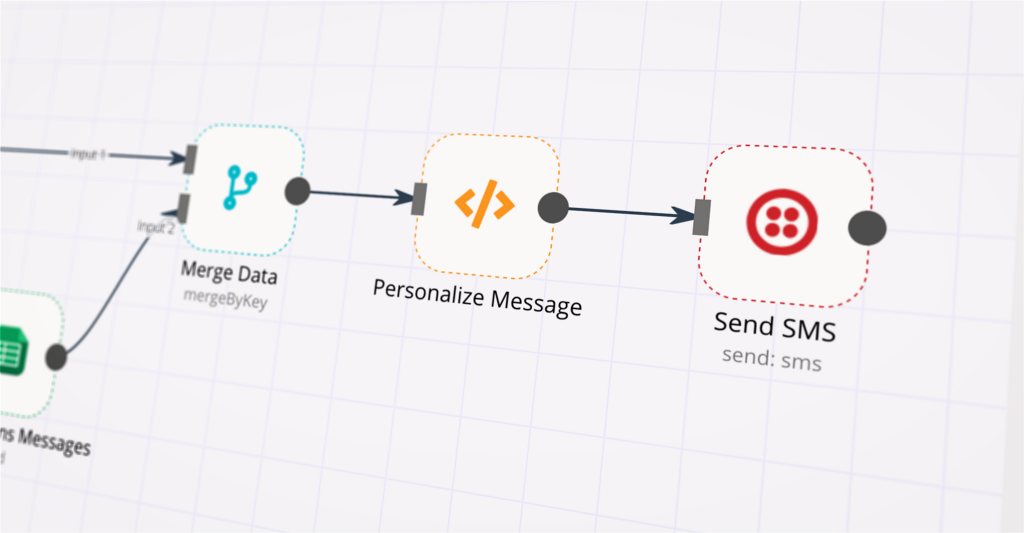
Use n8n's core nodes such as If, Split Out, Merge, and others to transform and manipulate data. Write custom JavaScript or Python in the Code node and run it as a step in your workflow. Connect Airtable and Twilio with any of n8n’s 1000+ integrations, and incorporate advanced AI logic into your workflows.

Airtable and Twilio integration: Customize and extend your Airtable and Twilio integration

Step 5: Test and activate your Airtable and Twilio workflow

Save and run the workflow to see if everything works as expected. Based on your configuration, data should flow from Airtable to Twilio or vice versa. Easily debug your workflow: you can check past executions to isolate and fix the mistake. Once you've tested everything, make sure to save your workflow and activate it.

Airtable and Twilio integration: Test and activate your Airtable and Twilio workflow

Handling appointment leads and follow-up with Twilio, Cal.com and AI

This n8n workflow builds an appointment scheduling AI agent which can
Take enquiries from prospective customers and help them book an appointment by checking appointment availability
Where no appointment is booked, the Agent is able to send follow-up messages to re-engage leads.
After an appointment is booked, the agent is able reschedule or even cancel the booking for the user without human intervention.

For small outfits, this workflow could contribute the necessary "man-power" required to increase business sales.

The sample Airtable can be found here: https://airtable.com/appO2nHiT9XPuGrjN/shroSFT2yjf87XAox

2024-10-22 Updated to Cal.com API v2.

How it works

The customer sends an enquiry via SMS to trigger our workflow. For this trigger, we'll use a Twilio webhook.
The prospective or existing customer's number is logged in an Airtable Base which we'll be using to track all our enquries.
Next, the message is sent to our AI Agent who can reply to the user and decide if an appointment booking can be made. The reply is made via SMS using Twilio.
A scheduled trigger which runs every day, checks our chat logs for a list of prospective customers who have yet to book an appointment but still show interest.
This list is sent to our AI Agent to formulate a personalised follow-up message to each lead and ask them if they want to continue with the booking.
The follow-up interaction is logged so as to not to send too many messages to the customer.

Requirements
A Twilio account to receive customer messages.
An Airtable account and Base to use as our datastore for enquiries.
Cal.com account to use as our scheduling service.
OpenAI account for our AI model.

Customising this workflow

Not using Airtable? Swap this out for your CRM of choice such as hubspot or your own service.

Not using Cal.com? Swap this out for API-enabled services such as Acuity Scheduling or your own service.

Nodes used in this workflow

Popular Airtable and Twilio workflows

Airtable SMS Sender - Bulk Text Sender Template for Airtable

Video Introduction Want to automate your inbox or need a custom workflow? 📞 Book a Call | 💬 DM me on Linkedin Overview This workflow automatically sends personalized SMS notifications to customers when their order status changes in Airtable. Monitor your order management base and instantly notify customers about updates like "Confirmed" or "Shipped" without manual intervention. When an order status changes in your Orders table, a notification record is automatically created in a Status Notifications table. The workflow monitors this table, prepares personalized messages using the customer's name and order status, sends the SMS via Twilio, and updates the delivery status back to Airtable for complete tracking and logging. Key Features Automated SMS sending triggered by Airtable record changes Personalized messages with customer name and order status Complete delivery tracking with success/error status updates Error handling for invalid phone numbers Works with Twilio's free trial account for testing Common Use Cases E-commerce order status updates Shipping notifications Order confirmation messages Customer communication logging Setup Instructions Step 1: Duplicate the Airtable Base Copy the Order Management Base template to your Airtable workspace. You must use your own copy as the workflow needs write permissions. Step 2: Connect Your Accounts Add your Airtable Personal Access Token credentials to the workflow nodes Create a Twilio account (free trial available) From your Twilio dashboard, obtain your Account SID, Auth Token, and Twilio phone number Add Twilio credentials to the "Send Order Status SMS" node Step 3: Configure the Workflow In the Config node, update these URLs with your duplicated Airtable base: notifications_table_url: Your Status Notifications table URL orders_table_url: Your Orders table URL from_number: Your Twilio phone number Step 4: Customize the Message Modify the "Prepare SMS Content" node to personalize the message template with your brand voice and additional order details. Step 5: Activate Toggle the workflow to 'Active' and the automation will monitor your Airtable base every minute, sending notifications automatically.

AI-powered Student Assistant for Course Information via Twilio SMS

This n8n template offers a simple yet capable chatbot assistant who can answer course enquiries over SMS. Given the right access to data, AI Agents are capable of planning and performing relatively complex research tasks to get their answers. In this example, the agent must first understand the database schema, retrieve lists of values before generating it's own query to search over the database. Checkout the example database here - https://airtable.com/appO5xvP1aUBYKyJ7/shr8jSFDaghubDOrw How it works A Twilio trigger gives us the ability to receive SMS input into our workflow via webhook. The message is then directed to our AI agent who is instructed to assist the user and use the course database as reference. The database is an Airtable base. The agent autonomously figures out which tool it needs to use and generates it's own "filter_by_formula" query to search over the available courses. On successful search results, the Agent can then use this information to answer the user's query. The Agent's output is logged in a second sheet of the Airtable base. We can use this later for analysis and lead gen. Finally, the response is sent back to the user through SMS using Twilio. How to use Ensure your Twilio number is set to forward messages to this workflow's webhook URL. Configure and update the course database as required. If you're not interested in courses, you can swap this out for inventory, deliveries or any other data relevant to your business. Ask questions like: "Can you help me find suitable courses to fill my Wednesday mornings?" "Which courses are being instructed by profession Lee?" "I'm interested in creative arts. What courses are available which could be relevant to me?" Requirements Twilio for SMS receiving and sending OpenAI for LLM and Agent Airtable for Course Database Customising this workflow Add additional tools and expand the range of queries the agent is able to answer or assist with. Not using Airtable? This technique also works with SQL databases like PostgreSQL.
+3

Handling Appointment Leads and Follow-up With Twilio, Cal.com and AI

This n8n workflow builds an appointment scheduling AI agent which can Take enquiries from prospective customers and help them book an appointment by checking appointment availability Where no appointment is booked, the Agent is able to send follow-up messages to re-engage leads. After an appointment is booked, the agent is able reschedule or even cancel the booking for the user without human intervention. For small outfits, this workflow could contribute the necessary "man-power" required to increase business sales. The sample Airtable can be found here: https://airtable.com/appO2nHiT9XPuGrjN/shroSFT2yjf87XAox 2024-10-22 Updated to Cal.com API v2. How it works The customer sends an enquiry via SMS to trigger our workflow. For this trigger, we'll use a Twilio webhook. The prospective or existing customer's number is logged in an Airtable Base which we'll be using to track all our enquries. Next, the message is sent to our AI Agent who can reply to the user and decide if an appointment booking can be made. The reply is made via SMS using Twilio. A scheduled trigger which runs every day, checks our chat logs for a list of prospective customers who have yet to book an appointment but still show interest. This list is sent to our AI Agent to formulate a personalised follow-up message to each lead and ask them if they want to continue with the booking. The follow-up interaction is logged so as to not to send too many messages to the customer. Requirements A Twilio account to receive customer messages. An Airtable account and Base to use as our datastore for enquiries. Cal.com account to use as our scheduling service. OpenAI account for our AI model. Customising this workflow Not using Airtable? Swap this out for your CRM of choice such as hubspot or your own service. Not using Cal.com? Swap this out for API-enabled services such as Acuity Scheduling or your own service.

Manage garage service reminders, pickups and feedback with Airtable, WhatsApp and Gmail

✅ What problem does this workflow solve? Garage and auto service businesses handle much more than just vehicle repairs — they manage service schedules, customer reminders, pickups, feedback, and repeat visits. When handled manually, this often leads to missed reminders, delayed pickups, unhappy customers, and lost repeat business. This workflow delivers a fully automated, end-to-end customer communication system for garages using n8n + Airtable + WhatsApp + Email, ensuring timely, professional, and consistent engagement at every stage of the service lifecycle. ⚙️ What does this workflow do? This automation suite consists of four interconnected workflows, each handling a critical touchpoint: WF-01: Scheduled Service Reminders Runs daily at 9 AM Identifies upcoming, due-today, or overdue services Sends branded reminders via WhatsApp + Email Automatically marks reminders as sent to avoid duplicates WF-02: Pickup Notification Triggers when service status changes to “Done” Instantly notifies customers that their vehicle is ready Sends confirmation via WhatsApp + Email Updates Airtable to track pickup notifications WF-03: Feedback Collection Triggers when service status becomes “Delivered” Sends a polite feedback request with a form link Uses WhatsApp + Email for higher response rates Ensures feedback requests are sent only once WF-04: Next Service Reminder Runs daily at 9 AM Tracks upcoming next-service dates Sends reminders for: Overdue services Services due today Upcoming services (next 7 days) Encourages repeat visits and long-term retention 🧠 How it Works – High-Level Flow Central Data Source (Airtable) Airtable acts as the single source of truth for: Customer details Vehicle information Service status Service dates & next service dates Notification tracking flags Smart Triggers & Scheduling Schedule Triggers** run daily reminders automatically Airtable Triggers** react instantly to status changes (Pending → Done → Delivered) Personalized Message Generation Dynamic WhatsApp and Email messages are generated using customer, vehicle, and service data Messages are branded and context-aware (overdue, today, upcoming, completed, feedback) Multi-Channel Notifications WhatsApp** messages are sent via Twilio Email** notifications are sent via Gmail Customers are reached on their preferred channels Automatic Tracking & Deduplication Each step updates Airtable flags: Reminder sent Pickup notification sent Feedback sent Next service reminder sent Prevents duplicate messages and ensures clean automation 🔧 Integrations Used Airtable** – Customer, vehicle, and service management Twilio WhatsApp API** – Instant customer notifications Gmail** – Professional email communication n8n Schedule & Trigger Nodes** – Time-based and event-based automation 👤 Who is this for? Perfect for: 🚘 Auto garages & service centers 🛠 Multi-location workshop chains 🚗 Car detailing & maintenance businesses ⚙️ Agencies building automation solutions for automotive clients 🎯 Business Outcomes ✅ No missed service or follow-up reminders ✅ Faster pickups and smoother operations ✅ Automated feedback collection ✅ Higher repeat visits and customer retention ✅ Zero manual follow-ups for staff 🚀 Result This workflow transforms a garage into a fully automated, customer-centric service operation, ensuring every customer is informed, engaged, and encouraged to return — without adding operational overhead.
+5

Gumroad Clientbell: Auto-Log Sales, Ping Telegram, & Thank via Email

Who is this for? This template is perfect for Gumroad creators, solopreneurs, digital product sellers, and freelancers who want to track and thank customers automatically — without spending time on manual work. What problem does this solve? Every sale is a moment to build trust. But manually checking your inbox for new orders, logging clients, and remembering to send a thank-you note? It’s time-consuming and inconsistent. This workflow handles it all: From sale → to sheet → to ping → to personalized “thank you” — all fully automated. What this workflow does: ✅ Triggers on each new sale on Gumroad 📋 Extracts buyer details, amount paid, and product purchased 📈 Logs the sale to a Google Sheet for tracking 📲 Sends a Telegram approval message to notify you 💌 (Optional) Sends a Gmail thank-you email to the buyer 🔁 Keeps your workflow organized with color-coded notes and sample data ⚙️ Setup Instructions: Create Gumroad API and connect the trigger node Authenticate with Google Sheets to store each client Connect your Telegram bot for real-time alerts (Optional) Setup Gmail API for sending thank-you emails Customize the email copy & sheet headers (e.g. % cut, timestamps) 🗒 Color-coded workflow notes: To make customization smooth, the workflow includes a color-coded sticky note system: 🟩 Green Notes – Main building blocks (trigger, logging, ping, email) 🟦 Blue Notes – Setup guidance and editable fields (e.g. your email or brand name) 🟨 Yellow Notes – Optional upgrades (e.g. swap Gmail, use AI email generator, change to WhatsApp) Each step has comments or hints to make your setup easy — whether you're new to n8n or a seasoned automator. 🔧 How to customize this workflow? 🎯 Swap Gmail with Outlook, SMTP, or Mailgun 🤖 Use AI (e.g. OpenAI or Claude) to draft personalized emails dynamically 📞 Replace Telegram with WhatsApp, Discord, or Slack 🗃️ Log to Airtable or Notion instead of Google Sheets 🧠 Add approval logic or advanced tagging in Gmail 🧾 Licensing & Support This template is built by Velebit from Innovatio. External links (Gumroad store or support email) are included in the notes for optional help and upgrades. A separate license applies to the paid version on Gumroad, which includes additional modules and commercial use rights. 📩 Support & customization: [email protected]

Abandoned cart recovery for Shopify via Gmail, Google Sheets & Twilio (no-code)

Who is this for? This template is ideal for solo store owners, eCommerce marketers, automation beginners, or anyone using Shopify and Gmail who wants to recover lost revenue without coding. What problem does this solve? Customers often leave items in their cart without completing the purchase. Manually chasing those sales is inefficient and inconsistent. This workflow automates the recovery process by sending emails (and optionally SMS) based on Shopify checkout activity. What this workflow does: ✅ Detects when a Shopify checkout is created but not completed, ⏳ Waits 1 hour, then checks if the cart was abandoned, 🧾 Pulls cart contents and applies a fallback discount, 📧 Sends a recovery email via Gmail, 🕓 After 24 hours, you can optionally send an SMS or WhatsApp reminder via Twilio, 📊 Logs each interaction to Google Sheets for tracking. Setup: Create Shopify, Gmail, Google Sheets, and Twilio credentials in your n8n instance, Import the JSON workflow file Replace the Shopify trigger with your store's webhook (set to “Checkout Create”), Set your wait time (default: 1 hour), Link your Gmail account and customize the email message, (Optional) Link Twilio to add a multi-channel reminder, Update the Google Sheets node with your own Sheet ID and headers. 🗒 Color-coded workflow notes: To make customization easier, this template includes a visual sticky note system inside the n8n canvas. You’ll find: 🟩 Green Notes → Main Steps Clear, essential stages of the automation (e.g. wait, check cart status, send email), 🟦 Blue Notes → Personalization Tips Small tweaks you can make to match your tone, store brand, or logic (e.g. email copy, discount logic), 🟨 Yellow Notes → Optional / Advanced Features that you can explore setting up: Twilio SMS, Airtable logging, human approval steps, etc. 👉 Look around each key node for quick tips, setup instructions, and TO-DO items. This system helps you understand and modify the workflow at a glance — whether you're a beginner or scaling a pro setup. How to customize this workflow? 🎯 Swap Shopify for WooCommerce or Stripe by replacing the trigger and cart-check logic, 💬 Localize and personalize each email message or add multilingual support via AI, 📈 Upgrade logging from Google Sheets to Airtable for CRM-style features, 🤝 Add manual approval steps for high-value discounts, 💡 Want a one-time unique code per user? Let us build that logic for you → [email protected] Final notes This template was designed by Velebit from Innovatio. External links in the workflow (e.g. support or upgrade options) are optional and purely informative, while only leading to the official company webiste with no affiliate or similar links included in the template itself. A separate license applies to the paid version on Gumroad, which includes additional modules and commercial use rights.

Build your own Airtable and Twilio integration

Create custom Airtable and Twilio workflows by choosing triggers and actions. Nodes come with global operations and settings, as well as app-specific parameters that can be configured. You can also use the HTTP Request node to query data from any app or service with a REST API.


Airtable supported actions

Get Many
List all the bases
Get Schema
Get the schema of the tables in a base
Create
Create a new record in a table
Create or Update
Create a new record, or update the current one if it already exists (upsert)
Delete
Delete a record from a table
Get
Retrieve a record from a table
Search
Search for specific records or list all
Update
Update a record in a table

Twilio supported actions

Make
Send
Send SMS/MMS/WhatsApp message

FAQs

  • Can Airtable connect with Twilio?

  • Can I use Airtable’s API with n8n?

  • Can I use Twilio’s API with n8n?

  • Is n8n secure for integrating Airtable and Twilio?

  • How to get started with Airtable and Twilio integration in n8n.io?

Need help setting up your Airtable and Twilio integration?

Discover our latest community's recommendations and join the discussions about Airtable and Twilio integration.
Michael Wells

Looking to integrate Airtable and Twilio in your company?

Over 3000 companies switch to n8n every single week

Why use n8n to integrate Airtable with Twilio

Build complex workflows, really fast

Build complex workflows, really fast

Handle branching, merging and iteration easily.
Pause your workflow to wait for external events.

Code when you need it, UI when you don't

Simple debugging

Your data is displayed alongside your settings, making edge cases easy to track down.

Use templates to get started fast

Use 1000+ workflow templates available from our core team and our community.

Reuse your work

Copy and paste, easily import and export workflows.

Implement complex processes faster with n8n

red iconyellow iconred iconyellow icon