Back to Integrations
integrationDiscord node
integrationPipedrive node

Discord and Pipedrive integration

Save yourself the work of writing custom integrations for Discord and Pipedrive and use n8n instead. Build adaptable and scalable Communication, HITL, and Sales workflows that work with your technology stack. All within a building experience you will love.

How to connect Discord and Pipedrive

  • Step 1: Create a new workflow
  • Step 2: Add and configure nodes
  • Step 3: Connect
  • Step 4: Customize and extend your integration
  • Step 5: Test and activate your workflow

Step 1: Create a new workflow and add the first step

In n8n, click the "Add workflow" button in the Workflows tab to create a new workflow. Add the starting point – a trigger on when your workflow should run: an app event, a schedule, a webhook call, another workflow, an AI chat, or a manual trigger. Sometimes, the HTTP Request node might already serve as your starting point.

Discord and Pipedrive integration: Create a new workflow and add the first step

Step 2: Add and configure Discord and Pipedrive nodes

You can find Discord and Pipedrive in the nodes panel. Drag them onto your workflow canvas, selecting their actions. Click each node, choose a credential, and authenticate to grant n8n access. Configure Discord and Pipedrive nodes one by one: input data on the left, parameters in the middle, and output data on the right.

Discord and Pipedrive integration: Add and configure Discord and Pipedrive nodes

Step 3: Connect Discord and Pipedrive

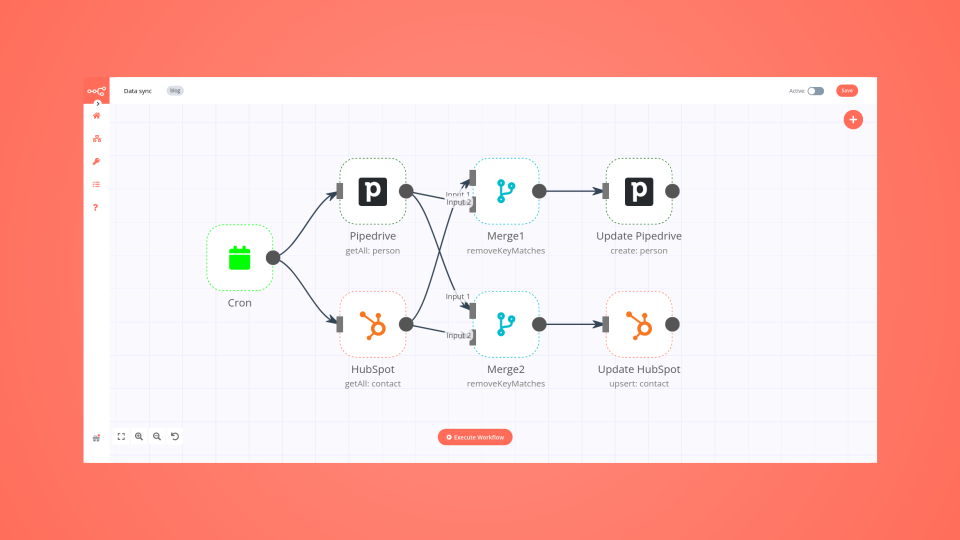
A connection establishes a link between Discord and Pipedrive (or vice versa) to route data through the workflow. Data flows from the output of one node to the input of another. You can have single or multiple connections for each node.

Discord and Pipedrive integration: Connect Discord and Pipedrive

Step 4: Customize and extend your Discord and Pipedrive integration

Use n8n's core nodes such as If, Split Out, Merge, and others to transform and manipulate data. Write custom JavaScript or Python in the Code node and run it as a step in your workflow. Connect Discord and Pipedrive with any of n8n’s 1000+ integrations, and incorporate advanced AI logic into your workflows.

Discord and Pipedrive integration: Customize and extend your Discord and Pipedrive integration

Step 5: Test and activate your Discord and Pipedrive workflow

Save and run the workflow to see if everything works as expected. Based on your configuration, data should flow from Discord to Pipedrive or vice versa. Easily debug your workflow: you can check past executions to isolate and fix the mistake. Once you've tested everything, make sure to save your workflow and activate it.

Discord and Pipedrive integration: Test and activate your Discord and Pipedrive workflow

Sync Webflow form leads to Pipedrive with Discord and Gmail notifications

Who it's for

This workflow is for sales and marketing teams using Webflow as their primary lead capture tool and Pipedrive as their CRM. It automates the entire lead intake process, from form submission to CRM entry and team notification, eliminating manual data entry.

How it works

A Webflow form submission triggers the workflow and captures lead fields (name, company, email, phone, website URL, message).
Key fields are mapped and phone numbers are cleaned and formatted with the correct international dial code using a custom code node.
The workflow searches Pipedrive for an existing organization matching the company name. If none is found, a new one is created. Results are aggregated.
It then searches for the contact person by name. If found, their record is updated; if not, a new person is created and linked to the organization.
A new lead is created in Pipedrive associating the person and organization.
In parallel: a Discord message notifies the team, a Gmail confirmation email is sent to the lead, and — if a website URL was provided — the organization's URL field in Pipedrive is updated.

How to set up

[ ] Connect your Webflow OAuth2 credentials and configure the Form Trigger with the correct site
[ ] Add Pipedrive API credentials to all Pipedrive nodes
[ ] Add Discord Bot credentials and set the target server and channel in the Notify Team on Discord node
[ ] Add Gmail OAuth2 credentials and adjust the email subject and body in Send Confirmation Email
[ ] Review the Format Phone Numbers code node to confirm the country detection logic matches your audience
[ ] Adjust the Filter Valid Organization URL conditions if needed

Requirements

Webflow account with a published form
Pipedrive CRM account
Discord server with a bot token
Gmail account with OAuth2 access

How to customize

Extend the Set Contact Fields node to map additional Webflow form fields into Pipedrive custom properties.
Replace the Gmail node with a SendGrid or SMTP node to use a transactional email service instead.
Add a Slack node alongside or instead of Discord for team notifications if your team uses Slack.

Nodes used in this workflow

Popular Discord and Pipedrive workflows

Sync Webflow form leads to Pipedrive with Discord and Gmail notifications

Who it's for This workflow is for sales and marketing teams using Webflow as their primary lead capture tool and Pipedrive as their CRM. It automates the entire lead intake process, from form submission to CRM entry and team notification, eliminating manual data entry. How it works A Webflow form submission triggers the workflow and captures lead fields (name, company, email, phone, website URL, message). Key fields are mapped and phone numbers are cleaned and formatted with the correct international dial code using a custom code node. The workflow searches Pipedrive for an existing organization matching the company name. If none is found, a new one is created. Results are aggregated. It then searches for the contact person by name. If found, their record is updated; if not, a new person is created and linked to the organization. A new lead is created in Pipedrive associating the person and organization. In parallel: a Discord message notifies the team, a Gmail confirmation email is sent to the lead, and — if a website URL was provided — the organization's URL field in Pipedrive is updated. How to set up [ ] Connect your Webflow OAuth2 credentials and configure the Form Trigger with the correct site [ ] Add Pipedrive API credentials to all Pipedrive nodes [ ] Add Discord Bot credentials and set the target server and channel in the Notify Team on Discord node [ ] Add Gmail OAuth2 credentials and adjust the email subject and body in Send Confirmation Email [ ] Review the Format Phone Numbers code node to confirm the country detection logic matches your audience [ ] Adjust the Filter Valid Organization URL conditions if needed Requirements Webflow account with a published form Pipedrive CRM account Discord server with a bot token Gmail account with OAuth2 access How to customize Extend the Set Contact Fields node to map additional Webflow form fields into Pipedrive custom properties. Replace the Gmail node with a SendGrid or SMTP node to use a transactional email service instead. Add a Slack node alongside or instead of Discord for team notifications if your team uses Slack.

Build your own Discord and Pipedrive integration

Create custom Discord and Pipedrive workflows by choosing triggers and actions. Nodes come with global operations and settings, as well as app-specific parameters that can be configured. You can also use the HTTP Request node to query data from any app or service with a REST API.

Discord supported actions

Create
Create a new channel
Delete
Delete a channel
Get
Get a channel
Get Many
Retrieve the channels of a server
Update
Update a channel
Delete
Delete a message in a channel
Get
Get a message in a channel
Get Many
Retrieve the latest messages in a channel
React with Emoji
React to a message with an emoji
Send
Send a message to a channel, thread, or member
Send and Wait for Response
Send a message and wait for response
Get Many
Retrieve the members of a server
Role Add
Add a role to a member
Role Remove
Remove a role from a member

Pipedrive supported actions

Create
Create an activity
Delete
Delete an activity
Get
Get an activity
Get Many
Get many activities
Update
Update an activity
Create
Create a deal
Delete
Delete a deal
Duplicate
Duplicate a deal
Get
Get a deal
Get Many
Get many deals
Search
Search deals
Update
Update a deal
Add
Add a product to a deal
Get Many
Get many products of a deal
Remove
Remove a product from a deal
Update
Update a product in a deal
Create
Create a file
Delete
Delete a file
Download
Download a file
Get
Get a file
Update
Update a file
Create
Create a lead
Delete
Delete a lead
Get
Get a lead
Get Many
Get many leads
Update
Update a lead
Create
Create a note
Delete
Delete a note
Get
Get a note
Get Many
Get many notes
Update
Update a note
Create
Create an organization
Delete
Delete an organization
Get
Get an organization
Get Many
Get many organizations
Search
Search organizations
Update
Update an organization
Create
Create a person
Delete
Delete a person
Get
Get a person
Get Many
Get many persons
Search
Search persons
Update
Update a person
Create
Create a product
Delete
Delete a product
Get
Get a product
Get Many
Get many products
Search
Search products
Update
Update a product

FAQs

  • Can Discord connect with Pipedrive?

  • Can I use Discord’s API with n8n?

  • Can I use Pipedrive’s API with n8n?

  • Is n8n secure for integrating Discord and Pipedrive?

  • How to get started with Discord and Pipedrive integration in n8n.io?

Looking to integrate Discord and Pipedrive in your company?

Over 3000 companies switch to n8n every single week

Why use n8n to integrate Discord with Pipedrive

Build complex workflows, really fast
Build complex workflows, really fast

Handle branching, merging and iteration easily.
Pause your workflow to wait for external events.

Code when you need it, UI when you don't

Simple debugging

Your data is displayed alongside your settings, making edge cases easy to track down.

Use templates to get started fast

Use 1000+ workflow templates available from our core team and our community.

Reuse your work

Copy and paste, easily import and export workflows.

Implement complex processes faster with n8n

red iconyellow iconred iconyellow icon