Back to Integrations
integrationGoogle Docs node
integrationPostgres node

Google Docs and Postgres integration

Save yourself the work of writing custom integrations for Google Docs and Postgres and use n8n instead. Build adaptable and scalable Miscellaneous, Development, and Data & Storage workflows that work with your technology stack. All within a building experience you will love.

How to connect Google Docs and Postgres

  • Step 1: Create a new workflow
  • Step 2: Add and configure nodes
  • Step 3: Connect
  • Step 4: Customize and extend your integration
  • Step 5: Test and activate your workflow

Step 1: Create a new workflow and add the first step

In n8n, click the "Add workflow" button in the Workflows tab to create a new workflow. Add the starting point – a trigger on when your workflow should run: an app event, a schedule, a webhook call, another workflow, an AI chat, or a manual trigger. Sometimes, the HTTP Request node might already serve as your starting point.

Google Docs and Postgres integration: Create a new workflow and add the first step

Step 2: Add and configure Google Docs and Postgres nodes

You can find Google Docs and Postgres in the nodes panel. Drag them onto your workflow canvas, selecting their actions. Click each node, choose a credential, and authenticate to grant n8n access. Configure Google Docs and Postgres nodes one by one: input data on the left, parameters in the middle, and output data on the right.

Google Docs and Postgres integration: Add and configure Google Docs and Postgres nodes

Step 3: Connect Google Docs and Postgres

A connection establishes a link between Google Docs and Postgres (or vice versa) to route data through the workflow. Data flows from the output of one node to the input of another. You can have single or multiple connections for each node.

Google Docs and Postgres integration: Connect Google Docs and Postgres

Step 4: Customize and extend your Google Docs and Postgres integration

Use n8n's core nodes such as If, Split Out, Merge, and others to transform and manipulate data. Write custom JavaScript or Python in the Code node and run it as a step in your workflow. Connect Google Docs and Postgres with any of n8n’s 1000+ integrations, and incorporate advanced AI logic into your workflows.

Google Docs and Postgres integration: Customize and extend your Google Docs and Postgres integration

Step 5: Test and activate your Google Docs and Postgres workflow

Save and run the workflow to see if everything works as expected. Based on your configuration, data should flow from Google Docs to Postgres or vice versa. Easily debug your workflow: you can check past executions to isolate and fix the mistake. Once you've tested everything, make sure to save your workflow and activate it.

Google Docs and Postgres integration: Test and activate your Google Docs and Postgres workflow

AI-driven competitor & market intelligence with GPT 4 & Apify

Automated AI-Driven Competitor & Market Intelligence System

Problem Solved:** Small and Medium-sized IT companies often struggle to stay ahead in a rapidly evolving market. Manually tracking competitor moves, pricing changes, product updates, and emerging market trends is time-consuming, inconsistent, and often too slow for agile sales strategies. This leads to missed sales opportunities, ineffective pitches, and a reactive rather than proactive market approach.

Solution Overview:** This n8n workflow automates the continuous collection and AI-powered analysis of competitor data and market trends. By leveraging web scraping, RSS feeds, and advanced AI models, it transforms raw data into actionable insights for your sales and marketing teams. The system generates structured reports, notifies relevant stakeholders, and stores intelligence in your database, empowering your team with real-time, strategic information.

For Whom:** This high-value workflow is perfect for:
IT Solution Providers & SaaS Companies: To maintain a competitive edge and tailor sales pitches based on competitor weaknesses and market opportunities.
Sales & Marketing Leaders: To gain comprehensive, automated market intelligence without extensive manual research.
Product Development Teams: To identify market gaps and validate new feature development based on competitive landscapes and customer sentiment.
Business Strategists: To inform strategic planning with data-driven insights into industry trends and competitive threats.

How It Works (Scope of the Workflow) ⚙️

This system establishes a powerful, automated pipeline for market and competitor intelligence:

Scheduled Data Collection: The workflow runs automatically at predefined intervals (e.g., weekly), initiating data retrieval from various online sources.
Diverse Information Gathering: It pulls data from competitor websites (pricing, features, blogs via web scraping services), industry news and blogs (via RSS feeds), and potentially other sources.
Intelligent Data Preparation: Collected data is aggregated, cleaned, and pre-processed using custom code to ensure it's in an optimal format for AI analysis, removing noise and extracting relevant text.
AI-Powered Analysis: An advanced AI model (like OpenAI's GPT-4o) performs in-depth analysis on the cleaned data. It identifies competitor strengths, weaknesses, new offerings, pricing changes, customer sentiment from reviews, emerging market trends, and suggests specific opportunities and threats for your company.
Automated Report Generation: The AI's structured insights are automatically populated into a professional Google Docs report using a predefined template, making the intelligence easily digestible for your team.
Team Notification: Stakeholders (sales leads, marketing managers) receive automated notifications via Slack (or email), alerting them to the new report and key insights.
Strategic Data Storage & Utilization: All analyzed insights are stored in a central database (e.g., PostgreSQL). This builds a historical record for long-term trend analysis and can optionally trigger sub-workflows to generate personalized sales talking points directly relevant to ongoing deals or specific prospects.

Setup Steps 🛠️ (Building the Workflow)

To implement this sophisticated workflow in your n8n instance, follow these detailed steps:

Prepare Your Digital Assets & Accounts:
Google Sheet (Optional, if using for CRM data): For simpler CRM, create a sheet with CompetitorName, LastAnalyzedDate, Strengths, Weaknesses, Opportunities, Threats, SalesTalkingPoints.
API Keys & Credentials:
OpenAI API Key: Essential for the AI analysis.
Web Scraping Service API Key: For services like Apify, Crawlbase, or similar (e.g., Bright Data, ScraperAPI).
Database Access: Credentials for your PostgreSQL/MySQL database. Ensure you've created necessary tables (competitor_profiles, market_trends) with appropriate columns.
Google Docs Credential: To link n8n to your Google Drive for report generation. Create a template Google Doc with placeholders (e.g., {{competitorName}}, {{strengths}}).
Slack Credential: For sending team notifications to specific channels.
CRM API Key (Optional): If directly integrating with HubSpot, Salesforce, or custom CRM via API.

Identify Data Sources for Intelligence:
Compile a list of competitor website URLs you want to monitor (e.g., pricing pages, blog sections, news).
Identify relevant online review platforms (e.g., G2, Capterra) for competitor products.
Gather RSS Feed URLs from key industry news sources, tech blogs, and competitor's own blogs.
Define keywords for general market trends or competitor mentions, if using tools that provide RSS feeds (like Google Alerts).

Build the n8n Workflow (10 Key Nodes):
Start a new workflow in n8n and add the following nodes, configuring their parameters and connections carefully:

Cron (Scheduled Analysis Trigger): Set this to trigger daily or weekly at a specific time (e.g., Every Week, At Hour: 0, At Minute: 0).
HTTP Request (Fetch Competitor Web Data): Configure this to call your chosen web scraping service's API. Set Method to POST, URL to the service's API endpoint, and build the JSON/Raw Body with the startUrls (competitor websites, review sites) for scraping, including your API Key in Authentication (e.g., Header Auth).
RSS Feed (Fetch News & Blog RSS): Add the URLs of competitor blogs and industry news RSS feeds.
Merge (Combine Data Sources): Connect inputs from both Fetch Competitor Web Data and Fetch News & Blog RSS. Use Merge By Position.
Code (Pre-process Data for AI): Write JavaScript code to iterate through merged items, extract relevant text content, perform basic cleaning (e.g., HTML stripping), and limit text length for AI input. Output should be an array of objects with content, title, url, and source.
OpenAI (AI Analysis & Competitor Insights): Select your OpenAI credential. Set Resource to Chat Completion and Model to gpt-4o. In Messages, create a System message defining AI's role and a User message containing the dynamic prompt (referencing {{ $json.map(item => ... ).join('\\n\\n') }} for content, title, url, source) and requesting a structured JSON output for analysis. Set Output to Raw Data.
Google Docs (Generate Market Intelligence Report): Select your Google Docs credential. Set Operation to Create document from template. Provide your Template Document ID and map the Values from the parsed AI output (using JSON.parse($json.choices[0].message.content).PropertyName) to your template placeholders.
Slack (Sales & Marketing Team Notification): Select your Slack credential. Set Chat ID to your team's Slack channel ID. Compose the Text message, referencing the report link ({{ $json.documentUrl }}) and key AI insights (e.g., {{ JSON.parse($json.choices[0].message.content).Competitor_Name }}).
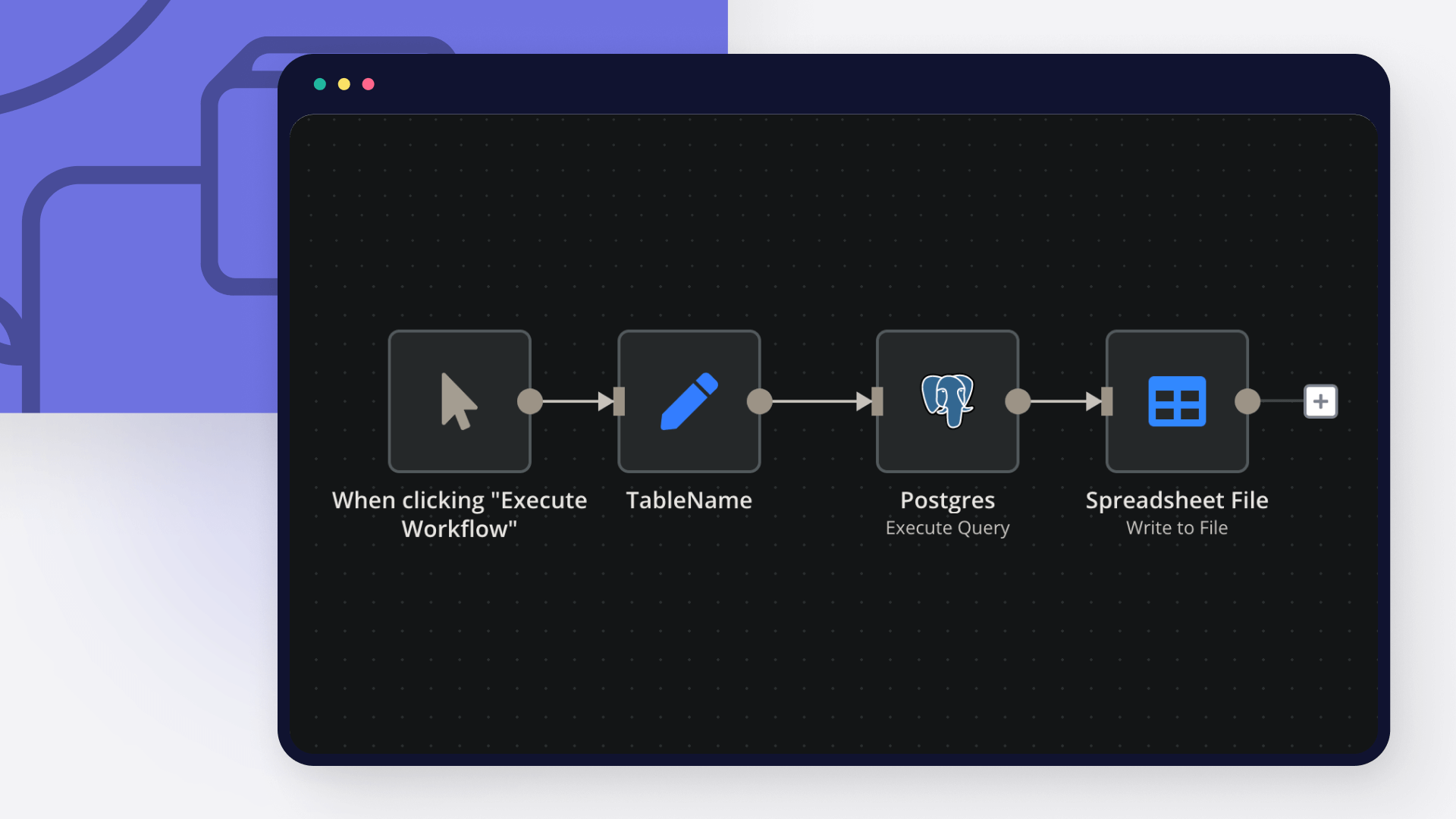
PostgreSQL (Store Insights to Database): Select your PostgreSQL credential. Set Operation to Execute Query. Write an INSERT ... ON CONFLICT DO UPDATE SQL query to store the AI insights into your competitor_profiles or market_trends table, mapping values from the parsed AI output.
OpenAI (Generate Personalized Sales Talking Points - Optional Branch): This node can be part of the main workflow or a separate, manually triggered workflow. Configure it similarly to the main AI node, but with a prompt tailored to generate sales talking points based on a specific sales context and the stored insights.

Final Testing & Activation:
Run a Test: Before going live, manually trigger the workflow from the first node. Carefully review the data at each stage to ensure correct processing and output. Verify that reports are generated, notifications are sent, and data is stored correctly.
Activate Workflow: Once testing is complete and successful, activate the workflow in n8n.

This system will empower your IT company's sales team with invaluable, data-driven intelligence, enabling them to close more deals and stay ahead in the market.

Nodes used in this workflow

Popular Google Docs and Postgres workflows

AI-Driven Competitor & Market Intelligence with GPT 4 & Apify

Automated AI-Driven Competitor & Market Intelligence System Problem Solved:** Small and Medium-sized IT companies often struggle to stay ahead in a rapidly evolving market. Manually tracking competitor moves, pricing changes, product updates, and emerging market trends is time-consuming, inconsistent, and often too slow for agile sales strategies. This leads to missed sales opportunities, ineffective pitches, and a reactive rather than proactive market approach. Solution Overview:** This n8n workflow automates the continuous collection and AI-powered analysis of competitor data and market trends. By leveraging web scraping, RSS feeds, and advanced AI models, it transforms raw data into actionable insights for your sales and marketing teams. The system generates structured reports, notifies relevant stakeholders, and stores intelligence in your database, empowering your team with real-time, strategic information. For Whom:** This high-value workflow is perfect for: IT Solution Providers & SaaS Companies: To maintain a competitive edge and tailor sales pitches based on competitor weaknesses and market opportunities. Sales & Marketing Leaders: To gain comprehensive, automated market intelligence without extensive manual research. Product Development Teams: To identify market gaps and validate new feature development based on competitive landscapes and customer sentiment. Business Strategists: To inform strategic planning with data-driven insights into industry trends and competitive threats. How It Works (Scope of the Workflow) ⚙️ This system establishes a powerful, automated pipeline for market and competitor intelligence: Scheduled Data Collection: The workflow runs automatically at predefined intervals (e.g., weekly), initiating data retrieval from various online sources. Diverse Information Gathering: It pulls data from competitor websites (pricing, features, blogs via web scraping services), industry news and blogs (via RSS feeds), and potentially other sources. Intelligent Data Preparation: Collected data is aggregated, cleaned, and pre-processed using custom code to ensure it's in an optimal format for AI analysis, removing noise and extracting relevant text. AI-Powered Analysis: An advanced AI model (like OpenAI's GPT-4o) performs in-depth analysis on the cleaned data. It identifies competitor strengths, weaknesses, new offerings, pricing changes, customer sentiment from reviews, emerging market trends, and suggests specific opportunities and threats for your company. Automated Report Generation: The AI's structured insights are automatically populated into a professional Google Docs report using a predefined template, making the intelligence easily digestible for your team. Team Notification: Stakeholders (sales leads, marketing managers) receive automated notifications via Slack (or email), alerting them to the new report and key insights. Strategic Data Storage & Utilization: All analyzed insights are stored in a central database (e.g., PostgreSQL). This builds a historical record for long-term trend analysis and can optionally trigger sub-workflows to generate personalized sales talking points directly relevant to ongoing deals or specific prospects. Setup Steps 🛠️ (Building the Workflow) To implement this sophisticated workflow in your n8n instance, follow these detailed steps: Prepare Your Digital Assets & Accounts: Google Sheet (Optional, if using for CRM data): For simpler CRM, create a sheet with CompetitorName, LastAnalyzedDate, Strengths, Weaknesses, Opportunities, Threats, SalesTalkingPoints. API Keys & Credentials: OpenAI API Key: Essential for the AI analysis. Web Scraping Service API Key: For services like Apify, Crawlbase, or similar (e.g., Bright Data, ScraperAPI). Database Access: Credentials for your PostgreSQL/MySQL database. Ensure you've created necessary tables (competitor_profiles, market_trends) with appropriate columns. Google Docs Credential: To link n8n to your Google Drive for report generation. Create a template Google Doc with placeholders (e.g., {{competitorName}}, {{strengths}}). Slack Credential: For sending team notifications to specific channels. CRM API Key (Optional): If directly integrating with HubSpot, Salesforce, or custom CRM via API. Identify Data Sources for Intelligence: Compile a list of competitor website URLs you want to monitor (e.g., pricing pages, blog sections, news). Identify relevant online review platforms (e.g., G2, Capterra) for competitor products. Gather RSS Feed URLs from key industry news sources, tech blogs, and competitor's own blogs. Define keywords for general market trends or competitor mentions, if using tools that provide RSS feeds (like Google Alerts). Build the n8n Workflow (10 Key Nodes): Start a new workflow in n8n and add the following nodes, configuring their parameters and connections carefully: Cron (Scheduled Analysis Trigger): Set this to trigger daily or weekly at a specific time (e.g., Every Week, At Hour: 0, At Minute: 0). HTTP Request (Fetch Competitor Web Data): Configure this to call your chosen web scraping service's API. Set Method to POST, URL to the service's API endpoint, and build the JSON/Raw Body with the startUrls (competitor websites, review sites) for scraping, including your API Key in Authentication (e.g., Header Auth). RSS Feed (Fetch News & Blog RSS): Add the URLs of competitor blogs and industry news RSS feeds. Merge (Combine Data Sources): Connect inputs from both Fetch Competitor Web Data and Fetch News & Blog RSS. Use Merge By Position. Code (Pre-process Data for AI): Write JavaScript code to iterate through merged items, extract relevant text content, perform basic cleaning (e.g., HTML stripping), and limit text length for AI input. Output should be an array of objects with content, title, url, and source. OpenAI (AI Analysis & Competitor Insights): Select your OpenAI credential. Set Resource to Chat Completion and Model to gpt-4o. In Messages, create a System message defining AI's role and a User message containing the dynamic prompt (referencing {{ $json.map(item => ... ).join('\\n\\n') }} for content, title, url, source) and requesting a structured JSON output for analysis. Set Output to Raw Data. Google Docs (Generate Market Intelligence Report): Select your Google Docs credential. Set Operation to Create document from template. Provide your Template Document ID and map the Values from the parsed AI output (using JSON.parse($json.choices[0].message.content).PropertyName) to your template placeholders. Slack (Sales & Marketing Team Notification): Select your Slack credential. Set Chat ID to your team's Slack channel ID. Compose the Text message, referencing the report link ({{ $json.documentUrl }}) and key AI insights (e.g., {{ JSON.parse($json.choices[0].message.content).Competitor_Name }}). PostgreSQL (Store Insights to Database): Select your PostgreSQL credential. Set Operation to Execute Query. Write an INSERT ... ON CONFLICT DO UPDATE SQL query to store the AI insights into your competitor_profiles or market_trends table, mapping values from the parsed AI output. OpenAI (Generate Personalized Sales Talking Points - Optional Branch): This node can be part of the main workflow or a separate, manually triggered workflow. Configure it similarly to the main AI node, but with a prompt tailored to generate sales talking points based on a specific sales context and the stored insights. Final Testing & Activation: Run a Test: Before going live, manually trigger the workflow from the first node. Carefully review the data at each stage to ensure correct processing and output. Verify that reports are generated, notifications are sent, and data is stored correctly. Activate Workflow: Once testing is complete and successful, activate the workflow in n8n. This system will empower your IT company's sales team with invaluable, data-driven intelligence, enabling them to close more deals and stay ahead in the market.

Build your own Google Docs and Postgres integration

Create custom Google Docs and Postgres workflows by choosing triggers and actions. Nodes come with global operations and settings, as well as app-specific parameters that can be configured. You can also use the HTTP Request node to query data from any app or service with a REST API.

Google Docs supported actions

Create
Get
Update

Postgres supported actions

Delete
Delete an entire table or rows in a table
Execute Query
Execute an SQL query
Insert
Insert rows in a table
Insert or Update
Insert or update rows in a table
Select
Select rows from a table
Update
Update rows in a table

FAQs

  • Can Google Docs connect with Postgres?

  • Can I use Google Docs’s API with n8n?

  • Can I use Postgres’s API with n8n?

  • Is n8n secure for integrating Google Docs and Postgres?

  • How to get started with Google Docs and Postgres integration in n8n.io?

Need help setting up your Google Docs and Postgres integration?

Discover our latest community's recommendations and join the discussions about Google Docs and Postgres integration.
Mikhail Savenkov
Honza Pav
Vyacheslav Karbovnichy
Dennis
Dennis

Looking to integrate Google Docs and Postgres in your company?

Over 3000 companies switch to n8n every single week

Why use n8n to integrate Google Docs with Postgres

Build complex workflows, really fast

Build complex workflows, really fast

Handle branching, merging and iteration easily.
Pause your workflow to wait for external events.

Code when you need it, UI when you don't

Simple debugging

Your data is displayed alongside your settings, making edge cases easy to track down.

Use templates to get started fast

Use 1000+ workflow templates available from our core team and our community.

Reuse your work

Copy and paste, easily import and export workflows.

Implement complex processes faster with n8n

red iconyellow iconred iconyellow icon