Back to Integrations
integrationGoogle Drive node
integrationTwilio node

Google Drive and Twilio integration

Save yourself the work of writing custom integrations for Google Drive and Twilio and use n8n instead. Build adaptable and scalable Data & Storage, Communication, and Development workflows that work with your technology stack. All within a building experience you will love.

How to connect Google Drive and Twilio

  • Step 1: Create a new workflow
  • Step 2: Add and configure nodes
  • Step 3: Connect
  • Step 4: Customize and extend your integration
  • Step 5: Test and activate your workflow

Step 1: Create a new workflow and add the first step

In n8n, click the "Add workflow" button in the Workflows tab to create a new workflow. Add the starting point – a trigger on when your workflow should run: an app event, a schedule, a webhook call, another workflow, an AI chat, or a manual trigger. Sometimes, the HTTP Request node might already serve as your starting point.

Google Drive and Twilio integration: Create a new workflow and add the first step

Step 2: Add and configure Google Drive and Twilio nodes

You can find Google Drive and Twilio in the nodes panel. Drag them onto your workflow canvas, selecting their actions. Click each node, choose a credential, and authenticate to grant n8n access. Configure Google Drive and Twilio nodes one by one: input data on the left, parameters in the middle, and output data on the right.

Google Drive and Twilio integration: Add and configure Google Drive and Twilio nodes

Step 3: Connect Google Drive and Twilio

A connection establishes a link between Google Drive and Twilio (or vice versa) to route data through the workflow. Data flows from the output of one node to the input of another. You can have single or multiple connections for each node.

Google Drive and Twilio integration: Connect Google Drive and Twilio

Step 4: Customize and extend your Google Drive and Twilio integration

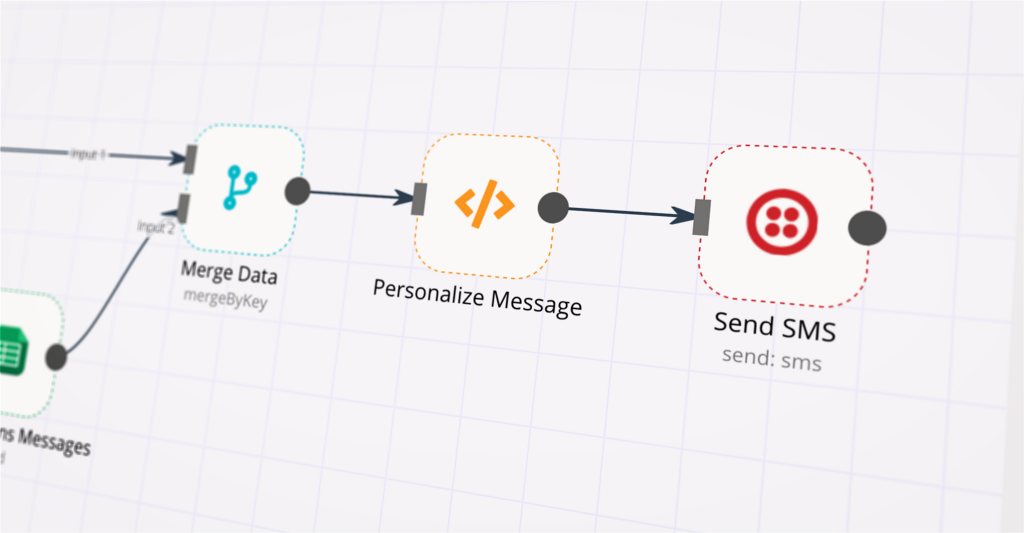
Use n8n's core nodes such as If, Split Out, Merge, and others to transform and manipulate data. Write custom JavaScript or Python in the Code node and run it as a step in your workflow. Connect Google Drive and Twilio with any of n8n’s 1000+ integrations, and incorporate advanced AI logic into your workflows.

Google Drive and Twilio integration: Customize and extend your Google Drive and Twilio integration

Step 5: Test and activate your Google Drive and Twilio workflow

Save and run the workflow to see if everything works as expected. Based on your configuration, data should flow from Google Drive to Twilio or vice versa. Easily debug your workflow: you can check past executions to isolate and fix the mistake. Once you've tested everything, make sure to save your workflow and activate it.

Google Drive and Twilio integration: Test and activate your Google Drive and Twilio workflow

Generate HIPAA-safe patient-friendly EMR summaries with GPT-4, PDF tools and Google Drive

Medical Sovereign: Atomic Patient Portal Generator & HIPAA Triage Hub

🎯 Description
This is an elite-tier HealthTech solution designed for the secure processing of high-volume medical records. Monolithic EMR exports (often 200+ pages) are atomized into individual pages, allowing for granular, clinical-grade redaction and AI-driven summarization before being re-assembled into a secure patient portal summary.

✨ The Sovereign Lifecycle
Phase 1: Intake & Atomic Splitting - Ingests monolithic EMR PDFs and utilizes the Split PDF node to explode the chart into isolated "Atomic Pages." This prevents "PII leakage"—a common failure in batch processing where data from one section accidentally remains visible in another.
Phase 2: Clinical Classification & Triage - A sophisticated Code Node analyzes the text DNA of each page to identify its type: Labs, Prescriptions, Imaging, or Clinical Notes.
Phase 3: HIPAA-Compliant Redaction - Applies a heavy-duty regex engine across the atomized stream to scrub sensitive PII, including SSNs, technician names, and provider-to-provider notes that should not be in a patient-facing portal.
Phase 4: AI Intelligence & Anomaly Detection - An AI Agent (GPT-4) translates complex medical terminology into patient-friendly language. Simultaneously, an Anomaly Detector flags critical lab values (e.g., critical glucose levels) for immediate provider intervention.
Phase 5: Secure Re-Assembly & Archival - Sanitized pages are re-assembled using the Merge PDF node. The final document is vaulted in Google Drive, while a forensic audit trail (including SHA-256 hashes of every action) is logged to PostgreSQL.
Phase 6: Multi-Channel Alerts - High-severity findings trigger urgent Email Alerts to providers, while patients receive a secure Twilio SMS notification once their record is ready for viewing.

💡 Key Technical Features
Fail-Safe Validation:* A compliance validator ensures that every page has undergone PII scrubbing before the final merge. Any failure triggers a Stop & Error* to prevent data breaches.
Perceptual Integrity:** Every redaction and clinical finding is assigned a severity score to prioritize provider review.
Forensic Auditing:** Every processed record creates an immutable paper trail for HIPAA/GDPR oversight.

🚀 Benefits
✅ 99.9% Redaction Precision - Page-level atomization ensures maximum data security.
✅ Enhanced Patient Engagement - Translates overwhelming clinical data into clear, actionable summaries.
✅ Regulatory Readiness - Built-in audit logs satisfy strict "Right to Access" and data privacy laws.

Tags: #healthtech #hipaa #medical-records #pdf-split #automation #ai #compliance

Category: Healthcare & Security | Difficulty: Advanced

Nodes used in this workflow

Popular Google Drive and Twilio workflows

+3

Generate HIPAA-safe patient-friendly EMR summaries with GPT-4, PDF tools and Google Drive

Medical Sovereign: Atomic Patient Portal Generator & HIPAA Triage Hub 🎯 Description This is an elite-tier HealthTech solution designed for the secure processing of high-volume medical records. Monolithic EMR exports (often 200+ pages) are atomized into individual pages, allowing for granular, clinical-grade redaction and AI-driven summarization before being re-assembled into a secure patient portal summary. ✨ The Sovereign Lifecycle Phase 1: Intake & Atomic Splitting - Ingests monolithic EMR PDFs and utilizes the Split PDF node to explode the chart into isolated "Atomic Pages." This prevents "PII leakage"—a common failure in batch processing where data from one section accidentally remains visible in another. Phase 2: Clinical Classification & Triage - A sophisticated Code Node analyzes the text DNA of each page to identify its type: Labs, Prescriptions, Imaging, or Clinical Notes. Phase 3: HIPAA-Compliant Redaction - Applies a heavy-duty regex engine across the atomized stream to scrub sensitive PII, including SSNs, technician names, and provider-to-provider notes that should not be in a patient-facing portal. Phase 4: AI Intelligence & Anomaly Detection - An AI Agent (GPT-4) translates complex medical terminology into patient-friendly language. Simultaneously, an Anomaly Detector flags critical lab values (e.g., critical glucose levels) for immediate provider intervention. Phase 5: Secure Re-Assembly & Archival - Sanitized pages are re-assembled using the Merge PDF node. The final document is vaulted in Google Drive, while a forensic audit trail (including SHA-256 hashes of every action) is logged to PostgreSQL. Phase 6: Multi-Channel Alerts - High-severity findings trigger urgent Email Alerts to providers, while patients receive a secure Twilio SMS notification once their record is ready for viewing. 💡 Key Technical Features Fail-Safe Validation:* A compliance validator ensures that every page has undergone PII scrubbing before the final merge. Any failure triggers a Stop & Error* to prevent data breaches. Perceptual Integrity:** Every redaction and clinical finding is assigned a severity score to prioritize provider review. Forensic Auditing:** Every processed record creates an immutable paper trail for HIPAA/GDPR oversight. 🚀 Benefits ✅ 99.9% Redaction Precision - Page-level atomization ensures maximum data security. ✅ Enhanced Patient Engagement - Translates overwhelming clinical data into clear, actionable summaries. ✅ Regulatory Readiness - Built-in audit logs satisfy strict "Right to Access" and data privacy laws. Tags: #healthtech #hipaa #medical-records #pdf-split #automation #ai #compliance Category: Healthcare & Security | Difficulty: Advanced
+8

AI WhatsApp Support with Human Handoff using Gemini, Twilio, and Supabase RAG

Quick Overview What it is: An n8n workflow that enables AI-first WhatsApp support with seamless human handoff. Why it’s unique: The AI agent answers queries using RAG (Supabase vector store + Gemini). If a human intervenes, the AI steps down. If there’s no human reply within 2 hours, the AI resumes. Channel constraints: Respects WhatsApp’s 24-hour customer care window and requires approved message templates for out-of-window messages. How It Works AI-first: Incoming WhatsApp messages are routed to an AI agent (Gemini) with knowledge grounded by a Supabase vector store. Human-in-the-loop: When a human responds in the dashboard, AI pauses for 2 hours for that conversation. Auto-resume: If no human reply within 2 hours, AI automatically resumes. Compliance: Only responds within 24 hours of the user’s last message, or via approved templates when outside this window. Architecture (At a Glance) Transport: Twilio WhatsApp; n8n http node. RAG: Supabase (Postgres + embeddings) stores knowledgebase. LLM: Google Gemini (free API key supported). Handoff: Human dashboard (GitHub project) logs and labels AI vs Human responses, and controls AI pause/resume. Prerequisites n8n (self-hosted or cloud) with public webhook access. Twilio account with a WhatsApp-enabled number. Supabase project for vector store. Google Gemini API key. Human dashboard: https://github.com/shadrack-ago/whatsapp-dashboard.git Setup Steps (n8n + Integrations) Import workflow in n8n Create new workflow → Import from JSON → Paste the provided JSON. Enable the workflow. Create credentials Twilio: Add TWILIO_ACCOUNT_SID, TWILIO_AUTH_TOKEN, TWILIO_PHONE_NUMBER. Do NOT paste real secrets publicly. Gemini: Add GEMINI_API_KEY. Supabase: Add SUPABASE_URL, SUPABASE_ANON_KEY (or service role where needed), and your table/bucket names. Connect Twilio WhatsApp WhatsApp Business setup in Twilio, or Sandbox for testing. Point Twilio incoming webhook to your n8n webhook URL. Ensure approved templates for any out-of-window messaging. Set environment variables (examples) TWILIO_ACCOUNT_SID=... TWILIO_AUTH_TOKEN=... TWILIO_PHONE_NUMBER=+1... GEMINI_API_KEY=... SUPABASE_URL=... SUPABASE_ANON_KEY=... SUPABASE_TABLE=knowledge_base EMBEDDING_MODEL HUMAN_TIMEOUT_MS=7200000 (2 hours) Human-in-the-loop dashboard Follow the repo guide: https://github.com/shadrack-ago/whatsapp-dashboard.git Run the dashboard and connect it to the same conversation store used by the workflow. Verify that human responses are captured and labeled; confirm AI pause/resume logic. Supabase for RAG Create table(s) for documents and embeddings. Ingest content per this tutorial:Supabase Tutorial Confirm your n8n nodes query the vector store before calling Gemini. Gemini setup Get API key: Gemini API Set model (e.g., gemini-pro or latest available in your environment). Test Send a WhatsApp message to your Twilio number. Observe AI response. Trigger a human reply via the dashboard → confirm AI pauses for that thread. Wait 2 hours or adjust HUMAN_TIMEOUT_MS to test auto-resume. Customization Providers: You can swap Twilio for Meta’s WhatsApp Cloud API; keep the 24-hour and template rules. Tone/Policies: Adjust system prompts and fallback behaviors in the LLM node. RAG Quality: Tune chunking, TOP_K, and embedding model for better retrieval. Timeouts: Change HUMAN_TIMEOUT_MS to alter handoff duration. WhatsApp Policy Notes 24-hour window: Replies must occur within 24 hours of user’s last message; otherwise use an approved template. Templates: Create and get approval inside Twilio/Meta before sending out-of-window messages. Security & Reliability Secrets: Store all keys in n8n credentials or environment variables. Never commit secrets to repos. Logging: Use the dashboard to audit AI vs Human messages. Rate limits: Add retry/backoff nodes for Twilio and LLM calls. Troubleshooting No replies: Check Twilio webhook URL and n8n workflow is active. Policy blocks: Ensure template use outside 24-hour window. Poor answers: Improve RAG data, increase TOP_K, refine prompts. Handoff not pausing: Verify dashboard is writing the “human active” flag that the workflow reads. Links Human dashboard (Full guide): GitHub Repo Link
+4

Create AI Personalized Video & Voice Outreach with HeyGen, ElevenLabs & Perplexity

Automated Sales Rep Clone Outreach Video and Voice Note for B2B Outbound This workflow automatically transforms new leads from Google Sheets into hyper-personalized outreach videos, voice notes, and emails using AI research, scriptwriting, video cloning, and voice generation. Perfect for SDRs, founders, and agencies who want to scale outreach without sacrificing personalization. 🎥 Watch step by step build: https://www.youtube.com/watch?v=q9AAh9zRou4 What this template does Whenever a new row is added to your Google Sheets CRM, this workflow: Reads the new lead (Name, Email, Phone, Company, Industry, LinkedIn URL) Runs deep research on the person & company using Perplexity Generates a personalized 30-second outreach script Creates a cloned-face, AI-generated HeyGen video with the script Creates an ElevenLabs voice note using the same personalized insights Uploads the audio file to Google Drive Sends an email to yourself containing: Outreach subject line Email body Personalized video link Personalized voice note link (Optional) Sends a WhatsApp/SMS/MMS message via Twilio with the files or links This template builds a complete AI-powered outbound engine—research, video, voice note, and email—fully automated. Why this is useful Turns manual outbound into a hands-free, 360° AI workflow Personalized video outreach dramatically increases reply rates Consistent research quality for every lead SDRs save hours per day on manual prep Perfect for: Influencer agencies SaaS outbound teams Founders doing cold outreach Recruitment agencies Real estate & service businesses Requirements Before running this workflow, connect: Google Sheets OAuth (trigger + CRM sheet) Perplexity API Key OpenAI API Key (GPT-5.1, GPT-4.1-mini) OpenRouter API Key HeyGen API Key (for video avatar) ElevenLabs API Key (for voice note) Google Drive OAuth (for file upload) Twilio credentials (optional SMS/WhatsApp) ⚠️ All credentials must be added manually after importing. This ensures security and complies with n8n Template Guidelines. How it works (Node Breakdown) Google Sheets Trigger Watches your CRM sheet and fires whenever a new lead row is added. Code Node — Extract Latest Row Ensures only the newly added row continues through the workflow. Research Agent Powered by OpenAI + Perplexity Scrapes professional history, company insights, marketing gaps Identifies outreach opportunities & triggers Produces a structured research summary Scripting Agent Writes a natural, human-sounding 30-second outreach script tailored to that exact lead. HeyGen Video Generator Creates a personalized avatar video narrating the script (720×1280). ElevenLabs Voice Generation Generates a custom voice note version of the pitch. Google Drive Upload Saves the voice note file for sharing or sending via WhatsApp. Twilio Message (optional) Sends the voice note or video link via SMS/WhatsApp. Email Output Creates a fully structured JSON email including: Subject line Personalized body HeyGen video link Voice note link Delivered via Gmail node. Setup (Step-by-Step) Import the template into n8n Open Google Sheets Trigger → choose your CRM sheet Add all required credentials: Perplexity OpenAI OpenRouter HeyGen ElevenLabs Google Drive Gmail Twilio (optional) In HeyGen node, choose: Your avatar Your preferred voice ID In ElevenLabs node, set: Your preferred voice model Review the system prompts of: Research Agent Script Agent Email Agent Adjust for your brand tone if needed. Run once manually to test. Turn on the workflow—your AI outbound engine is live. Customization Ideas Swap HeyGen avatar to match your brand identity Add a Slack notification when each video is ready Save research & scripts into a Notion database Create a HubSpot contact for each lead Add duplicate detection logic Auto-post video to social channels for public outreach Troubleshooting Video stuck in “processing”? → Increase the Wait node duration (30–60 sec). Voice note too robotic? → Switch to a premium ElevenLabs voice. Research not specific enough? → Strengthen the system prompt with more constraints. Emails not arriving? → Ensure Gmail OAuth has send permission configured. API authentication errors? → Check credentials in each node (OpenAI, Perplexity, HeyGen, etc.).

Automate Loan Agency Lead Management with Twilio, Google Sheets & Drive

How to Set Up 🛠️ Setting up this powerful CRM system is a straightforward process that connects your lead sources, your database, and your communication channels. The core steps involve preparing your database, importing the workflow, and then customizing the nodes to match your business rules. Setup Steps: Prepare Your Database: Create a new Google Sheet (or Airtable Base) to serve as your central CRM database. Title the sheet Loan Agency CRM and create the following columns in the first row: Name, Phone Number, Loan Type, Assigned Agent, Status, Date Captured. This will be the single source of truth for all your leads. Import the Workflow: Copy the provided workflow JSON and import it into your n8n instance. This will create both the "Lead Intake" and "Status Update" workflows. Configure Integrations: Webhook: This node is the entry point. Simply copy the generated URL to use in your lead form integrations. Google Sheets: Add your Google Sheets credential. Replace [YOUR SPREADSHEET ID] with the ID from your newly created sheet. Twilio / WhatsApp: Add your communication credential. Replace [YOUR TWILIO NUMBER] with your number. Google Drive (for documents): Add your credential and specify a secure folder ID where documents will be stored. Customize Business Logic: Node (Auto-Assign Agent): Open this Function node and edit the JavaScript code. Change the agent names, loan types, and locations to match your specific team and business rules. Node (Twilio): If you have a list of agent phone numbers, you can use a lookup expression here to automatically send the notification to the right person. Connect Your Lead Sources: Go to your Facebook Lead Ads, Google Forms, or website forms. In the integration settings, paste the Webhook URL you copied from n8n. This will ensure that every new lead is automatically sent to your CRM system. Activate & Test: Once all settings are configured, save the workflow. Click the "Inactive" toggle to make it live. Run a test by submitting a dummy lead through one of your forms to ensure the data flows correctly into your Google Sheet and an agent is notified.

Build your own Google Drive and Twilio integration

Create custom Google Drive and Twilio workflows by choosing triggers and actions. Nodes come with global operations and settings, as well as app-specific parameters that can be configured. You can also use the HTTP Request node to query data from any app or service with a REST API.

Google Drive supported actions

Copy
Create a copy of an existing file
Create From Text
Create a file from a provided text
Delete
Permanently delete a file
Download
Download a file
Move
Move a file to another folder
Share
Add sharing permissions to a file
Update
Update a file
Upload
Upload an existing file to Google Drive
Search
Search or list files and folders
Create
Create a folder
Delete
Permanently delete a folder
Share
Add sharing permissions to a folder
Create
Create a shared drive
Delete
Permanently delete a shared drive
Get
Get a shared drive
Get Many
Get the list of shared drives
Update
Update a shared drive

Twilio supported actions

Make
Send
Send SMS/MMS/WhatsApp message

FAQs

  • Can Google Drive connect with Twilio?

  • Can I use Google Drive’s API with n8n?

  • Can I use Twilio’s API with n8n?

  • Is n8n secure for integrating Google Drive and Twilio?

  • How to get started with Google Drive and Twilio integration in n8n.io?

Need help setting up your Google Drive and Twilio integration?

Discover our latest community's recommendations and join the discussions about Google Drive and Twilio integration.
hubschrauber
Jon
David O'Neil

Looking to integrate Google Drive and Twilio in your company?

Over 3000 companies switch to n8n every single week

Why use n8n to integrate Google Drive with Twilio

Build complex workflows, really fast

Build complex workflows, really fast

Handle branching, merging and iteration easily.
Pause your workflow to wait for external events.

Code when you need it, UI when you don't

Simple debugging

Your data is displayed alongside your settings, making edge cases easy to track down.

Use templates to get started fast

Use 1000+ workflow templates available from our core team and our community.

Reuse your work

Copy and paste, easily import and export workflows.

Implement complex processes faster with n8n

red iconyellow iconred iconyellow icon