Back to Integrations
integrationHTTP Request node
integrationMattermost node

HTTP Request and Mattermost integration

Save yourself the work of writing custom integrations for HTTP Request and Mattermost and use n8n instead. Build adaptable and scalable Development, Core Nodes, and Communication workflows that work with your technology stack. All within a building experience you will love.

How to connect HTTP Request and Mattermost

  • Step 1: Create a new workflow
  • Step 2: Add and configure nodes
  • Step 3: Connect
  • Step 4: Customize and extend your integration
  • Step 5: Test and activate your workflow

Step 1: Create a new workflow and add the first step

In n8n, click the "Add workflow" button in the Workflows tab to create a new workflow. Add the starting point – a trigger on when your workflow should run: an app event, a schedule, a webhook call, another workflow, an AI chat, or a manual trigger. Sometimes, the HTTP Request node might already serve as your starting point.

HTTP Request and Mattermost integration: Create a new workflow and add the first step

Step 2: Add and configure HTTP Request and Mattermost nodes

You can find HTTP Request and Mattermost in the nodes panel. Drag them onto your workflow canvas, selecting their actions. Click each node, choose a credential, and authenticate to grant n8n access. Configure HTTP Request and Mattermost nodes one by one: input data on the left, parameters in the middle, and output data on the right.

HTTP Request and Mattermost integration: Add and configure HTTP Request and Mattermost nodes

Step 3: Connect HTTP Request and Mattermost

A connection establishes a link between HTTP Request and Mattermost (or vice versa) to route data through the workflow. Data flows from the output of one node to the input of another. You can have single or multiple connections for each node.

HTTP Request and Mattermost integration: Connect HTTP Request and Mattermost

Step 4: Customize and extend your HTTP Request and Mattermost integration

Use n8n's core nodes such as If, Split Out, Merge, and others to transform and manipulate data. Write custom JavaScript or Python in the Code node and run it as a step in your workflow. Connect HTTP Request and Mattermost with any of n8n’s 1000+ integrations, and incorporate advanced AI logic into your workflows.

HTTP Request and Mattermost integration: Customize and extend your HTTP Request and Mattermost integration

Step 5: Test and activate your HTTP Request and Mattermost workflow

Save and run the workflow to see if everything works as expected. Based on your configuration, data should flow from HTTP Request to Mattermost or vice versa. Easily debug your workflow: you can check past executions to isolate and fix the mistake. Once you've tested everything, make sure to save your workflow and activate it.

HTTP Request and Mattermost integration: Test and activate your HTTP Request and Mattermost workflow

Standup bot (4/4): worker

This is the fourth workflow for the Mattermost Standup Bot. This workflow sends the team a message every morning to ask them three standup questions.

What have you accomplished since your last report?
What do you want to accomplish until your next report?
Is anything blocking your progress?

Once answered, the answers are sent to a Mattermost channel.

The "Read Config" nodes will need to be updated to point to the ID of the "Standup Bot - Read Config" workflow and the "Override Config" node will need to point to "Standup Bot - Override Config"

Nodes used in this workflow

Popular HTTP Request and Mattermost workflows

+3

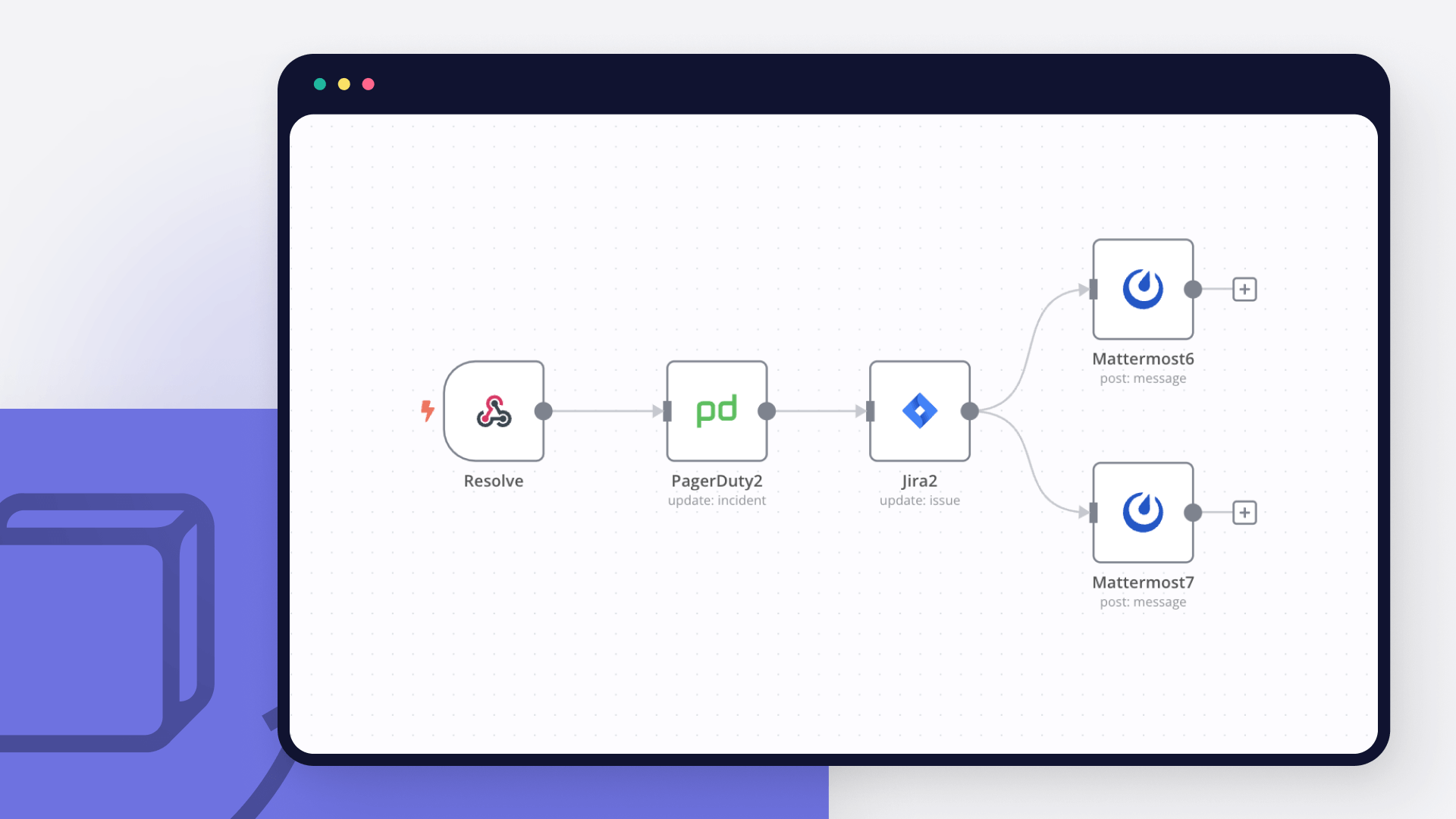
Analyze Alertmanager incidents and post diagnostic reports to Mattermost

Overview This workflow helps automatically analyze alerts occurring in the infrastructure and suggest solutions even before the on-duty engineer sees the alert. How it work Workflow receives alert from Alertmanager via Webhook. The variables required for operation are set Preparing a prompt for the agent containing only the data necessary for analysis The agent performs diagnostics as described in the system prompt. During operation, it can access various systems via MCP to obtain additional information. Search for a message in a Slack channel corresponding to a processed alert Send report to Slack thread. How to use Generate webhook credentials and use it in Alertmanager Add Alert fingerprint into Slack message template Set variables it SetVars node Add your own Rules and recomendations to system promt 5 Run mcp servers Choose Slack channel with alerts

Send daily CRM summary reports to Mattermost from HubSpot

Daily Report Generator with Mattermost and HubSpot This workflow automatically compiles key metrics from HubSpot (and optional internal data sources) into a concise daily summary and posts it to a designated Mattermost channel. It helps sales and marketing teams stay informed without manually pulling reports or navigating multiple dashboards. Pre-conditions/Requirements Prerequisites An n8n instance (self-hosted or n8n Cloud) HubSpot account with a Private App token Mattermost workspace with an incoming webhook enabled (Optional) Internal REST API or database endpoint for additional data Required Credentials HubSpot Private App Token** – Grants API access to Deals, Contacts, Activities, etc. Mattermost Personal Access Token** (or Incoming Webhook URL) – Permits message posting to channels n8n User Management** – Ensure the workflow has network access to HubSpot and Mattermost Specific Setup Requirements | Component | Requirement | Example/Notes | |-------------|---------------------------------------------------------|-------------------------------------------------------| | Mattermost | Create an Incoming Webhook or generate a PAT | System Console → Integrations | | HubSpot | Create a Private App → Scopes: crm.objects.deals.read | Settings → Integrations → Private Apps | | Scheduler | External cron job or n8n’s internal trigger* | curl https://n8n.yourdomain.com/webhook/daily_report | *The provided template uses a Webhook node so you can trigger it via any scheduler (e.g., crontab, Zapier, GitHub Actions). Replace with the Cron node if preferred. How it works This workflow automatically compiles key metrics from HubSpot (and optional internal data sources) into a concise daily summary and posts it to a designated Mattermost channel. It helps sales and marketing teams stay informed without manually pulling reports or navigating multiple dashboards. Key Steps: Webhook Trigger**: Waits for a daily call from an external scheduler. HubSpot Node**: Retrieves deal statistics, new contacts, and other CRM metrics. HTTP Request Node**: (Optional) Pulls supplementary data from an internal API. Merge Node**: Consolidates HubSpot and optional data sources. Code / Set Nodes**: Formats numbers, calculates KPIs, and builds a markdown message. If Node**: Guards against empty datasets or API failures. Mattermost Node**: Posts the formatted report to the chosen channel. Respond to Webhook**: Returns a JSON confirmation to the scheduler. Set up steps Setup Time: 15-20 minutes Import Template: In n8n, go to “Workflows → Import from File” and select the JSON template. Add Credentials: a. HubSpot → New credential → Paste Private App token b. Mattermost → New credential → Paste PAT or Webhook URL Configure Webhook URL: Copy the production URL of the Webhook node and add it to your external scheduler (e.g., crontab, Zapier). Adjust Query Parameters (HubSpot node): Modify filters (e.g., deal stage, create date) as needed. Edit Message Template (Code node): Update markdown formatting, include/exclude sections. Test Run: Manually execute the workflow. Verify the JSON response and Mattermost post. Activate: Toggle workflow to “Active”. Confirm your scheduler triggers it at the desired time. Node Descriptions Core Workflow Nodes: stickyNote** – Contains inline documentation and instructions. Webhook** – Primary trigger, receives the daily HTTP call. HubSpot** – Pulls deals, contacts, and engagement data. HTTP Request** – Fetches optional internal statistics (e.g., support tickets). Merge** – Combines HubSpot and HTTP results into one object. Set** – Selects and renames fields for clarity. Code** – Calculates KPIs (e.g., conversion rate) and assembles a markdown summary. If** – Checks for empty data arrays or API errors. Mattermost** – Sends the final message to a channel. Respond to Webhook** – Returns a success/failure payload to the caller. Data Flow: Webhook → HubSpot Webhook → HTTP Request HubSpot + HTTP Request → Merge → Set → Code → If → Mattermost → Respond to Webhook Customization Examples Change Report Time Range // HubSpot Node → Additional Fields { "filterGroups": [{ "filters": [{ "propertyName": "createdate", "operator": "BETWEEN", "highValue": Date.now(), "value": Date.now() - 24 * 60 * 60 * 1000 // last 24h }] }] } Format Mattermost Message with Emojis // Code Node (return statement) return [{ json: { text: :bar_chart: Daily CRM Report\n\n• New Deals: ${newDeals}\n• New Contacts: ${newContacts}\n• Win Rate: ${winRate}% } }]; Data Output Format The workflow outputs structured JSON data: { "status": "success", "date": "2024-05-23", "hubspot": { "new_deals": 12, "new_contacts": 34, "win_rate": 27.1 }, "internal": { "tickets_opened": 8, "tickets_closed": 6 }, "mattermostPostId": "abc123xyz" } Troubleshooting Common Issues 401 Unauthorized (HubSpot) – Verify Private App token and scopes. Regenerate if necessary. Message Not Posting – Ensure the Mattermost token has post:write or the webhook URL is valid. Performance Tips Cache HubSpot responses during testing to avoid hitting API limits. Reduce payload size by selecting only the fields you need in the Set node. Pro Tips: Replace the Webhook node with the Cron node for an all-in-n8n schedule. Use environment variables for tokens ({{$env.HUBSPOT_TOKEN}}) to avoid hard-coding secrets. Add a second Mattermost node to DM managers for critical alerts (e.g., low win rate). This is a community workflow template provided “as-is.” It is not officially supported by n8n GmbH. Always review and test in a development environment before deploying to production.

Score and route leads with Clearbit, Mattermost and Trello

Lead Scoring Pipeline with Mattermost and Trello This workflow automatically enriches incoming form-based leads, calculates a lead-score from multiple data points, and then routes high-value prospects to a Mattermost alert channel while adding all leads to Trello for further handling. It centralizes lead intelligence and streamlines sales team triage—no manual spreadsheet work required. Pre-conditions/Requirements Prerequisites n8n instance (self-hosted or n8n cloud) ScrapeGraphAI community node installed Active Trello and Mattermost workspaces Lead-capture form or webhook that delivers JSON payloads Required Credentials Trello API Key & Token** – Access to the board/list where cards will be created Mattermost Access Token** – Permission to post messages in the target channel (Optional) Clearbit / Apollo / 3rd-party enrichment keys** – If you replace the sample enrichment HTTP requests Specific Setup Requirements | Variable | Purpose | Example Value | |-------------------------|-------------------------------------------|------------------------| | MM_CHANNEL_ID | Mattermost channel to post high-score leads | leads-alerts | | TRELLO_BOARD_ID | Board where new cards are added | 62f1d… | | TRELLO_LIST_ID_HOT | Trello list for hot leads | Hot Deals | | TRELLO_LIST_ID_BACKLOG| Trello list for all other leads | New Leads | | LEAD_SCORE_THRESHOLD | Score above which a lead is considered hot| 70 | How it works This workflow grabs new leads at a defined interval, enriches each lead with external data, computes a custom score, and routes the lead: high-scorers trigger a Mattermost alert and are placed in a “Hot Deals” list, while the rest are stored in a “Backlog” list on Trello. All actions are fully automated and run unattended once configured. Key Steps: Schedule Trigger**: Runs every 15 minutes to poll for new form submissions. HTTP Request – Fetch Leads**: Retrieves the latest unprocessed leads from your form backend or CRM API. Split In Batches**: Processes leads 20 at a time to respect API rate limits. HTTP Request – Enrich Lead**: Calls external enrichment (e.g., Clearbit) to append company and person data. Code – Calculate Score**: JavaScript that applies weightings to enriched attributes and outputs a numeric score. IF – Score Threshold**: Branches flow based on LEAD_SCORE_THRESHOLD. Mattermost Node**: Sends a rich-text message with lead details for high-score prospects. Trello Node (Hot List)**: Creates a Trello card in the “Hot Deals” list for high-value leads. Trello Node (Backlog)**: Creates a Trello card in the “New Leads” list for everyone else. Merge & Flag Processed**: Marks leads as processed to avoid re-processing in future runs. Set up steps Setup Time: 10–15 minutes Import the Workflow: Download the JSON template and import it into n8n. Create / Select Credentials: Add your Trello API key & token under Trello API credentials. Add your Mattermost personal access token under Mattermost API credentials. Configure Environment Variables: Set MM_CHANNEL_ID, TRELLO_BOARD_ID, TRELLO_LIST_ID_HOT, TRELLO_LIST_ID_BACKLOG, and LEAD_SCORE_THRESHOLD in n8n → Settings → Environment. Form Backend Endpoint: Update the first HTTP Request node with the correct URL and authentication for your form or CRM. (Optional) Enrichment Provider: Replace the sample enrichment HTTP Request with your chosen provider’s endpoint and credentials. Test Run: Execute the workflow manually with a sample payload to ensure Trello cards and Mattermost messages are produced. Activate: Enable the workflow; it will now run on the defined schedule. Node Descriptions Core Workflow Nodes: Schedule Trigger** – Triggers workflow every 15 minutes. HTTP Request (Fetch Leads)** – Pulls unprocessed leads. SplitInBatches** – Limits processing to 20 leads per batch. HTTP Request (Enrich Lead)** – Adds firmographic & technographic data. Code (Calculate Score)** – JavaScript scoring algorithm; outputs score field. IF (Score ≥ Threshold)** – Determines routing path. Mattermost** – Sends formatted message with lead summary & score. Trello (Create Card)** – Adds lead as a card to the appropriate list. Merge (Flag Processed)** – Updates source system to mark lead as processed. Data Flow: Schedule Trigger → HTTP Request (Fetch Leads) → SplitInBatches → HTTP Request (Enrich Lead) → Code (Calculate Score) → IF IF (Yes) → Mattermost → Trello (Hot List) IF (No) → Trello (Backlog) Both branches → Merge (Flag Processed) Customization Examples Adjust Scoring Weights // Code node: adjust weights to change scoring logic const weights = { industry: 15, companySize: 25, jobTitle: 20, intentSignals: 40 }; Dynamic Trello List Mapping // Use a Lookup table instead of IF node const mapping = { hot: 'TRELLO_LIST_ID_HOT', cold: 'TRELLO_LIST_ID_BACKLOG' }; items[0].json.listId = mapping[items[0].json.segment]; return items; Data Output Format The workflow outputs structured JSON data: { "leadId": "12345", "email": "[email protected]", "score": 82, "priority": "hot", "trelloCardUrl": "https://trello.com/c/abc123", "mattermostPostId": "78yzk9n8ppgkkp" } Troubleshooting Common Issues Trello authentication fails – Ensure the token has write access and that the API key & token pair belong to the same Trello account. Mattermost message not sent – Confirm the token can post in the target channel and that MM_CHANNEL_ID is correct. Performance Tips Batch leads in groups of 20–50 to avoid enrichment API rate-limit errors. Cache enrichment responses for repeat domains to reduce API calls. Pro Tips: Add a second IF node to send ultra-high (>90) scores directly to an account executive via email. Store raw enrichment responses in a database for future analytics. Use n8n’s built-in Execution Data Save to debug edge-cases without rerunning external API calls.

Standup bot (4/4): Worker

This is the fourth workflow for the Mattermost Standup Bot. This workflow sends the team a message every morning to ask them three standup questions. What have you accomplished since your last report? What do you want to accomplish until your next report? Is anything blocking your progress? Once answered, the answers are sent to a Mattermost channel. The "Read Config" nodes will need to be updated to point to the ID of the "Standup Bot - Read Config" workflow and the "Override Config" node will need to point to "Standup Bot - Override Config"

Webhooks with Mattermost

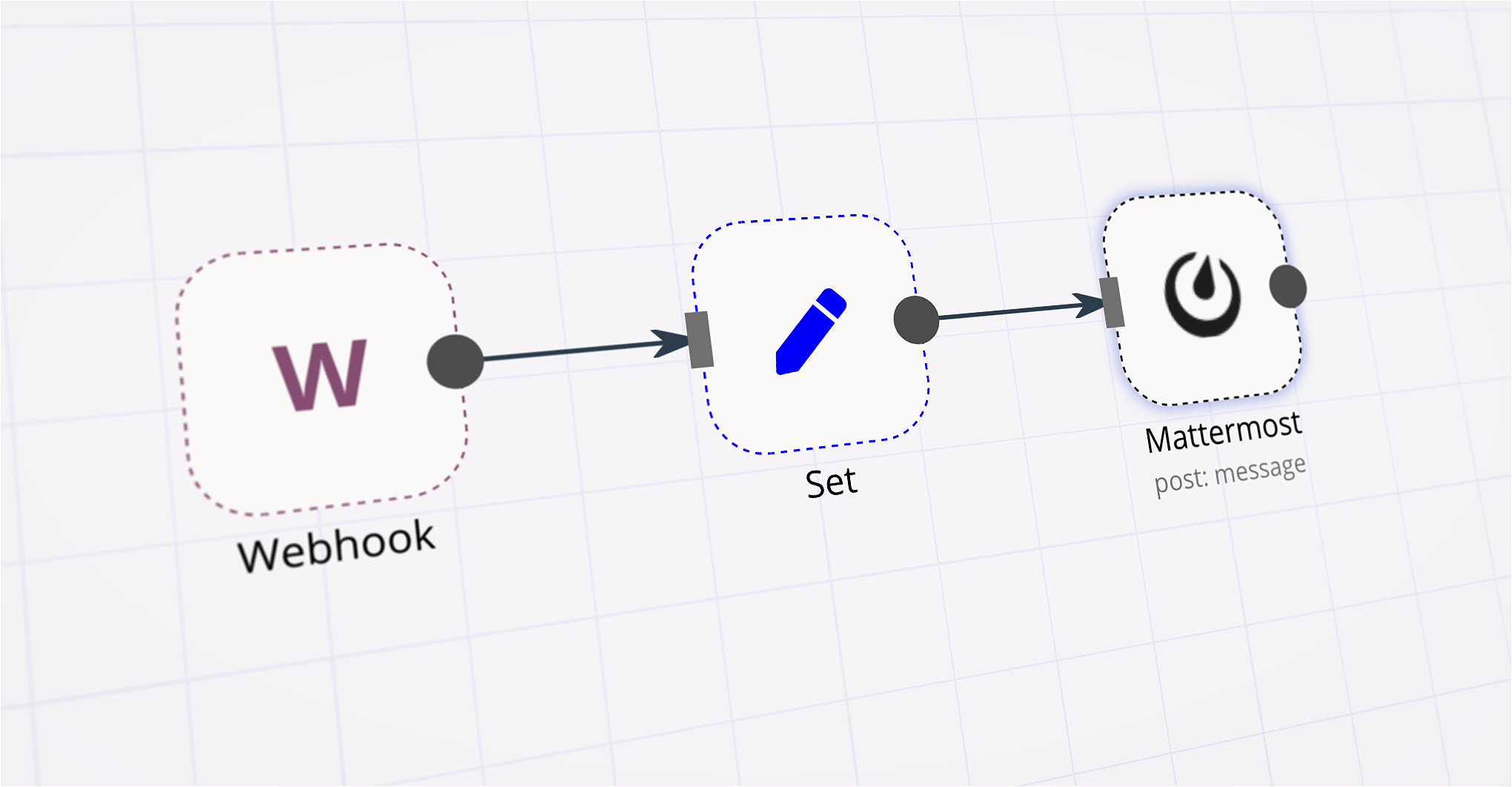
Does pretty much what this workflow does but is triggered by a slash command using a Webhook node.

Build your own HTTP Request and Mattermost integration

Create custom HTTP Request and Mattermost workflows by choosing triggers and actions. Nodes come with global operations and settings, as well as app-specific parameters that can be configured. You can also use the HTTP Request node to query data from any app or service with a REST API.

Mattermost supported actions

Add User
Add a user to a channel
Create
Create a new channel
Delete
Soft delete a channel
Member
Get a page of members for a channel
Restore
Restores a soft deleted channel
Search
Search for a channel
Statistics
Get statistics for a channel
Delete
Soft delete a post, by marking the post as deleted in the database
Post
Post a message into a channel
Post Ephemeral
Post an ephemeral message into a channel
Create
Add a reaction to a post
Delete
Remove a reaction from a post
Get Many
Get many reactions to one or more posts
Create
Create a new user
Deactive
Deactivates the user and revokes all its sessions by archiving its user object
Get By Email
Get a user by email
Get By ID
Get a user by ID
Get Many
Retrieve many users
Invite
Invite user to team
Use case

Save engineering resources

Reduce time spent on customer integrations, engineer faster POCs, keep your customer-specific functionality separate from product all without having to code.

Learn more

FAQs

  • Can HTTP Request connect with Mattermost?

  • Can I use HTTP Request’s API with n8n?

  • Can I use Mattermost’s API with n8n?

  • Is n8n secure for integrating HTTP Request and Mattermost?

  • How to get started with HTTP Request and Mattermost integration in n8n.io?

Need help setting up your HTTP Request and Mattermost integration?

Discover our latest community's recommendations and join the discussions about HTTP Request and Mattermost integration.
Moiz Contractor
theo
Jon
Dan Burykin
Tony

Looking to integrate HTTP Request and Mattermost in your company?

Over 3000 companies switch to n8n every single week

Why use n8n to integrate HTTP Request with Mattermost

Build complex workflows, really fast

Build complex workflows, really fast

Handle branching, merging and iteration easily.
Pause your workflow to wait for external events.

Code when you need it, UI when you don't

Simple debugging

Your data is displayed alongside your settings, making edge cases easy to track down.

Use templates to get started fast

Use 1000+ workflow templates available from our core team and our community.

Reuse your work

Copy and paste, easily import and export workflows.

Implement complex processes faster with n8n

red iconyellow iconred iconyellow icon