Back to Integrations
integrationHTTP Request node
integrationRocketChat node

HTTP Request and RocketChat integration

Save yourself the work of writing custom integrations for HTTP Request and RocketChat and use n8n instead. Build adaptable and scalable Development, Core Nodes, and Communication workflows that work with your technology stack. All within a building experience you will love.

How to connect HTTP Request and RocketChat

  • Step 1: Create a new workflow
  • Step 2: Add and configure nodes
  • Step 3: Connect
  • Step 4: Customize and extend your integration
  • Step 5: Test and activate your workflow

Step 1: Create a new workflow and add the first step

In n8n, click the "Add workflow" button in the Workflows tab to create a new workflow. Add the starting point – a trigger on when your workflow should run: an app event, a schedule, a webhook call, another workflow, an AI chat, or a manual trigger. Sometimes, the HTTP Request node might already serve as your starting point.

HTTP Request and RocketChat integration: Create a new workflow and add the first step

Step 2: Add and configure HTTP Request and RocketChat nodes

You can find HTTP Request and RocketChat in the nodes panel. Drag them onto your workflow canvas, selecting their actions. Click each node, choose a credential, and authenticate to grant n8n access. Configure HTTP Request and RocketChat nodes one by one: input data on the left, parameters in the middle, and output data on the right.

HTTP Request and RocketChat integration: Add and configure HTTP Request and RocketChat nodes

Step 3: Connect HTTP Request and RocketChat

A connection establishes a link between HTTP Request and RocketChat (or vice versa) to route data through the workflow. Data flows from the output of one node to the input of another. You can have single or multiple connections for each node.

HTTP Request and RocketChat integration: Connect HTTP Request and RocketChat

Step 4: Customize and extend your HTTP Request and RocketChat integration

Use n8n's core nodes such as If, Split Out, Merge, and others to transform and manipulate data. Write custom JavaScript or Python in the Code node and run it as a step in your workflow. Connect HTTP Request and RocketChat with any of n8n’s 1000+ integrations, and incorporate advanced AI logic into your workflows.

HTTP Request and RocketChat integration: Customize and extend your HTTP Request and RocketChat integration

Step 5: Test and activate your HTTP Request and RocketChat workflow

Save and run the workflow to see if everything works as expected. Based on your configuration, data should flow from HTTP Request to RocketChat or vice versa. Easily debug your workflow: you can check past executions to isolate and fix the mistake. Once you've tested everything, make sure to save your workflow and activate it.

HTTP Request and RocketChat integration: Test and activate your HTTP Request and RocketChat workflow

Render custom text over images

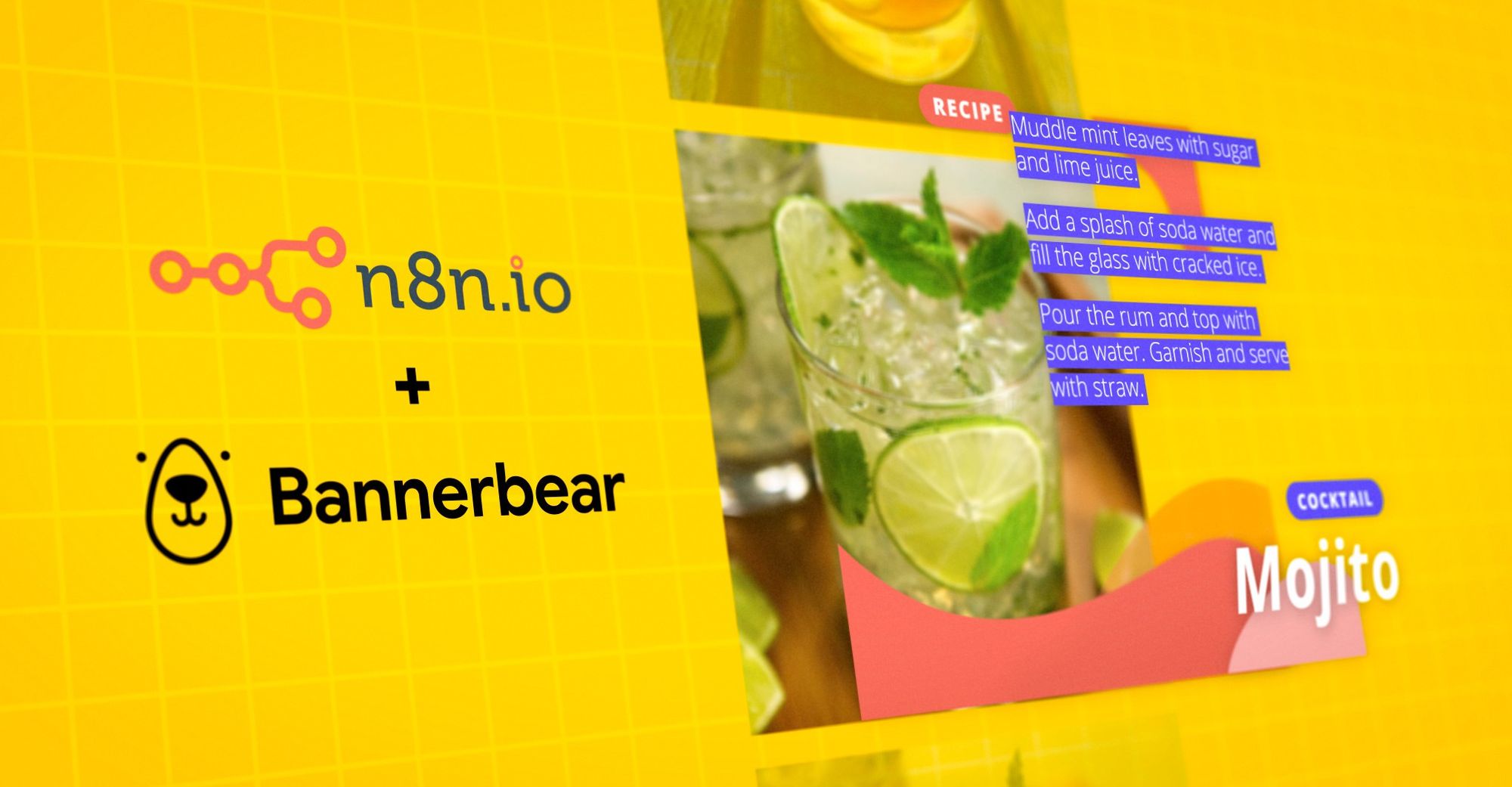
This workflow gets triggered every Friday at 6 PM with the help of a Cron node. It pulls in data about a random cocktail via the HTTP Request Node and sends the data to a Bannerbear node to create an image based on a template. The image is then finally shared on a specified Rocket.Chat channel.

Nodes used in this workflow

Popular HTTP Request and RocketChat workflows

Monitor Multiple YouTube Channels with Real-Time RocketChat Alerts

Workflow Overview This n8n workflow provides automated monitoring of YouTube channels and sends real-time notifications to RocketChat when new videos are published. It supports all YouTube URL formats, uses dual-source video fetching for reliability, and intelligently filters videos to prevent duplicate notifications. Key Features Multi-Format URL Support**: Handles @handle, /user/, and /channel/ URL formats Dual Fetching Strategy**: Uses both RSS feeds and HTML scraping for maximum reliability Smart Filtering**: Only notifies about videos published in the last hour Shorts Exclusion**: Automatically excludes YouTube Shorts from notifications Rate Limiting**: 30-second delay between notifications to prevent spam Batch Processing**: Processes multiple channels sequentially Error Handling**: Continues execution even if one channel fails Customizable Schedule**: Default hourly checks, adjustable as needed Use Cases Monitor competitor channels, track favorite creators, aggregate content from multiple channels, build content curation workflows, stay updated on educational channels, monitor brand mentions, track news channels for breaking updates. Setup Instructions Prerequisites n8n instance (self-hosted or cloud) version 1.0+ RocketChat server with admin or bot access RocketChat API credentials Internet connectivity for YouTube access Step 1: Obtain RocketChat Credentials Create Bot User: Log in to RocketChat as administrator Navigate to Administration → Users → New Fill in details: Name (YouTube Monitor Bot), Username (youtube-bot), Email, Password, Roles (bot) Click Save Get API Credentials: Log in as bot user Navigate to My Account → Personal Access Tokens Click Generate New Token Enter token name: n8n YouTube Monitor Copy generated token immediately Note User ID from account settings Step 2: Configure RocketChat in n8n Open n8n web interface Navigate to Credentials section Click Add Credential → RocketChat API Fill in: Domain: Your RocketChat URL (e.g., https://rocket.yourdomain.com) User: Bot username (e.g., youtube-bot) Password: Bot password or personal access token Click Save and test connection Step 3: Prepare RocketChat Channel Create new channel in RocketChat: youtube-notifications Add bot user to channel: Click channel menu → Members → Add Users Search for bot username Click Add Step 4: Collect YouTube Channel URLs Handle Format: https://www.youtube.com/@ChannelHandle User Format: https://www.youtube.com/user/Username Channel ID Format: https://www.youtube.com/channel/UCxxxxxxxxxx All formats supported. Find channel ID in page source or use browser extension. Step 5: Import Workflow Copy workflow JSON In n8n: Workflows → Import from File/URL Paste JSON or upload file Click Import Step 6: Configure Channel List Locate Channel List node Enter YouTube URLs in channel_urls field, one per line: https://www.youtube.com/@NoCopyrightSounds/videos https://www.youtube.com/@chillnation/videos Include /videos suffix or workflow adds it automatically Step 7: Configure RocketChat Notification Locate RocketChat Notification node Replace YOUR-CHANNEL-NAME with your channel name Select RocketChat credential Customize message template if needed Step 8: Configure Schedule (Optional) Default: Every 1 hour To change: Open Hourly Check node Modify interval (Minutes, Hours, Days) Recommended Intervals: Every hour (default): Good balance Every 30 minutes: More frequent Every 2 hours: Less frequent Avoid intervals less than 15 minutes Important: YouTube RSS updates every 15 minutes. Hourly checks match 1-hour filter window. Step 9: Test the Workflow Click Execute Workflow button Monitor execution (green = success, red = errors) Check node outputs: Channel List: Shows URLs Filter New Videos: Shows found videos (may be empty) RocketChat Notification: Shows sent messages Verify notifications in RocketChat No notifications is normal if no videos posted in last hour. Step 10: Activate Workflow Toggle Active switch in top-right Workflow runs on schedule automatically Monitor RocketChat channel for notifications How to Use Understanding Workflow Execution Default Schedule: Hourly Executes every hour Checks all channels Processes videos from last 60 minutes Prevents duplicate notifications Execution Duration: 1-5 minutes for 10 channels. Rate limiting adds 30 seconds per video. Adding New Channels Open Channel List node Add new URL on new line Save (Ctrl+S) Change takes effect on next run Removing Channels Open Channel List node Delete line or comment out with # at start Save changes Changing Check Frequency Open Hourly Check node Modify interval If changing from hourly, update Filter New Videos node: Find: cutoffDate.setHours(cutoffDate.getHours() - 1); Change -1 to match interval (-2 for 2 hours, -6 for 6 hours) Important: Time window should match or exceed check interval. Understanding Video Sources RSS Feed (Primary): Official YouTube RSS Fast and reliable 5-15 minute delay for new videos Structured data HTML Scraping (Fallback): Immediate results Works when RSS unavailable More fragile Benefits of dual approach: Reliability: If one fails, other works Speed: Scraping catches videos immediately Completeness: RSS ensures nothing missed Videos are deduplicated automatically Excluding YouTube Shorts Shorts are filtered by checking URL for /shorts/ path. To include Shorts: Open Filter New Videos node Find: if (videoUrl && !videoUrl.includes('/shorts/')) Remove the !videoUrl.includes('/shorts/') check Rate Limiting 30-second wait between notifications: Prevents flooding RocketChat Allows users to read each notification Avoids rate limits Impact: 5 videos = 2.5 minutes, 10 videos = 5 minutes To adjust: Open Wait 30 sec node, change amount field (15-60 seconds recommended) Handling Multiple Channels Channels processed sequentially: Prevents overwhelming workflow Ensures reliable execution One failed channel doesn't stop others Recommend 20-50 channels per workflow FAQ Q: How many channels can I monitor? A: Recommend 20-50 per workflow. Split into multiple workflows for more. Q: Why use both RSS and scraping? A: RSS is reliable but delayed. Scraping is immediate but fragile. Both ensures no videos missed. Q: Can I exclude specific video types? A: Yes, add filtering logic in Filter New Videos node. Already excludes Shorts. Q: Will this get my IP blocked? A: Unlikely with hourly checks. Don't check more than every 15 minutes. Q: How do I prevent duplicate notifications? A: Ensure time window matches schedule interval. Already implemented. Q: What if channel changes handle? A: Update URL in Channel List node. YouTube maintains redirects. Q: Can I monitor playlists? A: Not directly. Would need modifications for playlist RSS feeds. Technical Reference YouTube URL Formats Handle: https://www.youtube.com/@handlename User: https://www.youtube.com/user/username Channel ID: https://www.youtube.com/channel/UCxxxxxx RSS Feed Format https://www.youtube.com/feeds/videos.xml?channel_id=UCxxxxxx Contains up to 15 recent videos with title, link, publish date, thumbnail. APIs Used: YouTube RSS (public), RocketChat API (requires auth) License: Open for modification and commercial use

Render custom text over images

This workflow gets triggered every Friday at 6 PM with the help of a Cron node. It pulls in data about a random cocktail via the HTTP Request Node and sends the data to a Bannerbear node to create an image based on a template. The image is then finally shared on a specified Rocket.Chat channel.

Build your own HTTP Request and RocketChat integration

Create custom HTTP Request and RocketChat workflows by choosing triggers and actions. Nodes come with global operations and settings, as well as app-specific parameters that can be configured. You can also use the HTTP Request node to query data from any app or service with a REST API.

RocketChat supported actions

Post Message
Post a message to a channel or a direct message
Use case

Save engineering resources

Reduce time spent on customer integrations, engineer faster POCs, keep your customer-specific functionality separate from product all without having to code.

Learn more

FAQs

  • Can HTTP Request connect with RocketChat?

  • Can I use HTTP Request’s API with n8n?

  • Can I use RocketChat’s API with n8n?

  • Is n8n secure for integrating HTTP Request and RocketChat?

  • How to get started with HTTP Request and RocketChat integration in n8n.io?

Need help setting up your HTTP Request and RocketChat integration?

Discover our latest community's recommendations and join the discussions about HTTP Request and RocketChat integration.
Moiz Contractor
theo
Jon
Dan Burykin
Tony

Looking to integrate HTTP Request and RocketChat in your company?

Over 3000 companies switch to n8n every single week

Why use n8n to integrate HTTP Request with RocketChat

Build complex workflows, really fast

Build complex workflows, really fast

Handle branching, merging and iteration easily.
Pause your workflow to wait for external events.

Code when you need it, UI when you don't

Simple debugging

Your data is displayed alongside your settings, making edge cases easy to track down.

Use templates to get started fast

Use 1000+ workflow templates available from our core team and our community.

Reuse your work

Copy and paste, easily import and export workflows.

Implement complex processes faster with n8n

red iconyellow iconred iconyellow icon








