Back to Integrations
integrationHTTP Request node
integrationSnowflake node

HTTP Request and Snowflake integration

Save yourself the work of writing custom integrations for HTTP Request and Snowflake and use n8n instead. Build adaptable and scalable Development, Core Nodes, and Data & Storage workflows that work with your technology stack. All within a building experience you will love.

How to connect HTTP Request and Snowflake

  • Step 1: Create a new workflow
  • Step 2: Add and configure nodes
  • Step 3: Connect
  • Step 4: Customize and extend your integration
  • Step 5: Test and activate your workflow

Step 1: Create a new workflow and add the first step

In n8n, click the "Add workflow" button in the Workflows tab to create a new workflow. Add the starting point – a trigger on when your workflow should run: an app event, a schedule, a webhook call, another workflow, an AI chat, or a manual trigger. Sometimes, the HTTP Request node might already serve as your starting point.

HTTP Request and Snowflake integration: Create a new workflow and add the first step

Step 2: Add and configure HTTP Request and Snowflake nodes

You can find HTTP Request and Snowflake in the nodes panel. Drag them onto your workflow canvas, selecting their actions. Click each node, choose a credential, and authenticate to grant n8n access. Configure HTTP Request and Snowflake nodes one by one: input data on the left, parameters in the middle, and output data on the right.

HTTP Request and Snowflake integration: Add and configure HTTP Request and Snowflake nodes

Step 3: Connect HTTP Request and Snowflake

A connection establishes a link between HTTP Request and Snowflake (or vice versa) to route data through the workflow. Data flows from the output of one node to the input of another. You can have single or multiple connections for each node.

HTTP Request and Snowflake integration: Connect HTTP Request and Snowflake

Step 4: Customize and extend your HTTP Request and Snowflake integration

Use n8n's core nodes such as If, Split Out, Merge, and others to transform and manipulate data. Write custom JavaScript or Python in the Code node and run it as a step in your workflow. Connect HTTP Request and Snowflake with any of n8n’s 1000+ integrations, and incorporate advanced AI logic into your workflows.

HTTP Request and Snowflake integration: Customize and extend your HTTP Request and Snowflake integration

Step 5: Test and activate your HTTP Request and Snowflake workflow

Save and run the workflow to see if everything works as expected. Based on your configuration, data should flow from HTTP Request to Snowflake or vice versa. Easily debug your workflow: you can check past executions to isolate and fix the mistake. Once you've tested everything, make sure to save your workflow and activate it.

HTTP Request and Snowflake integration: Test and activate your HTTP Request and Snowflake workflow

Load data into Snowflake

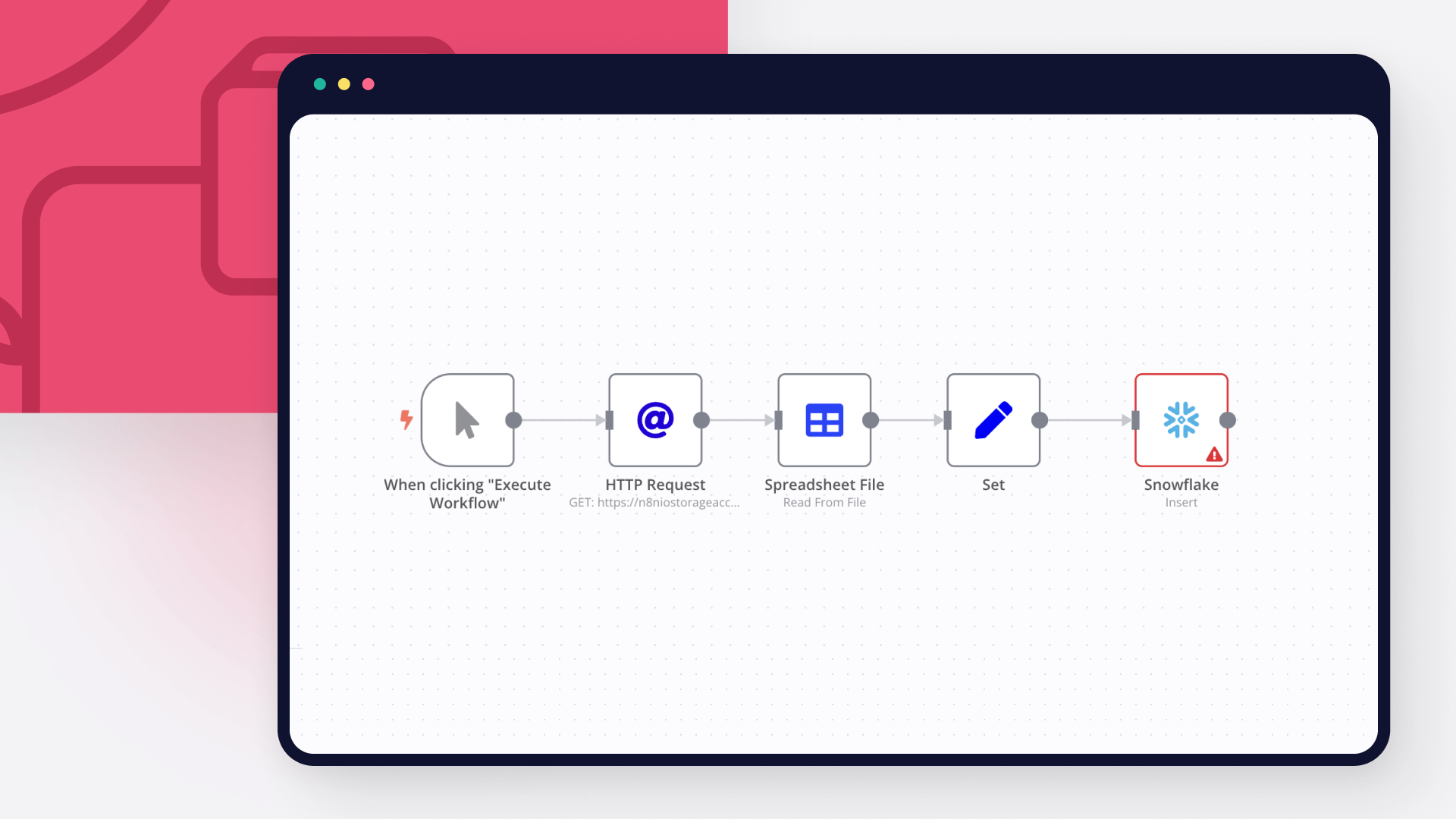
This workflow automatically downloads a CSV from the web, and parses it in a format that n8n can access. It then ensures that the data from the CSV is matched to the names of the columns in the database, and inserts this data as new rows in Snowflake.

Prerequisites:
A CSV with data
A Snowflake account and credentials
A Snowflake database to upload your CSV to

Nodes:
A HTTP Request node to download the CSV file
A Spreadsheet File node to access the data from the CSV
A Set node to ensure the data from the CSV is mapped to the column names of the Snowflake database
A Snowflake node to insert these new rows into the database.

Nodes used in this workflow

Popular HTTP Request and Snowflake workflows

Sync Replicated support bundles into Snowflake on a schedule

Replicated Support Bundles → Snowflake Syncs all Replicated support bundles from your vendor account into a Snowflake table on a daily schedule. Useful for tracking support bundle activity, correlating bundles with customer health, and building operational dashboards. How it works A Schedule Trigger fires daily The Replicated Vendor API (/vendor/v3/supportbundles) is called to fetch all support bundles The bundles array is split and each record is mapped to a flat structure with typed fields The Snowflake destination table is truncated (full refresh), then all records are bulk-inserted Setup Create the table — run the [CREATE] REPLICATED_SUPPORTBUNDLES node manually once before activating. Adjust the database/schema to match your Snowflake environment Add your Replicated API Token as an HTTP Header Auth credential (Authorization header) Connect your Snowflake credential Activate the workflow Notes This is a full replace on every run, not an upsert — suitable as long as your total bundle count stays manageable Fields synced: id, name, uploadedAt, collectedAt, source, customerId, instanceId, size, viewed

Sync HubSpot and Linear customers daily using Snowflake data

HubSpot → Linear Customers Sync Keeps your Linear Customers list automatically in sync with HubSpot CRM data, using Snowflake as the data warehouse source. Runs on a daily schedule and handles both creates and updates — only touching records where ARR or seat count has actually changed. No unnecessary API calls. How it works A Schedule Trigger fires daily at a configurable time Snowflake is queried to retrieve all customer accounts with aggregated ARR and seat count from your CRM (e.g. Hubspot) product table All existing Linear Customers are fetched via cursor-based pagination (250 records/page) A matching step compares records using HubSpot COMPANY_ID as the Linear externalId, with a domain-based fallback for re-keyed accounts Unmatched companies are created as new Linear Customers Changed records (ARR or seats) are updated in Linear A Slack notification is sent for every sync action Setup Add your Snowflake credential and adapt the SQL query to your schema Connect your Linear API credential (requires Customer read + write permissions) Set up a Slack Bot credential and update the target channel in the Slack node Adjust the Schedule Trigger to your preferred sync time Notes The Limit Snowflake (Testing) node is disabled by default — enable it during testing to cap the number of Snowflake rows processed Matching uses externalIds (HubSpot company ID) first, then falls back to domains Only records with changed revenue or size values trigger a Linear update

Import Productboard Notes, Companies and Features into Snowflake

This workflow imports Productboard data into Snowflake, automating data extraction, mapping, and updates for features, companies, and notes. It supports scheduled weekly updates, data cleansing, and Slack notifications summarizing the latest insights. Features Fetches data from Productboard (features, companies, notes). Maps and processes data for Snowflake tables. Automates table creation, truncation, and updates. Summarizes new and unprocessed notes. Sends weekly Slack notifications with key insights. Setup Configure Productboard and Snowflake credentials in n8n. Update Snowflake table schemas to match your setup. Replace Slack channel ID and dashboard URL in the notification node. Activate the workflow and set the desired schedule.

Load data into Snowflake

This workflow automatically downloads a CSV from the web, and parses it in a format that n8n can access. It then ensures that the data from the CSV is matched to the names of the columns in the database, and inserts this data as new rows in Snowflake. Prerequisites: A CSV with data A Snowflake account and credentials A Snowflake database to upload your CSV to Nodes: A HTTP Request node to download the CSV file A Spreadsheet File node to access the data from the CSV A Set node to ensure the data from the CSV is mapped to the column names of the Snowflake database A Snowflake node to insert these new rows into the database.

Build your own HTTP Request and Snowflake integration

Create custom HTTP Request and Snowflake workflows by choosing triggers and actions. Nodes come with global operations and settings, as well as app-specific parameters that can be configured. You can also use the HTTP Request node to query data from any app or service with a REST API.


Snowflake supported actions

Execute Query
Execute an SQL query
Insert
Insert rows in database
Update
Update rows in database
Use case

Save engineering resources

Reduce time spent on customer integrations, engineer faster POCs, keep your customer-specific functionality separate from product all without having to code.

Learn more

FAQs

  • Can HTTP Request connect with Snowflake?

  • Can I use HTTP Request’s API with n8n?

  • Can I use Snowflake’s API with n8n?

  • Is n8n secure for integrating HTTP Request and Snowflake?

  • How to get started with HTTP Request and Snowflake integration in n8n.io?

Need help setting up your HTTP Request and Snowflake integration?

Discover our latest community's recommendations and join the discussions about HTTP Request and Snowflake integration.
Moiz Contractor
theo
Jon
Dan Burykin
Tony

Looking to integrate HTTP Request and Snowflake in your company?

Over 3000 companies switch to n8n every single week

Why use n8n to integrate HTTP Request with Snowflake

Build complex workflows, really fast

Build complex workflows, really fast

Handle branching, merging and iteration easily.
Pause your workflow to wait for external events.

Code when you need it, UI when you don't

Simple debugging

Your data is displayed alongside your settings, making edge cases easy to track down.

Use templates to get started fast

Use 1000+ workflow templates available from our core team and our community.

Reuse your work

Copy and paste, easily import and export workflows.

Implement complex processes faster with n8n

red iconyellow iconred iconyellow icon








