Back to Integrations
integrationMicrosoft Excel 365 node
integrationPostgres node

Microsoft Excel 365 and Postgres integration

Save yourself the work of writing custom integrations for Microsoft Excel 365 and Postgres and use n8n instead. Build adaptable and scalable Data & Storage, Productivity, and Development workflows that work with your technology stack. All within a building experience you will love.

How to connect Microsoft Excel 365 and Postgres

  • Step 1: Create a new workflow
  • Step 2: Add and configure nodes
  • Step 3: Connect
  • Step 4: Customize and extend your integration
  • Step 5: Test and activate your workflow

Step 1: Create a new workflow and add the first step

In n8n, click the "Add workflow" button in the Workflows tab to create a new workflow. Add the starting point – a trigger on when your workflow should run: an app event, a schedule, a webhook call, another workflow, an AI chat, or a manual trigger. Sometimes, the HTTP Request node might already serve as your starting point.

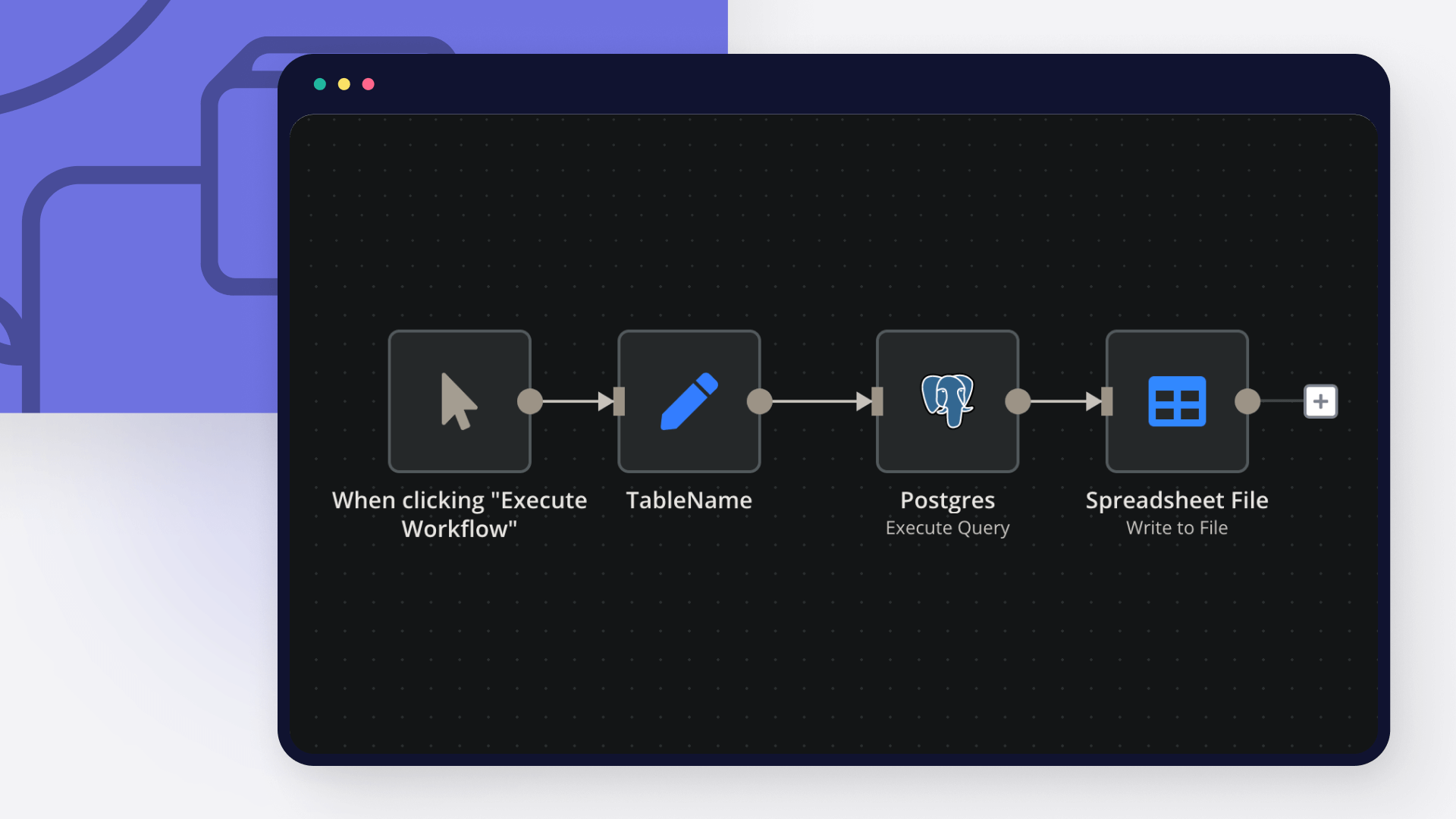
Microsoft Excel 365 and Postgres integration: Create a new workflow and add the first step

Step 2: Add and configure Microsoft Excel 365 and Postgres nodes

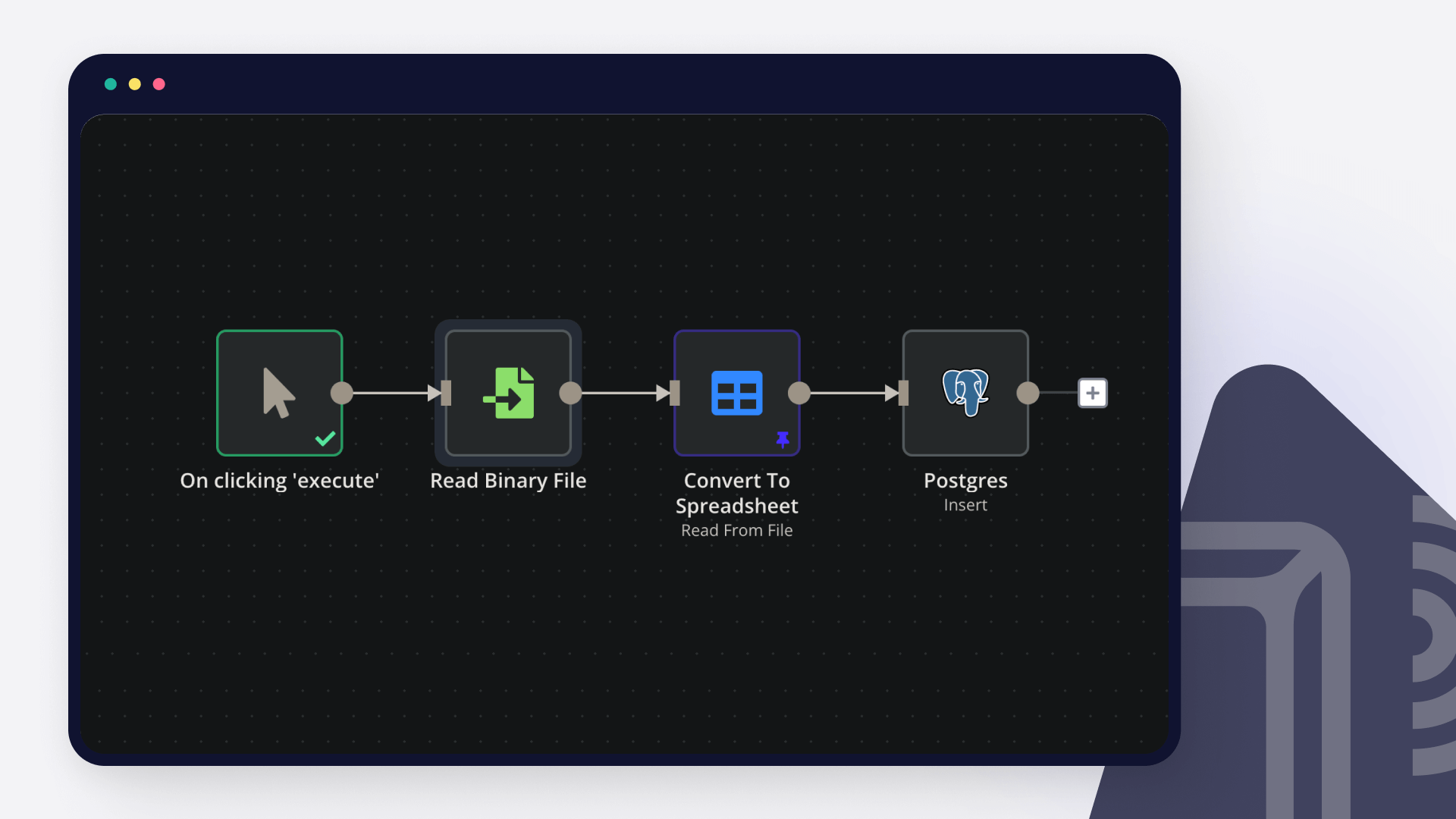
You can find Microsoft Excel 365 and Postgres in the nodes panel. Drag them onto your workflow canvas, selecting their actions. Click each node, choose a credential, and authenticate to grant n8n access. Configure Microsoft Excel 365 and Postgres nodes one by one: input data on the left, parameters in the middle, and output data on the right.

Microsoft Excel 365 and Postgres integration: Add and configure Microsoft Excel 365 and Postgres nodes

Step 3: Connect Microsoft Excel 365 and Postgres

A connection establishes a link between Microsoft Excel 365 and Postgres (or vice versa) to route data through the workflow. Data flows from the output of one node to the input of another. You can have single or multiple connections for each node.

Microsoft Excel 365 and Postgres integration: Connect Microsoft Excel 365 and Postgres

Step 4: Customize and extend your Microsoft Excel 365 and Postgres integration

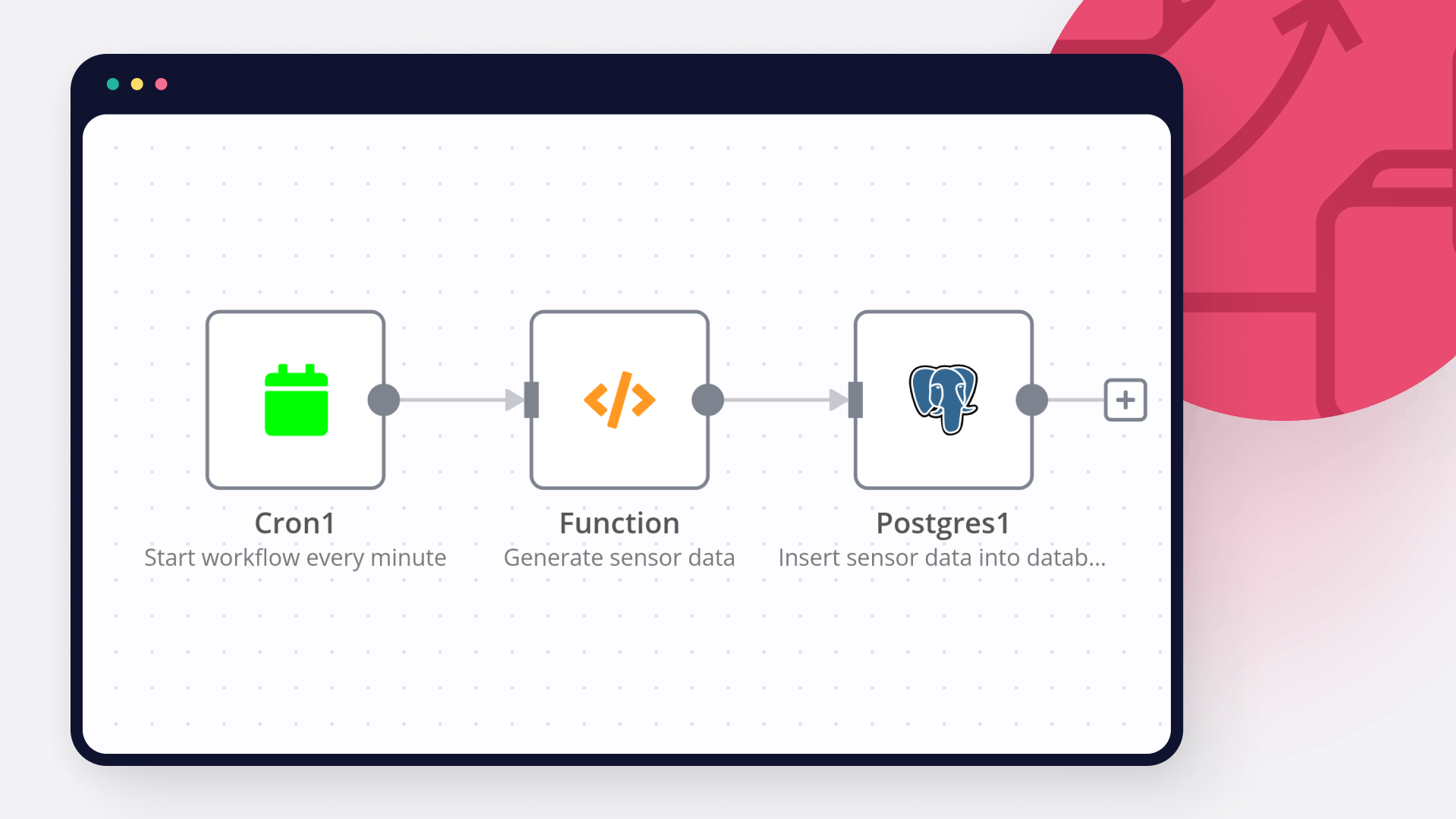
Use n8n's core nodes such as If, Split Out, Merge, and others to transform and manipulate data. Write custom JavaScript or Python in the Code node and run it as a step in your workflow. Connect Microsoft Excel 365 and Postgres with any of n8n’s 1000+ integrations, and incorporate advanced AI logic into your workflows.

Microsoft Excel 365 and Postgres integration: Customize and extend your Microsoft Excel 365 and Postgres integration

Step 5: Test and activate your Microsoft Excel 365 and Postgres workflow

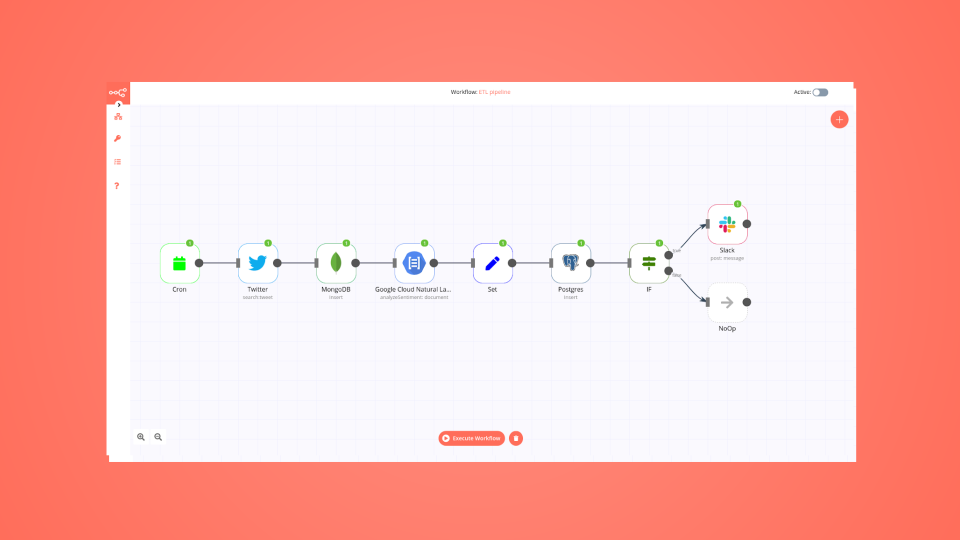
Save and run the workflow to see if everything works as expected. Based on your configuration, data should flow from Microsoft Excel 365 to Postgres or vice versa. Easily debug your workflow: you can check past executions to isolate and fix the mistake. Once you've tested everything, make sure to save your workflow and activate it.

Microsoft Excel 365 and Postgres integration: Test and activate your Microsoft Excel 365 and Postgres workflow

Transform Excel data into AI-ready vectors with OpenAI and Supabase

Description
This workflow is a practical, “dirty” solution for real-world scenarios where frontline workers keep using Excel in their daily processes.
Instead of forcing change, we take their spreadsheets as-is, clean and normalize the data, generate embeddings, and store everything in Supabase.

The benefit: frontline staff continue with their familiar tools, while data analysts gain clean, structured, and vectorized data ready for analysis or RAG-style AI applications.

How it works
Frontline workers continue with Excel** – no disruption to their daily routines.
Upload & trigger** – The workflow runs when a new Excel sheet is ready.
Read Excel rows** – Data is pulled from the specified workbook and worksheet.
Clean & normalize** – HTML is stripped, Excel dates are fixed, and text fields are standardized.
Batch & switch** – Rows are split and routed into Question/Answer processing paths.
Generate embeddings** – Cleaned Questions and Answers are converted into vectors via OpenAI.
Merge enriched records** – Original business data is combined with embeddings.
Write into Supabase** – Data lands in a structured table (excel_records) with vector and FTS indexes.

Why it’s “dirty but useful”
No disruption** – frontline workers don’t need to change how they work.
Analyst-ready data** – Supabase holds clean, queryable data for dashboards, reporting, or AI pipelines.
Bridge between old and new** – Excel remains the input, but the backend becomes modern and scalable.
Incremental modernization** – paves the way for future workflow upgrades without blocking current work.

Outcome
Frontline workers keep their Excel-based workflows, while data can immediately be structured, searchable, and vectorized in Supabase — enabling AI-powered search, reporting, and retrieval-augmented generation.

Required setup

Supabase account
Create a project and enable the pgvector extension.

OpenAI API Key
Required for generating embeddings (text-embedding-3-small).

Microsoft Excel credentials
Needed to connect to your workbook and worksheet.

Need Help
🔗 LinkedIn – Wessel Bulte

Nodes used in this workflow

Popular Microsoft Excel 365 and Postgres workflows

Transform Excel Data into AI-Ready Vectors with OpenAI and Supabase

Description This workflow is a practical, “dirty” solution for real-world scenarios where frontline workers keep using Excel in their daily processes. Instead of forcing change, we take their spreadsheets as-is, clean and normalize the data, generate embeddings, and store everything in Supabase. The benefit: frontline staff continue with their familiar tools, while data analysts gain clean, structured, and vectorized data ready for analysis or RAG-style AI applications. How it works Frontline workers continue with Excel** – no disruption to their daily routines. Upload & trigger** – The workflow runs when a new Excel sheet is ready. Read Excel rows** – Data is pulled from the specified workbook and worksheet. Clean & normalize** – HTML is stripped, Excel dates are fixed, and text fields are standardized. Batch & switch** – Rows are split and routed into Question/Answer processing paths. Generate embeddings** – Cleaned Questions and Answers are converted into vectors via OpenAI. Merge enriched records** – Original business data is combined with embeddings. Write into Supabase** – Data lands in a structured table (excel_records) with vector and FTS indexes. Why it’s “dirty but useful” No disruption** – frontline workers don’t need to change how they work. Analyst-ready data** – Supabase holds clean, queryable data for dashboards, reporting, or AI pipelines. Bridge between old and new** – Excel remains the input, but the backend becomes modern and scalable. Incremental modernization** – paves the way for future workflow upgrades without blocking current work. Outcome Frontline workers keep their Excel-based workflows, while data can immediately be structured, searchable, and vectorized in Supabase — enabling AI-powered search, reporting, and retrieval-augmented generation. Required setup Supabase account Create a project and enable the pgvector extension. OpenAI API Key Required for generating embeddings (text-embedding-3-small). Microsoft Excel credentials Needed to connect to your workbook and worksheet. Need Help 🔗 LinkedIn – Wessel Bulte

Synchronize Excel or Google Sheets with Postgres (bi-directional)

Synchronize Excel or Google Sheets with Postgres (bi-directional) Who’s it for This workflow is perfect for companies that have always managed their operations in Excel or Google Sheets and want to gradually transition to using a database or custom software. It ensures business continuity while modernizing data management. How it works / What it does Trigger options → Run the sync manually, on schedule, or as part of another workflow. Get data from Excel → Reads rows from an Excel or Google Sheet table. Sanitize data → Cleans up formats (e.g., converting Excel serial dates into proper date strings). Upsert into Postgres → Inserts or updates rows in the database, ensuring no duplicates. For auto-mapping to work, the column names in Excel/Sheets and the DB must match exactly. If you want different names, you can manually map columns in the Postgres node. (Optional) → Can be extended to push DB updates back to Excel, creating a true two-way sync. This way, your team can continue working in Excel/Sheets while data is safely persisted in a database—ideal for scaling into dashboards, SaaS, or ERP systems later. How to set up Import the workflow JSON into your n8n instance. Connect your credentials: Microsoft Excel / Google Sheets OAuth2 Postgres database Point the Excel node to the right workbook, worksheet, and table. Make sure column names match between the Excel sheet and DB table (or map manually if they differ). Run manually or configure the schedule trigger for automated syncs. Requirements n8n self-hosted or cloud account. Either Microsoft Excel Online or Google Sheets access. Postgres database (or replace with MySQL, MariaDB, or any supported DB). How to customize the workflow Replace Excel with Google Sheets by swapping the node. Replace Postgres with any preferred database node. Add validation steps (e.g., check for missing emails, duplicate IDs). Extend with reporting workflows (e.g., sync DB data to BI dashboards). Use this as a stepping stone to migrate from spreadsheets into software-driven processes.


Build your own Microsoft Excel 365 and Postgres integration

Create custom Microsoft Excel 365 and Postgres workflows by choosing triggers and actions. Nodes come with global operations and settings, as well as app-specific parameters that can be configured. You can also use the HTTP Request node to query data from any app or service with a REST API.

Microsoft Excel 365 supported actions

Append
Add rows to the end of the table
Convert to Range
Convert a table to a range
Create
Add a table based on range
Delete
Delete a table
Get Columns
Retrieve a list of table columns
Get Rows
Retrieve a list of table rows
Lookup
Look for rows that match a given value in a column
Add Sheet
Add a new sheet to the workbook
Delete
Delete workbook
Get Many
Get workbooks
Append
Append data to sheet
Append or Update
Append a new row or update the current one if it already exists (upsert)
Clear
Clear sheet
Delete
Delete sheet
Get Many
Get a list of sheets
Get Rows
Retrieve a list of sheet rows
Update
Update rows of a sheet or sheet range

Postgres supported actions

Delete
Delete an entire table or rows in a table
Execute Query
Execute an SQL query
Insert
Insert rows in a table
Insert or Update
Insert or update rows in a table
Select
Select rows from a table
Update
Update rows in a table

FAQs

  • Can Microsoft Excel 365 connect with Postgres?

  • Can I use Microsoft Excel 365’s API with n8n?

  • Can I use Postgres’s API with n8n?

  • Is n8n secure for integrating Microsoft Excel 365 and Postgres?

  • How to get started with Microsoft Excel 365 and Postgres integration in n8n.io?

Need help setting up your Microsoft Excel 365 and Postgres integration?

Discover our latest community's recommendations and join the discussions about Microsoft Excel 365 and Postgres integration.
Mikhail Savenkov
Honza Pav
Vyacheslav Karbovnichy
Dennis
Dennis

Looking to integrate Microsoft Excel 365 and Postgres in your company?

Over 3000 companies switch to n8n every single week

Why use n8n to integrate Microsoft Excel 365 with Postgres

Build complex workflows, really fast

Build complex workflows, really fast

Handle branching, merging and iteration easily.
Pause your workflow to wait for external events.

Code when you need it, UI when you don't

Simple debugging

Your data is displayed alongside your settings, making edge cases easy to track down.

Use templates to get started fast

Use 1000+ workflow templates available from our core team and our community.

Reuse your work

Copy and paste, easily import and export workflows.

Implement complex processes faster with n8n

red iconyellow iconred iconyellow icon