Back to Integrations
integrationMySQL node
integrationGoogle Sheets node

MySQL and Google Sheets integration

Save yourself the work of writing custom integrations for MySQL and Google Sheets and use n8n instead. Build adaptable and scalable Development, Data & Storage, and Productivity workflows that work with your technology stack. All within a building experience you will love.

How to connect MySQL and Google Sheets

  • Step 1: Create a new workflow
  • Step 2: Add and configure nodes
  • Step 3: Connect
  • Step 4: Customize and extend your integration
  • Step 5: Test and activate your workflow

Step 1: Create a new workflow and add the first step

In n8n, click the "Add workflow" button in the Workflows tab to create a new workflow. Add the starting point – a trigger on when your workflow should run: an app event, a schedule, a webhook call, another workflow, an AI chat, or a manual trigger. Sometimes, the HTTP Request node might already serve as your starting point.

MySQL and Google Sheets integration: Create a new workflow and add the first step

Step 2: Add and configure MySQL and Google Sheets nodes

You can find MySQL and Google Sheets in the nodes panel. Drag them onto your workflow canvas, selecting their actions. Click each node, choose a credential, and authenticate to grant n8n access. Configure MySQL and Google Sheets nodes one by one: input data on the left, parameters in the middle, and output data on the right.

MySQL and Google Sheets integration: Add and configure MySQL and Google Sheets nodes

Step 3: Connect MySQL and Google Sheets

A connection establishes a link between MySQL and Google Sheets (or vice versa) to route data through the workflow. Data flows from the output of one node to the input of another. You can have single or multiple connections for each node.

MySQL and Google Sheets integration: Connect MySQL and Google Sheets

Step 4: Customize and extend your MySQL and Google Sheets integration

Use n8n's core nodes such as If, Split Out, Merge, and others to transform and manipulate data. Write custom JavaScript or Python in the Code node and run it as a step in your workflow. Connect MySQL and Google Sheets with any of n8n’s 1000+ integrations, and incorporate advanced AI logic into your workflows.

MySQL and Google Sheets integration: Customize and extend your MySQL and Google Sheets integration

Step 5: Test and activate your MySQL and Google Sheets workflow

Save and run the workflow to see if everything works as expected. Based on your configuration, data should flow from MySQL to Google Sheets or vice versa. Easily debug your workflow: you can check past executions to isolate and fix the mistake. Once you've tested everything, make sure to save your workflow and activate it.

MySQL and Google Sheets integration: Test and activate your MySQL and Google Sheets workflow

Build an AI-powered tech radar advisor with SQL DB, RAG, and routing agents

AI-Powered Tech Radar Advisor

This project is built on top of the famous open source ThoughtWorks Tech Radar.

You can use this template to build your own AI-Powered Tech Radar Advisor for your company or group of companies.

Target Audience

This template is perfect for:
Tech Audit & Governance Leaders:** Those seeking to build a tech landscape AI platform portal.
Tech Leaders & Architects:** Those aiming to provide modern AI platforms that help others understand the rationale behind strategic technology adoption.
Product Managers:** Professionals looking to align product innovation with the company's current tech trends.
IT & Engineering Teams:** Teams that need to aggregate, analyze, and visualize technology data from multiple sources efficiently.
Digital Transformation Experts:** Innovators aiming to leverage AI for actionable insights and strategic recommendations.
Data Analysts & Scientists:** Individuals who want to combine structured SQL analysis with advanced semantic search using vector databases.
Developers:** Those interested in integrating RAG chatbot functionality with conversation storage.

  1. Description

Tech Constellation is an AI-powered Tech Radar solution designed to help organizations visualize and steer their technology adoption strategy.
It seamlessly ingests data from a Tech Radar Google Sheet—converting it into both a MySQL database and a vector index—to consolidate your tech landscape in one place.

The platform integrates an interactive AI chat interface powered by four specialized agents:
AI Agent Router:** Analyzes and routes user queries to the most suitable processing agent.
SQL Agent:** Executes precise SQL queries on structured data.
RAG Agent:** Leverages semantic, vector-based search for in-depth insights.
Output Guardrail Agent:** Validates responses to ensure they remain on-topic and accurate.

This powerful template is perfect for technology leaders, product managers, engineering teams, and digital transformation experts looking to make data-driven decisions aligned with strategic initiatives across groups of parent-child companies.

  1. Features
    Data Ingestion
    A Google Sheet containing tech radar data is used as the primary source.
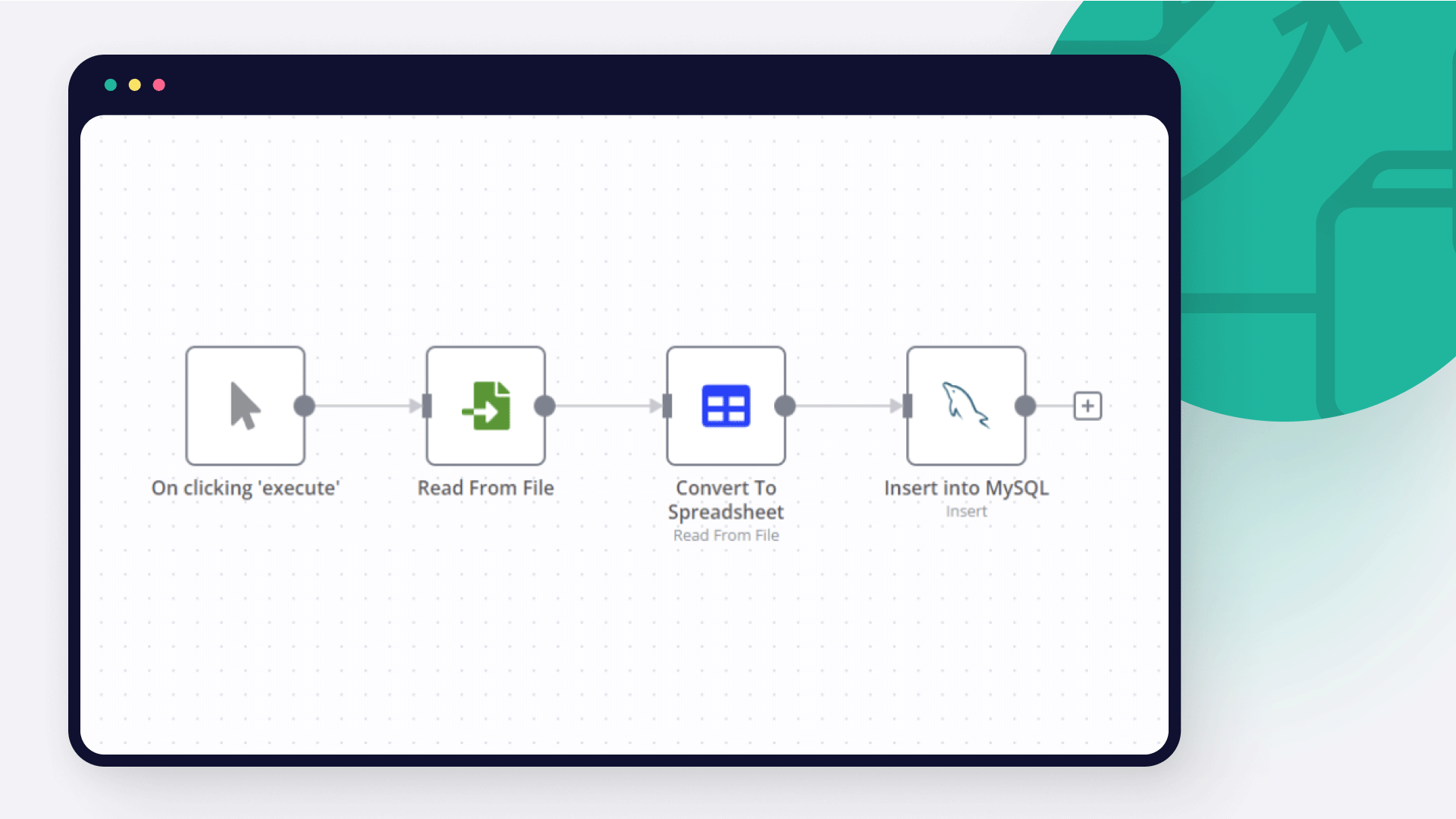
    The data is ingested and converted into a MySQL database.
    Simultaneously, the data is indexed into a vector database for semantic (vector-based) search.
    Interactive AI Chat
    Chat Integration:** An AI-powered chat interface allows users to ask questions about the tech radar.
    Customizable AI Agents:**
    AI Agent Router: Determines the query type and routes it to the appropriate agent.
    SQL Agent: Processes queries using SQL on structured data.
    RAG Agent: Performs vector-based searches on document-like data.
    Output Guardrail Agent: Validates queries and ensures that the responses remain on-topic and accurate.

Usage Examples
Tell me, is TechnologyABC adopted or on hold, and why?
List all the tools that are considered part of the strategic direction for company3 but are not adopted.

Project Links & Additional Details

GitHub Repository (Frontend Interface Source Code):** github.com/dragonjump/techconstellation
Try It:** https://scaler.my

Nodes used in this workflow

Popular MySQL and Google Sheets workflows

AI based Data Analysis, Data Visualization and Data Report with Ada.im

How it works: This template demonstrates how to build a low-code, AI-powered data analysis workflow in n8n. It enables you to connect to various data sources (such as MySQL, Google Sheets, or local files), process and analyze structured data, and generate natural language insights and visualizations using external AI APIs. Key Features: Flexible data source selection (MySQL, Google Sheets, Excel/CSV, etc.) AI-driven data analysis, interpretation, and visualization via HTTP Request nodes Automated email delivery of analysis results (Gmail node) Step-by-step sticky notes for credential setup and workflow customization Step-by-step: Apply for an API Key You can easily create and manage your API Key in the ADA official website - API. To begin with, You need to register for an ADA account. Once on the homepage, click the bottom left corner to access the API management dashboard. Here, you can create new APIs and set the credit consumption limit for each API. A single account can create up to 10 APIs. After successful creation, you can copy the API Key to set credentials. You can also view the credit consumption of each API and manage your APIs. Set credentials In HTTP nodes(DataAnalysis, DataInterpretation, and DataVisualization) select Authentication → Generic Credential Type Choose Header Auth → Create new credential Name the header Authorization, which must be exactly 'Authorization', and fill in the previously applied API key Data Source: The workflow starts by extracting structured data from your chosen source (e.g., database, spreadsheet, or file). AI Skills: Data is sent to external AI APIs for analysis, interpretation, and visualization, based on your configured queries. Result Processing: The AI-generated results are converted to HTML or Markdown as needed. Output: The final report or visualization is sent via email. You can easily adapt this step to other output channels. API Keys Required: Ada API Key: For AI data analysis Gmail OAuth2: For sending emails (if using Gmail node) (Optional) Data source credentials: For MySQL, Google Sheets, etc.
+11

Build an AI-Powered Tech Radar Advisor with SQL DB, RAG, and Routing Agents

AI-Powered Tech Radar Advisor This project is built on top of the famous open source ThoughtWorks Tech Radar. You can use this template to build your own AI-Powered Tech Radar Advisor for your company or group of companies. Target Audience This template is perfect for: Tech Audit & Governance Leaders:** Those seeking to build a tech landscape AI platform portal. Tech Leaders & Architects:** Those aiming to provide modern AI platforms that help others understand the rationale behind strategic technology adoption. Product Managers:** Professionals looking to align product innovation with the company's current tech trends. IT & Engineering Teams:** Teams that need to aggregate, analyze, and visualize technology data from multiple sources efficiently. Digital Transformation Experts:** Innovators aiming to leverage AI for actionable insights and strategic recommendations. Data Analysts & Scientists:** Individuals who want to combine structured SQL analysis with advanced semantic search using vector databases. Developers:** Those interested in integrating RAG chatbot functionality with conversation storage. Description Tech Constellation is an AI-powered Tech Radar solution designed to help organizations visualize and steer their technology adoption strategy. It seamlessly ingests data from a Tech Radar Google Sheet—converting it into both a MySQL database and a vector index—to consolidate your tech landscape in one place. The platform integrates an interactive AI chat interface powered by four specialized agents: AI Agent Router:** Analyzes and routes user queries to the most suitable processing agent. SQL Agent:** Executes precise SQL queries on structured data. RAG Agent:** Leverages semantic, vector-based search for in-depth insights. Output Guardrail Agent:** Validates responses to ensure they remain on-topic and accurate. This powerful template is perfect for technology leaders, product managers, engineering teams, and digital transformation experts looking to make data-driven decisions aligned with strategic initiatives across groups of parent-child companies. Features Data Ingestion A Google Sheet containing tech radar data is used as the primary source. The data is ingested and converted into a MySQL database. Simultaneously, the data is indexed into a vector database for semantic (vector-based) search. Interactive AI Chat Chat Integration:** An AI-powered chat interface allows users to ask questions about the tech radar. Customizable AI Agents:** AI Agent Router: Determines the query type and routes it to the appropriate agent. SQL Agent: Processes queries using SQL on structured data. RAG Agent: Performs vector-based searches on document-like data. Output Guardrail Agent: Validates queries and ensures that the responses remain on-topic and accurate. Usage Examples Tell me, is TechnologyABC adopted or on hold, and why? List all the tools that are considered part of the strategic direction for company3 but are not adopted. Project Links & Additional Details GitHub Repository (Frontend Interface Source Code):** github.com/dragonjump/techconstellation Try It:** https://scaler.my

Compliance Report Collector With Google Form → Drive + MySQL

📝 Compliance Report Collector (Google Form → Drive + MySQL) This n8n workflow automates the collection and archival of compliance reports submitted via Google Forms. Uploaded documents (PDF, DOCX, etc.) are archived into Google Drive and submission metadata is logged into a MySQL database. It ensures compliance documentation is properly stored, searchable and auditable without manual effort. ⚡ Quick Implementation Steps Import the JSON file into n8n. Set up a Google Form to POST file + metadata (reporter, category, etc.) to the /submit-report webhook. Update the Set Config node with your: MySQL connection details Google Drive folder ID Deploy and test a form submission with a file upload. Each report is stored in Drive and logged to your DB. 🎯 Who’s It For Compliance officers handling environmental or safety reports. Admins managing documentation for inspections. Renewable energy companies required to maintain audit-ready records. Any org needing structured report archival & metadata logging. 🛠 Requirements | Tool | Purpose | |------|---------| | n8n Instance | Workflow automation | | Google Drive | To archive uploaded reports | | MySQL Database | To log submission metadata | | Google Forms / HTML Form | Report submission source | 🧠 What It Does Listens for incoming POST requests with a file and metadata. Uploads the file to a specified Google Drive folder. Extracts metadata like: Reporter name Category/type Timestamp File name, MIME type Logs that metadata into a MySQL table for auditing or reporting. 🧾 Sample MySQL Table Schema CREATE TABLE report_logs ( id INT AUTO_INCREMENT PRIMARY KEY, reporter VARCHAR(100), category VARCHAR(100), timestamp DATETIME, file_name VARCHAR(255), mime_type VARCHAR(50), folder_id VARCHAR(100) ); 🔧 How To Set Up – Step-by-Step Import the JSON into n8n. Configure the following in the Set Config node: MySQL: dbHost, dbUser, dbPassword, dbName, dbTable Google Drive: driveFolderId Update the webhook URL in your Google Form (via Apps Script or middleware). Test submission with a file upload. Confirm: File lands in your Drive folder Log entry appears in your database ✨ How To Customize | Customization | How | |---------------|-----| | Add more form fields | Extend the metadata mapping in the Function node | | Rename files before upload | Modify filename in Google Drive node | | Add email confirmation | Add an Email Send node after DB insert | | Filter file types | Add IF node before upload to validate MIME type | ➕ Add‑ons (Optional Extensions) | Add-on | Description | |--------|-------------| | 📤 Email Acknowledgment | Email sender a confirmation with Drive link | | 🧾 PDF Parser | Auto-parse content using PDF.co or OpenAI | | 📊 Admin Dashboard | Display logs in Supabase or Metabase | | 🗃 File Backup | Copy files to Dropbox or S3 after Drive upload | 📈 Use Case Examples Collect monthly safety audits from plant staff into a Drive archive. Accept vendor compliance declarations via Google Form and auto-log to DB. Capture field inspection reports and tag by category for audit. Store weekly environmental reports for long-term access. 🧯 Troubleshooting Guide | Issue | Possible Cause | Solution | |-------|----------------|----------| | File not uploaded | Drive ID is invalid | Check permissions and folder ID | | DB not logging | Connection or table issue | Verify DB credentials and schema | | Webhook not triggered | Form not integrated correctly | Ensure form POSTs file to n8n webhook | | Wrong file type | MIME mismatch | Validate acceptable types via Function/IF node | 📞 Need Help? Want to integrate this with audit dashboards or add Google Sheet exports? 👉 Contact WeblineIndia — Experts in compliance automation and renewable energy workflows.

Automated MySQL to Google Sheets Sync with Duplicate Prevention

📝 Sync MySQL Rows to Google Sheet Description: This n8n template automates the process of syncing new records from a MySQL database table into a Google Sheet, ideal for reporting, backup, or lightweight dashboards. It is designed for teams or individuals who need to periodically export new data rows from a custom database (e.g., CRM, registrations, surveys) into a structured Google Sheet for further analysis, sharing, or archiving—without duplicates. 🛠️ What This Workflow Does: Runs every 15 minutes** via a schedule trigger. Selects unsynced rows** (sync = 0) from a MySQL table (fifa25_customers). Checks if records exist** to prevent unnecessary writes. Appends records to a Google Sheet**, mapping fields like name, email, phone, gender, and more. Updates the MySQL table** to mark those rows as synced (sync = 1) to avoid reprocessing. Fully annotated using sticky notes for easier understanding and onboarding. 📋 Setup Instructions: Create or select a Google Sheet and make sure the columns match the following: id, name, phone, birthdate, email, region, gender, datatime Ensure your MySQL table (fifa25_customers) has a sync column (default = 0 for new rows). Connect your MySQL and Google Sheets credentials inside n8n. (Optional): Add custom filtering or column transformations as needed. 👤 Who Is It For? Marketers syncing leads to a spreadsheet Ops teams pulling user data from internal tools Analysts logging form submissions or customer data Anyone needing lightweight scheduled ETL from MySQL to Sheets 🔐 Credentials Required: MySQL** Google Sheets OAuth2** ✅ Best Practices Followed: Uses IF node to prevent unnecessary processing Updates source database to avoid duplicates Includes sticky notes for clarity All columns are explicitly mapped Works out-of-the-box on any n8n instance with proper creds

Sync Google Sheets data with MySQL

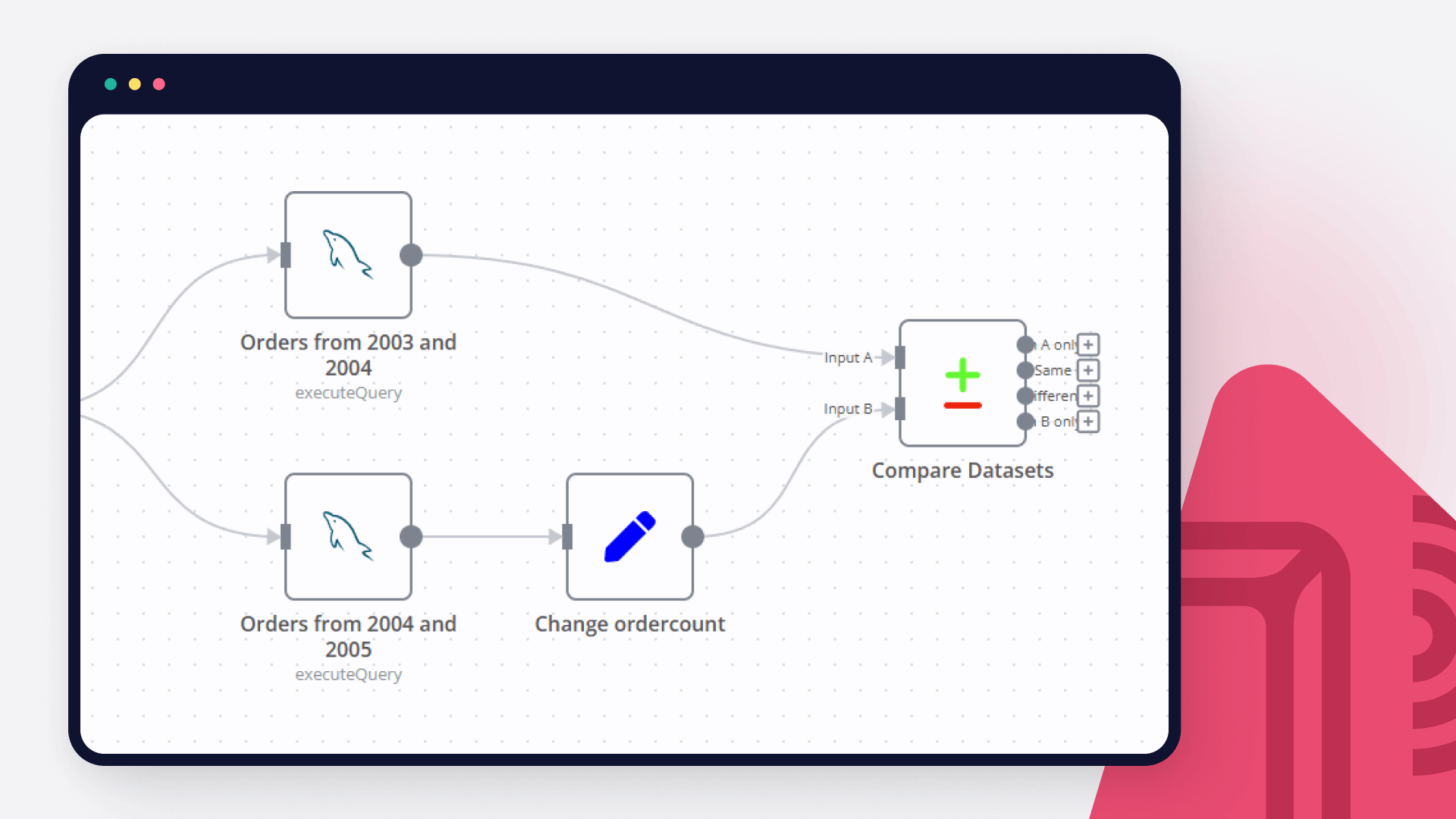
This workflow performs several data integration and synchronization tasks between Google Sheets and a MySQL database. Here is a step-by-step description of what this workflow does: Manual Trigger: The workflow starts when the user clicks "Execute Workflow." Schedule Trigger: This node schedules the workflow to run at specific intervals on weekdays (Monday to Friday) between 6 AM and 10 PM. It ensures regular data synchronization. Google Sheet Data: This node connects to a specific Google Sheets document and retrieves data from the "Form Responses 1" sheet, filtering by the "DB Status" column. SQL Get inquiries from Google: This node retrieves data from a MySQL database table named "ConcertInquiries" where the "source_name" is "GoogleForm." Rename GSheet variables: This node renames the columns retrieved from Google Sheets and transforms the data into a format suitable for MySQL, assigning a value for "source_name" as "GoogleForm." Compare Datasets: This node compares the data retrieved from Google Sheets and the MySQL database based on timestamp and source_name fields. It identifies changes and updates. No reply too long?: This node checks if there has been no reply within the last four hours, using the "timestamp" field from the Google Sheets data. DB Status assigned?: This node checks if the "DB Status" field is not empty in the compared dataset. Update GSheet status: If conditions are met in the previous nodes, this node updates the "DB Status" field in Google Sheets with the corresponding value from the MySQL dataset. DB Status in sync?: This node checks if the "source_name" field in Google Sheets is not empty. Sync MySQL data: If conditions are met in the previous nodes, this node updates the "source_name" field in the MySQL database to "GoogleFormSync." Send Notifications: If conditions are met in the "No reply too long?" node, this node sends notifications or performs actions as needed. Sticky Notes: These nodes provide additional information and documentation links for users.

Import data from MySQL into Google Sheets

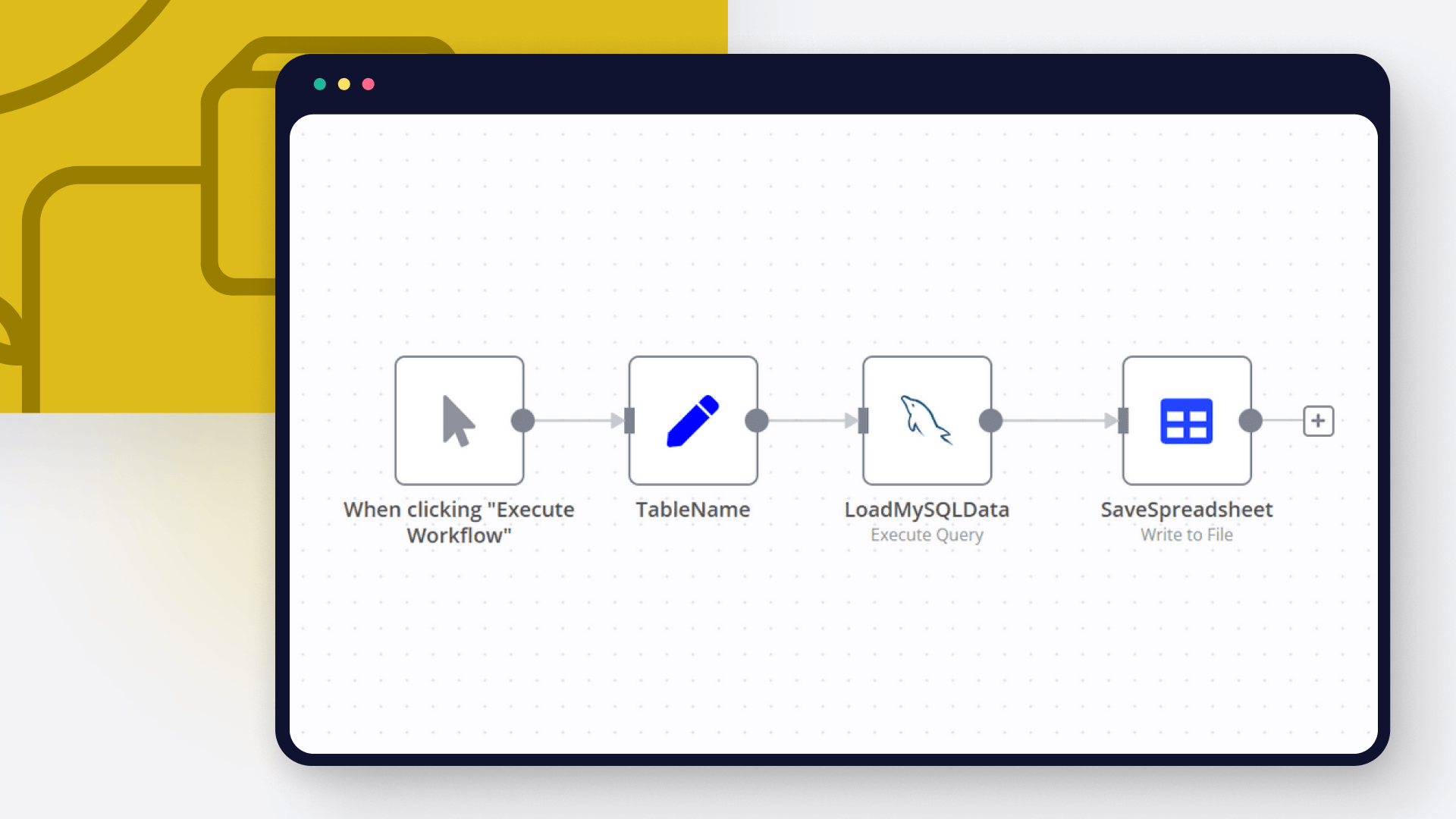
This workflow queries a table in MySQL and inserts the data into Google Sheets.

Build your own MySQL and Google Sheets integration

Create custom MySQL and Google Sheets workflows by choosing triggers and actions. Nodes come with global operations and settings, as well as app-specific parameters that can be configured. You can also use the HTTP Request node to query data from any app or service with a REST API.

MySQL supported actions

Delete
Delete an entire table or rows in a table
Execute SQL
Execute an SQL query
Insert
Insert rows in a table
Insert or Update
Insert or update rows in a table
Select
Select rows from a table
Update
Update rows in a table

Google Sheets supported actions

Create
Create a spreadsheet
Delete
Delete a spreadsheet
Append or Update Row
Append a new row or update an existing one (upsert)
Append Row
Create a new row in a sheet
Clear
Delete all the contents or a part of a sheet
Create
Create a new sheet
Delete
Permanently delete a sheet
Delete Rows or Columns
Delete columns or rows from a sheet
Get Row(s)
Retrieve one or more rows from a sheet
Update Row
Update an existing row in a sheet

MySQL and Google Sheets integration: Step-by-step video guide

FAQs

  • Can MySQL connect with Google Sheets?

  • Can I use MySQL’s API with n8n?

  • Can I use Google Sheets’s API with n8n?

  • Is n8n secure for integrating MySQL and Google Sheets?

  • How to get started with MySQL and Google Sheets integration in n8n.io?

Need help setting up your MySQL and Google Sheets integration?

Discover our latest community's recommendations and join the discussions about MySQL and Google Sheets integration.
Mohammadali
Sergey Komardenkov
Michael Zareno
sérgio eduardo floresta filho
Julian

Looking to integrate MySQL and Google Sheets in your company?

Over 3000 companies switch to n8n every single week

Why use n8n to integrate MySQL with Google Sheets

Build complex workflows, really fast

Build complex workflows, really fast

Handle branching, merging and iteration easily.
Pause your workflow to wait for external events.

Code when you need it, UI when you don't

Simple debugging

Your data is displayed alongside your settings, making edge cases easy to track down.

Use templates to get started fast

Use 1000+ workflow templates available from our core team and our community.

Reuse your work

Copy and paste, easily import and export workflows.

Implement complex processes faster with n8n

red iconyellow iconred iconyellow icon