Back to Integrations
integrationMySQL node
integrationPostgres node

MySQL and Postgres integration

Save yourself the work of writing custom integrations for MySQL and Postgres and use n8n instead. Build adaptable and scalable Development, and Data & Storage workflows that work with your technology stack. All within a building experience you will love.

How to connect MySQL and Postgres

  • Step 1: Create a new workflow
  • Step 2: Add and configure nodes
  • Step 3: Connect
  • Step 4: Customize and extend your integration
  • Step 5: Test and activate your workflow

Step 1: Create a new workflow and add the first step

In n8n, click the "Add workflow" button in the Workflows tab to create a new workflow. Add the starting point – a trigger on when your workflow should run: an app event, a schedule, a webhook call, another workflow, an AI chat, or a manual trigger. Sometimes, the HTTP Request node might already serve as your starting point.

MySQL and Postgres integration: Create a new workflow and add the first step

Step 2: Add and configure MySQL and Postgres nodes

You can find MySQL and Postgres in the nodes panel. Drag them onto your workflow canvas, selecting their actions. Click each node, choose a credential, and authenticate to grant n8n access. Configure MySQL and Postgres nodes one by one: input data on the left, parameters in the middle, and output data on the right.

MySQL and Postgres integration: Add and configure MySQL and Postgres nodes

Step 3: Connect MySQL and Postgres

A connection establishes a link between MySQL and Postgres (or vice versa) to route data through the workflow. Data flows from the output of one node to the input of another. You can have single or multiple connections for each node.

MySQL and Postgres integration: Connect MySQL and Postgres

Step 4: Customize and extend your MySQL and Postgres integration

Use n8n's core nodes such as If, Split Out, Merge, and others to transform and manipulate data. Write custom JavaScript or Python in the Code node and run it as a step in your workflow. Connect MySQL and Postgres with any of n8n’s 1000+ integrations, and incorporate advanced AI logic into your workflows.

MySQL and Postgres integration: Customize and extend your MySQL and Postgres integration

Step 5: Test and activate your MySQL and Postgres workflow

Save and run the workflow to see if everything works as expected. Based on your configuration, data should flow from MySQL to Postgres or vice versa. Easily debug your workflow: you can check past executions to isolate and fix the mistake. Once you've tested everything, make sure to save your workflow and activate it.

MySQL and Postgres integration: Test and activate your MySQL and Postgres workflow

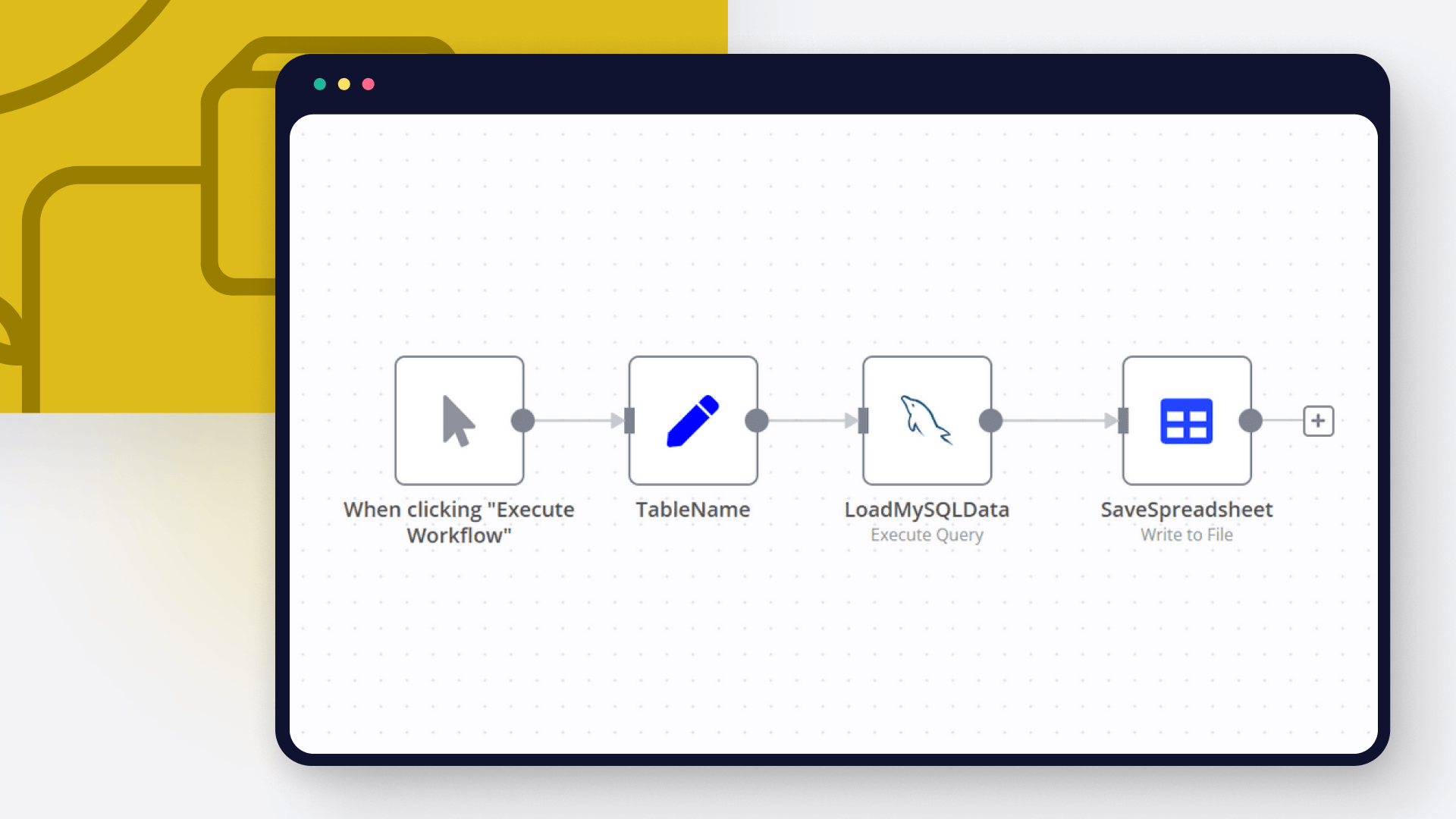
Join data from Postgres and MySQL

query data from two different databases handle and unify in a single return

Nodes used in this workflow

Popular MySQL and Postgres workflows

+2

Generate & Test SQL Code with GPT/OpenRouter AI and PostgreSQL Sandbox

This is the core AI agent used for queryverify.com. Don't trust complex AI-generated SQL queries without double-checking them in a safe environment. That's where queryverify comes in. It automatically creates a test environment with the necessary data, generates code for your task, runs it to double-check for correctness, and handles errors if necessary. If you enable auto-fixing, queryverify will detect and fix issues on its own. If not, it will ask for your permission before making changes during debugging. In the end, you get thoroughly verified code along with full details about the environment it ran in. Setup It is an embedded chat for the website, but you can pin input data and run it on your own n8n instance. Input data sessionId: uuid\_v4. Required to handle ongoing conversations and to create table names (used as a prefix). threadId: string | nullable. If aiProvider is openai, conversation history is managed on OpenAI’s side. This is not needed in the first request—it will start a new conversation. For ongoing conversations, you must provide this value. You can get it from the OpenAIMainBrain node output after the first run. If you want to start a new conversation, just leave it as null. apiKey: string. Your API key for the selected aiProvider. aiProvider: string. Currently supported values: openai, openrouter. model: string. The AI model key (e.g., gpt-4.1, o3-mini, or any supported model key from OpenRouter). autoErrorFixing: boolean. If true, it will automatically fix errors encountered when running code in the environment. If false, it will ask for your permission before attempting a fix. chatInput: string. The user's prompt or message. currentDbSchemaWithData: string. A JSON representation of the database schema with sample data. Used to inform the AI about the current database structure during an ongoing conversation. Please use the '[]' value in the first request. Example string for filled db structure : '{"users":[{"id":1,"name":"John Doe","email":"[email protected]"},{"id":2,"name":"Jane Smith","email":"[email protected]"}],"products":[{"product_id":101,"product_name":"Laptop","price":999.99}]}' Make sure to fill in your credentials: Your OpenAI or OpenRouter API key Access to a local PostgreSQL database for test execution You can view your generated tables using your preferred PostgreSQL GUI. We recommend DBeaver. Alternatively, you can activate the “Deactivated DB Visualization” nodes below. To use them, connect each to the most recent successful Set node and manually adjust the output. However, the easiest and most efficient method is to use a GUI. Workflow Explanation We store all input values in the localVariables node. Please use this node to get the necessary data. OpenAI has a built-in assistant that manages chat history on their side. For OpenRouter, we handle chat history locally. That’s why we use separate nodes like ifOpenAi and isOpenAi. Note that if logic can also be used inside nodes. The AutoErrorFixing loop will run only a limited number of times, as defined by the isMaxAutoErrorReached node. This prevents infinite loops. The Execute_AI_result node connects to the PostgreSQL test database used to execute queries. Guidance on customization This setup is built for PostgreSQL, but it can be adapted to any programming language, and the logic can be extended to any programming framework. To customize the logic for other programming languages: Change instruction parameter in localVariables node. Replace the Execute_AI_result PostgreSQL node with another executable node. For example, you can use the HTTP Request node. Update the GenerateErrorPrompt node's prompt parameter to generate code specific to your target language or framework. Any workflows built on top of this must credit the original author and be released under an open-source license.

Join data from Postgres and MySQL

query data from two different databases handle and unify in a single return

Build your own MySQL and Postgres integration

Create custom MySQL and Postgres workflows by choosing triggers and actions. Nodes come with global operations and settings, as well as app-specific parameters that can be configured. You can also use the HTTP Request node to query data from any app or service with a REST API.

MySQL supported actions

Delete
Delete an entire table or rows in a table
Execute SQL
Execute an SQL query
Insert
Insert rows in a table
Insert or Update
Insert or update rows in a table
Select
Select rows from a table
Update
Update rows in a table

Postgres supported actions

Delete
Delete an entire table or rows in a table
Execute Query
Execute an SQL query
Insert
Insert rows in a table
Insert or Update
Insert or update rows in a table
Select
Select rows from a table
Update
Update rows in a table

FAQs

  • Can MySQL connect with Postgres?

  • Can I use MySQL’s API with n8n?

  • Can I use Postgres’s API with n8n?

  • Is n8n secure for integrating MySQL and Postgres?

  • How to get started with MySQL and Postgres integration in n8n.io?

Need help setting up your MySQL and Postgres integration?

Discover our latest community's recommendations and join the discussions about MySQL and Postgres integration.
Mikhail Savenkov
Honza Pav
Mohammadali
Michael Zareno
Vyacheslav Karbovnichy

Looking to integrate MySQL and Postgres in your company?

Over 3000 companies switch to n8n every single week

Why use n8n to integrate MySQL with Postgres

Build complex workflows, really fast

Build complex workflows, really fast

Handle branching, merging and iteration easily.
Pause your workflow to wait for external events.

Code when you need it, UI when you don't

Simple debugging

Your data is displayed alongside your settings, making edge cases easy to track down.

Use templates to get started fast

Use 1000+ workflow templates available from our core team and our community.

Reuse your work

Copy and paste, easily import and export workflows.

Implement complex processes faster with n8n

red iconyellow iconred iconyellow icon