Back to Integrations
integrationWebhook node
integrationJira Software node

Webhook and Jira Software integration

Save yourself the work of writing custom integrations for Webhook and Jira Software and use n8n instead. Build adaptable and scalable Development, Core Nodes, and Productivity workflows that work with your technology stack. All within a building experience you will love.

How to connect Webhook and Jira Software

  • Step 1: Create a new workflow
  • Step 2: Add and configure nodes
  • Step 3: Connect
  • Step 4: Customize and extend your integration
  • Step 5: Test and activate your workflow

Step 1: Create a new workflow and add the first step

In n8n, click the "Add workflow" button in the Workflows tab to create a new workflow. Add the starting point – a trigger on when your workflow should run: an app event, a schedule, a webhook call, another workflow, an AI chat, or a manual trigger. Sometimes, the HTTP Request node might already serve as your starting point.

Webhook and Jira Software integration: Create a new workflow and add the first step

Step 2: Add and configure Webhook and Jira Software nodes

You can find Webhook and Jira Software in the nodes panel. Drag them onto your workflow canvas, selecting their actions. Click each node, choose a credential, and authenticate to grant n8n access. Configure Webhook and Jira Software nodes one by one: input data on the left, parameters in the middle, and output data on the right.

Webhook and Jira Software integration: Add and configure Webhook and Jira Software nodes

Step 3: Connect Webhook and Jira Software

A connection establishes a link between Webhook and Jira Software (or vice versa) to route data through the workflow. Data flows from the output of one node to the input of another. You can have single or multiple connections for each node.

Webhook and Jira Software integration: Connect Webhook and Jira Software

Step 4: Customize and extend your Webhook and Jira Software integration

Use n8n's core nodes such as If, Split Out, Merge, and others to transform and manipulate data. Write custom JavaScript or Python in the Code node and run it as a step in your workflow. Connect Webhook and Jira Software with any of n8n’s 1000+ integrations, and incorporate advanced AI logic into your workflows.

Webhook and Jira Software integration: Customize and extend your Webhook and Jira Software integration

Step 5: Test and activate your Webhook and Jira Software workflow

Save and run the workflow to see if everything works as expected. Based on your configuration, data should flow from Webhook to Jira Software or vice versa. Easily debug your workflow: you can check past executions to isolate and fix the mistake. Once you've tested everything, make sure to save your workflow and activate it.

Webhook and Jira Software integration: Test and activate your Webhook and Jira Software workflow

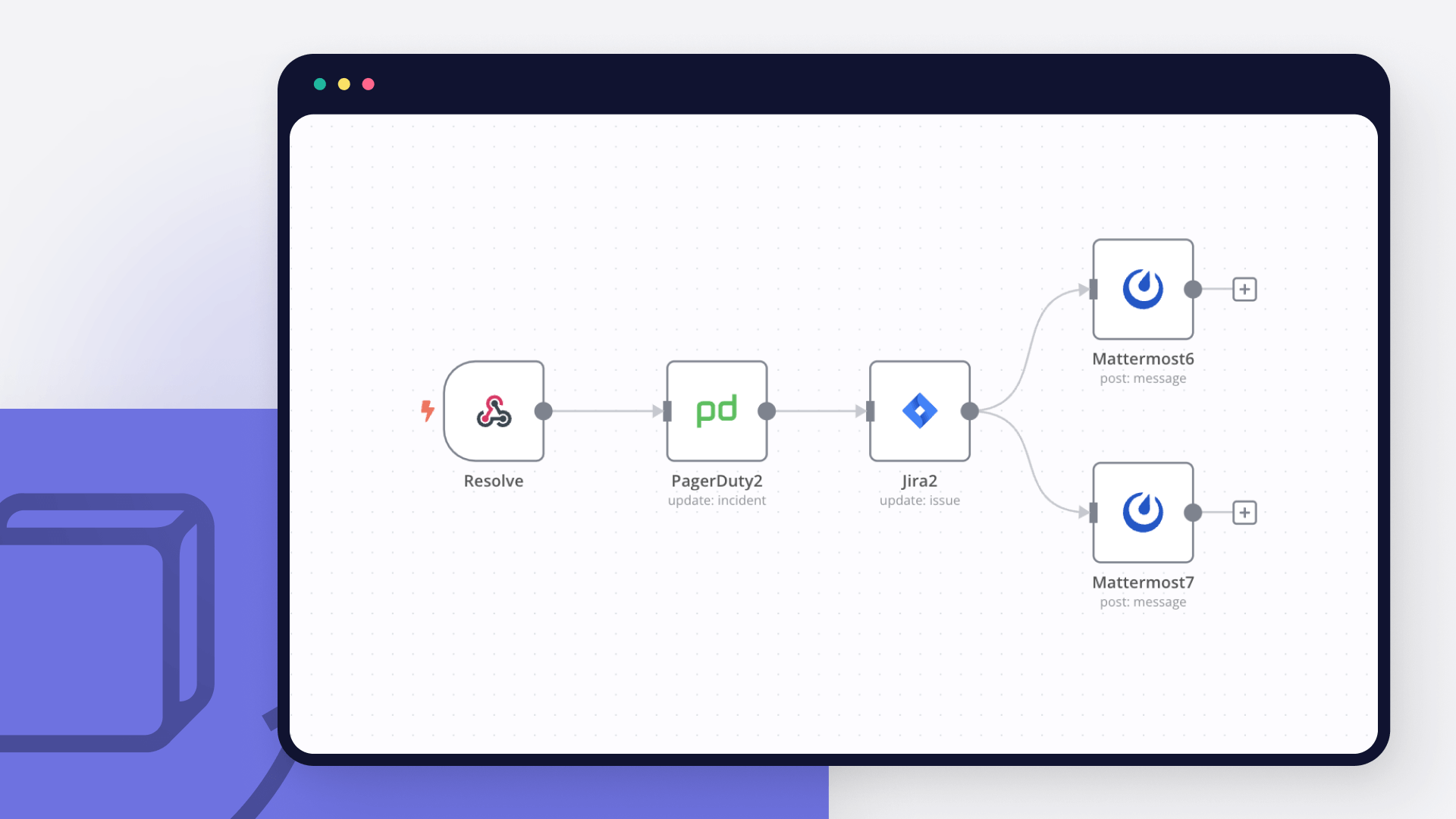
Manage custom incident response in PagerDuty and Jira

This workflow automatically follows the steps in a custom incident response playbook and manages incidents in PagerDuty, Jira tickets, and notifies the on-call team in Mattermost.

This workflow consists of three sub-workflows, each automating specific steps in the playbook. Read more about this use case and learn how to set up the workflows step-by-step in the blog tutorial How to automate every step of an incident response workflow.

Prerequisites

A PagerDuty account and credentials
A Mattermost account and credentials
A Jira account and credentials

Nodes

Webhook nodes trigger the workflows when an incident is created in PagerDuty, and when the incidedent is acknowledged and resolved.
Mattermost nodes create an auxiliary channel for the on-call team to discuss the incident with buttons to acknowledge the incident and mark it as resolved.
PagerDuty nodes update the status of the incident.
Jira nodes create an issue about the incident and update its status when it's resolved.

Nodes used in this workflow

Popular Webhook and Jira Software workflows

+4

Generate continuous PRD updates in Google Docs from Slack, Zoom, Jira, Zendesk, Figma and analytics using OpenAI

This workflow creates an automated Product Intelligence Engine that continuously collects signals from multiple product sources and generates structured PRD updates using AI. It ingests conversations, feedback, support tickets, analytics, and design comments, standardizes them, analyzes them with an AI PRD Agent, and automatically updates a Google Doc with structured PRD recommendations. Instead of manually reviewing Slack threads, Zoom calls, Jira comments, support tickets, and customer forms, this workflow centralizes everything into one intelligent PRD analysis system. High-Level Architecture - The workflow runs in 4 layers: Signal Ingestion Layer Captures product signals from: • Slack (channel messages + app mentions) • Customer Form submissions • Zoom recordings (scheduled) • Jira comments (scheduled) • Zendesk tickets (scheduled) • Figma comments (file updates) • Platform analytics via webhook • (Extendable to Salesforce / HubSpot) Standardization Layer Each source passes through a Format Node that: • Extracts relevant text • Normalizes metadata • Adds timestamps • Labels source type All inputs are converted into a unified "product signal" object. Intelligence Layer (AI PRD Agent) All signals are merged into a single stream using a Merge node. The PRD Analysis Agent then: • Extracts feature requests • Detects scope changes • Identifies risks and constraints • Evaluates priority signals • Detects target user shifts • Generates structured PRD updates PRD Governance Layer - output in a Google Doc The structured AI output is appended to a Google Doc, which is fully traceable. This creates a living PRD that continuously evolves based on real product signals. Required Credentials (And How To Add Them): You will need to configure the following credentials in n8n: Slack Used for Slack Trigger. Steps: Create a Slack App at api.slack.com Enable: app_mentions:read channels:history chat:write (optional if you want replies) Install app to workspace Copy Bot OAuth Token In n8n → Create Slack API credential Paste token Reference - https://www.youtube.com/watch?v=qk5JH6ImK0I Zoom (OAuth2) Used to fetch recordings. Steps: Create an OAuth App in Zoom Marketplace Add the Redirect URL from n8n Copy Client ID + Secret Add Zoom OAuth2 credential in n8n Connect account Reference - https://www.youtube.com/watch?v=BC6O_3LYgac Google Docs (OAuth2) Used to update PRD document. Steps: Create Google Cloud Project Add Doc URl to n8n Replace the example Google Doc URL with your own PRD document. Reference - https://www.youtube.com/watch?v=iieEHvu93dc Jira (Cloud) Steps: Generate API token from Atlassian Create Jira Software Cloud credential Enter: Email API token Domain Reference - https://www.youtube.com/watch?v=T4z7lzqSZDY Zendesk Steps: Generate API token Add Zendesk credential Enter: Subdomain Email API token Figma Steps: Generate a personal access token in Figma Add Figma credentials with the team ID Paste token Platform Analytics Webhook Replace: <PLACEHOLDER_VALUE__your_analytics_api_endpoint> With your real analytics endpoint. You can: • Send Mixpanel exports • Send Amplitude exports • Or POST custom JSON What Makes This Powerful • Eliminates product signal silos • Creates AI-driven PRD governance • Ensures traceability of decisions • Enables continuous PRD evolution • Scales across teams

Generate AI matte painting video variations with Seedance for VFX review

📘 Description This workflow is a fully automated AI matte painting generation system for VFX pipelines, designed to convert a single environment prompt into multiple cinematic background variations. It handles generation, validation, multi-variant rendering, compositing preparation, review workflows, and final delivery—eliminating manual coordination between artists, supervisors, and production systems. ⚙️ Step-by-Step Flow The process begins with a webhook trigger that serves as the shot request intake layer, receiving a POST request containing the environment prompt, shot code, optional plate image URL, and metadata such as project, sequence, and supervisor details. This input is then passed through a validation and normalization stage, ensuring all required fields are present while standardizing elements like sequence codes, project IDs, Slack channels, and timestamps. Once validated, the system fans out the request into four distinct cinematic variations—day (overcast realism), dusk (golden hour lighting), night (moonlit cinematic), and fog (atmospheric depth)—with each variant assigned a custom-engineered prompt. At the core of the workflow, a dynamic mode selection logic determines whether to use image-to-video generation (if a plate image is provided) or text-to-video generation (if no reference is available), while also configuring parameters such as audio generation, aspect ratio, and duration. Each variation is then submitted as an independent job to the Seedance API for AI video generation, returning unique job IDs for tracking. A polling loop handles asynchronous processing by checking the status of each job every 20 seconds until all reach a “succeeded” state, operating independently per variation. Once completed, the system constructs detailed metadata for each asset, including video URL, atmosphere type, variant ID, resolution, duration, and tags such as AI-generated and review status. In parallel, it generates an auto-configured Nuke compositing template with pre-built nodes for plate input, AI background, merge setup, color grading placeholders, and output writing. For production tracking, a Jira review task is created for each variation, while all assets are logged within the ClickUp system. An aggregation layer then consolidates all four variations into a single structured summary, formatted for seamless Slack delivery. A Slack notification is sent to the supervisor with the complete review package, including links to all variations, Jira tickets, inline Nuke scripts, and associated metadata. Finally, the system downloads the generated video assets and completes the workflow by sending an email to the requester with the video attachments and full production context, ensuring a smooth end-to-end delivery pipeline. 🚨 Error Handling • Global error trigger • Instant Slack alert • Prevents silent failures across pipeline 🧩 Prerequisites • Seedance API (video generation) • Slack OAuth2 • Gmail OAuth2 • Jira Cloud • ClickUp API • Webhook integration (input system) 💡 Key Benefits ✔ Parallel generation of multiple cinematic variations ✔ Automatic decision between image-to-video vs text-to-video ✔ Built-in compositing (Nuke script auto-generation) ✔ Full production pipeline (generation → review → delivery) ✔ Async-safe with polling loop ✔ Centralized asset tracking (Jira + ClickUp) ✔ Zero manual VFX coordination 👥 Perfect For VFX studios Film/TV production pipelines AI-driven matte painting workflows Previsualization teams Creative automation systems

Generate AI videos from prompts with Seedance, Jira, Slack, and Gmail

📘 Description This workflow is an end-to-end AI video generation, review, and delivery pipeline. It takes a plain-text creative prompt via webhook, generates a video using an AI model, continuously checks job status until completion, and then automates the entire post-production workflow—metadata creation, Jira ticketing, Slack notifications, and final email delivery with the video attached. It ensures zero manual coordination between creative, ops, and delivery teams. The process begins with a webhook trigger that acts as the input layer, receiving a request containing the prompt text, record ID, and user email. This input is then passed through a prompt sanitisation step using a code node, where the text is cleaned and escaped to prevent API errors or malformed payloads. Once sanitised, the system submits a video generation request via an HTTP call to the AI video model (Seedance API). A polling loop is then initiated, which waits for 20 seconds between each cycle and repeatedly checks the job status using HTTP requests until the status is marked as “succeeded.” After completion, the system extracts the video output through a metadata builder, parsing the response to structure key details such as the video URL, job ID, resolution, duration, timestamp, and AI-generated tags including review status. Following this, a Jira review ticket is automatically created to log the generated video within the review workflow. Simultaneously, a Slack notification is sent to the VFX supervisor, containing the Jira ticket reference, video URL, status, and associated metadata. The system then downloads the final video file from the generated URL and completes the process by sending a professional email via Gmail to the requester, including the video as an attachment along with job details and the Jira reference. 🚨 Error Handling Flow • Global error trigger catches failures • Sends Slack alert instantly • Prevents silent pipeline breakdown 🧩 Prerequisites • AI video API (Seedance or similar) • Jira Cloud credentials • Slack OAuth2 • Gmail OAuth2 • Webhook endpoint integration 💡 Key Benefits ✔ Fully automated creative pipeline (idea → video → delivery) ✔ Async job handling with polling loop ✔ Built-in review workflow (Jira + Slack) ✔ Zero manual coordination required ✔ Production-ready structure with metadata tracking ✔ Fault-tolerant with global error alerts 👥 Perfect For AI video production teams Content studios / VFX pipelines Marketing creative automation UGC/ad generation workflows Internal media ops systems

Analyze support screenshots with UploadToURL, GPT-4o Vision, Zendesk, and Jira

Eliminate the manual chaos of HR and legal document management. This workflow automates the transition from a raw document upload to a structured, audit-ready archive by combining UploadToURL for instant CDN hosting, Google Drive for long-term storage, and Airtable for status tracking and database management. 🎯 What This Workflow Does Transforms loose document scans into a structured corporate filing system: 📝 Captures Legal Assets - Receives signed contracts or IDs via mobile scan (binary) or remote URL. 🛡️ Duplicate Prevention - Checks Airtable first to ensure a contract isn't already filed for that specific Employee ID. ☁️ Instant CDN Hosting - UploadToURL hosts the document to provide a high-speed link for immediate HR review. 📁 Smart Folder Logic - Automatically navigates or creates a structured Google Drive path: HR/Contracts/{Year}/{Department}/{EmployeeName}/. 🗃️ Database Synchronization - Updates (or creates) an Airtable record to tick "Contract Received," logging both the Drive URL and the CDN backup. 📧 Automated Confirmation - Sends a professional HTML email to HR and the employee with access links and filing metadata. ✨ Key Features UploadToURL Integration**: Provides a redundant, accessible CDN link stored alongside your primary Drive storage for total data reliability. Auto-Nomenclature**: Renames files using a strict audit-ready format: {EmployeeID}{LastName}{Type}_{Date}.pdf. Intelligent Folder Creation**: Never manually create a folder again; the workflow builds the entire hierarchy on the fly. Audit Trail Generation**: Captures "Filed By," "Filed At," and unique "Upload IDs" for every document. Conflict Handling**: Built-in 409 Conflict logic prevents accidental overwrites or double-filing of critical legal papers. 💼 Perfect For HR Teams**: Managing onboarding documents and employment contracts at scale. Legal Departments**: Archiving NDAs, vendor agreements, and compliance certifications. Small Businesses**: Moving away from "loose files in folders" to a searchable, automated database. Remote Teams**: Enabling employees to "upload and forget" their paperwork via a simple link. 🔧 What You'll Need Required Integrations UploadToURL** - To host documents and provide public CDN backup links. n8n Community Node** - n8n-nodes-uploadtourl must be installed. Google Drive** - OAuth2 credentials for secure document storage. Airtable** - Personal Access Token to manage your employee/document database. Gmail / SMTP** - To send automated filing confirmations. Configuration Variables GDRIVE_ROOT_FOLDER_ID: The ID of your main HR folder in Google Drive. AIRTABLE_BASE_ID: Your specific Airtable base for HR/Legal tracking. 🚀 Quick Start Import Template - Copy the JSON and import it into your n8n workspace. Install Node - Ensure the UploadToURL community node is active. Set Credentials - Link your UploadToURL, Google Drive, Airtable, and Gmail accounts. Define Variables - Set your Root Folder ID and Airtable Base details in n8n variables. Test the Pipeline - Send a test POST with a sample PDF to the Webhook URL. Activate - Enable the workflow to begin hands-free archiving. 🎨 Customization Options Expiration Alerts**: Add a node to calculate 1-year expiry dates and set an automated reminder in Slack. OCR Processing**: Integrate an OCR step to read the content of scans and verify names automatically. Watermarking**: Add a "Confidential" or "Draft" watermark to documents before they are uploaded to the CDN. Multi-Base Routing**: Route documents to different Airtable bases depending on the "Department" field. 📈 Expected Results 100% Consistency** in file naming and folder structures across the entire organization. Zero manual data entry**—employee records and checkboxes update automatically. Audit-ready in minutes**: Every file has a timestamped trail and redundant storage links. Instant Accessibility**: HR can view documents via the CDN link before Drive permissions even propagate. 🏆 Use Cases High-Growth Onboarding A startup hiring 20 people a month can automate all contract filings, ensuring the "Contract Received" flag is always accurate for payroll. Compliance Audits When auditors ask for specific contracts, use the Airtable "Structured Filename" column to find and share the relevant Drive or CDN links in seconds. Field Service Scans Technicians in the field can upload signed site reports via a mobile app; the workflow handles the filing and notifies the office immediately. 💡 Pro Tips Folder IDs**: You can find your GDRIVE_ROOT_FOLDER_ID by looking at the last string in the URL when you are inside that folder in your browser. Structured JSON**: Use the returned auditTrail object to build a log of all uploads in a separate "Master Audit" spreadsheet. Employee IDs**: If no ID is provided, the workflow generates a temporary one using a timestamp to ensure the archive never breaks. Ready to secure your document pipeline? Import this template and connect UploadToURL to build a world-class archiving system in under 20 minutes. Need help with Airtable field mapping? The workflow includes detailed sticky notes explaining the exact field names required for the automation to run.
+3

Onboard new hires with GPT-4, Notion, Jira, Google Drive, Gmail and Slack

⚖️ HR Sovereign: AI-Powered Onboarding Hub A high-fidelity employee onboarding engine: Intake → Role-Based Enrichment → AI Personalization → IT Provisioning. ⚙️ Core Sovereign Logic Enrichment:** Auto-classifies Tech, Sales, and Leadership roles to drive specific logic tracks. Intelligence:* Uses AI Agent (GPT-4)* to generate personalized welcome messaging based on job DNA. Atomization:* Merge PDF* node assembles role-specific policies and benefits into a single high-res package. Provisioning:* Dynamically generates Jira hardware/access tickets and Notion* tracking dashboards. Delivery:* Sends branded HTML emails via Gmail and announces hires on Slack*. 📋 Setup & Prerequisites Intake: Connect your HRIS (BambooHR/Workday) to the Webhook URL. Assets: Organize Drive folders into "Technical", "Leadership", and "Standard" templates. Tracking: Connect your Notion Onboarding Database and Jira IT Project. Metrics: Time_to_Provision, Engagement_Score, Document_Integrity_Hash.

Orchestrate security vulnerability remediation with Port, OpenAI, Jira and Slack

Complete security workflow from vulnerability detection to automated remediation, with severity-based routing and full organizational context from Port's catalog. This template provides end-to-end lifecycle management including automatic Jira ticket creation with appropriate priority, AI-powered remediation planning, and Claude Code-triggered fixes for critical vulnerabilities. The full guide is available here. How it works The n8n workflow orchestrates the following steps: Webhook trigger**: Receives vulnerability alerts from security scanners (Snyk, Wiz, SonarQube, etc.) via POST request. Port context enrichment**: Uses Port's n8n node to query your software catalog for service metadata, ownership, environment, SLA requirements, and dependencies related to the vulnerability. AI remediation planning**: OpenAI analyzes the vulnerability with Port context and generates a remediation plan, determining if automated fixing is possible. Severity-based routing**: Routes vulnerabilities through different paths based on severity level: Critical: Jira ticket (Highest priority) → Check if auto-fixable → Trigger Claude Code fix → Slack alert with fix status High: Jira ticket (High priority) → Slack notification to team channel Medium/Low: Jira ticket only for tracking Jira integration**: Creates tickets with full context including vulnerability details, affected service information from Port, and AI-generated remediation steps. Claude Code remediation**: For auto-fixable critical vulnerabilities, triggers Claude Code via Port action to create a pull request with the security patch, referencing the Jira ticket. Slack notifications**: Sends contextual alerts to the appropriate team channel (retrieved from Port) with Jira ticket reference and remediation status. Prerequisites You have a Port account and have completed the onboarding process. Services and repositories are cataloged in Port with ownership information. Your security scanner (Snyk, Wiz, SonarQube) can send webhooks. You have a working n8n instance (Cloud or self-hosted) with Port's n8n custom node installed. Jira Cloud account with appropriate project permissions. Slack workspace with bot permissions to post messages. OpenAI API key for remediation planning. Setup Register for free on Port.io if you haven't already. Create the Context Retriever Agent in Port following the guide. Import the workflow and configure credentials (Port, Jira, Slack, OpenAI, Bearer Auth). Select your Jira project in each Jira node (Critical, High, Medium/Low). Update default-organization/repository with your default repository for Claude Code fixes. Point your security scanner webhook to the workflow URL. Test with a sample vulnerability payload. ⚠️ This template is intended for Self-Hosted instances only.

Build your own Webhook and Jira Software integration

Create custom Webhook and Jira Software workflows by choosing triggers and actions. Nodes come with global operations and settings, as well as app-specific parameters that can be configured. You can also use the HTTP Request node to query data from any app or service with a REST API.

Jira Software supported actions

Changelog
Get issue changelog
Create
Create a new issue
Delete
Delete an issue
Get
Get an issue
Get Many
Get many issues
Notify
Create an email notification for an issue and add it to the mail queue
Status
Return either all transitions or a transition that can be performed by the user on an issue, based on the issue's status
Update
Update an issue
Add
Add attachment to issue
Get
Get an attachment
Get Many
Get many attachments
Remove
Remove an attachment
Add
Add comment to issue
Get
Get a comment
Get Many
Get many comments
Remove
Remove a comment
Update
Update a comment
Create
Create a new user
Delete
Delete a user
Get
Retrieve a user

Webhook and Jira Software integration details

integrationWebhook node
Webhook

Webhooks are automatic notifications that apps send when something occurs. They are sent to a certain URL, which is effectively the app's phone number or address, and contain a message or payload. Polling is nearly never quicker than webhooks, and it takes less effort from you.

Use case

Save engineering resources

Reduce time spent on customer integrations, engineer faster POCs, keep your customer-specific functionality separate from product all without having to code.

Learn more

FAQs

  • Can Webhook connect with Jira Software?

  • Can I use Webhook’s API with n8n?

  • Can I use Jira Software’s API with n8n?

  • Is n8n secure for integrating Webhook and Jira Software?

  • How to get started with Webhook and Jira Software integration in n8n.io?

Need help setting up your Webhook and Jira Software integration?

Discover our latest community's recommendations and join the discussions about Webhook and Jira Software integration.
Benjamin Hatton
Albert Ashkhatoyan
Víctor González
Salomão
sg tech

Looking to integrate Webhook and Jira Software in your company?

Over 3000 companies switch to n8n every single week

Why use n8n to integrate Webhook with Jira Software

Build complex workflows, really fast

Build complex workflows, really fast

Handle branching, merging and iteration easily.
Pause your workflow to wait for external events.

Code when you need it, UI when you don't

Simple debugging

Your data is displayed alongside your settings, making edge cases easy to track down.

Use templates to get started fast

Use 1000+ workflow templates available from our core team and our community.

Reuse your work

Copy and paste, easily import and export workflows.

Implement complex processes faster with n8n

red iconyellow iconred iconyellow icon