Back to Integrations
integrationBrevo node
integrationGoogle Sheets node

Brevo and Google Sheets integration

Save yourself the work of writing custom integrations for Brevo and Google Sheets and use n8n instead. Build adaptable and scalable Marketing, Communication, Data & Storage, and Productivity workflows that work with your technology stack. All within a building experience you will love.

How to connect Brevo and Google Sheets

  • Step 1: Create a new workflow
  • Step 2: Add and configure nodes
  • Step 3: Connect
  • Step 4: Customize and extend your integration
  • Step 5: Test and activate your workflow

Step 1: Create a new workflow and add the first step

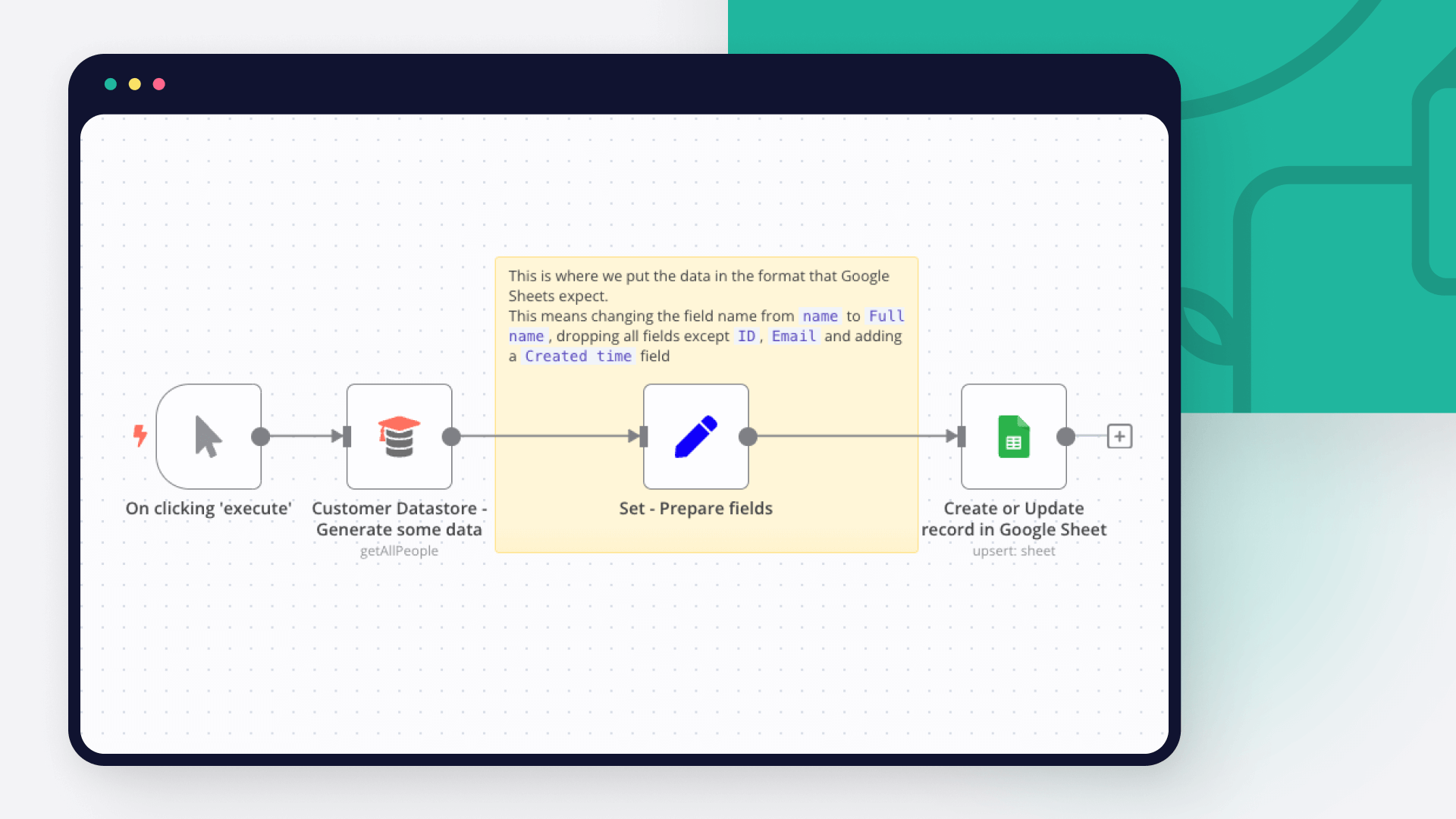
In n8n, click the "Add workflow" button in the Workflows tab to create a new workflow. Add the starting point – a trigger on when your workflow should run: an app event, a schedule, a webhook call, another workflow, an AI chat, or a manual trigger. Sometimes, the HTTP Request node might already serve as your starting point.

Brevo and Google Sheets integration: Create a new workflow and add the first step

Step 2: Add and configure Brevo and Google Sheets nodes

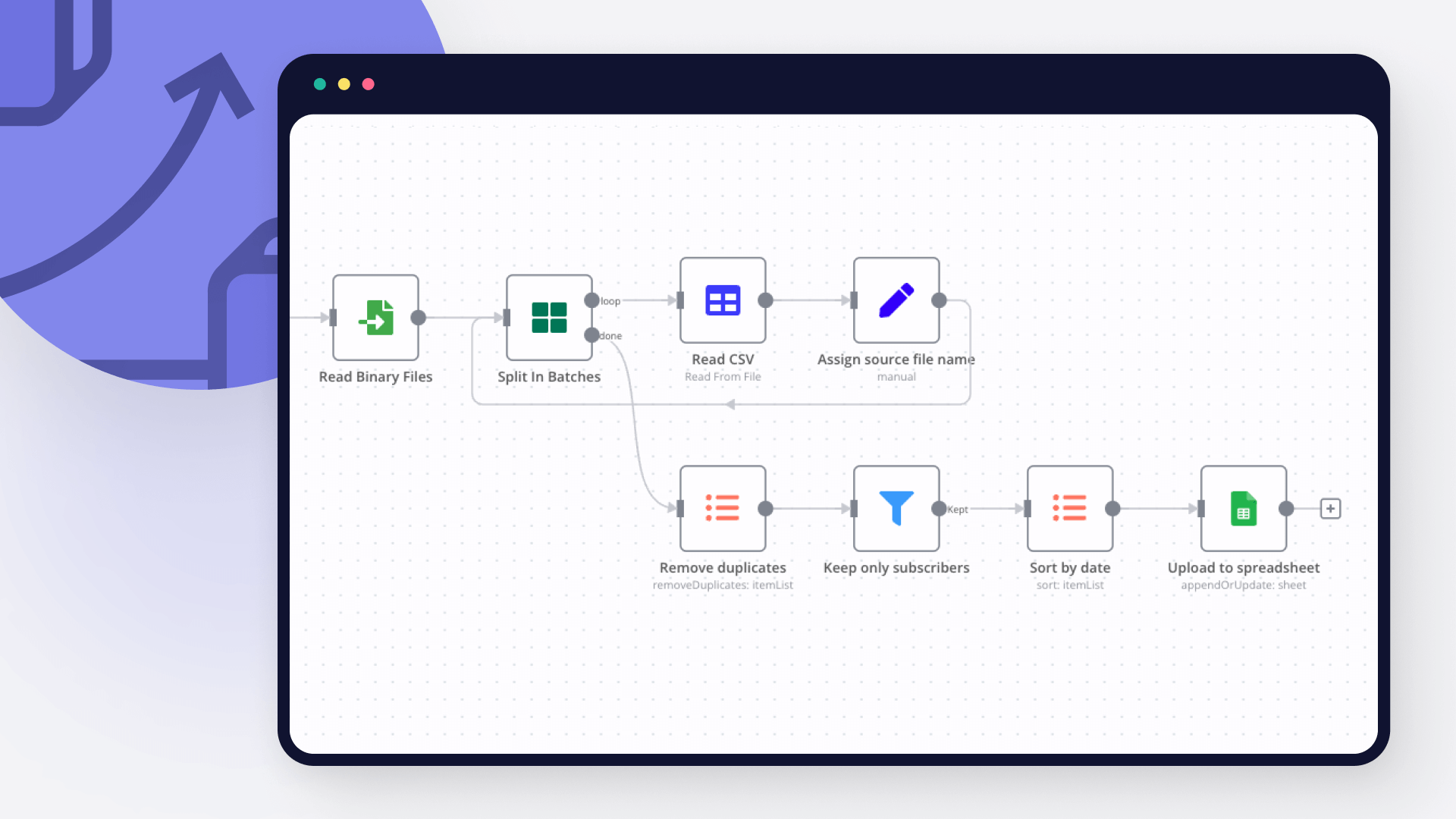
You can find Brevo and Google Sheets in the nodes panel. Drag them onto your workflow canvas, selecting their actions. Click each node, choose a credential, and authenticate to grant n8n access. Configure Brevo and Google Sheets nodes one by one: input data on the left, parameters in the middle, and output data on the right.

Brevo and Google Sheets integration: Add and configure Brevo and Google Sheets nodes

Step 3: Connect Brevo and Google Sheets

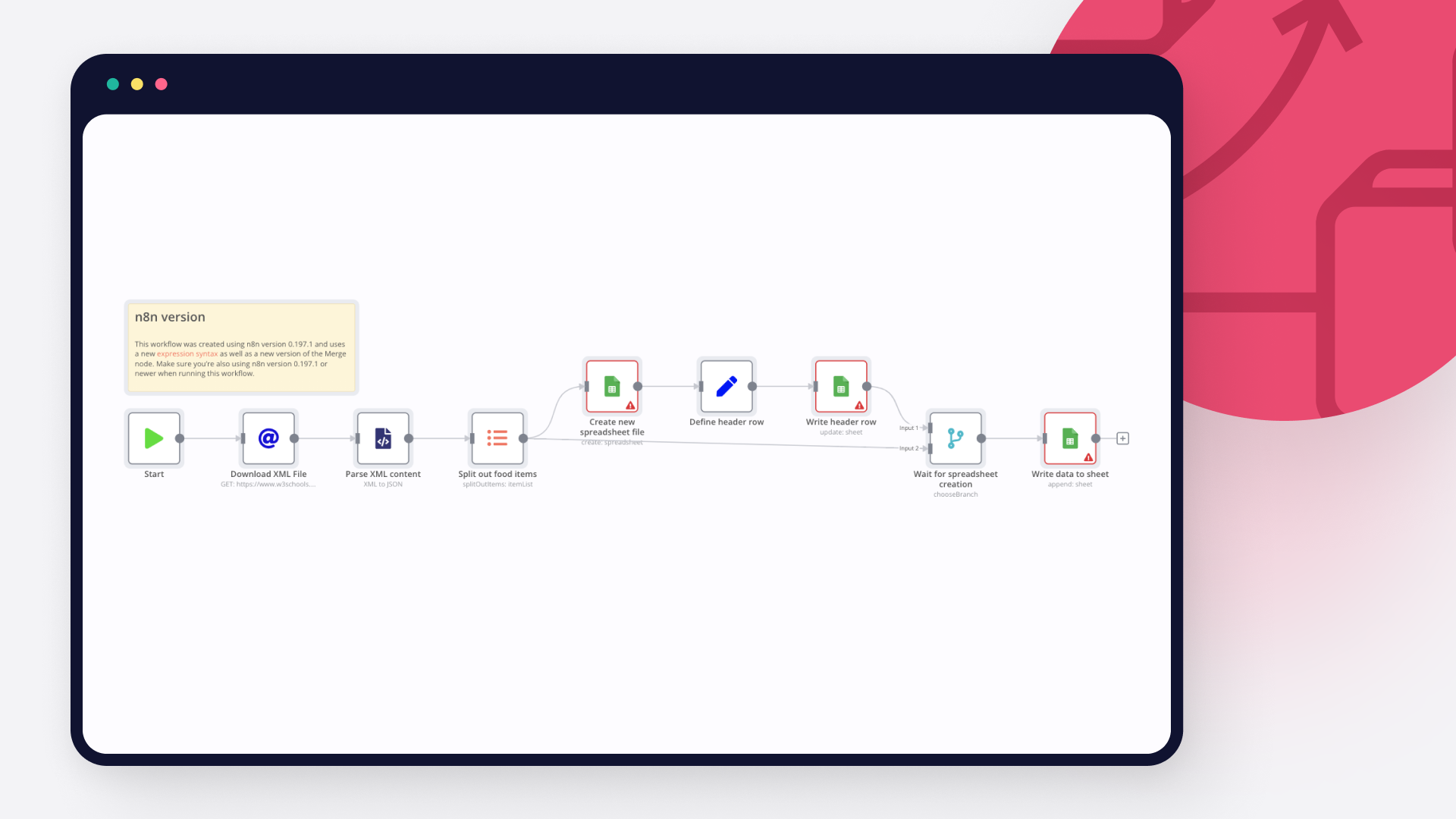
A connection establishes a link between Brevo and Google Sheets (or vice versa) to route data through the workflow. Data flows from the output of one node to the input of another. You can have single or multiple connections for each node.

Brevo and Google Sheets integration: Connect Brevo and Google Sheets

Step 4: Customize and extend your Brevo and Google Sheets integration

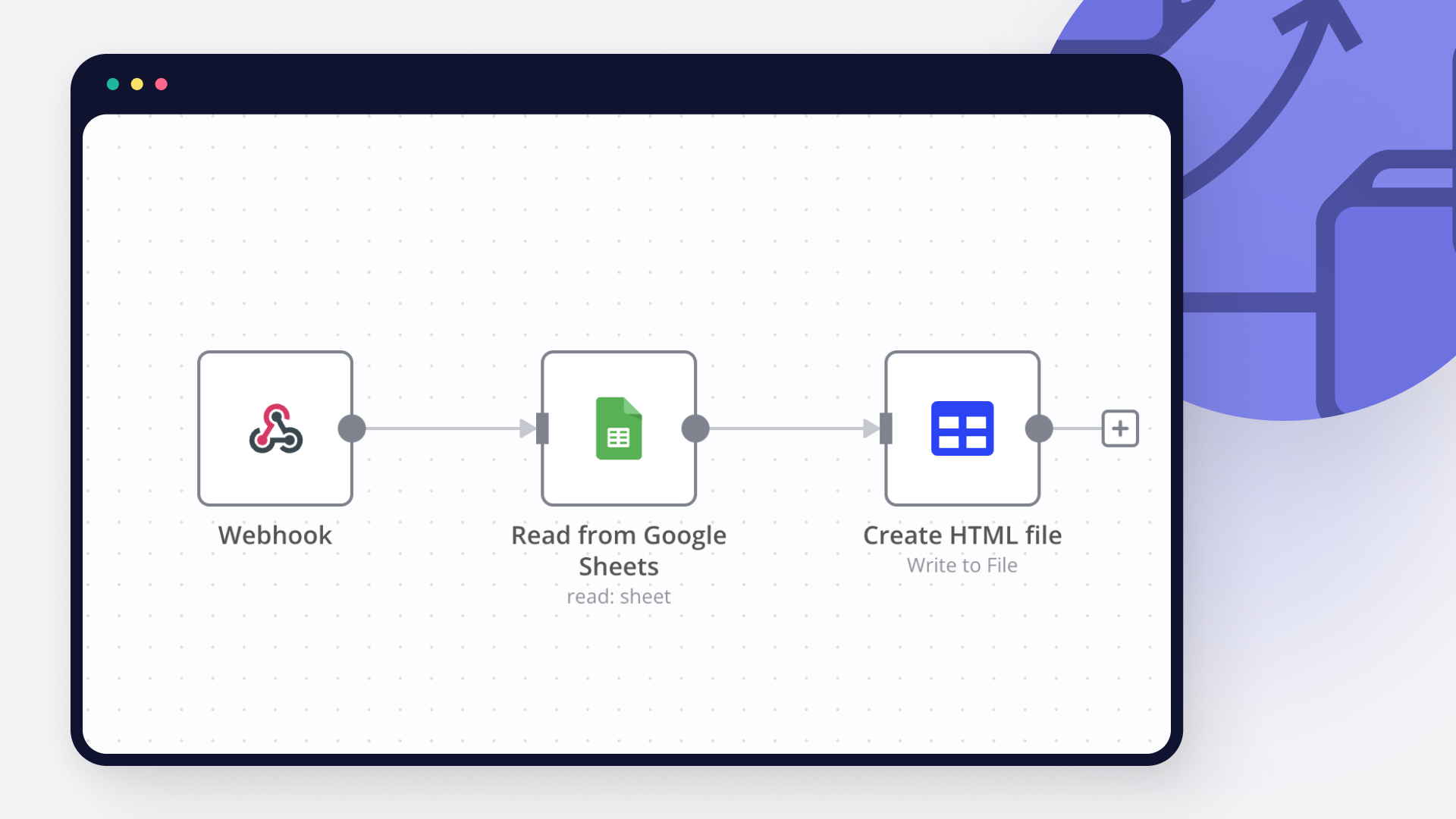
Use n8n's core nodes such as If, Split Out, Merge, and others to transform and manipulate data. Write custom JavaScript or Python in the Code node and run it as a step in your workflow. Connect Brevo and Google Sheets with any of n8n’s 1000+ integrations, and incorporate advanced AI logic into your workflows.

Brevo and Google Sheets integration: Customize and extend your Brevo and Google Sheets integration

Step 5: Test and activate your Brevo and Google Sheets workflow

Save and run the workflow to see if everything works as expected. Based on your configuration, data should flow from Brevo to Google Sheets or vice versa. Easily debug your workflow: you can check past executions to isolate and fix the mistake. Once you've tested everything, make sure to save your workflow and activate it.

Brevo and Google Sheets integration: Test and activate your Brevo and Google Sheets workflow

🚀 Automated Stripe payment recovery: track failures & follow-up emails

🚀 Automated Stripe Payment Recovery Workflow (n8n)

Detect failed payments, log them, and send polite follow-up emails to recover revenue — all automated with n8n.

✅ Part A – Detect & log failed payments

What it does:

Listens for failed Stripe payments.
Extracts customer & payment info.
Logs them neatly in Google Sheets for follow-up.

🧩 Nodes:

1️⃣ Stripe Trigger

Listens to:

payment_intent.payment_failed

2️⃣ Set node

Extracts & maps fields:

Name, Email, Amount (in cents), Currency
payment_intent_id
added_at → {{ $now }}
email_sent_count → 0

3️⃣ Remove Duplicates

Keeps the sheet clean (avoids duplicate rows).

4️⃣ Google Sheets node

Append or update row:

Name, Email, Amount/100, Currency, payment_intent_id, added_at, email_sent_count

> 📌 This builds your “failed payments queue” to drive the follow-up emails later.

🔁 Part B – Daily follow-up emails

What it does:

Runs daily.
Checks which users haven’t received 2 emails yet.
Sends reminder emails and tracks how many were sent.

🧩 Nodes:
1️⃣ Schedule Trigger

Runs every day at 10 AM (0 10 * * *)

2️⃣ Get Payment Failure Leads

Reads rows from Google Sheet.

3️⃣ Switch node (Check for no. of emails sent)

If email_sent_count < 1 → send first email.
Else if email_sent_count < 2 → send second email.
Else → mark as "quit sending emails".

4️⃣ Send First Email

Sends a gentle reminder with billing page button.

5️⃣ Update Email Count

Increments email_sent_count by +1 in Google Sheets.

6️⃣ Send Second Email

Sends final, urgent reminder.

7️⃣ Quit Sending Emails to these Leads

Marks that no more emails should be sent.

📝 Headline

> 🚀 Automated Stripe Payment Recovery: Track Failures & Send Follow-Up Emails via n8n

✅ Why this matters:

Catch failed payments automatically.
Log every attempt & follow-up count.
Recover lost revenue while staying polite and respectful.
Avoid spamming by capping follow-ups to 2 emails.

Nodes used in this workflow

Popular Brevo and Google Sheets workflows

🚀 Automated Stripe Payment Recovery: Track Failures & Follow-Up Emails

🚀 Automated Stripe Payment Recovery Workflow (n8n) Detect failed payments, log them, and send polite follow-up emails to recover revenue — all automated with n8n. ✅ Part A – Detect & log failed payments What it does: Listens for failed Stripe payments. Extracts customer & payment info. Logs them neatly in Google Sheets for follow-up. 🧩 Nodes: 1️⃣ Stripe Trigger Listens to: payment_intent.payment_failed 2️⃣ Set node Extracts & maps fields: Name, Email, Amount (in cents), Currency payment\_intent\_id added\_at → {{ $now }} email\_sent\_count → 0 3️⃣ Remove Duplicates Keeps the sheet clean (avoids duplicate rows). 4️⃣ Google Sheets node Append or update row: Name, Email, Amount/100, Currency, payment\_intent\_id, added\_at, email\_sent\_count > 📌 This builds your “failed payments queue” to drive the follow-up emails later. 🔁 Part B – Daily follow-up emails What it does: Runs daily. Checks which users haven’t received 2 emails yet. Sends reminder emails and tracks how many were sent. 🧩 Nodes: 1️⃣ Schedule Trigger Runs every day at 10 AM (0 10 * * *) 2️⃣ Get Payment Failure Leads Reads rows from Google Sheet. 3️⃣ Switch node (Check for no. of emails sent) If email_sent_count < 1 → send first email. Else if email_sent_count < 2 → send second email. Else → mark as "quit sending emails". 4️⃣ Send First Email Sends a gentle reminder with billing page button. 5️⃣ Update Email Count Increments email_sent_count by +1 in Google Sheets. 6️⃣ Send Second Email Sends final, urgent reminder. 7️⃣ Quit Sending Emails to these Leads Marks that no more emails should be sent. 📝 Headline > 🚀 Automated Stripe Payment Recovery: Track Failures & Send Follow-Up Emails via n8n ✅ Why this matters: Catch failed payments automatically. Log every attempt & follow-up count. Recover lost revenue while staying polite and respectful. Avoid spamming by capping follow-ups to 2 emails.

Brevo Contact Manager 📩: Import, Add to List, Send Email and Track Unsubscribes

This workflow automates the process of collecting contacts, storing them in Brevo, and sending a welcome email, while also supporting bulk import from Google Sheets and unsubscribe tracking. Key Advantages ✅ Full automation of lead management The workflow eliminates manual work by handling the entire lifecycle: Data collection → Contact creation → Email sending This ensures faster response times and no missed leads. ✅ Real-time and batch processing It supports both: Instant processing** (via form/webhook) Bulk operations** (via Google Sheets) This makes it flexible for different use cases (landing pages, imports, CRM sync). ✅ Data consistency with “upsert” Using the upsert operation, contacts are: Created if new Updated if already existing This prevents duplicates and keeps your database clean. 4.✅ Seamless Brevo integration The workflow directly interacts with Brevo APIs to: Manage contacts Assign them to lists Send transactional emails This centralizes marketing automation in one platform. ✅ Automated onboarding experience New users instantly receive a welcome email, improving: User engagement First impression Conversion rates ✅ Scalable bulk processing The loop system allows processing large datasets efficiently, making it suitable for: Campaign migrations CRM imports Lead enrichment ✅ Data tracking and feedback loop By updating Google Sheets: Processed contacts are marked (“Done”) Unsubscribed users are tracked This creates a simple but effective CRM feedback loop. ✅ Event-driven unsubscribe handling The workflow reacts automatically to unsubscribe events, ensuring: Compliance with email regulations (GDPR, etc.) Clean and updated contact lists How it works This workflow automates contact management and email communication using Brevo (formerly Sendinblue) and Google Sheets*. It handles three main scenarios: Form submission or webhook trigger – When a user submits a form or hits a webhook, their contact info (first name, last name, email) is upserted into Brevo, added to a specific list, and a welcome email is sent. Batch import from Google Sheets – When manually executed, the workflow reads rows from a Google Sheet, loops through each row, upserts the contact into Brevo, adds them to a list, sends a welcome email, and marks the row as done in the sheet. Unsubscribe tracking – When Brevo detects an unsubscribe event, the workflow updates the corresponding row in Google Sheets to mark the contact as unsubscribed. The workflow ensures no duplicate contacts are created in Brevo (using upsert), and all actions are logged back into the Google Sheet. Set up steps Brevo credentials Register and Create an API key in Brevo for FREE. In n8n, add a SendInBlue API credential (sendInBlueApi) and an HTTP Header Auth credential (httpHeaderAuth) using the same API key. Google Sheets credentials Set up a Google Sheets OAuth2 API credential (googleSheetsOAuth2Api) in n8n. Ensure the Google account has access to the target spreadsheet. Google Sheets configuration Use the provided spreadsheet ID. Columns expected: First Name, Last Name, Email, Done, Unsubscribe, row_number. The workflow uses row_number to update the correct row. Brevo template setup Create a welcome email template in Brevo. Set the template ID to 1 (or update the workflow nodes with the correct ID). Form and webhook configuration The form trigger is pre-configured with fields: first_name, last_mail, email. The webhook node is ready to receive POST requests at its path. Activate the workflow to expose the webhook URL. List ID configuration The workflow adds contacts to Brevo list ID 3. Replace this with your actual list ID if different. Activate workflow Toggle the workflow to active to start listening for form submissions, webhook calls, and Brevo unsubscribe events. Manual execution for batch processing Use the "When clicking ‘Execute workflow’" trigger to run the batch import from Google Sheets. 👉 Subscribe to my new YouTube channel. Here I’ll share videos and Shorts with practical tutorials and FREE templates for n8n. Need help customizing? Contact me for consulting and support or add me on Linkedin.

Generate Daily Tech, Manga & Movies Newsletter from RSS Feeds with Brevo

🔧 How it works Scheduled Trigger The workflow is triggered automatically every day at 12:00 PM using a Cron node. RSS Feed Collection It fetches the latest content from multiple RSS feeds related to Technology, Manga, and Movies. Content Processing & Formatting The collected data is filtered and organized based on your interests. A dynamic HTML email template is generated to present the content in a clean and readable layout. Email Delivery The final newsletter is sent directly to your inbox using the Send Email node. ⚙️ Set up steps Configure RSS Sources Update the RSS feed URLs inside the Set nodes to match your preferred sources. Set Email Recipient Replace the email address in the Send Email node with your own. Adjust Schedule Modify the execution time in the Cron Trigger node if you want the newsletter to be sent at a different time. Activate the Workflow Enable the workflow to start receiving your personalized daily newsletter automatically.

Build your own Brevo and Google Sheets integration

Create custom Brevo and Google Sheets workflows by choosing triggers and actions. Nodes come with global operations and settings, as well as app-specific parameters that can be configured. You can also use the HTTP Request node to query data from any app or service with a REST API.

Brevo supported actions

Create
Create or Update
Delete
Get
Get Many
Update
Create
Update
Delete
Get Many
Send
Send Template
Create
Delete
Get Many

Google Sheets supported actions

Create
Create a spreadsheet
Delete
Delete a spreadsheet
Append or Update Row
Append a new row or update an existing one (upsert)
Append Row
Create a new row in a sheet
Clear
Delete all the contents or a part of a sheet
Create
Create a new sheet
Delete
Permanently delete a sheet
Delete Rows or Columns
Delete columns or rows from a sheet
Get Row(s)
Retrieve one or more rows from a sheet
Update Row
Update an existing row in a sheet

FAQs

  • Can Brevo connect with Google Sheets?

  • Can I use Brevo’s API with n8n?

  • Can I use Google Sheets’s API with n8n?

  • Is n8n secure for integrating Brevo and Google Sheets?

  • How to get started with Brevo and Google Sheets integration in n8n.io?

Need help setting up your Brevo and Google Sheets integration?

Discover our latest community's recommendations and join the discussions about Brevo and Google Sheets integration.
Sergey Komardenkov
sérgio eduardo floresta filho
Julian
therealJMT
Guilherme

Looking to integrate Brevo and Google Sheets in your company?

Over 3000 companies switch to n8n every single week

Why use n8n to integrate Brevo with Google Sheets

Build complex workflows, really fast
Build complex workflows, really fast

Handle branching, merging and iteration easily.
Pause your workflow to wait for external events.

Code when you need it, UI when you don't

Simple debugging

Your data is displayed alongside your settings, making edge cases easy to track down.

Use templates to get started fast

Use 1000+ workflow templates available from our core team and our community.

Reuse your work

Copy and paste, easily import and export workflows.

Implement complex processes faster with n8n

red iconyellow iconred iconyellow icon