Back to Integrations
integrationGitHub node
integrationGoogle Gemini Chat Model node

GitHub and Google Gemini Chat Model integration

Save yourself the work of writing custom integrations for GitHub and Google Gemini Chat Model and use n8n instead. Build adaptable and scalable Development, AI, and Langchain workflows that work with your technology stack. All within a building experience you will love.

How to connect GitHub and Google Gemini Chat Model

  • Step 1: Create a new workflow
  • Step 2: Add and configure nodes
  • Step 3: Connect
  • Step 4: Customize and extend your integration
  • Step 5: Test and activate your workflow

Step 1: Create a new workflow and add the first step

In n8n, click the "Add workflow" button in the Workflows tab to create a new workflow. Add the starting point – a trigger on when your workflow should run: an app event, a schedule, a webhook call, another workflow, an AI chat, or a manual trigger. Sometimes, the HTTP Request node might already serve as your starting point.

GitHub and Google Gemini Chat Model integration: Create a new workflow and add the first step

Step 2: Add and configure GitHub and Google Gemini Chat Model nodes

You can find GitHub and Google Gemini Chat Model in the nodes panel. Drag them onto your workflow canvas, selecting their actions. Click each node, choose a credential, and authenticate to grant n8n access. Configure GitHub and Google Gemini Chat Model nodes one by one: input data on the left, parameters in the middle, and output data on the right.

GitHub and Google Gemini Chat Model integration: Add and configure GitHub and Google Gemini Chat Model nodes

Step 3: Connect GitHub and Google Gemini Chat Model

A connection establishes a link between GitHub and Google Gemini Chat Model (or vice versa) to route data through the workflow. Data flows from the output of one node to the input of another. You can have single or multiple connections for each node.

GitHub and Google Gemini Chat Model integration: Connect GitHub and Google Gemini Chat Model

Step 4: Customize and extend your GitHub and Google Gemini Chat Model integration

Use n8n's core nodes such as If, Split Out, Merge, and others to transform and manipulate data. Write custom JavaScript or Python in the Code node and run it as a step in your workflow. Connect GitHub and Google Gemini Chat Model with any of n8n’s 1000+ integrations, and incorporate advanced AI logic into your workflows.

GitHub and Google Gemini Chat Model integration: Customize and extend your GitHub and Google Gemini Chat Model integration

Step 5: Test and activate your GitHub and Google Gemini Chat Model workflow

Save and run the workflow to see if everything works as expected. Based on your configuration, data should flow from GitHub to Google Gemini Chat Model or vice versa. Easily debug your workflow: you can check past executions to isolate and fix the mistake. Once you've tested everything, make sure to save your workflow and activate it.

GitHub and Google Gemini Chat Model integration: Test and activate your GitHub and Google Gemini Chat Model workflow

Automate GitHub, JIRA release notes with Google Gemini & notification over email

This n8n template from Intuz provides a complete and automated solution for creating and distributing sophisticated release notes.

It connects to GitHub and JIRA to gather data from recent commits and completed tickets, using specific keywords or labels to identify key features for inclusion.

This information is then processed by Google Gemini to automatically generate well-written, human-like release notes, which are then distributed via email to stakeholders, creating a complete, end-to-end communication pipeline for every new software release.

This template is perfect for development teams looking to streamline their release process, ensure consistent communication, and eliminate the manual effort of writing release notes.

How to use

  1. Set up Credentials:

GitHub
JIRA (Software Cloud API)
Google Gemini (or another PaLM/LLM provider)
Your SMTP email server.

  1. Configure the GitHub Trigger:

Select the Github Trigger node.
In the Repository Owner field, enter your GitHub username or organization name.
In the Repository Name field, select the repository you want to monitor.

  1. Verify the JIRA Integration:

Important:** This workflow assumes your commit messages contain a JIRA key (e.g., "PROJ-123: Fix login bug").
Select the first Code node. It uses a regular expression ([A-Z]+-\d+)/i to find JIRA keys. Adjust this expression if your team uses a different format.
Select the Get an issue node and ensure your JIRA credentials are correctly configured.

  1. Customize the AI Prompt:

Select the Basic LLM Chain node. You can edit the prompt to change the tone, style, or structure of the generated HTML release note to match your company's standards.

  1. Configure Email Notifications:

Select the Send email node.
Update the To Email field with the recipient's email address (e.g., a team distribution list or a stakeholder's email).
Customize the From Email and Subject line as needed.

  1. Activate Workflow:

Save your changes and activate the workflow. Now, every push to your configured repository will trigger the automated generation and sending of release notes.

Required Tools

GitHub: To trigger the workflow on code pushes.
JIRA: To fetch details about the tasks and bugs included in the release.
Google Gemini: To intelligently generate the release note content. (You can swap this for another LLM supported by n8n).
SMTP Provider: To send the final release note via email.

Connect with us

Website: https://www.intuz.com/n8n-workflow-automation-templates
Email: [email protected]
LinkedIn: https://www.linkedin.com/company/intuz
Get Started: https://n8n.partnerlinks.io/intuz

For Custom Worflow Automation
Click here- Get Started

Nodes used in this workflow

Popular GitHub and Google Gemini Chat Model workflows

Proofread markdown blog posts with Gemini, Groq fallback and GitHub auto-commit

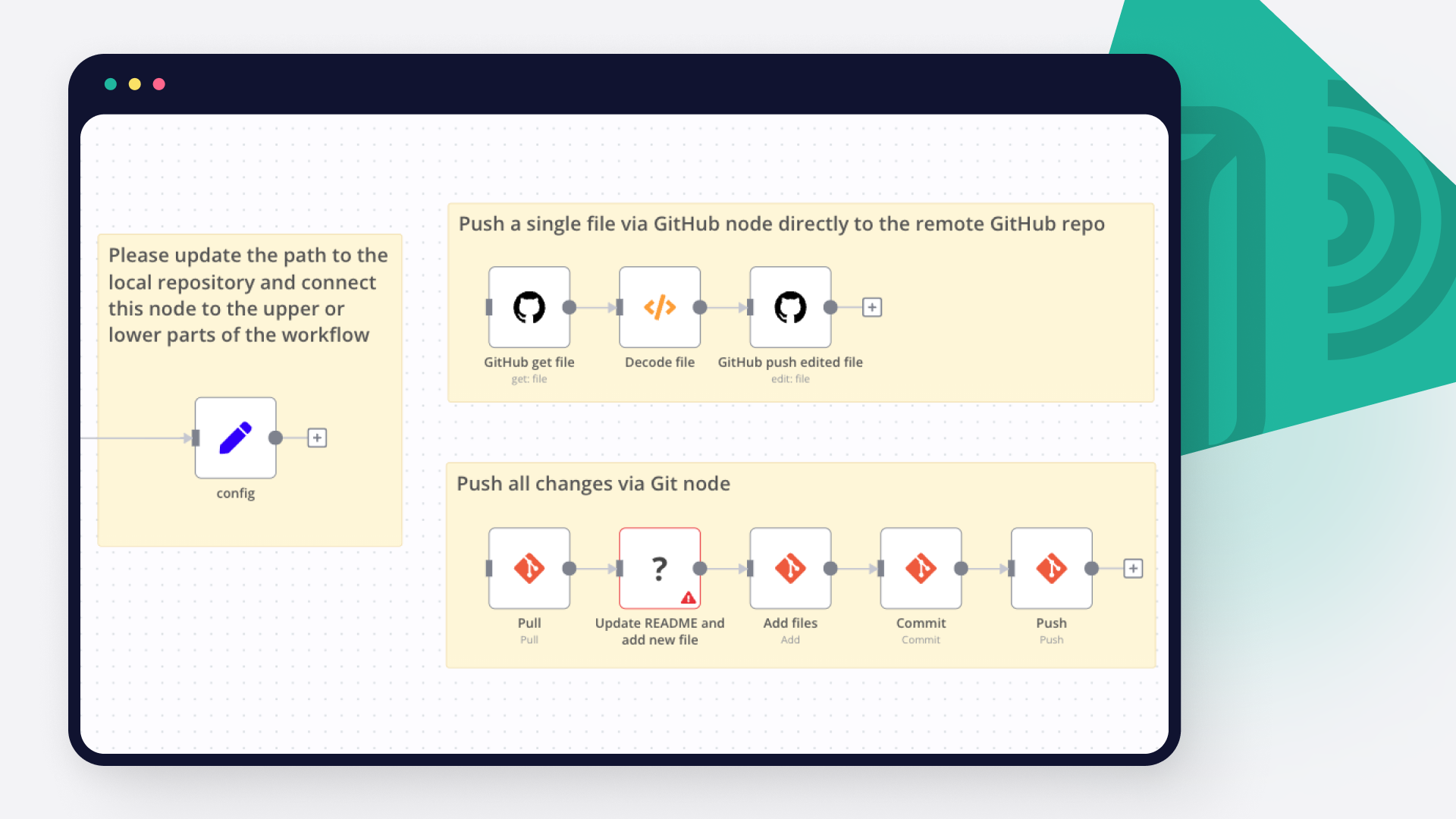
Your personal editor that finds tone, grammar, and clarity issues in markdown, then fixes them and commits back to GitHub automatically. Stop manually proofreading markdown files. This workflow uses two AI agents to review your blog posts, generate precise line-by-line fixes, and commit the edits back to GitHub automatically. You write, it checks. This is not another "generate a blog post with AI" template. It does the opposite. You write the content, and the workflow checks it for you. Your writing style stays the same because the Editor Agent can only replace, insert, or delete specific lines. No full rewrites. How the workflow works The workflow runs in five stages: Fetch and prepare: The workflow pulls your markdown file from GitHub using the API. A code node decodes the base64 response and adds line numbers to every line. This gives the AI agents a coordinate system so they can point to exact locations instead of saying "somewhere in the introduction." QA review: The QA Agent reads the numbered content and looks for issues with tone, clarity, grammar, and structure. It returns a JSON array where each item has the line number, what is wrong, how severe it is, and a suggested fix. Severity filter: A filter node checks the results. Only high and medium severity issues move forward. Low severity issues show up in the report but do not trigger any edits. Edit generation: The Editor Agent takes the filtered issues and converts them into edit operations. Each operation is one of three types: replace, insert_after, or delete. A code node then sorts all operations from bottom to top. This is important because if you delete line 5, every line after it shifts up by one. Sorting from the bottom prevents that problem. Commit and report: If more than half the edits succeed, the workflow commits the updated file to GitHub. It also saves a QA report in a reports folder. If edits fail, the commit is skipped and a failure report is saved instead with next steps. Benefits • Finds real issues, not nitpicks: The severity filter means your file only gets changed when something actually matters. • Keeps your writing style: Three allowed operations. Replace, insert, delete. That is it. No creative rewrites. • Line numbers solve the guessing problem: I added this after noticing the AI kept misidentifying where problems were in longer posts. • Edits do not break each other: The bottom-to-top sorting was the trick that took me a while to figure out. Without it, line numbers shift after every edit and the rest of the operations point to the wrong lines. • Fallback model included: If Gemini is down or rate-limited, the workflow falls back to Groq automatically. Both agent nodes also retry up to 3 times with a 5-second interval. • Reports for every run: Three report types committed to your repo: fixes applied, no issues found, or edits failed. Target Audience • Technical writers who keep documentation in GitHub • Content managers reviewing blog posts before publication • SEO specialists checking content quality across multiple markdown files • Dev teams that want automated content review similar to a PR review • Freelancers and bloggers who do not have an editor to proofread their work Required APIs • Google Gemini API for the AI analysis (primary model) • Groq API as a fallback model if Gemini is unavailable (optional but recommended) • GitHub OAuth2 with repo scope so the workflow can read files and commit changes Easy Customization • Swap the AI model: Replace the chat model sub-node with OpenAI, Anthropic, or any provider that handles JSON output. The prompts are model-agnostic. • Change the severity filter: Open the filter node and include low severity if you want more aggressive editing. • Point it at any file: The Config node at the start has your repo owner, repo name, and file path. Change those three values and it works on any markdown file in any repository. • Make it automatic: Replace the Manual Trigger with a GitHub Trigger node listening for push or pull_request events. Now it runs every time someone updates content. • Add notifications: Drop a Slack, Teams, or email node after the report step to get notified when the workflow finishes a review.

AI-Powered Bug Tracking with GitHub Issues and Telegram Alerts using Gemini

Create GitHub issues from webhook input and send alerts to Telegram This workflow streamlines bug tracking by using a webhook to collect issue reports, automatically classifying and summarizing them with Gemini AI, then sending critical issues to GitHub and real-time notifications to Telegram. Optional manager approval is built in for low-priority reports. 🧑‍💻 Who’s it for This workflow is ideal for: Engineering teams needing automated issue tracking from multiple systems QA testers or customer support agents who log bugs via custom tools DevOps teams monitoring logs or error reports in real time Teams using GitHub for issue tracking and Telegram (or any messenger) for notifications ⚙️ How it works Webhook Trigger – Listens for incoming POST requests containing bug or task data. AI-Powered Classification – Uses the Gemini model to classify bugs as High or Low severity. Optional Approval – If severity is Low, it waits for a manager’s approval before proceeding. Bug Summary Generation – Passes through a filter and sends the input to Gemini to generate a clean summary. Create GitHub Issue – Submits the summarized issue to your GitHub repository. Telegram Notification – Sends a formatted message to a Telegram group or manager, depending on the path. 🛠️ How to set up Replace the GitHub node with your repo credentials and target repo. Set up the Telegram bot token and chat ID in the Telegram node. Customize the Gemini prompts for your preferred classification and summary logic. Define the conditions for “High” vs “Low” severity based on your data. 📋 Requirements A GitHub account with a personal access token (with repo access) A Telegram bot token and group chat ID Google Gemini API credentials (or your preferred AI model integration) 🔧 How to customize the workflow Swap Telegram with another messaging platform like Slack, Discord, or Microsoft Teams. Adjust classification rules to match your business logic. Change approval flow to notify a different person or add additional logic before sending to GitHub. Extend the webhook input format to support richer data, such as user info or system metadata.

Automated Blog Generation with Gemini AI, GitHub & Jekyll Publishing

📝 Use Case This n8n workflow automates the creation and publication of technical blog posts based on a list of topics stored in Google Sheets. It fetches context using Tavily and Wikipedia, generates Markdown-formatted content with Gemini AI, commits it to a GitHub repository, and updates a Jekyll-powered blog — all without manual intervention. Ideal for developers, bloggers, or content teams who want to streamline technical content creation and publishing. ⚙️ Setup Instructions 🔑 Prerequisites n8n (cloud or self-hosted) Tavily API key Google Sheets with blog topics Gemini (Google Palm) API key GitHub repository (Jekyll enabled) GitHub OAuth2 credentials Google OAuth2 credentials 🧩 Setup Steps Import the workflow JSON into your n8n instance. Set up the following credentials in n8n: Tavily API Google Sheets OAuth2 Google Palm/Gemini AI GitHub OAuth2 Prepare your Google Sheet: Columns: Title, status, row_number Set status to blank for topics to be picked up. Configure: GitHub repo and _posts/ path Jekyll setup (front matter, _config.yml, GitHub Pages) Adjust prompt/custom parameters if needed. Enable and deploy the workflow. Schedule it daily or trigger manually. 🔄 Workflow Details | Node | Function | |------|----------| | Schedule Trigger | Triggers the flow at a set interval | | Google Sheets (Get Topic) | Fetches the next incomplete blog topic | | Extract Topic | Parses topic text from the sheet | | Tavily Search | Gathers up-to-date content related to the topic | | Wikipedia Tool | Optionally adds more context or images | | Summarize Results | Formats the context for the AI | | Gemini AI Agent (LangChain) | Generates a Markdown blog post with YAML front matter | | Set File Parameters | Prepares the filename, content, and commit message | | GitHub Commit | Uploads the .md file to the _posts/ directory | | Update Google Sheet | Marks topic as done after successful commit | 🛠️ Customization Options Change LLM prompt (e.g. tone, depth, format). Use OpenAI instead of Gemini by switching nodes. Modify filename pattern or GitHub repo path. Add Slack/Discord notifications after publish. Extend flow to upload images or embed YouTube links. ⚠️ Community Nodes Used This workflow uses the following community nodes: @tavily/n8n-nodes-tavily.tavily – for deep search > ⚠️ Ensure these are installed and enabled in your n8n instance. 💡 Pro Tips Use GitHub Actions to trigger an automatic Jekyll build post-commit. Structure blog posts with front matter, headings, and table of contents for SEO. Set Schedule Trigger to daily at a fixed time to keep content flowing. Enhance formatting in AI output using code blocks, images, and lists. ✅ Example Output title: "How LLMs Are Changing Web Development" date: "2025-07-25" categories: [webdev, AI] tags: [LLM, Gemini, n8n, automation] excerpt: "Learn how LLMs like Gemini are transforming how we generate and deploy developer content." author: "Saswat Saubhagya" Table of Contents Introduction Understanding LLMs Use Cases in Web Development Challenges Conclusion ...

Automate GitHub, JIRA release notes with Google Gemini & notification over email

This n8n template from Intuz provides a complete and automated solution for creating and distributing sophisticated release notes. It connects to GitHub and JIRA to gather data from recent commits and completed tickets, using specific keywords or labels to identify key features for inclusion. This information is then processed by Google Gemini to automatically generate well-written, human-like release notes, which are then distributed via email to stakeholders, creating a complete, end-to-end communication pipeline for every new software release. This template is perfect for development teams looking to streamline their release process, ensure consistent communication, and eliminate the manual effort of writing release notes. How to use Set up Credentials: GitHub JIRA (Software Cloud API) Google Gemini (or another PaLM/LLM provider) Your SMTP email server. Configure the GitHub Trigger: Select the Github Trigger node. In the Repository Owner field, enter your GitHub username or organization name. In the Repository Name field, select the repository you want to monitor. Verify the JIRA Integration: Important:** This workflow assumes your commit messages contain a JIRA key (e.g., "PROJ-123: Fix login bug"). Select the first Code node. It uses a regular expression ([A-Z]+-\\d+)/i to find JIRA keys. Adjust this expression if your team uses a different format. Select the Get an issue node and ensure your JIRA credentials are correctly configured. Customize the AI Prompt: Select the Basic LLM Chain node. You can edit the prompt to change the tone, style, or structure of the generated HTML release note to match your company's standards. Configure Email Notifications: Select the Send email node. Update the To Email field with the recipient's email address (e.g., a team distribution list or a stakeholder's email). Customize the From Email and Subject line as needed. Activate Workflow: Save your changes and activate the workflow. Now, every push to your configured repository will trigger the automated generation and sending of release notes. Required Tools GitHub: To trigger the workflow on code pushes. JIRA: To fetch details about the tasks and bugs included in the release. Google Gemini: To intelligently generate the release note content. (You can swap this for another LLM supported by n8n). SMTP Provider: To send the final release note via email. Connect with us Website: https://www.intuz.com/n8n-workflow-automation-templates Email: [email protected] LinkedIn: https://www.linkedin.com/company/intuz Get Started: https://n8n.partnerlinks.io/intuz For Custom Worflow Automation Click here- Get Started

Build your own GitHub and Google Gemini Chat Model integration

Create custom GitHub and Google Gemini Chat Model workflows by choosing triggers and actions. Nodes come with global operations and settings, as well as app-specific parameters that can be configured. You can also use the HTTP Request node to query data from any app or service with a REST API.

GitHub supported actions

Create
Create a new file in repository
Delete
Delete a file in repository
Edit
Edit a file in repository
Get
Get the data of a single file
List
List contents of a folder
Create
Create a new issue
Create Comment
Create a new comment on an issue
Edit
Edit an issue
Get
Get the data of a single issue
Lock
Lock an issue
Get Repositories
Returns all repositories of an organization
Create
Creates a new release
Delete
Delete a release
Get
Get a release
Get Many
Get many repository releases
Update
Update a release
Get
Get the data of a single repository
Get Issues
Returns issues of a repository
Get License
Returns the contents of the repository's license file, if one is detected
Get Profile
Get the community profile of a repository with metrics, health score, description, license, etc
Get Pull Requests
Returns pull requests of a repository
List Popular Paths
Get the top 10 popular content paths over the last 14 days
List Referrers
Get the top 10 referrering domains over the last 14 days
Create
Creates a new review
Get
Get a review for a pull request
Get Many
Get many reviews for a pull request
Update
Update a review
Get Repositories
Returns the repositories of a user
Get Issues
Returns the issues assigned to the user
Invite
Invites a user to an organization
Disable
Disable a workflow
Dispatch
Dispatch a workflow event
Dispatch and Wait for Completion
Dispatch a workflow event and wait for a webhook to be called before proceeding
Enable
Enable a workflow
Get
Get a workflow
Get Usage
Get the usage of a workflow
List
List workflows
Use case

Save engineering resources

Reduce time spent on customer integrations, engineer faster POCs, keep your customer-specific functionality separate from product all without having to code.

Learn more

FAQs

  • Can GitHub connect with Google Gemini Chat Model?

  • Can I use GitHub’s API with n8n?

  • Can I use Google Gemini Chat Model’s API with n8n?

  • Is n8n secure for integrating GitHub and Google Gemini Chat Model?

  • How to get started with GitHub and Google Gemini Chat Model integration in n8n.io?

Looking to integrate GitHub and Google Gemini Chat Model in your company?

Over 3000 companies switch to n8n every single week

Why use n8n to integrate GitHub with Google Gemini Chat Model

Build complex workflows, really fast

Build complex workflows, really fast

Handle branching, merging and iteration easily.
Pause your workflow to wait for external events.

Code when you need it, UI when you don't

Simple debugging

Your data is displayed alongside your settings, making edge cases easy to track down.

Use templates to get started fast

Use 1000+ workflow templates available from our core team and our community.

Reuse your work

Copy and paste, easily import and export workflows.

Implement complex processes faster with n8n

red iconyellow iconred iconyellow icon