Back to Integrations
integrationGitHub node
integrationNotion node

GitHub and Notion integration

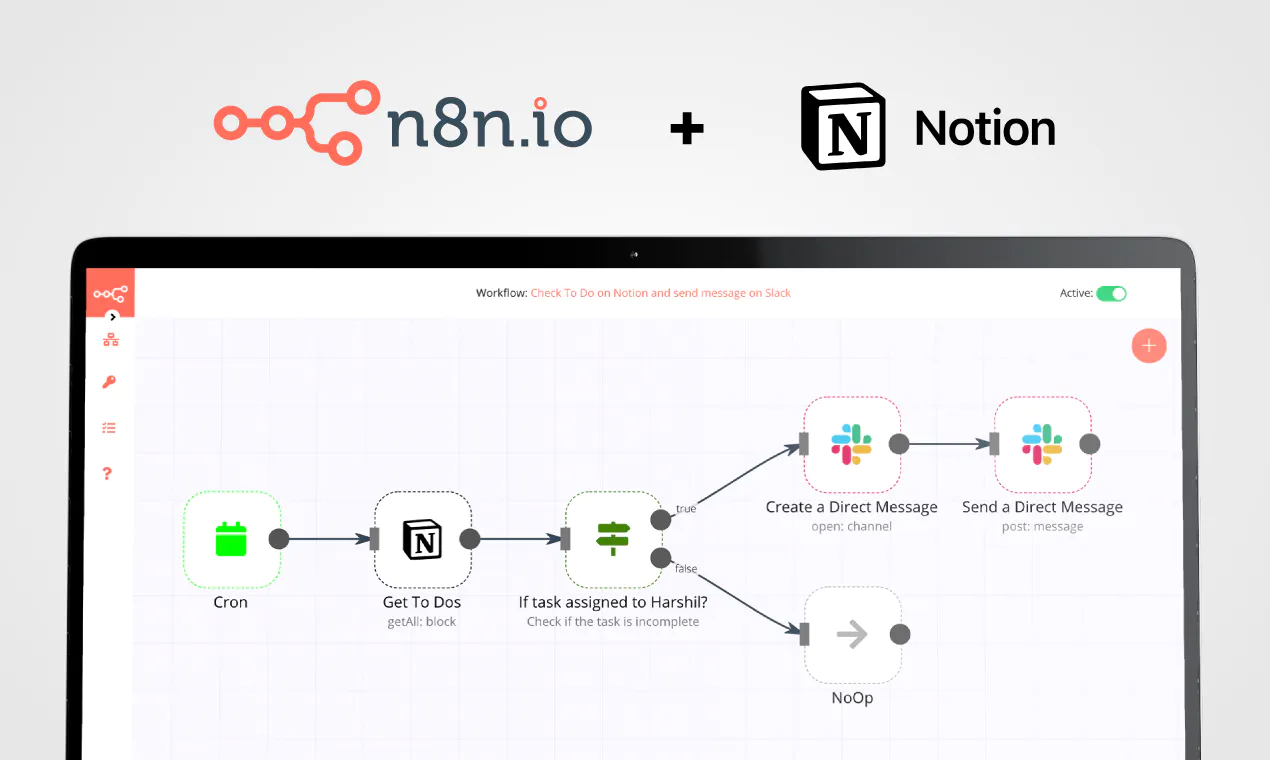
Save yourself the work of writing custom integrations for GitHub and Notion and use n8n instead. Build adaptable and scalable Development, and Productivity workflows that work with your technology stack. All within a building experience you will love.

How to connect GitHub and Notion

  • Step 1: Create a new workflow
  • Step 2: Add and configure nodes
  • Step 3: Connect
  • Step 4: Customize and extend your integration
  • Step 5: Test and activate your workflow

Step 1: Create a new workflow and add the first step

In n8n, click the "Add workflow" button in the Workflows tab to create a new workflow. Add the starting point – a trigger on when your workflow should run: an app event, a schedule, a webhook call, another workflow, an AI chat, or a manual trigger. Sometimes, the HTTP Request node might already serve as your starting point.

GitHub and Notion integration: Create a new workflow and add the first step

Step 2: Add and configure GitHub and Notion nodes

You can find GitHub and Notion in the nodes panel. Drag them onto your workflow canvas, selecting their actions. Click each node, choose a credential, and authenticate to grant n8n access. Configure GitHub and Notion nodes one by one: input data on the left, parameters in the middle, and output data on the right.

GitHub and Notion integration: Add and configure GitHub and Notion nodes

Step 3: Connect GitHub and Notion

A connection establishes a link between GitHub and Notion (or vice versa) to route data through the workflow. Data flows from the output of one node to the input of another. You can have single or multiple connections for each node.

GitHub and Notion integration: Connect GitHub and Notion

Step 4: Customize and extend your GitHub and Notion integration

Use n8n's core nodes such as If, Split Out, Merge, and others to transform and manipulate data. Write custom JavaScript or Python in the Code node and run it as a step in your workflow. Connect GitHub and Notion with any of n8n’s 1000+ integrations, and incorporate advanced AI logic into your workflows.

GitHub and Notion integration: Customize and extend your GitHub and Notion integration

Step 5: Test and activate your GitHub and Notion workflow

Save and run the workflow to see if everything works as expected. Based on your configuration, data should flow from GitHub to Notion or vice versa. Easily debug your workflow: you can check past executions to isolate and fix the mistake. Once you've tested everything, make sure to save your workflow and activate it.

GitHub and Notion integration: Test and activate your GitHub and Notion workflow

Sync your GitHub issues to your Notion database

This workflow syncs your GitHub issues to your Notion database. Whenever a new issue is opened in your GitHub repository, it will be shown in your Notion database, syncing the status property (opened/edited/closed/deleted). In case there’s no Notion database existing yet, a new one will be created automatically.

Prerequisites
Notion account and Notion credentials
GitHub account and GitHub credentials

How it works

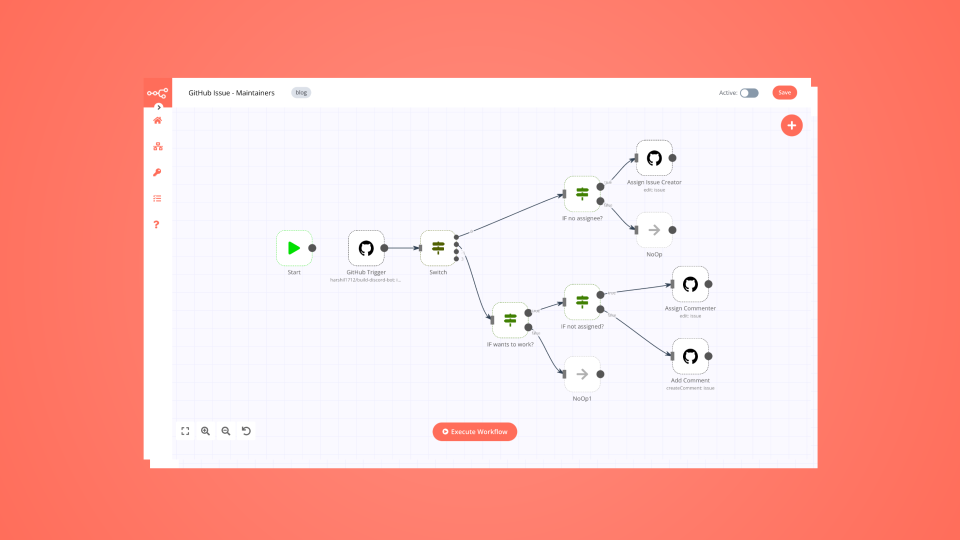
Github trigger starts the workflow when a new issue is created in a GitHub repository.
If node splits the workflow conditionally, showing whether the issue is new or an update of an existing issue.
If data is new, the Notion node will create a new database page in Notion.
If the data is not new, the Function node will create a Notion filter that will find its specific database page by issue ID.
Switch node will then conditionally route the data into the appropriate Notion page, based on the update made upon it.

Nodes used in this workflow

Popular GitHub and Notion workflows

Automation flow from Notion to GitHub with email notifications

This automation allows you to track feature requests in Notion, create GitHub issues automatically, and notify your team via email based on issue status. It's ideal for technical and functional teams who collaborate on project delivery using Notion and GitHub. 🔹 SECTION 1: Detect and Sort Issues from Notion Combining: Schedule Trigger + Notion Database + Field Mapping + Status Routing ⏰ 1. Schedule Trigger 🔧 Node Type: Schedule Trigger (you can use a webhook trigger if you are on Notion paid plan) 💬 Description: Triggers the workflow every X minutes to check for new or updated Notion database pages. 📑 2. Get Many Database Pages (Notion) 🔧 Node Type: Notion → Get All Database Pages 📋 What it does: Fetches all rows (pages) from a Notion database that represents tasks or feature requests. ✏️ 3. Sort Issues Fields 🔧 Node Type: Set 📋 Goal: Restructures or cleans data fields such as Title, Status, Labels, and Repository. 🔀 4. Switch: Issue Status Decision 🔧 Node Type: Switch 🎯 What it does: Separates logic based on the Status of the Notion item: If status is "To develop" → proceed to create issue Else → send notification to the team 🔹 SECTION 2: GitHub Issue Creation (IF "To develop") Combining: GitHub Node + Notion Update 🐙 5. Create an Issue (GitHub) 🔧 Node Type: GitHub → Create Issue ⚙️ What it does: Creates a new issue on the GitHub repo defined in the Notion row. 📥 Inputs: Uses dynamic fields: Title, Description, Labels, Repository. 🧩 6. Set Status and Issue URL (Notion Update) 🔧 Node Type: Notion → Update Database Page 🧠 Role: Updates the status of the issue in Notion to In progress and stores the created GitHub Issue URL. 🔹 SECTION 3: Notify Team on Already In-Progress Items (IF NOT "To develop") Combining: Notion Users + Filtering + Email Grouping + Gmail 👥 7. Get Many Users (Notion Users) 🔧 Node Type: Notion → Get All Users 📥 What it does: Retrieves the list of team members (to be notified). 🧠 8. Map Notion Users 🔧 Node Type: Set 📋 Role: Maps and formats data for each user (e.g., Name, Email, Role). 🧹 9. Exclude Bot 🔧 Node Type: Switch 🚫 What it does: Excludes automation/bot users (e.g., notifications@noreply). 🧮 10. Group Recipients 🔧 Node Type: Aggregate 🎯 Goal: Collects all user emails into a single array to send one email to all recipients. 📬 11. Send a Message (Gmail) 🔧 Node Type: Gmail → Send Email

Automatically document and backup N8N workflows

Automatically backs up your workflows to Github and generates documentation in a Notion database. Weekly run, uses the "internal-infra" tag to look for new or recently modified workflows Uses a Notion database page to hold the workflow summary, last updated date, and a link to the workflow Uses OpenAI's 4o-mini to generate a summarization of what the workflow does Stores a backup of the workflow in GitHub (recommend a private repo) Sends notification to Slack channel for new or updated workflows Who is this for Anyone seeking backup of their most important workflows Anyone seeking version control for their most important workflows Credentials required N8N: You will need an N8N credential created so the workflow can query the N8N instance to find all active workflows with the "internal-infra" tag Notion: You will need an Notion credential created OpenAI: You will need an OpenAI credential, unless you intend on rewiring this with your AI of choice (ollama, openrouter, etc.) GitHub: You will need an GitHub credential Slack: You will require an Slack credential, recommend a Bot / access token configuration Setup Notion Create a database with the following columns. Column type is specified in [type]. Workflow Name [text] isActive (dev) [checkbox] Error workflow setup [checkbox] AI Summary [text] Record last update [date/time] URL (dev) [text/url] Workflow created at [date/time] Workflow updated at [date/time] Slack Create a channel for updates to be posted into Github Create a private repo for your workflows to be exported into N8N Download & install the template Configure the blocks to use your N8N, Notion, OpenAI & Slack credentials for your own Edit the "Set Fields" block and change the URL to that of your N8N instance (cloud or self-hosted) Edit the "Add to Notion" action and specify the Database page you wish to update Edit the Slack actions to specify the Channel you want slack notifications posted to Edit the GitHub actions to specify the Repository Owner & Repository Name Sample output in Notion Workflow diagram

Triage GitHub issues to a Notion board with Qwen via OpenRouter

WHAT IT DOES When a new issue is opened on a GitHub repository, this workflow uses an AI model to classify it by type (bug, feature, question, documentation, other), assign a priority level (high, medium, low), and generate a one-sentence summary. Results are written to a Notion database and posted as a triage comment on the GitHub issue. No external triage service. No SaaS subscription. Runs on your own n8n instance. HOW IT WORKS GitHub Webhook Trigger Listens for the "issues" event with action "opened" on the configured repository. Fires only when a new issue is created. Does not trigger on comments, edits, or closes. Extract Issue Data Parses the webhook payload. GitHub Trigger wraps the full payload as a JSON string in the "body" field, so this node extracts the actual issue object, then pulls out the fields the workflow needs: issue number, title, body text (truncated to 2000 characters to stay within LLM token limits), URL, author, labels, and repository full name. Falls back to parsing the repository_url field if the repository object is missing from the payload. Duplicate Check (Notion) Queries the Notion database for an existing entry with the same Issue URL. If a match is found, the workflow stops — this issue was already triaged. If the Notion API fails (timeout, rate limit, invalid token), the error branch fires and the workflow continues anyway. A failed duplicate check should not block triage. AI Triage (Qwen 3 via OpenRouter) Sends the issue title and body to the model with a structured prompt that asks for: category, priority, summary, and suggested labels. The prompt includes clear definitions for each category and priority level so the model classifies consistently. If the LLM call fails, a fallback node assigns default values (category: other, priority: medium) so the issue is still tracked in Notion. Create Notion Entry Writes a new row to the Notion database with all triage fields populated: title, issue URL, author, category, priority, summary, suggested labels, status (Open), source (ai or fallback), and creation date. Post GitHub Comment Adds a formatted comment on the GitHub issue showing the triage result: category, priority, summary, and suggested labels. If the triage used fallback values because the LLM was unavailable, a warning is included in the comment so the team knows to review it manually. WHY THIS APPROACH Most issue triage tools push results back into GitHub as labels. This workflow pushes to Notion instead. The reason: teams already use Notion as their project management hub. Having issues auto-classified and waiting in a Notion database means you can filter, sort, and assign without switching tools. The Notion database becomes the single view where all incoming issues are triaged and prioritized before anyone touches them. The AI model does classification, not decision-making. It does not close issues or assign people - it categorizes and summarizes. A human reviews the Notion board and decides what to act on. This keeps the human in the loop while removing the 30-60 seconds of manual sorting per issue that adds up fast when you are getting 10+ issues a week. The duplicate check prevents wasted API calls. If an issue was already triaged (maybe someone triggered the webhook twice, or re-opened a closed issue), the workflow skips it instead of creating a duplicate Notion entry. If the duplicate check itself fails (Notion API timeout), the workflow continues to triage anyway — better to over-triage than to miss an issue because of a transient error. The fallback mechanism means the workflow never silently drops an issue. If the LLM is down, rate-limited, or returns garbage, the issue still gets a Notion entry with default values and a "fallback" source indicator. The GitHub comment warns the team that AI was unavailable. Self-hosted means your issue data never leaves your infrastructure. The only external call is to the LLM provider (OpenRouter by default), and you can replace that with a self-hosted model to keep everything internal. SETUP (10-15 min) Create a GitHub Fine-grained Personal Access Token: Settings → Developer settings → Fine-grained tokens. Permissions needed: Issues (read/write) and Webhooks (read/write). Scope it to the repository you want to watch. In n8n, add the GitHub credential using the token. Create a Notion database with these properties:** >1. Title (title) Issue URL (url) Author (rich_text) Category (select: bug, feature, question, documentation, other) Priority (select: high, medium, low) Summary (rich_text) Suggested Labels (rich_text) Status (select: Open, Closed) Source (select: ai, fallback) Created (date) Create a Notion internal integration at notion.so/my-integrations. Copy the token. In n8n, add the Notion credential using the integration token. Share the Notion database with the integration (database → ... → Connections → select integration). In the "When Issue Opened" node: set Owner and Repository to match your GitHub repo. In the "Verify Notion Duplicate" and "Add to Notion Board" nodes: set the Database to your Notion database. Add your OpenRouter API key to the "OpenAI Qwen-3 Model" node credential. Activate the workflow. Open a test issue on your GitHub repo. CUSTOMIZATION Swap the LLM: Change the model in the "OpenAI Qwen-3 Model" node to any OpenRouter-supported model (GPT-4o, Claude, Gemini, etc.). Or point to a self-hosted model by changing the base URL in the credential. Adjust triage rules: Edit the prompt in "Initiate AI Triage" to add custom categories specific to your project (e.g., "performance", "accessibility", "security"). The model will use whatever definitions you provide in the prompt. Multi-repo: Duplicate the workflow for each repo you want to triage, or modify the trigger to use a GitHub App that watches multiple repositories. Add team notifications: After "Post GitHub Comment", add a Slack or Discord node to send a summary of high-priority issues to your team chat. Auto-assign: Add logic after "Format AI Triage Results" to assign GitHub issues based on category (e.g., bugs to backend team, docs to content team). Auto-label: Use the suggested labels from the AI to automatically apply labels on the GitHub issue. Requires creating the labels in your repo first. WHAT'S NEXT This workflow is designed as a foundation. Here is where it can grow: Auto-label on GitHub — Use the suggested labels from AI to automatically apply labels on the issue. Requires label creation in the repo first, but once set up, removes another manual step. Batch triage — Add a "Triage All Open Issues" mode that processes existing untriaged issues on a schedule, not just new ones via webhook. Useful for backfills or when adopting the workflow on an active repo. Priority-based routing — High priority issues get a Slack or Discord notification immediately. Medium and low go to Notion only. Different response SLAs per priority level. Learning from feedback — Track when a human changes the AI-assigned category in Notion. Use those corrections as few-shot examples in the prompt to improve accuracy over time. Notion dashboard — Build a Notion view with filters by category and priority. Add a "Triage backlog" view sorted by priority so the team always knows what to work on next. Multi-source triage — Extend the trigger to also listen for GitLab issues, Linear tickets, or customer support emails. All triage results converge into the same Notion board. The current version is intentionally simple. Simple means it runs cheap, breaks rarely, and is easy to debug. Complexity can be added when the use case demands it. REQUIREMENTS n8n instance (self-hosted or cloud) GitHub Fine-grained Personal Access Token (Issues read/write, Webhooks read/write) Notion account with internal integration OpenRouter API key (or any OpenAI-compatible endpoint)

+2

Turn GitHub releases into audio updates and newsletters with OpenAI and ElevenLabs

Deliver your product updates in a modern, accessible format. This workflow automatically transforms GitHub releases into podcast-style audio announcements and distributes them via email and Slack. 🎯 What This Workflow Does This template bridges your development cycle with your marketing and communication channels. 🐙 Step 1 — GitHub Trigger & Notion Synthesis GitHub Trigger:** Fires when a new release is published Parsing:** Converts raw markdown into structured categories (features, fixes, improvements) Notion Merge:** Enriches data with additional context from your Notion changelog database 🎙️ Step 2 — AI Scriptwriting & Professional TTS Script Generation:** OpenAI converts technical notes into a conversational 60–90 sec script Voice Generation:** ElevenLabs turns the script into high-quality audio CDN Hosting:** Uploads MP3 via UploadToURL to generate a public URL 📧 Step 3 — Multimedia Newsletter Delivery Subscriber Fetch:** Loads email list from Google Sheets Email Creation:** Builds a rich HTML email with embedded audio player Distribution:** Sends via Gmail using BCC list 💬 Step 4 — Internal Sync & Database Update Slack Alert:** Posts update with audio preview to team channel Notion Update:** Marks entry as published and stores audio URL ✨ Key Features Bidirectional Notion Sync:** Reads and updates changelog entries Conversational AI:** Converts technical updates into human-friendly audio Dynamic HTML Emails:** Includes inline audio playback High-Quality Voice:** Uses ElevenLabs for realistic narration 🔧 Setup Requirements Required Integrations GitHub:** Personal Access Token (repo read scope) Notion:** Integration token + changelog database ElevenLabs:** API key + Voice ID OpenAI:** API key UploadToURL:** For MP3 hosting Slack:** Bot token Environment Variables NOTION_DATABASE_ID APPROVER_EMAIL DISCORD_WEBHOOK_URL SLACK_CHANNEL_ID Humanize your software updates. Import this template and start broadcasting your product journey with audio.

Send pre-meeting Slack briefings using Google Calendar, Notion, GitHub, and Jira

This n8n template from Intuz provides a complete and automated solution for preparing and delivering context-rich briefings directly to attendees before every meeting. It acts as an AI-powered executive assistant, gathering relevant information from all your key work tools to ensure everyone arrives prepared and aligned. Who's this workflow for? Engineering Managers & Team Leads Product Managers & Project Managers Scrum Masters & Agile Coaches Any team that holds regular status, planning, or technical meetings. How it works Trigger on New Calendar Event: The workflow starts automatically whenever a new meeting is created in a designated Google Calendar. Fetch Previous Context: It immediately connects to Notion to retrieve the notes from the most recent past meeting, ensuring continuity. Wait for the Right Moment: The workflow calculates a time 15 minutes before the meeting's scheduled start and pauses its execution until then. Gather Real-Time Project Data: Just before the meeting, the workflow wakes up and: Extracts keywords from the meeting title. Searches GitHub for recent Pull Requests (PRs) relevant to those keywords. Searches Jira for any tickets or issues that match the meeting's topic. Build the Intelligent Briefing: It assembles all the gathered information—previous notes from Notion, current PRs from GitHub, and relevant tickets from Jira—into a single, beautifully formatted Slack message. Deliver to Each Attendee: The workflow identifies all attendees from the Google Calendar invite, finds their corresponding Slack profiles via email, and sends the personalized briefing as a Direct Message (DM) to each one, ensuring everyone is prepared just in time. Key Requirements to Use This Template n8n Instance: An active n8n account (Cloud or self-hosted). Google Calendar Account: To trigger the workflow on new events. Notion Account: With a dedicated database for storing meeting notes. GitHub Account: To search for relevant pull requests. Jira Cloud Account: To search for relevant project tickets. Slack Workspace & App: A Slack workspace where you have permission to install an app. You will need a Bot Token with the necessary permissions. Setup Instructions Google Calendar Trigger: In the "Capture New Google Calendar Event" node, connect your Google Calendar account and select the calendar you want to monitor. Notion Connection: In the "Get Last Meeting Notes" node, connect your Notion account. Select the Notion Database ID that contains your meeting notes. GitHub & Jira Connections: In the "Get PRs from Repo" node, connect your GitHub account and select the repository to search. In the "Get Jira Issues Related to Meeting" node, connect your Jira Cloud account. You can customize the JQL query if needed. Slack Configuration (Crucial Step): Create a Slack App: Go to api.slack.com/apps, create a new app, and install it to your workspace. Set Permissions: In your app's "OAuth & Permissions" settings, add the following Bot Token Scopes: chat:write (to send messages) and users:read.email (this is critical for looking up attendees). Reinstall the app to your workspace. Get Bot Token: Copy the "Bot User OAuth Token" (it starts with xoxb-). Connect in n8n: In the "Get User Slack Info from Email" node, click "Header Parameters" and replace {{ slack oauth token }} with your actual Bot Token. In the "Send Meeting Context in Slack DM" node, connect your Slack credentials using the same Bot Token. Activate the Workflow: Save the workflow and toggle the "Active" switch to ON. Your automated pre-meeting bot is now live! Connect with us Website: https://www.intuz.com/n8n-workflow-automation-templates Email: [email protected] LinkedIn: https://www.linkedin.com/company/intuz Get Started: https://n8n.partnerlinks.io/intuz For Custom Workflow Automation Click here: Get Started
+4

Aggregate & Update Documentation from Slack, Teams & GitHub with Claude Sonnet 4.5

How It Works Aggregates communication data from Slack, Microsoft Teams, Gmail, GitHub, and Confluence into a single, unified AI-powered analysis workflow designed for quality review and automated documentation updates. This solution is specifically aimed at teams managing distributed content and knowledge workflows across multiple platforms. It addresses the challenges of fragmented communication and isolated information silos that often prevent rapid content review and timely decision-making. The workflow begins with a scheduled trigger, followed by multi-source data collection, merging and normalizing inputs, Claude AI-powered analysis, validation and quality checks, formatting, and finally publishing updates to Notion and Confluence, accompanied by Slack notifications to ensure stakeholders are promptly informed. Setup Steps -Connect credentials: Slack API, Teams, Gmail OAuth, GitHub PAT. -Confluence API, Anthropic API key, Notion Integration. -Configure monitored channels/repositories. -Set schedule frequency. -Map output destinations (Notion/Confluence). -Test merged output before enabling automation. Prerequisites Slack workspace, Teams account, Gmail access, GitHub repository, Confluence space, Anthropic API key, Notion workspace, n8n instance. Use Cases Content review teams processing feedback, documentation teams aggregating updates, QA teams reviewing communications Customization Add/remove source nodes, adjust Claude prompts for analysis type, modify output destinations Benefits Saves 6+ hours weekly, eliminates missed content, AI-driven quality assurance

Build your own GitHub and Notion integration

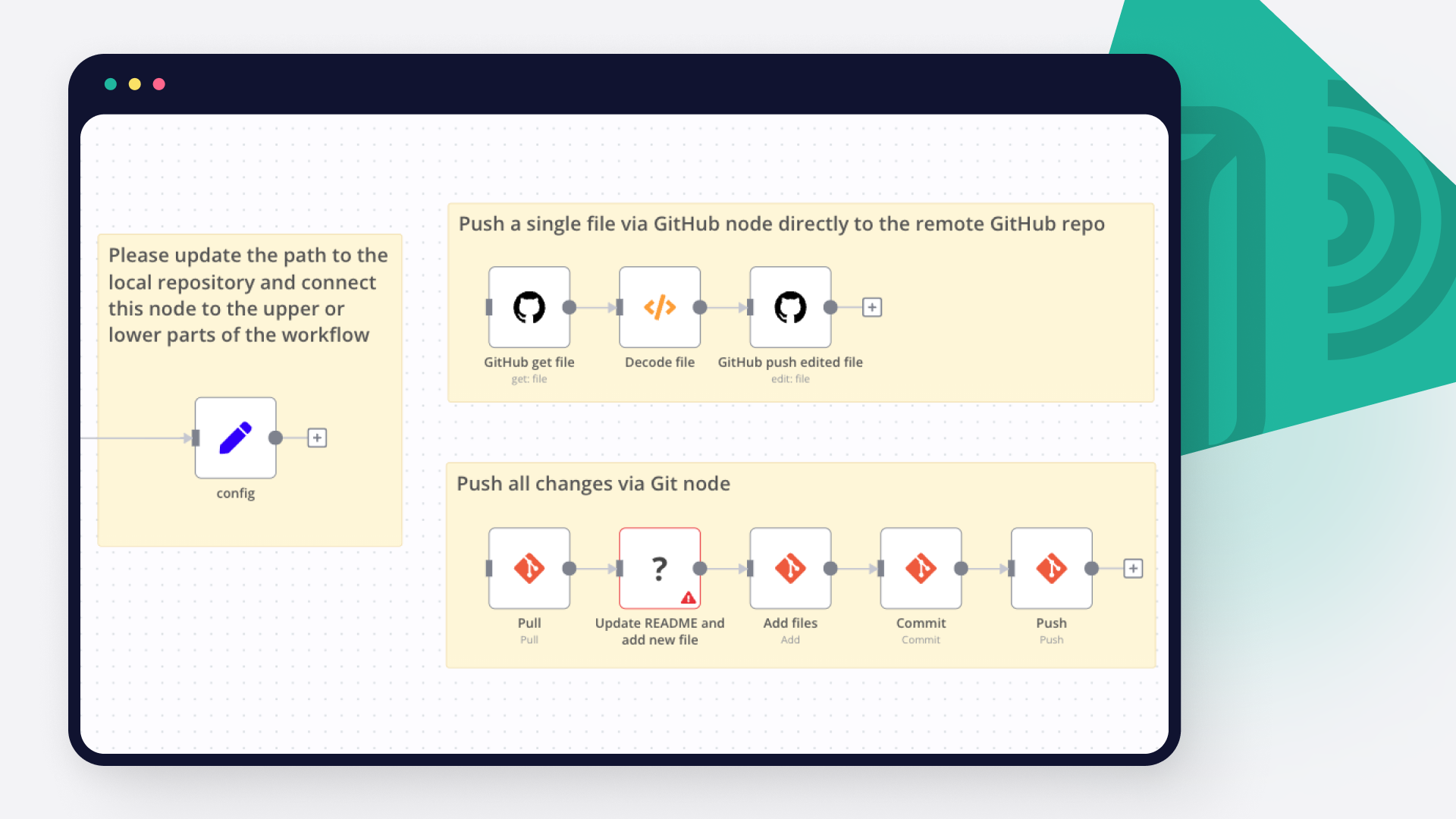
Create custom GitHub and Notion workflows by choosing triggers and actions. Nodes come with global operations and settings, as well as app-specific parameters that can be configured. You can also use the HTTP Request node to query data from any app or service with a REST API.

GitHub supported actions

Create
Create a new file in repository
Delete
Delete a file in repository
Edit
Edit a file in repository
Get
Get the data of a single file
List
List contents of a folder
Create
Create a new issue
Create Comment
Create a new comment on an issue
Edit
Edit an issue
Get
Get the data of a single issue
Lock
Lock an issue
Get Repositories
Returns all repositories of an organization
Create
Creates a new release
Delete
Delete a release
Get
Get a release
Get Many
Get many repository releases
Update
Update a release
Get
Get the data of a single repository
Get Issues
Returns issues of a repository
Get License
Returns the contents of the repository's license file, if one is detected
Get Profile
Get the community profile of a repository with metrics, health score, description, license, etc
Get Pull Requests
Returns pull requests of a repository
List Popular Paths
Get the top 10 popular content paths over the last 14 days
List Referrers
Get the top 10 referrering domains over the last 14 days
Create
Creates a new review
Get
Get a review for a pull request
Get Many
Get many reviews for a pull request
Update
Update a review
Get Repositories
Returns the repositories of a user
Get Issues
Returns the issues assigned to the user
Invite
Invites a user to an organization
Disable
Disable a workflow
Dispatch
Dispatch a workflow event
Dispatch and Wait for Completion
Dispatch a workflow event and wait for a webhook to be called before proceeding
Enable
Enable a workflow
Get
Get a workflow
Get Usage
Get the usage of a workflow
List
List workflows

Notion supported actions

Append After
Append a block
Get Child Blocks
Get many child blocks
Get
Get a database
Get Many
Get many databases
Search
Search databases using text search
Get
Get a database
Get Many
Get many databases
Create
Create a page in a database
Get
Get a page in a database
Get Many
Get many pages in a database
Update
Update pages in a database
Create
Create a pages in a database
Get Many
Get many pages in a database
Update
Update pages in a database
Create
Create a page
Get
Get a page
Search
Text search of pages
Archive
Archive a page
Create
Create a page
Search
Text search of pages
Get
Get a user
Get Many
Get many users

GitHub and Notion integration: Step-by-step video guide

FAQs

  • Can GitHub connect with Notion?

  • Can I use GitHub’s API with n8n?

  • Can I use Notion’s API with n8n?

  • Is n8n secure for integrating GitHub and Notion?

  • How to get started with GitHub and Notion integration in n8n.io?

Need help setting up your GitHub and Notion integration?

Discover our latest community's recommendations and join the discussions about GitHub and Notion integration.
Justin Cheu
Cris A. Works
Martin
Liam Skaff
AyS 0908

Looking to integrate GitHub and Notion in your company?

Over 3000 companies switch to n8n every single week

Why use n8n to integrate GitHub with Notion

Build complex workflows, really fast

Build complex workflows, really fast

Handle branching, merging and iteration easily.
Pause your workflow to wait for external events.

Code when you need it, UI when you don't

Simple debugging

Your data is displayed alongside your settings, making edge cases easy to track down.

Use templates to get started fast

Use 1000+ workflow templates available from our core team and our community.

Reuse your work

Copy and paste, easily import and export workflows.

Implement complex processes faster with n8n

red iconyellow iconred iconyellow icon