Back to Integrations
integrationNotion node
integrationGoogle Sheets node

Notion and Google Sheets integration

Save yourself the work of writing custom integrations for Notion and Google Sheets and use n8n instead. Build adaptable and scalable Productivity, and Data & Storage workflows that work with your technology stack. All within a building experience you will love.

How to connect Notion and Google Sheets

  • Step 1: Create a new workflow
  • Step 2: Add and configure nodes
  • Step 3: Connect
  • Step 4: Customize and extend your integration
  • Step 5: Test and activate your workflow

Step 1: Create a new workflow and add the first step

In n8n, click the "Add workflow" button in the Workflows tab to create a new workflow. Add the starting point – a trigger on when your workflow should run: an app event, a schedule, a webhook call, another workflow, an AI chat, or a manual trigger. Sometimes, the HTTP Request node might already serve as your starting point.

Notion and Google Sheets integration: Create a new workflow and add the first step

Step 2: Add and configure Notion and Google Sheets nodes

You can find Notion and Google Sheets in the nodes panel. Drag them onto your workflow canvas, selecting their actions. Click each node, choose a credential, and authenticate to grant n8n access. Configure Notion and Google Sheets nodes one by one: input data on the left, parameters in the middle, and output data on the right.

Notion and Google Sheets integration: Add and configure Notion and Google Sheets nodes

Step 3: Connect Notion and Google Sheets

A connection establishes a link between Notion and Google Sheets (or vice versa) to route data through the workflow. Data flows from the output of one node to the input of another. You can have single or multiple connections for each node.

Notion and Google Sheets integration: Connect Notion and Google Sheets

Step 4: Customize and extend your Notion and Google Sheets integration

Use n8n's core nodes such as If, Split Out, Merge, and others to transform and manipulate data. Write custom JavaScript or Python in the Code node and run it as a step in your workflow. Connect Notion and Google Sheets with any of n8n’s 1000+ integrations, and incorporate advanced AI logic into your workflows.

Notion and Google Sheets integration: Customize and extend your Notion and Google Sheets integration

Step 5: Test and activate your Notion and Google Sheets workflow

Save and run the workflow to see if everything works as expected. Based on your configuration, data should flow from Notion to Google Sheets or vice versa. Easily debug your workflow: you can check past executions to isolate and fix the mistake. Once you've tested everything, make sure to save your workflow and activate it.

Notion and Google Sheets integration: Test and activate your Notion and Google Sheets workflow

Automate social media content with AI for Instagram, Facebook, LinkedIn & X

AI Social Media Content Automation – n8n Workflow

This workflow is built for creators, solopreneurs, SaaS founders, and agencies looking to automate their social media content process from idea to publication. It combines the power of OpenAI, Google Sheets, and official APIs for Instagram, Facebook, X (Twitter), and LinkedIn to deliver fully automated, brand-consistent social media posts — including text, images, hashtags, CTAs, and scheduling.

No more switching tools, rewriting content, or forgetting to post. Just set it up once and let your brand grow automatically.

🔧 What the Workflow Does
Generates platform-specific post ideas based on your brand tone.
Selects the best idea (or lets you manually input one).
Writes tailored posts for Instagram, Facebook, X, and LinkedIn.
Auto-generates platform-specific visuals using OpenAI (DALL·E) and uploads to Cloudinary.
Publishes content directly using official platform APIs.
Logs all actions to Google Sheets and optionally sends a summary email via Gmail.

⚙️ How It Works
Trigger the workflow manually, on a schedule, or from a chatbot.
AI generates multiple post ideas and filters the best one.
Based on the selected idea, it generates full posts for each platform.
Custom visuals are created using OpenAI and uploaded to Cloudinary.
Final post content is merged and sent to Instagram, Facebook, X, and LinkedIn.
Logs and optional reports are created in Google Sheets and Gmail.

🛠️ Setup Steps
Set up your accounts and credentials: OpenAI, Cloudinary, Gmail, Meta, LinkedIn, X, and Google Sheets.
Import the workflow and subworkflow (Get Brand Brief) into n8n.
Replace all placeholders (sheet IDs, access tokens, profile/page IDs, brand brief URLs).
Optionally personalize prompts and output templates to match your brand voice.
Setup time: ~30–45 minutes (including credentials and testing).

Detailed configuration notes are included in sticky nodes throughout the workflow.

📦 Included in Your Package
JSON workflow file (main flow + brand brief subflow)
Google Sheets templates for history logging
Setup documentation (Markdown & PDF)
Placeholder reference sheet

Nodes used in this workflow

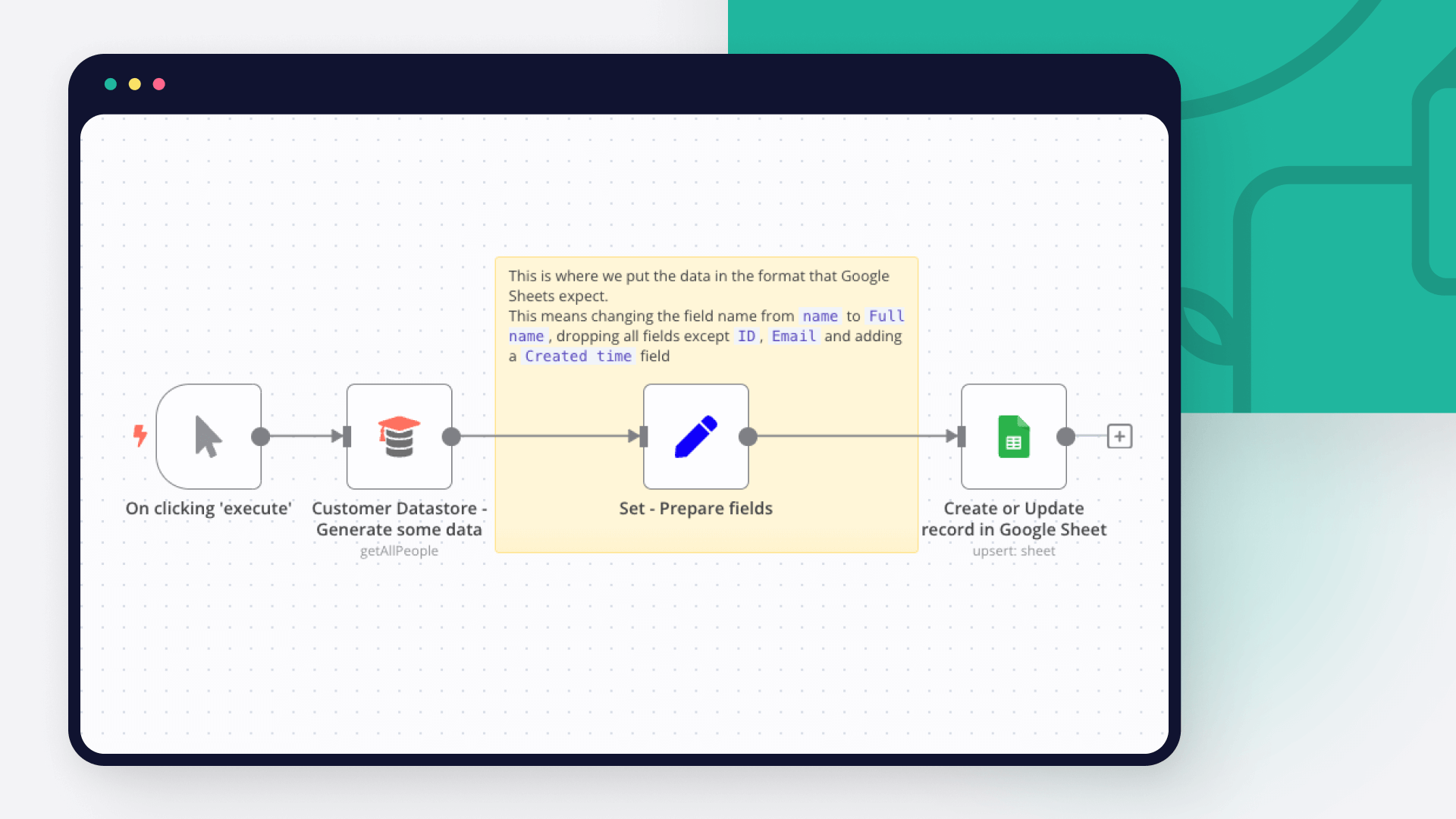
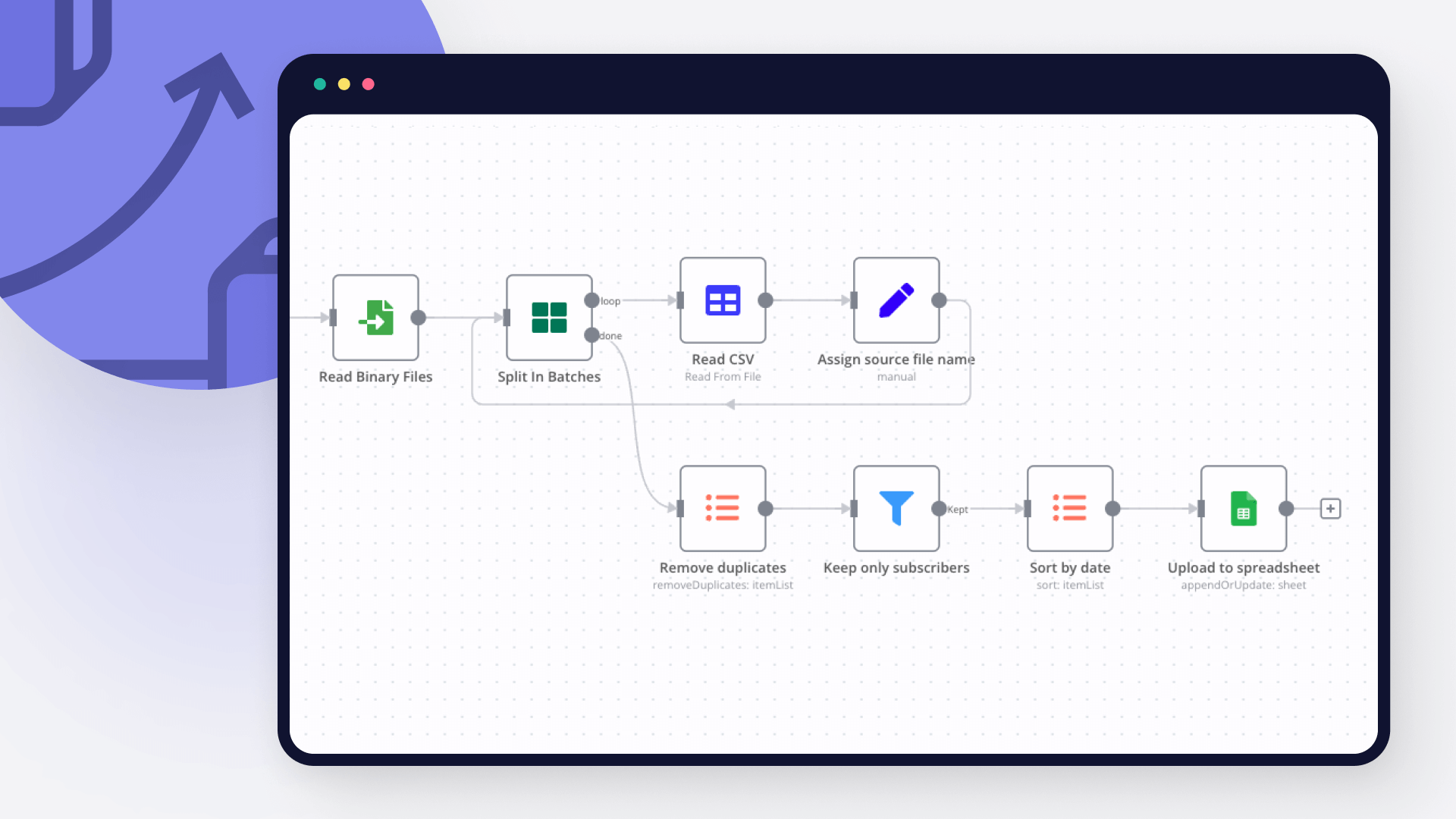
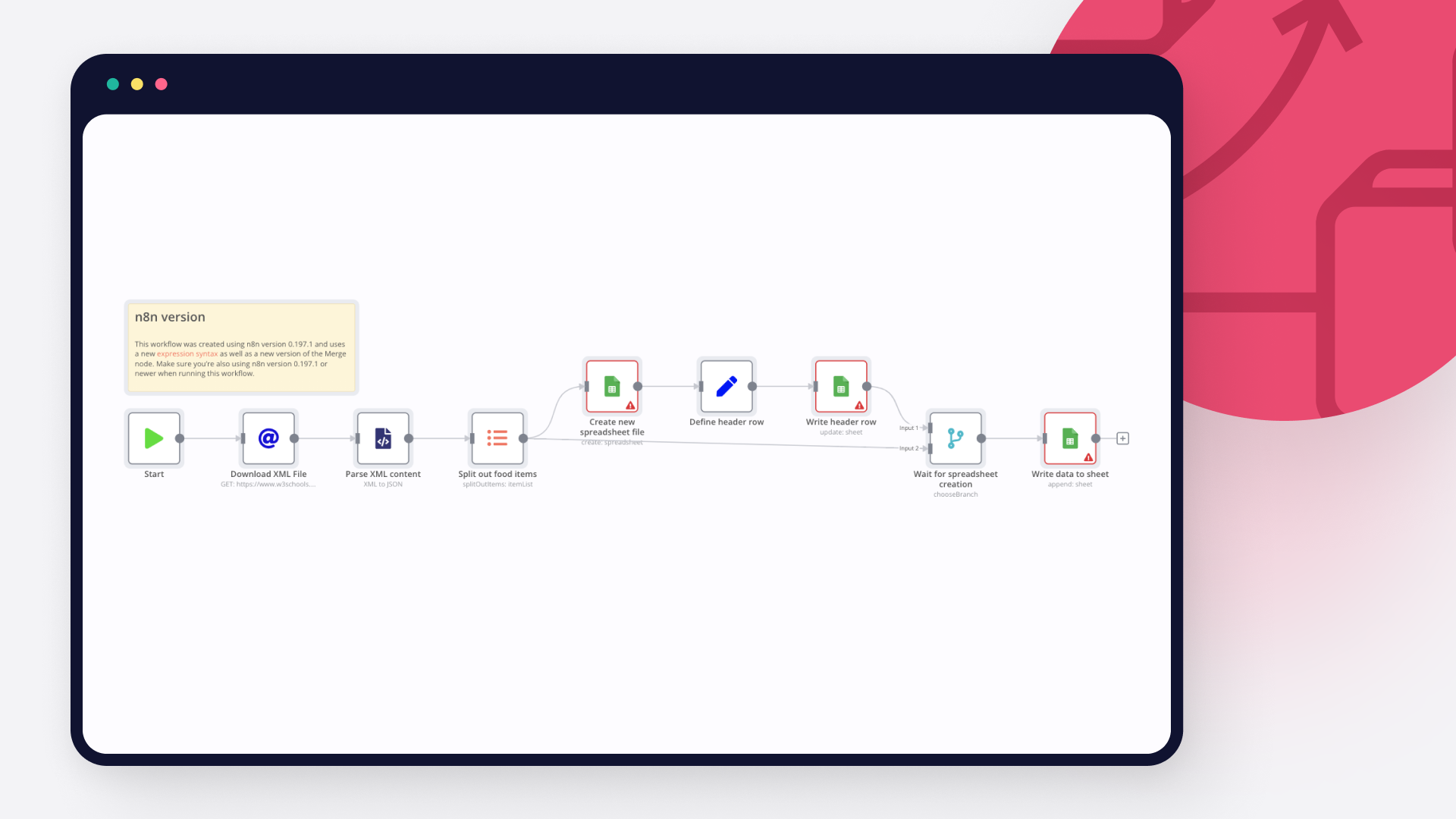
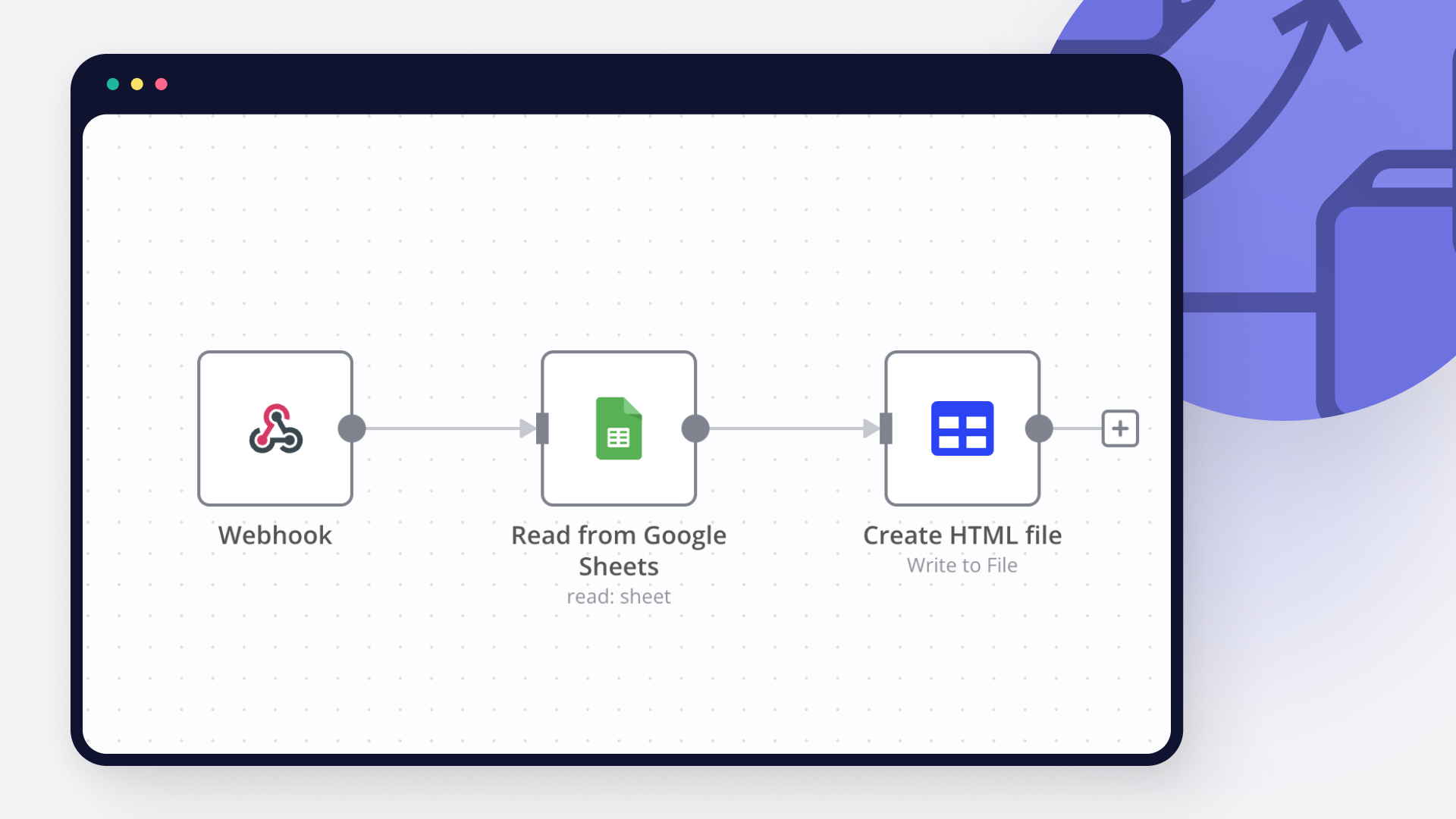
Popular Notion and Google Sheets workflows

One-way sync between Telegram, Notion, Google Drive, and Google Sheets

One-way sync between Telegram, Notion, Google Drive, and Google Sheets Who is this for? This workflow is perfect for productivity-focused teams, remote workers, virtual assistants, and digital knowledge managers who receive documents, images, or notes through Telegram and want to automatically organize and store them in Notion, Google Drive, and Google Sheets—without any manual work. What problem is this workflow solving? Managing Telegram messages and media manually across different tools like Notion, Drive, and Sheets can be tedious. This workflow automates the classification and storage of incoming Telegram content, whether it’s a text note, an image, or a document. It saves time, reduces human error, and ensures that media is stored in the right place with metadata tracking. What this workflow does Triggers on a new Telegram message** using the Telegram Trigger node. Classifies the message type** using a Switch node: Text messages are appended to a Notion block. Images are converted to base64, uploaded to imgbb, and then added to Notion as toggle-image blocks. Documents are downloaded, uploaded to Google Drive, and the metadata is logged in Google Sheets. Sends a completion confirmation** back to the original Telegram chat. Setup Telegram Bot: Set up a bot and get the API token. Notion Integration: Share access to your target Notion page/block. Use the Notion API credentials and block ID where content should be appended. Google Drive & Sheets: Connect the relevant accounts. Select the destination folder and spreadsheet. imgbb API: Obtain a free API key from imgbb. Replace placeholder credential IDs and asset URLs as needed in the imported workflow. How to customize this workflow to your needs Change Storage Locations**: Update the Notion block ID or Google Drive folder ID. Switch Google Sheet to log in a different file or sheet. Add More Filters**: Use additional Switch rules to handle other Telegram message types (like videos or voice messages). Modify Response Message**: Personalize the Telegram confirmation text based on the file type or sender. Use a different image hosting service** if you don’t want to use imgbb.

Classify and Summarize WeChat Articles with GPT-4 Nano to Google Sheets and Notion

Who’s it for 👥 This template is perfect for content creators, marketers, and researchers managing WeChat public account articles! 🚀 It’s ideal for n8n newcomers or anyone wanting to save time on manual content analysis, especially if you use Google Sheets for tracking. 📊 Whether you’re into AI, 欧阳良宜, or automation, this is for you! 😄 How it works / What it does 🔧 This workflow automates the retrieval, filtering, classification, and summarization of WeChat articles. 🌐 It reads RSS feed links from a Google Sheet, filters articles from the last 10 days ⏳, cleans HTML content 🧹, classifies them as relevant or not 🎯, generates insightful Chinese summaries with AI 🤖, and saves results to Google Sheets and Notion. 📝 Outputs are Slack-formatted for team collaboration! 💬 How to set up 🛠️ Prepare Google Sheets: Use your own documentId (replace the example) and set up sheets "Save Initial Links" (gid=198451233) and "Save Processed Data" (gid=1936091950). 📋 Configure Credentials: Add Google Sheets and OpenAI API credentials—avoid hardcoding keys! 🔐 Set RSS Feed: Update the rss_feed_url in the "RSS Read" node with your WeChat RSS feed. 🌐 Customize AI: Tweak "Relevance Classification" and "Basic LLM Chain" prompts for your topics (e.g., 欧阳良宜, AI). 🎨 Notion (Optional): Swap the databaseId (e.g., 22e79d55-2675-8055-a143-d55302c3c1b1) with your own. 📚 Run Workflow: Trigger manually via the "When clicking ‘Execute workflow’" node. 🚀 Requirements ✅ n8n account with Google Sheets and OpenAI integrations. Access to a WeChat public account RSS feed. Basic JSON and node config knowledge. How to customize the workflow 🎛️ Topic Adjustment: Update categories in "Relevance Classification" for new topics (e.g., "technology", "education"). 🌱 Summary Length: Modify the LLM prompt in "Basic LLM Chain" to adjust length or style. ✂️ Output Destination: Add Slack or Email nodes for more outputs. 📩 Date Filter: Change the "IF (Filter by Date)" condition (e.g., 7 days instead of 10). ⏰ Scalability: Use a "Schedule Trigger" node for automation. ⏳
+2

Automated Resume Scoring with Gemini LLM, Gmail and Notion Job Profiles

This n8n template demonstrates how to use AI to score the all Resumes by matching it with Job profile Problem Statement: A Hr person is flooded with resume and spends hours manually checking each to find most suitable ones. How it works It is linked to Gmail Trigger which upon receving any mail with specific subject will check for the attachment. Attachment will be parsed to understand the resume Candidate informtion will be broken into Personal, Eductional and Professional type Job profile will be pulled from Notion Board A HR expert powered by Gemini LLM will score each profile on basis on its relevancy Information will be updated back to Gsheet Message lable will be updated back for clarity How to use The gmail trigger node is used as an example but feel free to replace this with other triggers such as webhook or even a form. Requirements Gemini account for LLM Google sheet for upload Gmail as trigger Llama parse credentials
+2

Inventory Reconciliation between Notion & Airtable with GPT-4o Slack Alerts

📘 Description This workflow performs automated inventory reconciliation between Notion (physical counts) and Airtable (system counts), ensuring both databases stay synchronized. It fetches records from both systems, merges them into a unified comparison payload, validates the structure, and calculates discrepancies. If a mismatch is detected, the workflow automatically updates Airtable with the corrected count and notifies the operations team on Slack. If everything matches, a simple “No action needed” Slack message is sent. Any malformed or incomplete payloads are logged into Google Sheets for audit tracking. ⚙️ What This Workflow Does (Step-by-Step) 🟢 Manual Trigger – Execute Workflow Starts the reconciliation process on demand. 📥 Fetch Records from Notion Retrieves physical stock data (cycle count) stored in Notion. 📦 Fetch Records from Airtable Loads inventory data from Airtable’s system-of-record table. 🔀 Merge Notion + Airtable Inputs Combines both datasets into a single payload for unified processing. 🔍 Validate Payload Structure (IF Node) Ensures that key fields (like id) exist. Valid → continue Invalid → logged to Google Sheets. 🧾 Log Invalid Versioning Requests to Google Sheets Stores broken or incomplete payload entries for later review. 🧮 Build Combined Notion + Airtable Payload (Code Node) Constructs the structured comparison object: { notion: {...}, airtable: [...] } 📊 Compare Notion Record With Airtable Record (Code Node) Performs core reconciliation logic: Matches items by name Compares physical vs. system count Calculates difference Determines if a correction is needed If mismatch → flagged for update. 🔎 Check If Record Requires Update (IF Node) Branches logic into: Mismatch → Update Airtable + Alert Match → No action summary 🛠️ Update Airtable Record With Corrected Count Writes the accurate physical count from Notion into Airtable. 🧠 Configure GPT-4o – Slack Summary Models Two models: For “no action needed” summaries For “Airtable updated” discrepancy alerts 🤖 Generate Slack Summary / Generate Slack Summary1 AI produces short, precise, operations-friendly Slack messages based on whether a discrepancy existed. 💬 Slack – Send Summary Notification / Send Update Notification Sends final Slack message to the operations user, confirming: Stock match status Updates made Item details Difference values 🧩 Prerequisites Notion API integration Airtable API credentials Azure OpenAI GPT-4o Slack API connection Google Sheets OAuth 💡 Key Benefits ✔ Eliminates manual reconciliation errors ✔ Keeps Airtable continuously aligned with real physical counts ✔ Provides instant Slack visibility to operations teams ✔ Logs all invalid or malformed cases ✔ Centralizes Notion + Airtable consistency checks 👥 Perfect For Operations teams managing multi-system inventory Warehouse cycle count workflows Audit-driven companies needing accurate stock data Businesses using Notion + Airtable as parallel systems
+2

Discover & Analyze n8n Workflows from GitHub with OpenAI and Google Sheets

🧠 Overview Discover and analyze the most valuable community-built n8n workflows on GitHub. This automation searches public repositories, analyzes JSON workflows using AI, and saves a ranked report to Google Sheets — including summaries, use cases, difficulty, stars, node count, and repository links. ⚙️ How It Works Search GitHub Code API — queries for extension:json n8n and splits results Fetch & Parse — downloads each candidate file’s raw JSON and safely parses it Extract Metadata — detects AI-powered flows and collects key node information AI Analysis — evaluates the top N workflows (description, use case, difficulty) Merge Insights — combines AI analysis with GitHub data Save to Google Sheets — appends or updates by workflow name 🧩 Setup Instructions (5–10 min) Open Config node and set: search_query — e.g., "openai" extension:json n8n max_results — number of results to fetch (1–100) ai_analysis_top — number of workflows analyzed with AI SPREADSHEET_ID, SHEET_NAME — Google Sheets target Add GitHub PAT via HTTP Header Credential: Authorization: Bearer <YOUR_TOKEN> Connect OpenAI Credential to OpenAI Chat Model Connect Google Sheets (OAuth2) to Save to Google Sheets (Optional) Enable Schedule Trigger to run weekly for automatic updates > 💡 Tip: If you need to show literal brackets, use backticks like <example> (no HTML entities needed). 📚 Use Cases 1) Trend Tracking for AI Automations Goal:** Identify the fastest-growing AI-powered n8n workflows on GitHub. Output:** Sorted list by stars and AI detection, updated weekly. 2) Internal Workflow Benchmarking Goal:** Compare your organization’s workflows against top public examples. Output:** Difficulty, node count, and AI usage metrics in Google Sheets. 3) Market Research for Automation Agencies Goal:** Discover trending integrations and tool combinations (e.g., OpenAI + Slack). Output:** Data-driven insights for client projects and content planning. 🧪 Notes & Best Practices 🔐 No hardcoded secrets — use n8n Credentials 🧱 Works with self-hosted or cloud n8n 🧪 Start small (max_results = 10) before scaling 🧭 Use “AI Powered” + “Stars” columns in Sheets to identify top templates 🧩 Uses only Markdown sticky notes — no HTML formatting required 🔗 Resources GitHub (template JSON):** github-workflow-finder-ai.json
+2

Automated Sales Leaderboard with HighLevel CRM, GPT-4o, Notion & Slack

📘 Description: This workflow automates sales performance tracking and motivational updates by integrating HighLevel CRM, Notion, GPT-4o, and Slack. It pulls all deals from HighLevel, cleans and summarizes sales data per representative, creates performance dashboards in Notion, and uses GPT-powered AI to generate personalized motivational Slack messages. It eliminates manual leaderboard tracking and boosts sales engagement with real-time insights and daily motivation — ensuring every sales rep stays informed, recognized, and inspired. What This Workflow Does (Step-by-Step) 🟢 Manual Trigger – Starts the automation manually for data refresh or testing. 📦 Fetch All Deals from HighLevel CRM – Retrieves all opportunities from HighLevel CRM, including deal names, reps, values, and stages for full visibility. 🔍 Validate Deal Fetch Success (IF Node) – Verifies that fetched data contains valid deal IDs. ✅ True Path: Continues to data cleaning. ❌ False Path: Logs failed records to Google Sheets for debugging. 🧹 Clean & Structure Deal Data – Normalizes raw deal data into a consistent schema (deal ID, rep ID, client name, value, status). Ensures clean inputs for analytics. 📊 Summarize Sales by Representative – Aggregates deals per sales rep and computes: Total deals handled Total deal value Total deals won Average deal value 🧾 Generate Notion Performance Dashboard – Creates personalized Notion dashboards for each rep with daily updated performance summaries and motivation metrics. ⚙️ Transform Data for AI Input – Converts summarized data into AI-readable format for GPT-4o processing. 🧠 GPT-4o Model Configuration – Sets up Azure OpenAI GPT-4o model to generate motivational and contextual Slack messages. 🤖 AI-Generated Motivational Slack Messages – Uses LangChain + GPT-4o to create energetic, emoji-filled messages that celebrate rep achievements and encourage improvement. 💬 Notify Sales Team in Slack – Sends the AI-generated performance summaries and motivational blurbs directly to each rep or the team Slack channel for transparency and engagement. 🚨 Log Fetch or Validation Errors (Error Handling) – Records any fetch or validation failures in the Google Sheets “error log sheet” for easy review and error management. Prerequisites HighLevel CRM API credentials Google Sheets for “Error Log” tracking Notion API integration for dashboards Azure OpenAI (GPT-4o) credentials Slack API connection for notifications Key Benefits ✅ Fully automated daily performance tracking ✅ Personalized AI-powered motivation in Slack ✅ Transparent visibility for managers and reps ✅ Improved accountability and sales performance ✅ Seamless integration across CRM, Notion, and Slack 👥 Perfect For Sales teams seeking real-time motivation and transparency Managers who want automated performance dashboards Teams using HighLevel CRM and Slack for daily operations Companies aiming to gamify sales productivity

Build your own Notion and Google Sheets integration

Create custom Notion and Google Sheets workflows by choosing triggers and actions. Nodes come with global operations and settings, as well as app-specific parameters that can be configured. You can also use the HTTP Request node to query data from any app or service with a REST API.

Notion supported actions

Append After
Append a block
Get Child Blocks
Get many child blocks
Get
Get a database
Get Many
Get many databases
Search
Search databases using text search
Get
Get a database
Get Many
Get many databases
Create
Create a page in a database
Get
Get a page in a database
Get Many
Get many pages in a database
Update
Update pages in a database
Create
Create a pages in a database
Get Many
Get many pages in a database
Update
Update pages in a database
Create
Create a page
Get
Get a page
Search
Text search of pages
Archive
Archive a page
Create
Create a page
Search
Text search of pages
Get
Get a user
Get Many
Get many users

Google Sheets supported actions

Create
Create a spreadsheet
Delete
Delete a spreadsheet
Append or Update Row
Append a new row or update an existing one (upsert)
Append Row
Create a new row in a sheet
Clear
Delete all the contents or a part of a sheet
Create
Create a new sheet
Delete
Permanently delete a sheet
Delete Rows or Columns
Delete columns or rows from a sheet
Get Row(s)
Retrieve one or more rows from a sheet
Update Row
Update an existing row in a sheet

FAQs

  • Can Notion connect with Google Sheets?

  • Can I use Notion’s API with n8n?

  • Can I use Google Sheets’s API with n8n?

  • Is n8n secure for integrating Notion and Google Sheets?

  • How to get started with Notion and Google Sheets integration in n8n.io?

Need help setting up your Notion and Google Sheets integration?

Discover our latest community's recommendations and join the discussions about Notion and Google Sheets integration.
Justin Cheu
Cris A. Works
Martin
Sergey Komardenkov
sérgio eduardo floresta filho

Looking to integrate Notion and Google Sheets in your company?

Over 3000 companies switch to n8n every single week

Why use n8n to integrate Notion with Google Sheets

Build complex workflows, really fast

Build complex workflows, really fast

Handle branching, merging and iteration easily.
Pause your workflow to wait for external events.

Code when you need it, UI when you don't

Simple debugging

Your data is displayed alongside your settings, making edge cases easy to track down.

Use templates to get started fast

Use 1000+ workflow templates available from our core team and our community.

Reuse your work

Copy and paste, easily import and export workflows.

Implement complex processes faster with n8n

red iconyellow iconred iconyellow icon