Back to Integrations
integrationNotion node
integrationTelegram node

Notion and Telegram integration

Save yourself the work of writing custom integrations for Notion and Telegram and use n8n instead. Build adaptable and scalable Productivity, Communication, and HITL workflows that work with your technology stack. All within a building experience you will love.

How to connect Notion and Telegram

  • Step 1: Create a new workflow
  • Step 2: Add and configure nodes
  • Step 3: Connect
  • Step 4: Customize and extend your integration
  • Step 5: Test and activate your workflow

Step 1: Create a new workflow and add the first step

In n8n, click the "Add workflow" button in the Workflows tab to create a new workflow. Add the starting point – a trigger on when your workflow should run: an app event, a schedule, a webhook call, another workflow, an AI chat, or a manual trigger. Sometimes, the HTTP Request node might already serve as your starting point.

Notion and Telegram integration: Create a new workflow and add the first step

Step 2: Add and configure Notion and Telegram nodes

You can find Notion and Telegram in the nodes panel. Drag them onto your workflow canvas, selecting their actions. Click each node, choose a credential, and authenticate to grant n8n access. Configure Notion and Telegram nodes one by one: input data on the left, parameters in the middle, and output data on the right.

Notion and Telegram integration: Add and configure Notion and Telegram nodes

Step 3: Connect Notion and Telegram

A connection establishes a link between Notion and Telegram (or vice versa) to route data through the workflow. Data flows from the output of one node to the input of another. You can have single or multiple connections for each node.

Notion and Telegram integration: Connect Notion and Telegram

Step 4: Customize and extend your Notion and Telegram integration

Use n8n's core nodes such as If, Split Out, Merge, and others to transform and manipulate data. Write custom JavaScript or Python in the Code node and run it as a step in your workflow. Connect Notion and Telegram with any of n8n’s 1000+ integrations, and incorporate advanced AI logic into your workflows.

Notion and Telegram integration: Customize and extend your Notion and Telegram integration

Step 5: Test and activate your Notion and Telegram workflow

Save and run the workflow to see if everything works as expected. Based on your configuration, data should flow from Notion to Telegram or vice versa. Easily debug your workflow: you can check past executions to isolate and fix the mistake. Once you've tested everything, make sure to save your workflow and activate it.

Notion and Telegram integration: Test and activate your Notion and Telegram workflow

One-way sync between Telegram, Notion, Google Drive, and Google Sheets

One-way sync between Telegram, Notion, Google Drive, and Google Sheets

Who is this for?

This workflow is perfect for productivity-focused teams, remote workers, virtual assistants, and digital knowledge managers who receive documents, images, or notes through Telegram and want to automatically organize and store them in Notion, Google Drive, and Google Sheets—without any manual work.

What problem is this workflow solving?

Managing Telegram messages and media manually across different tools like Notion, Drive, and Sheets can be tedious. This workflow automates the classification and storage of incoming Telegram content, whether it’s a text note, an image, or a document. It saves time, reduces human error, and ensures that media is stored in the right place with metadata tracking.

What this workflow does

Triggers on a new Telegram message** using the Telegram Trigger node.
Classifies the message type** using a Switch node:
Text messages are appended to a Notion block.
Images are converted to base64, uploaded to imgbb, and then added to Notion as toggle-image blocks.
Documents are downloaded, uploaded to Google Drive, and the metadata is logged in Google Sheets.
Sends a completion confirmation** back to the original Telegram chat.

Setup

Telegram Bot: Set up a bot and get the API token.
Notion Integration:
Share access to your target Notion page/block.
Use the Notion API credentials and block ID where content should be appended.
Google Drive & Sheets:
Connect the relevant accounts.
Select the destination folder and spreadsheet.
imgbb API: Obtain a free API key from imgbb.

Replace placeholder credential IDs and asset URLs as needed in the imported workflow.

How to customize this workflow to your needs

Change Storage Locations**:
Update the Notion block ID or Google Drive folder ID.
Switch Google Sheet to log in a different file or sheet.
Add More Filters**:
Use additional Switch rules to handle other Telegram message types (like videos or voice messages).
Modify Response Message**:
Personalize the Telegram confirmation text based on the file type or sender.
Use a different image hosting service** if you don’t want to use imgbb.

Nodes used in this workflow

Popular Notion and Telegram workflows

+3

Look up English vocabulary via Telegram and save results to Notion

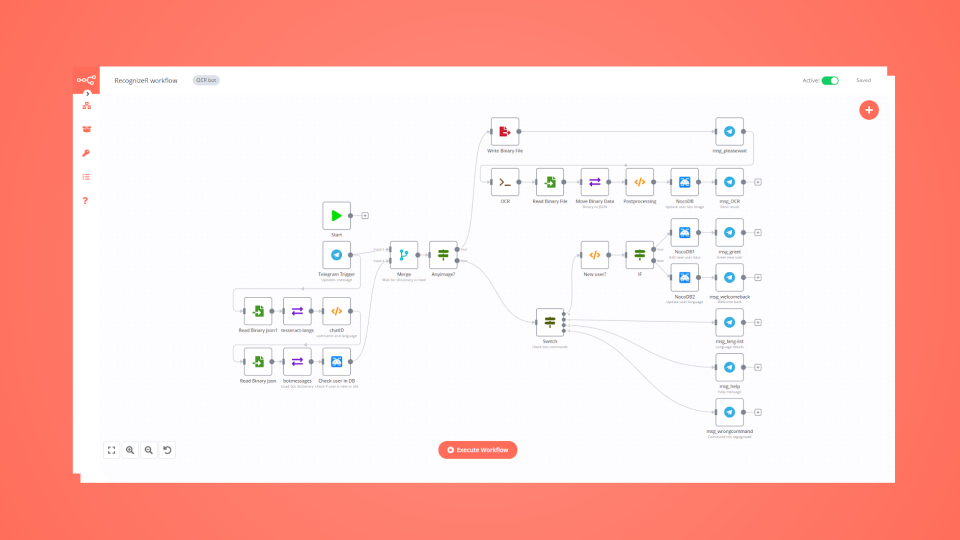
Build a personal Telegram bot that looks up English vocabulary and saves every entry to Notion — supporting text, voice, and photo input. Send a word by typing, voice message, or photo. The bot auto-detects the input type: voice is transcribed via Whisper, photos are scanned via GPT-4o-mini Vision OCR. A GPT-4.1-mini agent spell-checks and returns the word's definition, translation, part of speech, and an example sentence. The translation language is fully configurable — just set TARGET_LANGUAGE in the Config node (e.g. Traditional Chinese, Japanese, Spanish). Nodes used: Telegram Trigger, HTTP Request (Telegram file API), OpenAI (Whisper + GPT-4o-mini Vision + GPT-4.1-mini), Structured Output Parser, Notion. 💡 Want more AI automation templates? Check out the Content Automation Bundle: 👉 https://jasonchuang0818.gumroad.com/l/n8n-content-automation-bundle

Personalized Evening Wind-Down System with Mood Tracking via Telegram, Notion & Email

🌸 The Quiet Evening Ritual — Wind-Down Automation (Telegram + Notion + Email) Create a calming 9PM evening routine that runs itself. This n8n template checks in via Telegram with mood buttons, delivers personalized support (meditation when you’re tired, celebration when you’re thriving), logs reflections to a Notion “Evening Reflection Log,” and sends a gentle goodnight email with tomorrow’s affirmation. Who it’s for Homemakers, moms, and creators who feel “always on” and want a graceful, one-tap transition into rest. What it does 9:00 PM Telegram mood check (I’m Tired 💤 / Felt Great ✨) Personalized content (5-min meditation or celebration prompt) Automatic Notion journaling (mood, reflection, wins, date, affirmation) Goodnight email with a fresh morning affirmation Optional: GPT-4o mini for gentle reflection prompts Why it’s different Not just logging—this is a ritualized, emotionally intelligent handoff from work to rest that protects your peace and builds consistency. Stack & Nodes Cron → Telegram → IF → Notion → Email (+ optional GPT)

One-way sync between Telegram, Notion, Google Drive, and Google Sheets

One-way sync between Telegram, Notion, Google Drive, and Google Sheets Who is this for? This workflow is perfect for productivity-focused teams, remote workers, virtual assistants, and digital knowledge managers who receive documents, images, or notes through Telegram and want to automatically organize and store them in Notion, Google Drive, and Google Sheets—without any manual work. What problem is this workflow solving? Managing Telegram messages and media manually across different tools like Notion, Drive, and Sheets can be tedious. This workflow automates the classification and storage of incoming Telegram content, whether it’s a text note, an image, or a document. It saves time, reduces human error, and ensures that media is stored in the right place with metadata tracking. What this workflow does Triggers on a new Telegram message** using the Telegram Trigger node. Classifies the message type** using a Switch node: Text messages are appended to a Notion block. Images are converted to base64, uploaded to imgbb, and then added to Notion as toggle-image blocks. Documents are downloaded, uploaded to Google Drive, and the metadata is logged in Google Sheets. Sends a completion confirmation** back to the original Telegram chat. Setup Telegram Bot: Set up a bot and get the API token. Notion Integration: Share access to your target Notion page/block. Use the Notion API credentials and block ID where content should be appended. Google Drive & Sheets: Connect the relevant accounts. Select the destination folder and spreadsheet. imgbb API: Obtain a free API key from imgbb. Replace placeholder credential IDs and asset URLs as needed in the imported workflow. How to customize this workflow to your needs Change Storage Locations**: Update the Notion block ID or Google Drive folder ID. Switch Google Sheet to log in a different file or sheet. Add More Filters**: Use additional Switch rules to handle other Telegram message types (like videos or voice messages). Modify Response Message**: Personalize the Telegram confirmation text based on the file type or sender. Use a different image hosting service** if you don’t want to use imgbb.

Voice to Podcast Script Generator with OpenAI & Notion via Telegram

Automated Podcast Note-Taker for Notion 🎙️⚡ Transform voice notes into polished podcast scripts—automatically! ✨ What It Does This n8n workflow instantly converts Telegram voice messages into structured podcast content in Notion, including: ✅ AI-generated transcripts (via OpenAI Whisper) ✅ Smart content analysis (extracts titles, hooks, CTAs, and summaries) ✅ Ready-to-use script outlines (with sections for hooks, key points, transitions & more) ✅ Dual Notion integration (saves metadata to a database + full script to a page) 🚀 Perfect For ✔ Podcasters who brainstorm via voice notes ✔ Content teams that need fast turnarounds ✔ Solo creators who want to streamline scripting ⚙️ How It Works Send a voice note to your Telegram bot AI transcribes & analyzes the content Auto-generates a script outline (under 1800 chars for Notion compatibility) Saves to Notion—neatly organized for editing or publishing 🔧 Technical Details Tools Used: n8n, OpenAI (Whisper + GPT), Notion, Telegram Outputs: Notion Database: Title, topic, quote, CTA Notion Page: Full script outline (Markdown formatted) Smart Limits: Ensures content fits Notion’s API constraints 💡 Why Buy? Save hours per episode on manual note-taking Never lose ideas—voice notes become searchable, structured content Professional scripts with consistent formatting 📦 What’s Included Ready-to-import n8n workflow file (JSON) Setup guide (step-by-step instructions) Tips for customization (e.g., tweaking AI prompts) Price: $XX (one-time payment)

Manage creator sponsorship and brand deals with Gmail, OpenAI, Notion and Telegram

This n8n template automates the entire sponsorship pipeline for content creators by combining Gmail inbox monitoring, AI-powered deal classification, Notion CRM logging, and automated follow-up reminders to deliver a complete brand deal management system without switching between tools. Instead of manually tracking sponsorship emails in scattered spreadsheets or losing deals in your inbox, this workflow focuses on structured pipeline management, AI-drafted replies, and consistent follow-ups including surfacing deals that have gone quiet and need a nudge. Use cases Automatically detect and classify sponsorship inquiries from your Gmail inbox Extract company name, contact, budget, campaign type, and channel from emails using AI Log every deal to a Notion CRM with deal stage, follow-up date, and notes Receive instant Telegram alerts with AI-drafted reply suggestions Get daily follow-up reminders for stale deals with ready-to-send email drafts Generate a monthly sponsorship revenue report with AI insights and channel breakdowns Power a professional creator business ops system with zero manual data entry Good to know This workflow monitors your Gmail inbox every minute, uses an AI model to classify emails and draft replies, and syncs all deal data to a Notion database. It does not auto-send emails all replies are reviewed by you before sending, keeping you in full control of brand relationships. The system is designed for solo creators and indie founders who want agency-level pipeline management without hiring an assistant. Setup typically takes 15–20 minutes. Requirements n8n Cloud or self-hosted instance Gmail account with OAuth2 access OpenAI API key (GPT-4o-mini recommended) Notion account with an integration token Telegram Bot Token + Chat ID Notion database (schema provided inside) Customising this workflow Replace Telegram with Slack or Discord for team alerts Swap Notion for Airtable or Google Sheets as your CRM Add a Gmail auto-send node if you want fully automated reply sending Adjust the AI classification prompt to include keywords specific to your niche Extend the monthly report to include platform-level breakdowns (YouTube vs Newsletter vs X) Adapt the follow-up logic to trigger after custom intervals per deal stage Flows included Flow A — Inbound sponsorship detection, AI classification, Notion CRM logging, reply drafting Flow B — Daily follow-up checker with AI-generated nudge drafts Flow C — Monthly revenue report with AI insights delivered via Telegram and Gmail
+3

Automated Financial Tracker: Telegram Invoices to Notion with Gemini AI Reports

Automated Financial Tracker: Telegram Invoices to Notion with AI Summaries & Reports Tired of manually logging every expense? Streamline your financial tracking with this powerful n8n workflow! Snap a photo of your invoice in Telegram, and let AI (powered by Google Gemini) automatically extract the details, record them in your Notion database, and even send you a quick summary. Plus, get scheduled weekly reports with charts to visualize your spending. Automate your finances, save time, and gain better insights with this easy-to-use template! Transform your expense tracking from a chore into an automated breeze. Try it out! Overview: This workflow revolutionizes how you track your finances by automating the entire process from invoice capture to reporting. Simply send a photo of an invoice or receipt to a designated Telegram chat, and this workflow will: Extract Data with AI: Utilize Google Gemini's capabilities to perform OCR on the image, understand the content, and extract key details like item name, quantity, price, total, date, and even attempt to categorize the expense. Store in Notion: Automatically log each extracted transaction into a structured Notion database. Instant Feedback: Send a summary of the processed transaction back to your Telegram chat. Scheduled Reporting: Generate and send a visual summary of your expenses (e.g., weekly spending by category) as a chart to your preferred Telegram chat or group. This workflow is perfect for individuals, freelancers, or small teams looking to effortlessly manage their expenses without manual data entry. Key Features & Benefits: Effortless Expense Logging:** Just send a picture – no more typing! AI-Powered Data Extraction:** Leverages Google Gemini for intelligent invoice processing. Centralized Data in Notion:** Keep all your financial records neatly organized in a Notion database. Automated Categorization:** AI helps in categorizing your expenses (e.g., Food & Beverage, Transportation). Instant Summaries:** Get immediate confirmation and a summary of what was recorded. Visual Reporting:** Receive scheduled charts (e.g., bar charts of spending by category) directly in Telegram. Customizable:** Easily adapt the workflow to your specific needs, categories, and reporting preferences. Time-Saving:** Drastically reduces the time spent on manual financial administration. How It Works (Workflow Breakdown): The workflow is divided into two main parts: Part 1: Real-time Invoice Processing & Logging (## Auto Notes Transaction with Telegram and Notion database) Telegram Trigger (Telegram Trigger | When recive photo): Activates when a new photo is sent to the configured Telegram chat. Get Photo Info (Get Info Photo from telegram chat): Retrieves the details of the received photo. Get Image Info (Get Image Info): Prepares the image data. AI Data Extraction (Google Gemini Chat Model & Basic LLM Chain): The image data is sent to the Google Gemini Chat Model. A specific prompt instructs the AI to extract details (date, ID, name, quantity, price, total, category, tax) in a JSON array format and provide a summary message. The categories include Food & Beverage, Transportation, Utilities, Shopping, Healthcare, Entertainment, Housing, and Education. Parse AI Output (Parse To your object | Table): Structures the AI's JSON output for easier handling. Split Transactions (Split Out | data transaction): If an invoice contains multiple items, this node splits them into individual records. Record to Notion (Record To Notion Database): Each transaction item is added as a new page/entry in your specified Notion database, mapping fields like Name, Quantity, Price, Total, Category, Date, and Tax. Send Telegram Summary (Sendback to chat and give summarize text): The summary message generated by the AI is sent back to the original Telegram chat. Part 2: Scheduled Financial Reporting (## Schedule report to send on chanel or private message) Schedule Trigger (Schedule Trigger | for send chart report): Runs at a predefined interval (e.g., every week) to generate reports. Get Recent Data from Notion (Get Recent Data from Notions): Fetches transaction data from the Notion database for a specific period (e.g., the past week). Summarize Data (Summarize Transaction Data): Aggregates the data, for example, by summing up the 'total' amount for each 'category'. Prepare Chart Data (Convert Data to JSON chart payload): Transforms the summarized data into a JSON format suitable for generating a chart (e.g., labels for categories, data for spending amounts). Generate Chart (Generate Chart): Uses the QuickChart node to create a visual chart (e.g., a bar chart) from the prepared data. Send Chart to Telegram (Send Chart Image to Group or Private Chat): Sends the generated chart image to a specified Telegram chat ID or group. Nodes Used (Key Nodes): Telegram Trigger & Telegram Node:** For receiving images and sending messages/images. Google Gemini Chat Model (Langchain):** For AI-powered OCR and data extraction from invoices. Basic LLM Chain (Langchain):** To interact with the language model using specific prompts. Output Parser Structured (Langchain):** To structure the output from the language model. Notion Node:** For reading from and writing to your Notion databases. Schedule Trigger:** To automate the reporting process. Summarize Node:** To aggregate data for reports. Code Node:** Used here to format data for the chart. QuickChart Node:** For generating charts. SplitOut Node:** To process multiple items from a single invoice. Setup Instructions: Credentials: Telegram: Create a Telegram bot and get its API token. You'll also need the Chat ID where you'll send invoices and where reports should be sent. Google Gemini (PaLM) API: You'll need an API key for Google Gemini. Notion: Create a Notion integration and get the API key. Create a Notion database with properties corresponding to the data you want to save (e.g., Name (Title), Quantity (Number), Price (Number), Total (Number), Category (Select), Date (Text or Date), Tax (Number)). Share this database with your Notion integration. Configure Telegram Trigger: Add your Telegram Bot API token. When you first activate the workflow or test the trigger, send /start to your bot in the chat you want to use for sending invoices. n8n will then capture the Chat ID. Configure Google Gemini Node (Google Gemini Chat Model): Select or add your Google Gemini API credentials. Review the prompt in the Basic LLM Chain node and adjust if necessary (e.g., date format, categories). Configure Notion Nodes: Record To Notion Database: Select or add your Notion API credentials. Select your target Notion Database ID. Map the properties from the workflow (e.g., ={{ $json.name }}) to your Notion database columns. Get Recent Data from Notions: Select or add your Notion API credentials. Select your target Notion Database ID. Adjust the filter if needed (default is "past_week"). Configure Telegram Node for Reports (Send Chart Image to Group or Private Chat): Select or add your Telegram Bot API token. Enter the Chat ID for the group or private chat where you want to receive the reports. Configure Schedule Trigger (Schedule Trigger | for send chart report): Set your desired schedule (e.g., every Monday at 9 AM). Test: Send an image of an invoice to your Telegram bot and check if the data appears in Notion and if you receive a summary message. Wait for the scheduled report or manually trigger it to test the reporting functionality. Sticky Note Text for Your n8n Template: (These are suggestions. You would place these directly into the sticky notes within your n8n workflow editor.) Existing High-Level Sticky Notes: Auto Notes Transaction with Telegram and Notion database Schedule report to send on chanel or private message Specific Sticky Notes to Add: On Telegram Trigger | When recive photo:** 📸 INVOICE INPUT 📸 Bot listens here for photos of your receipts/invoices. Ensure your Telegram Bot API token is set in credentials. Near Google Gemini Chat Model & Basic LLM Chain:** 🤖 AI MAGIC HAPPENS HERE 🧠 Image is sent to Google Gemini for data extraction. Check 'Basic LLM Chain' to customize the AI prompt (e.g., categories, output format). Requires Google Gemini API credentials. On Parse To your object | Table:** ✨ STRUCTURING AI DATA ✨ Converts the AI's text output into a usable JSON object. Check the schema if you modify the AI prompt significantly. On Record To Notion Database:** 📝 SAVING TO NOTION 📝 Extracted transaction data is saved here. Configure with your Notion API key & Database ID. Map fields correctly to your database columns! On Sendback to chat and give summarize text:** 💬 TRANSACTION SUMMARY 💬 Sends a confirmation message back to the user in Telegram with a summary of the recorded expense. On Schedule Trigger | for send chart report:** 🗓️ REPORTING SCHEDULE 🗓️ Set how often you want to receive your spending report (e.g., weekly, monthly). On Get Recent Data from Notions:** 📊 FETCHING DATA FOR REPORT 📊 Retrieves transactions from Notion for the report period. Default: "Past Week". Adjust filter as needed. Requires Notion API credentials & Database ID. On Summarize Transaction Data:** ➕ SUMMARIZING SPENDING ➕ Aggregates your expenses, usually by category, to prepare for the chart. On Convert Data to JSON chart payload (Code Node):** 🎨 PREPARING CHART DATA 🎨 This Code node formats the summarized data into the JSON structure needed by QuickChart. On Generate Chart (QuickChart Node):** 📈 GENERATING VISUAL REPORT 📈 Creates the actual chart image based on your spending data. You can customize chart type (bar, pie, etc.) here. On Send Chart Image to Group or Private Chat:** 📤 SENDING REPORT TO TELEGRAM 📤 Delivers the generated chart to your chosen Telegram chat/group. Set the correct Chat ID and Bot API token. General Sticky Note (Place where relevant):** 🔑 CREDENTIALS NEEDED 🔑 Remember to set up API keys/tokens for: Telegram Google Gemini Notion General Sticky Note (Place where relevant):** 💡 CUSTOMIZE ME! 💡 Adjust AI prompts for better accuracy. Change Notion database structure. Modify report frequency and content. `

Build your own Notion and Telegram integration

Create custom Notion and Telegram workflows by choosing triggers and actions. Nodes come with global operations and settings, as well as app-specific parameters that can be configured. You can also use the HTTP Request node to query data from any app or service with a REST API.

Notion supported actions

Append After
Append a block
Get Child Blocks
Get many child blocks
Get
Get a database
Get Many
Get many databases
Search
Search databases using text search
Get
Get a database
Get Many
Get many databases
Create
Create a page in a database
Get
Get a page in a database
Get Many
Get many pages in a database
Update
Update pages in a database
Create
Create a pages in a database
Get Many
Get many pages in a database
Update
Update pages in a database
Create
Create a page
Get
Get a page
Search
Text search of pages
Archive
Archive a page
Create
Create a page
Search
Text search of pages
Get
Get a user
Get Many
Get many users

Telegram supported actions

Get
Get up to date information about a chat
Get Administrators
Get the Administrators of a chat
Get Member
Get the member of a chat
Leave
Leave a group, supergroup or channel
Set Description
Set the description of a chat
Set Title
Set the title of a chat
Answer Query
Send answer to callback query sent from inline keyboard
Answer Inline Query
Send answer to callback query sent from inline bot
Get
Get a file
Delete Chat Message
Delete a chat message
Edit Message Text
Edit a text message
Pin Chat Message
Pin a chat message
Send Animation
Send an animated file
Send Audio
Send a audio file
Send Chat Action
Send a chat action
Send Document
Send a document
Send Location
Send a location
Send Media Group
Send group of photos or videos to album
Send Message
Send a text message
Send and Wait for Response
Send a message and wait for response
Send Photo
Send a photo
Send Sticker
Send a sticker
Send Video
Send a video
Unpin Chat Message
Unpin a chat message

FAQs

  • Can Notion connect with Telegram?

  • Can I use Notion’s API with n8n?

  • Can I use Telegram’s API with n8n?

  • Is n8n secure for integrating Notion and Telegram?

  • How to get started with Notion and Telegram integration in n8n.io?

Need help setting up your Notion and Telegram integration?

Discover our latest community's recommendations and join the discussions about Notion and Telegram integration.
Justin Cheu
Trigi Digital
Cris A. Works
Martin
Liam Skaff

Looking to integrate Notion and Telegram in your company?

Over 3000 companies switch to n8n every single week

Why use n8n to integrate Notion with Telegram

Build complex workflows, really fast

Build complex workflows, really fast

Handle branching, merging and iteration easily.
Pause your workflow to wait for external events.

Code when you need it, UI when you don't

Simple debugging

Your data is displayed alongside your settings, making edge cases easy to track down.

Use templates to get started fast

Use 1000+ workflow templates available from our core team and our community.

Reuse your work

Copy and paste, easily import and export workflows.

Implement complex processes faster with n8n

red iconyellow iconred iconyellow icon