Back to Integrations
integrationSupabase node
integrationTwilio node

Supabase and Twilio integration

Save yourself the work of writing custom integrations for Supabase and Twilio and use n8n instead. Build adaptable and scalable Data & Storage, Communication, and Development workflows that work with your technology stack. All within a building experience you will love.

How to connect Supabase and Twilio

  • Step 1: Create a new workflow
  • Step 2: Add and configure nodes
  • Step 3: Connect
  • Step 4: Customize and extend your integration
  • Step 5: Test and activate your workflow

Step 1: Create a new workflow and add the first step

In n8n, click the "Add workflow" button in the Workflows tab to create a new workflow. Add the starting point – a trigger on when your workflow should run: an app event, a schedule, a webhook call, another workflow, an AI chat, or a manual trigger. Sometimes, the HTTP Request node might already serve as your starting point.

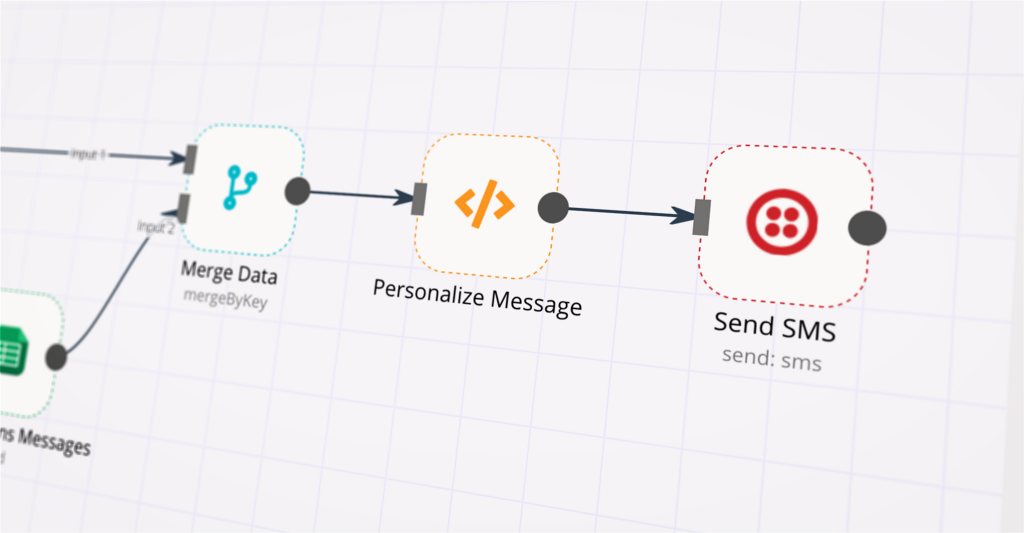
Supabase and Twilio integration: Create a new workflow and add the first step

Step 2: Add and configure Supabase and Twilio nodes

You can find Supabase and Twilio in the nodes panel. Drag them onto your workflow canvas, selecting their actions. Click each node, choose a credential, and authenticate to grant n8n access. Configure Supabase and Twilio nodes one by one: input data on the left, parameters in the middle, and output data on the right.

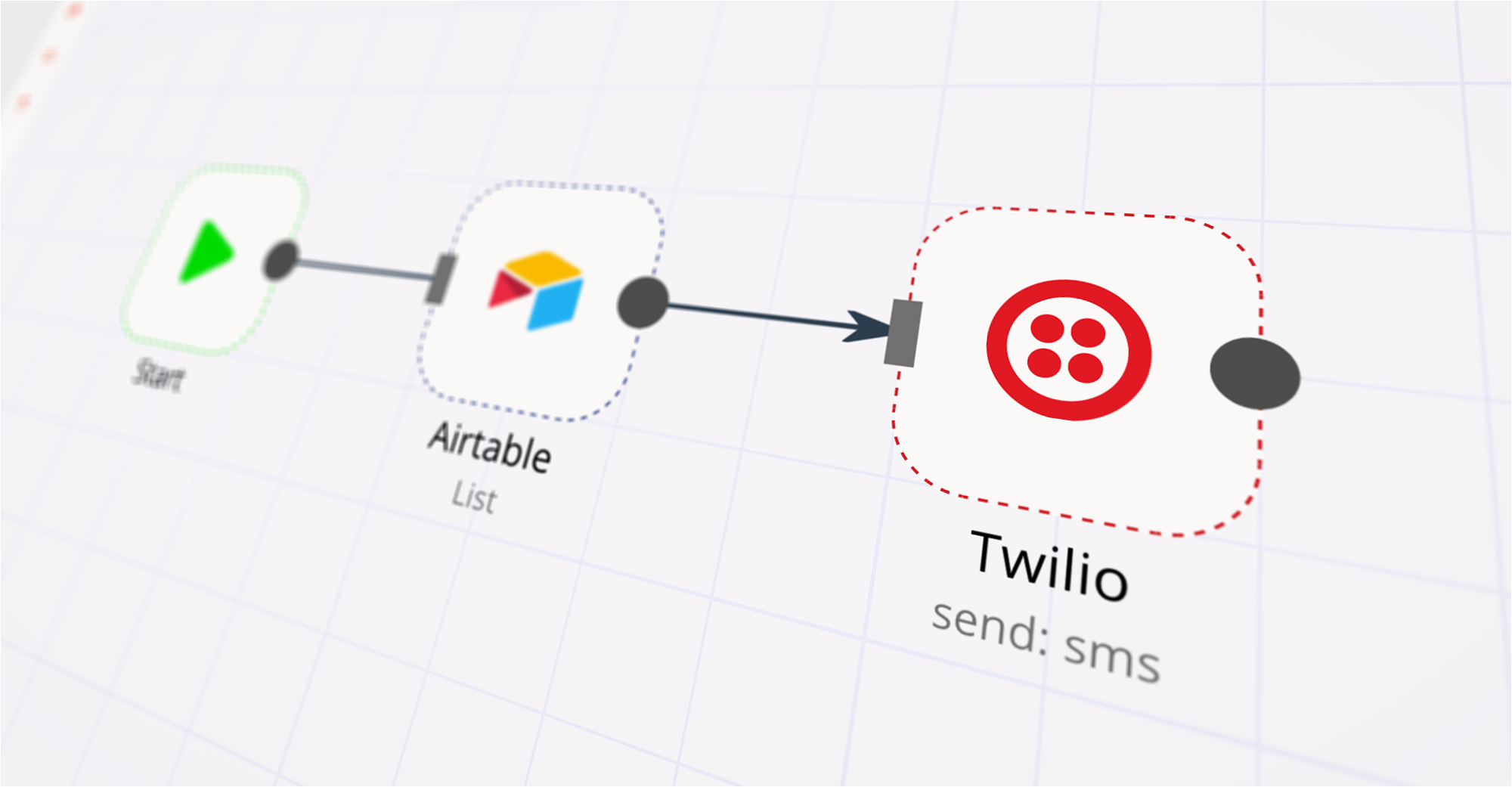
Supabase and Twilio integration: Add and configure Supabase and Twilio nodes

Step 3: Connect Supabase and Twilio

A connection establishes a link between Supabase and Twilio (or vice versa) to route data through the workflow. Data flows from the output of one node to the input of another. You can have single or multiple connections for each node.

Supabase and Twilio integration: Connect Supabase and Twilio

Step 4: Customize and extend your Supabase and Twilio integration

Use n8n's core nodes such as If, Split Out, Merge, and others to transform and manipulate data. Write custom JavaScript or Python in the Code node and run it as a step in your workflow. Connect Supabase and Twilio with any of n8n’s 1000+ integrations, and incorporate advanced AI logic into your workflows.

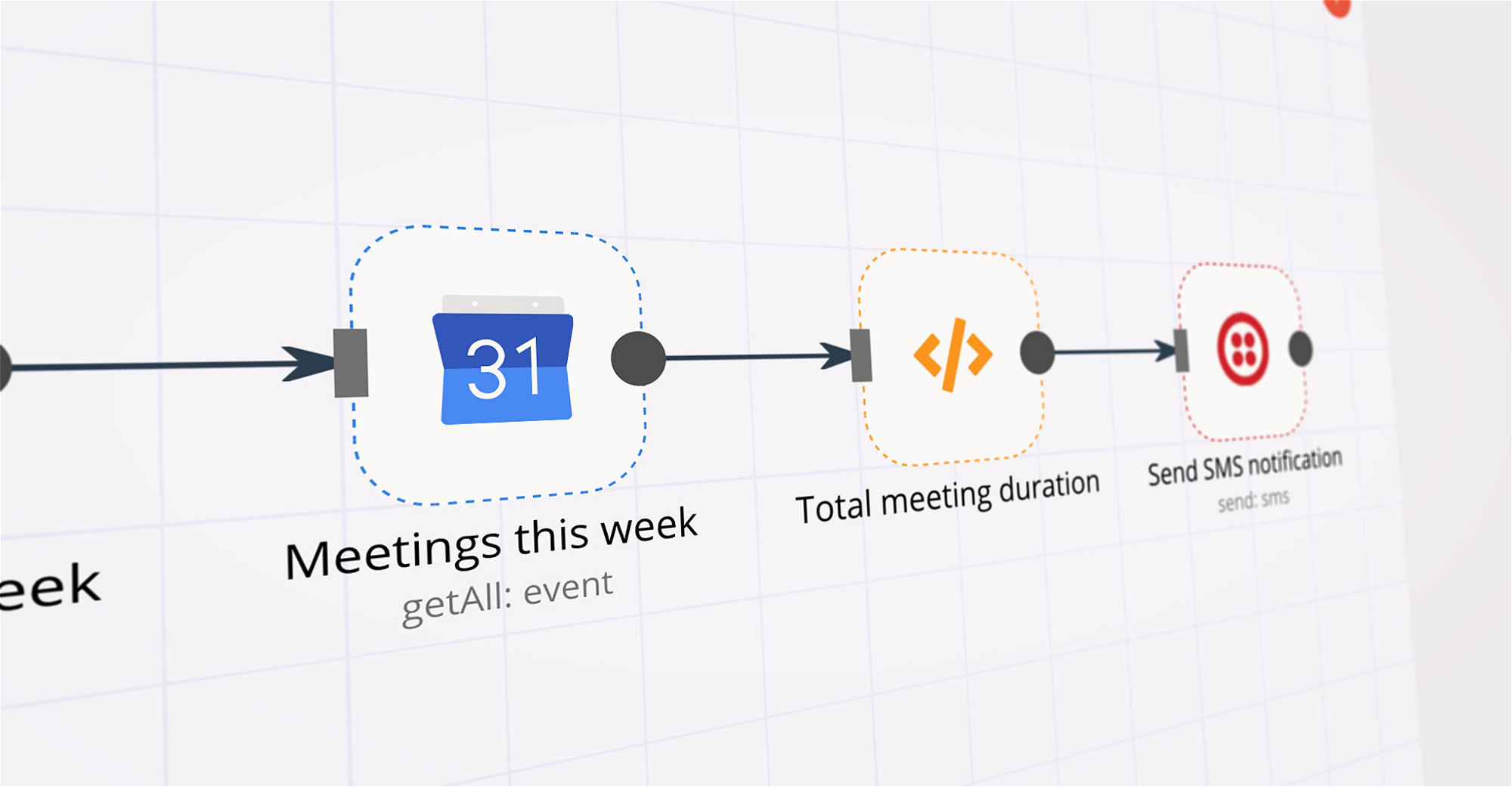
Supabase and Twilio integration: Customize and extend your Supabase and Twilio integration

Step 5: Test and activate your Supabase and Twilio workflow

Save and run the workflow to see if everything works as expected. Based on your configuration, data should flow from Supabase to Twilio or vice versa. Easily debug your workflow: you can check past executions to isolate and fix the mistake. Once you've tested everything, make sure to save your workflow and activate it.

Supabase and Twilio integration: Test and activate your Supabase and Twilio workflow

AI WhatsApp support with human handoff using Gemini, Twilio, and Supabase RAG

Quick Overview
What it is: An n8n workflow that enables AI-first WhatsApp support with seamless human handoff.
Why it’s unique: The AI agent answers queries using RAG (Supabase vector store + Gemini). If a human intervenes, the AI steps down. If there’s no human reply within 2 hours, the AI resumes.
Channel constraints: Respects WhatsApp’s 24-hour customer care window and requires approved message templates for out-of-window messages.
How It Works
AI-first: Incoming WhatsApp messages are routed to an AI agent (Gemini) with knowledge grounded by a Supabase vector store.
Human-in-the-loop: When a human responds in the dashboard, AI pauses for 2 hours for that conversation.
Auto-resume: If no human reply within 2 hours, AI automatically resumes.
Compliance: Only responds within 24 hours of the user’s last message, or via approved templates when outside this window.
Architecture (At a Glance)
Transport: Twilio WhatsApp; n8n http node.
RAG: Supabase (Postgres + embeddings) stores knowledgebase.
LLM: Google Gemini (free API key supported).
Handoff: Human dashboard (GitHub project) logs and labels AI vs Human responses, and controls AI pause/resume.
Prerequisites
n8n (self-hosted or cloud) with public webhook access.
Twilio account with a WhatsApp-enabled number.
Supabase project for vector store.
Google Gemini API key.
Human dashboard: https://github.com/shadrack-ago/whatsapp-dashboard.git
Setup Steps (n8n + Integrations)
Import workflow in n8n
Create new workflow → Import from JSON → Paste the provided JSON.
Enable the workflow.
Create credentials
Twilio: Add TWILIO_ACCOUNT_SID, TWILIO_AUTH_TOKEN, TWILIO_PHONE_NUMBER. Do NOT paste real secrets publicly.
Gemini: Add GEMINI_API_KEY.
Supabase: Add SUPABASE_URL, SUPABASE_ANON_KEY (or service role where needed), and your table/bucket names.
Connect Twilio WhatsApp
WhatsApp Business setup in Twilio, or Sandbox for testing.
Point Twilio incoming webhook to your n8n webhook URL.
Ensure approved templates for any out-of-window messaging.
Set environment variables (examples)
TWILIO_ACCOUNT_SID=...
TWILIO_AUTH_TOKEN=...
TWILIO_PHONE_NUMBER=+1...
GEMINI_API_KEY=...
SUPABASE_URL=...
SUPABASE_ANON_KEY=...
SUPABASE_TABLE=knowledge_base
EMBEDDING_MODEL
HUMAN_TIMEOUT_MS=7200000 (2 hours)
Human-in-the-loop dashboard
Follow the repo guide: https://github.com/shadrack-ago/whatsapp-dashboard.git
Run the dashboard and connect it to the same conversation store used by the workflow.
Verify that human responses are captured and labeled; confirm AI pause/resume logic.
Supabase for RAG
Create table(s) for documents and embeddings.
Ingest content per this tutorial:Supabase Tutorial
Confirm your n8n nodes query the vector store before calling Gemini.
Gemini setup
Get API key: Gemini API
Set model (e.g., gemini-pro or latest available in your environment).
Test
Send a WhatsApp message to your Twilio number.
Observe AI response.
Trigger a human reply via the dashboard → confirm AI pauses for that thread.
Wait 2 hours or adjust HUMAN_TIMEOUT_MS to test auto-resume.
Customization
Providers: You can swap Twilio for Meta’s WhatsApp Cloud API; keep the 24-hour and template rules.
Tone/Policies: Adjust system prompts and fallback behaviors in the LLM node.
RAG Quality: Tune chunking, TOP_K, and embedding model for better retrieval.
Timeouts: Change HUMAN_TIMEOUT_MS to alter handoff duration.
WhatsApp Policy Notes
24-hour window: Replies must occur within 24 hours of user’s last message; otherwise use an approved template.
Templates: Create and get approval inside Twilio/Meta before sending out-of-window messages.
Security & Reliability
Secrets: Store all keys in n8n credentials or environment variables. Never commit secrets to repos.
Logging: Use the dashboard to audit AI vs Human messages.
Rate limits: Add retry/backoff nodes for Twilio and LLM calls.
Troubleshooting
No replies: Check Twilio webhook URL and n8n workflow is active.
Policy blocks: Ensure template use outside 24-hour window.
Poor answers: Improve RAG data, increase TOP_K, refine prompts.
Handoff not pausing: Verify dashboard is writing the “human active” flag that the workflow reads.
Links
Human dashboard (Full guide): GitHub Repo Link

Nodes used in this workflow

Popular Supabase and Twilio workflows

+8

AI WhatsApp Support with Human Handoff using Gemini, Twilio, and Supabase RAG

Quick Overview What it is: An n8n workflow that enables AI-first WhatsApp support with seamless human handoff. Why it’s unique: The AI agent answers queries using RAG (Supabase vector store + Gemini). If a human intervenes, the AI steps down. If there’s no human reply within 2 hours, the AI resumes. Channel constraints: Respects WhatsApp’s 24-hour customer care window and requires approved message templates for out-of-window messages. How It Works AI-first: Incoming WhatsApp messages are routed to an AI agent (Gemini) with knowledge grounded by a Supabase vector store. Human-in-the-loop: When a human responds in the dashboard, AI pauses for 2 hours for that conversation. Auto-resume: If no human reply within 2 hours, AI automatically resumes. Compliance: Only responds within 24 hours of the user’s last message, or via approved templates when outside this window. Architecture (At a Glance) Transport: Twilio WhatsApp; n8n http node. RAG: Supabase (Postgres + embeddings) stores knowledgebase. LLM: Google Gemini (free API key supported). Handoff: Human dashboard (GitHub project) logs and labels AI vs Human responses, and controls AI pause/resume. Prerequisites n8n (self-hosted or cloud) with public webhook access. Twilio account with a WhatsApp-enabled number. Supabase project for vector store. Google Gemini API key. Human dashboard: https://github.com/shadrack-ago/whatsapp-dashboard.git Setup Steps (n8n + Integrations) Import workflow in n8n Create new workflow → Import from JSON → Paste the provided JSON. Enable the workflow. Create credentials Twilio: Add TWILIO_ACCOUNT_SID, TWILIO_AUTH_TOKEN, TWILIO_PHONE_NUMBER. Do NOT paste real secrets publicly. Gemini: Add GEMINI_API_KEY. Supabase: Add SUPABASE_URL, SUPABASE_ANON_KEY (or service role where needed), and your table/bucket names. Connect Twilio WhatsApp WhatsApp Business setup in Twilio, or Sandbox for testing. Point Twilio incoming webhook to your n8n webhook URL. Ensure approved templates for any out-of-window messaging. Set environment variables (examples) TWILIO_ACCOUNT_SID=... TWILIO_AUTH_TOKEN=... TWILIO_PHONE_NUMBER=+1... GEMINI_API_KEY=... SUPABASE_URL=... SUPABASE_ANON_KEY=... SUPABASE_TABLE=knowledge_base EMBEDDING_MODEL HUMAN_TIMEOUT_MS=7200000 (2 hours) Human-in-the-loop dashboard Follow the repo guide: https://github.com/shadrack-ago/whatsapp-dashboard.git Run the dashboard and connect it to the same conversation store used by the workflow. Verify that human responses are captured and labeled; confirm AI pause/resume logic. Supabase for RAG Create table(s) for documents and embeddings. Ingest content per this tutorial:Supabase Tutorial Confirm your n8n nodes query the vector store before calling Gemini. Gemini setup Get API key: Gemini API Set model (e.g., gemini-pro or latest available in your environment). Test Send a WhatsApp message to your Twilio number. Observe AI response. Trigger a human reply via the dashboard → confirm AI pauses for that thread. Wait 2 hours or adjust HUMAN_TIMEOUT_MS to test auto-resume. Customization Providers: You can swap Twilio for Meta’s WhatsApp Cloud API; keep the 24-hour and template rules. Tone/Policies: Adjust system prompts and fallback behaviors in the LLM node. RAG Quality: Tune chunking, TOP_K, and embedding model for better retrieval. Timeouts: Change HUMAN_TIMEOUT_MS to alter handoff duration. WhatsApp Policy Notes 24-hour window: Replies must occur within 24 hours of user’s last message; otherwise use an approved template. Templates: Create and get approval inside Twilio/Meta before sending out-of-window messages. Security & Reliability Secrets: Store all keys in n8n credentials or environment variables. Never commit secrets to repos. Logging: Use the dashboard to audit AI vs Human messages. Rate limits: Add retry/backoff nodes for Twilio and LLM calls. Troubleshooting No replies: Check Twilio webhook URL and n8n workflow is active. Policy blocks: Ensure template use outside 24-hour window. Poor answers: Improve RAG data, increase TOP_K, refine prompts. Handoff not pausing: Verify dashboard is writing the “human active” flag that the workflow reads. Links Human dashboard (Full guide): GitHub Repo Link

Build your own Supabase and Twilio integration

Create custom Supabase and Twilio workflows by choosing triggers and actions. Nodes come with global operations and settings, as well as app-specific parameters that can be configured. You can also use the HTTP Request node to query data from any app or service with a REST API.

Supabase supported actions

Create
Create a new row
Delete
Delete a row
Get
Get a row
Get Many
Get many rows
Update
Update a row

Twilio supported actions

Make
Send
Send SMS/MMS/WhatsApp message

FAQs

  • Can Supabase connect with Twilio?

  • Can I use Supabase’s API with n8n?

  • Can I use Twilio’s API with n8n?

  • Is n8n secure for integrating Supabase and Twilio?

  • How to get started with Supabase and Twilio integration in n8n.io?

Looking to integrate Supabase and Twilio in your company?

Over 3000 companies switch to n8n every single week

Why use n8n to integrate Supabase with Twilio

Build complex workflows, really fast

Build complex workflows, really fast

Handle branching, merging and iteration easily.
Pause your workflow to wait for external events.

Code when you need it, UI when you don't

Simple debugging

Your data is displayed alongside your settings, making edge cases easy to track down.

Use templates to get started fast

Use 1000+ workflow templates available from our core team and our community.

Reuse your work

Copy and paste, easily import and export workflows.

Implement complex processes faster with n8n

red iconyellow iconred iconyellow icon