Back to Integrations
integrationClickUp node
integrationNotion node

ClickUp and Notion integration

Save yourself the work of writing custom integrations for ClickUp and Notion and use n8n instead. Build adaptable and scalable Productivity, and Communication workflows that work with your technology stack. All within a building experience you will love.

How to connect ClickUp and Notion

  • Step 1: Create a new workflow
  • Step 2: Add and configure nodes
  • Step 3: Connect
  • Step 4: Customize and extend your integration
  • Step 5: Test and activate your workflow

Step 1: Create a new workflow and add the first step

In n8n, click the "Add workflow" button in the Workflows tab to create a new workflow. Add the starting point – a trigger on when your workflow should run: an app event, a schedule, a webhook call, another workflow, an AI chat, or a manual trigger. Sometimes, the HTTP Request node might already serve as your starting point.

ClickUp and Notion integration: Create a new workflow and add the first step

Step 2: Add and configure ClickUp and Notion nodes

You can find ClickUp and Notion in the nodes panel. Drag them onto your workflow canvas, selecting their actions. Click each node, choose a credential, and authenticate to grant n8n access. Configure ClickUp and Notion nodes one by one: input data on the left, parameters in the middle, and output data on the right.

ClickUp and Notion integration: Add and configure ClickUp and Notion nodes

Step 3: Connect ClickUp and Notion

A connection establishes a link between ClickUp and Notion (or vice versa) to route data through the workflow. Data flows from the output of one node to the input of another. You can have single or multiple connections for each node.

ClickUp and Notion integration: Connect ClickUp and Notion

Step 4: Customize and extend your ClickUp and Notion integration

Use n8n's core nodes such as If, Split Out, Merge, and others to transform and manipulate data. Write custom JavaScript or Python in the Code node and run it as a step in your workflow. Connect ClickUp and Notion with any of n8n’s 1000+ integrations, and incorporate advanced AI logic into your workflows.

ClickUp and Notion integration: Customize and extend your ClickUp and Notion integration

Step 5: Test and activate your ClickUp and Notion workflow

Save and run the workflow to see if everything works as expected. Based on your configuration, data should flow from ClickUp to Notion or vice versa. Easily debug your workflow: you can check past executions to isolate and fix the mistake. Once you've tested everything, make sure to save your workflow and activate it.

ClickUp and Notion integration: Test and activate your ClickUp and Notion workflow

Sync Notion database pages as ClickUp tasks

This workflow creates/updates ClickUp tasks when Notion database pages are created/updated. All fields in the Notion database are mapped to a ClickUp property.

Notion database will require setup before the workflow can be used. See the list of fields available in the setup below.

Prerequisites

Notion account and Notion credentials.
ClickUp account and ClickUp credentials.

How it works

When a new database page is created in Notion, the workflow creates a new task in ClickUp with all required fields.
The new ClickUp task's ID is saved in the Notion database page's "ClickUp ID" field.
Then, when the database page is updated in Notion, the workflow updates the specific ClickUp task identified by the "ClickUp ID" field in Notion.

Setup

This workflow requires that you set up a Notion database. To do so, follow the steps below:

In Notion, create a new database.
Add the following columns to the database:
Task name (renamed from "Name")
Status (with type "Select" with the following options: "to do", "in progress", "review", "revision", "complete")
Deadline (with type "Date")
ClickUp ID (with type "Text")
Add any other fields you require.
Share the database to n8n.
By default, the workflow will fill all the fields provided above, except for any other additional fields you add.

Nodes used in this workflow

Popular ClickUp and Notion workflows

+3

Generate Multi-Channel Release Notes from ClickUp Tasks with GPT-4o, Notion & Slack

This workflow converts raw ClickUp task updates—received directly through a webhook—into fully automated release documentation. It validates incoming payloads, fetches and cleans task details, enriches them with AI-generated metadata, produces structured release notes using GPT-4o, publishes them to Notion, notifies stakeholders on Slack, emails a formatted summary, and logs the release into Google Sheets. The system handles malformed events gracefully by logging invalid payloads and continues only when a valid task_id is present. It extracts structured fields (title, description, links, priority, assignee), then augments them with AI-driven classifications such as risk level, change type, module, and impact score. GPT-4o generates polished release notes following a strict template. Finally, the workflow distributes the release across multiple channels while maintaining an auditable, centralized history. ⚙️ What This Workflow Does (Step-by-Step) 🟢 Webhook — Receive ClickUp Task Update Captures incoming events from ClickUp via POST and forwards the raw body for parsing. 🧹 Code in JavaScript — Extract task_id Parses the raw webhook body and safely extracts task_id. Invalid JSON → forwarded to error logging. 🔍 Validate Incoming ClickUp Task Event Checks if task_id exists. Valid → continue workflow Invalid → log error to Google Sheets 📄 Fetch Full Task Details from ClickUp Retrieves full task metadata: title, description, status, priority, links, assignee details, and due date. 🧩 Extract Clean Task Fields from ClickUp Data Normalizes and structures the task fields into a clean, usable JSON object. 🧠 Provide GPT-4o Model for Metadata Extraction Loads the language model for metadata generation. 🔍 Generate Release Metadata via AI AI generates structured metadata including: • risk_level • change_type • module • impact_score • requires_testing 🧹 Parse AI Metadata JSON Output Parses stringified JSON from the AI node into valid structured JSON. Malformed metadata → returned as an error object. 🔀 Merge Task Details with Metadata Combines clean task fields with AI-generated metadata into a complete release-ready object. 🧠 Provide GPT-4o Model for Release Notes Supplies the language model needed to generate formal release notes. ✍️ Generate Structured Release Notes via AI Produces uniform release notes containing: • Summary • Improvements & Features • Bug Fixes • Impact Analysis • Known Issues 📝 Extract Release Notes Title & Final Output Extracts title from markdown and prepares final content for publishing. 📘 Create Release Notes Page in Notion Saves the release notes as a new page in the Notion Release Notes database. 💬 Post Release Announcement to Slack Sends formatted release notes + Notion link to the specified Slack user/channel. 📧 Send Release Summary Email Sends a structured HTML email with the release summary, full notes, and Notion link. 📊 Append Release Log Entry to Google Sheet Writes a complete release log entry including: • task ID • title • priority • module • risk level • Notion URL • Slack message URL • release date 🛑 Log Invalid ClickUp Events to Google Sheet Stores any invalid or incomplete webhook payload for debugging and auditing. 🧩 Prerequisites • ClickUp API token • Public webhook endpoint in n8n • Azure OpenAI GPT-4o credentials • Notion API integration • Slack API token • Google Sheets OAuth • Gmail OAuth 💡 Key Benefits ✔ Converts ClickUp updates directly into finished release documentation ✔ AI-powered metadata ensures consistent classification ✔ Instant multi-channel dissemination: Slack + Email + Notion ✔ Automatic logging for audit, QA, and release governance ✔ Eliminates manual writing, formatting, and cross-platform updates 👥 Perfect For Product teams running constant sprints Engineering teams needing reliable release documentation Teams using ClickUp as their primary task manager Organizations with multi-channel release communication needs
+3

Automate Release Notes from ClickUp to Notion & Slack with GPT-4o

📘 Description: This workflow automates the entire release note creation and announcement process whenever a task status changes in ClickUp. Using Azure OpenAI GPT-4o, Notion, Slack, Gmail, and Google Sheets, it converts technical task data into clear, structured, and branded release notes — ready for documentation and team broadcast. The flow captures task details, generates Markdown-formatted FAQs, documents them in Notion, formats professional Slack messages, and notifies the task owner via HTML email. Any failed payloads or validation errors are logged automatically to Google Sheets for full traceability. The result is a zero-touch release workflow that saves time, keeps communication consistent, and ensures every completed feature is clearly documented and shared. ⚙️ What This Workflow Does (Step-by-Step) 🟢 ClickUp Task Status Trigger Listens for task status updates (e.g., In Review → Complete) within the specified ClickUp team. Whenever a task reaches a completion state, this node starts the release note workflow automatically. 🔍 Validate ClickUp Payload (IF Node) Checks that the incoming ClickUp webhook contains a valid task_id. ✅ True Path: Proceeds to fetch task details. ❌ False Path: Logs the invalid payload to Google Sheets for review. 📋 Fetch Task Details from ClickUp Retrieves full information about the task using the task_id, including title, description, status, assignee, priority, and custom fields. Provides complete task context for AI processing. 🧩 Parse Task Details in JavaScript Cleans and standardizes task data into JSON format with fields like title, description, priority, owner, due date, and task URL. Also extracts optional links (e.g., GitHub references). Ensures consistent, structured input for the AI model. 🧠 Configure GPT-4o Model (Azure OpenAI) Initializes GPT-4o as the core reasoning engine for FAQ and release-note generation, ensuring context-aware and concise output. 🤖 Generate Release Notes FAQ (AI Agent) Transforms task details into a Markdown-formatted release note under four standardized sections: 1️⃣ What changed 2️⃣ Why 3️⃣ How to use 4️⃣ Known issues Each section is written clearly and briefly for internal and external readers. 📘 Save Release Notes to Notion Creates a new page in the Notion “Release Notes” database. Includes task URL, owner, status, priority, and the full AI-generated FAQ content. Serves as the single source of truth for changelogs and release documentation. 💬 Configure GPT-4o Model (Slack Formatting) Prepares another GPT-4o model instance for formatting Slack-ready announcements in a professional and brand-consistent tone. 🎨 Generate Slack Release Announcement (AI Agent) Converts the Notion release information into a polished Slack message. Adds emojis, bullet points, and a clickable task URL — optimized for quick team consumption. 📢 Announce Release in Slack Posts the AI-formatted message directly to the internal Slack channel, notifying the team of the latest feature release. Keeps everyone aligned without manual drafting or posting. 📨 Send Acknowledgment Email to Assignee (Gmail Node) Sends an automated HTML email to the task owner confirming that their release is live. Includes task name, status, priority, release date, quick links to Notion and ClickUp, and a preview of the AI-generated FAQ. Delivers a professional confirmation while closing the communication loop. 🚨 Log Errors in Google Sheets Captures all payload validation errors, API failures, or processing exceptions into an “Error Log Sheet.” Ensures complete auditability and smooth maintenance of the workflow. 🧩 Prerequisites ClickUp API credentials (for task triggers & data fetch) Azure OpenAI (GPT-4o) credentials Notion API integration (for release documentation) Slack API connection (for announcements) Gmail API access (for acknowledgment emails) Google Sheets API access (for error logging) 💡 Key Benefits ✅ Converts completed tasks into professional release notes automatically ✅ Publishes directly to Notion with consistent documentation ✅ Broadcasts updates to Slack in clean, branded format ✅ Notifies assignees instantly via personalized HTML email ✅ Maintains transparent error tracking in Google Sheets 👥 Perfect For Product & Engineering Teams managing frequent feature releases SaaS companies automating changelog and release documentation Project managers maintaining internal knowledge bases Teams using ClickUp, Notion, Slack, and Gmail for daily operations
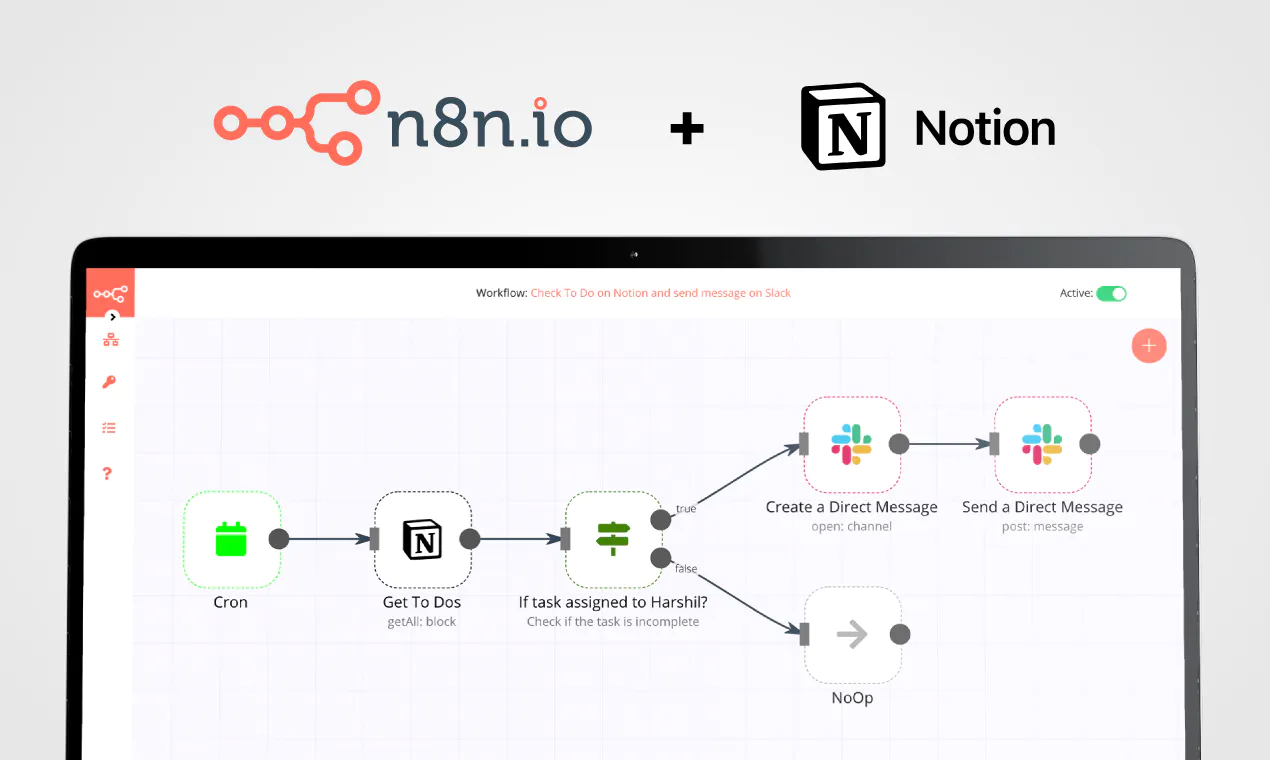
Automated Lead Intelligence: Enrich Google Sheets with Clearbit & Sync to Notion and ClickUp

Description Give your sales team a competitive edge with this Lead Profile Enrichment automation! This workflow automatically enriches lead data by fetching company details, logos, and brand colors, then syncs everything into Notion, ClickUp, and Google Sheets—ensuring your reps walk into every call fully prepared. With domain lookups, Clearbit API integration, and seamless updates across platforms, you’ll always have a complete 360° profile of every lead—without the manual research. What This Template Does (Step-by-Step) 📋 Pulls lead details from Google Sheets 🕒 Triggers enrichment when a meeting is booked or a rep is assigned 🔗 Extracts company domain from the lead’s email 🏢 Fetches company logos & metadata via Clearbit APIs 🎨 Assigns brand colors & industries for visual consistency 📝 Creates enriched profiles in Notion & ClickUp with full lead context 📊 Appends enriched records to Google Sheets for logging & history Prerequisites Google Sheets with lead data (Name, Email, Company, Status) Clearbit Logo & Company Enrichment API access Notion API credentials ClickUp API credentials n8n instance (self-hosted or cloud) Step-by-Step Setup Prepare your Google Sheet with columns: Name, Email, Company, Status, Domain. Set a trigger for enrichment (meeting booked OR >24 hrs since reply). Extract company domain from the lead’s email. Connect to Clearbit APIs to fetch: Logo Industry Brand colors Company metadata Format the enriched data and create a new profile entry in Notion. Create/update a ClickUp task with enriched lead details. Append enriched data to Google Sheets for tracking & reporting. Customization Ideas Extend enrichment with LinkedIn or Crunchbase APIs. Add Slack/Telegram notifications when enrichment completes. Auto-assign leads to reps based on industry or geography. Sync with CRM platforms (HubSpot, Salesforce, Zoho). Key Benefits ✅ Saves time on manual research ✅ Provides sales reps with complete lead profiles instantly ✅ Ensures consistent logos, colors, and metadata ✅ Keeps data synchronized across Notion, ClickUp, and Sheets Perfect For Sales Teams preparing for discovery calls SDRs handling lead qualification Account Managers wanting full company context Businesses that value data-driven sales preparation

Sync Notion database pages as ClickUp tasks

This workflow creates/updates ClickUp tasks when Notion database pages are created/updated. All fields in the Notion database are mapped to a ClickUp property. Notion database will require setup before the workflow can be used. See the list of fields available in the setup below. Prerequisites Notion account and Notion credentials. ClickUp account and ClickUp credentials. How it works When a new database page is created in Notion, the workflow creates a new task in ClickUp with all required fields. The new ClickUp task's ID is saved in the Notion database page's "ClickUp ID" field. Then, when the database page is updated in Notion, the workflow updates the specific ClickUp task identified by the "ClickUp ID" field in Notion. Setup This workflow requires that you set up a Notion database. To do so, follow the steps below: In Notion, create a new database. Add the following columns to the database: Task name (renamed from "Name") Status (with type "Select" with the following options: "to do", "in progress", "review", "revision", "complete") Deadline (with type "Date") ClickUp ID (with type "Text") Add any other fields you require. Share the database to n8n. By default, the workflow will fill all the fields provided above, except for any other additional fields you add.

Build your own ClickUp and Notion integration

Create custom ClickUp and Notion workflows by choosing triggers and actions. Nodes come with global operations and settings, as well as app-specific parameters that can be configured. You can also use the HTTP Request node to query data from any app or service with a REST API.

ClickUp supported actions

Create
Create a checklist
Delete
Delete a checklist
Update
Update a checklist
Create
Create a checklist item
Delete
Delete a checklist item
Update
Update a checklist item
Create
Create a comment
Delete
Delete a comment
Get Many
Get many comments
Update
Update a comment
Create
Create a folder
Delete
Delete a folder
Get
Get a folder
Get Many
Get many folders
Update
Update a folder
Create
Create a goal
Delete
Delete a goal
Get
Get a goal
Get Many
Get many goals
Update
Update a goal
Create
Create a key result
Delete
Delete a key result
Update
Update a key result
Create
Create a list
Custom Fields
Retrieve list's custom fields
Delete
Delete a list
Get
Get a list
Get Many
Get many lists
Member
Get list members
Update
Update a list
Create
Create a space tag
Delete
Delete a space tag
Get Many
Get many space tags
Update
Update a space tag
Create
Create a task
Delete
Delete a task
Get
Get a task
Get Many
Get many tasks
Member
Get task members
Set Custom Field
Set a custom field
Update
Update a task
Create
Create a task dependency
Delete
Delete a task dependency
Add
Add a task to a list
Remove
Remove a task from a list
Add
Add a tag to a task
Remove
Remove a tag from a task
Create
Create a time entry
Delete
Delete a time entry
Get
Get a time entry
Get Many
Get many time entries
Start
Start a time entry
Stop
Stop the current running timer
Update
Update a time Entry
Add
Add tag to time entry
Get Many
Get many time entry tags
Remove
Remove tag from time entry

Notion supported actions

Append After
Append a block
Get Child Blocks
Get many child blocks
Get
Get a database
Get Many
Get many databases
Search
Search databases using text search
Get
Get a database
Get Many
Get many databases
Create
Create a page in a database
Get
Get a page in a database
Get Many
Get many pages in a database
Update
Update pages in a database
Create
Create a pages in a database
Get Many
Get many pages in a database
Update
Update pages in a database
Create
Create a page
Get
Get a page
Search
Text search of pages
Archive
Archive a page
Create
Create a page
Search
Text search of pages
Get
Get a user
Get Many
Get many users

FAQs

  • Can ClickUp connect with Notion?

  • Can I use ClickUp’s API with n8n?

  • Can I use Notion’s API with n8n?

  • Is n8n secure for integrating ClickUp and Notion?

  • How to get started with ClickUp and Notion integration in n8n.io?

Need help setting up your ClickUp and Notion integration?

Discover our latest community's recommendations and join the discussions about ClickUp and Notion integration.


Justin Cheu
Cris A. Works

Martin
Liam Skaff
AyS 0908

Looking to integrate ClickUp and Notion in your company?

Over 3000 companies switch to n8n every single week

Why use n8n to integrate ClickUp with Notion

Build complex workflows, really fast

Build complex workflows, really fast

Handle branching, merging and iteration easily.
Pause your workflow to wait for external events.

Code when you need it, UI when you don't

Simple debugging

Your data is displayed alongside your settings, making edge cases easy to track down.

Use templates to get started fast

Use 1000+ workflow templates available from our core team and our community.

Reuse your work

Copy and paste, easily import and export workflows.

Implement complex processes faster with n8n

red iconyellow iconred iconyellow icon









