Back to Integrations
integrationGitHub node
integrationSlack node

GitHub and Slack integration

Save yourself the work of writing custom integrations for GitHub and Slack and use n8n instead. Build adaptable and scalable Development, Communication, and HITL workflows that work with your technology stack. All within a building experience you will love.

How to connect GitHub and Slack

  • Step 1: Create a new workflow
  • Step 2: Add and configure nodes
  • Step 3: Connect
  • Step 4: Customize and extend your integration
  • Step 5: Test and activate your workflow

Step 1: Create a new workflow and add the first step

In n8n, click the "Add workflow" button in the Workflows tab to create a new workflow. Add the starting point – a trigger on when your workflow should run: an app event, a schedule, a webhook call, another workflow, an AI chat, or a manual trigger. Sometimes, the HTTP Request node might already serve as your starting point.

GitHub and Slack integration: Create a new workflow and add the first step

Step 2: Add and configure GitHub and Slack nodes

You can find GitHub and Slack in the nodes panel. Drag them onto your workflow canvas, selecting their actions. Click each node, choose a credential, and authenticate to grant n8n access. Configure GitHub and Slack nodes one by one: input data on the left, parameters in the middle, and output data on the right.

GitHub and Slack integration: Add and configure GitHub and Slack nodes

Step 3: Connect GitHub and Slack

A connection establishes a link between GitHub and Slack (or vice versa) to route data through the workflow. Data flows from the output of one node to the input of another. You can have single or multiple connections for each node.

GitHub and Slack integration: Connect GitHub and Slack

Step 4: Customize and extend your GitHub and Slack integration

Use n8n's core nodes such as If, Split Out, Merge, and others to transform and manipulate data. Write custom JavaScript or Python in the Code node and run it as a step in your workflow. Connect GitHub and Slack with any of n8n’s 1000+ integrations, and incorporate advanced AI logic into your workflows.

GitHub and Slack integration: Customize and extend your GitHub and Slack integration

Step 5: Test and activate your GitHub and Slack workflow

Save and run the workflow to see if everything works as expected. Based on your configuration, data should flow from GitHub to Slack or vice versa. Easily debug your workflow: you can check past executions to isolate and fix the mistake. Once you've tested everything, make sure to save your workflow and activate it.

GitHub and Slack integration: Test and activate your GitHub and Slack workflow

Back up your n8n workflows to Github

This workflow will backup your workflows to Github. It uses the public api to export all of the workflow data using the n8n node.

It then loops over the data checks in Github to see if a file exists that uses the workflow name. Once checked it will then update the file on Github if it exists, Create a new file if it doesn't exist and if it's the same it will ignore the file.

Config Options
repo_owner - Github owner

repo_name - Github repository name

repo_path - Path within the Github repository

>This workflow has been updated to use the n8n node and the code node so requires at least version 0.198.0 of n8n

Nodes used in this workflow

Popular GitHub and Slack workflows

Daily Workflow Backups to GitHub with Slack Notifications

Who is this for? This workflow is ideal for n8n self-hosted users, DevOps engineers, and automation developers who want to automatically back up their n8n workflows to GitHub on a regular basis. What problem is this workflow solving Manually backing up n8n workflows can be time-consuming and prone to human error. This workflow automates the backup process, ensuring that all workflows are safely stored in a version-controlled GitHub repository every 24 hours. What this workflow does This automation runs daily to back up all workflows from your n8n instance to a specified GitHub repository. Each workflow is saved as a .json file using its unique ID, organized into a folder path defined by repo_path. The workflow is designed to manage memory usage efficiently by recursively calling itself. Once the backup is complete, it optionally sends a Slack notification to confirm success. Setup Configure the Config node in the subworkflow to set: GitHub Repo Owner GitHub Repo Name Main folder path (repo_path) Connect your GitHub and (optionally) Slack credentials. Set the workflow to run on a daily cron schedule. Test the workflow manually to confirm the GitHub integration works. Sign up for a free consultation and find out how n8n can help you.

Pyragogy AI-Driven Handbook Generator with Multi-Agent Orchestration

AI-Driven Handbook Generator with Multi-Agent Orchestration (Pyragogy AI Village) This n8n workflow is a modular, multi-agent AI orchestration system designed for the collaborative generation of Markdown-based handbooks. Inspired by peer learning and open publishing workflows, it simulates a content pipeline where specialized AI agents act in defined roles, enabling true AI–human co-creation and iterative refinement. This project is a core component of Pyragogy, an open framework dedicated to ethical cognitive co-creation, peer AI–human learning, and human-in-the-loop automation for open knowledge systems. It implements the master orchestration architecture for the Pyragogy AI Village, managing a complex sequence of AI agents to process input, perform review, synthesis, and archiving, with a crucial human oversight step for final approval. How It Works: A Deep Dive into the Workflow's Architecture The workflow orchestrates a sophisticated content generation and review process, ideal for creating AI-driven knowledge bases or handbooks with human oversight. Webhook Trigger & Input:* The process begins when the workflow receives a JSON input via a Webhook* (specifically at /webhook/pyragogy/process). This input typically includes details like the handbook's title, initial text, and relevant tags. Database Verification:* It first verifies the connection to a PostgreSQL database* to ensure data persistence. Meta-Orchestrator:* A powerful Meta-Orchestrator* (powered by gpt-4o from OpenAI) analyzes the initial request. Its role is to dynamically determine and activate the optimal sequence of specialized AI agents required to fulfill the input, ensuring tasks are dynamically routed and assigned based on each agent’s responsibility. Agent Execution & Iteration:** Each activated agent executes its step using OpenAI or custom endpoints. This involves: Content Generation: Agents like the Summarizer and the Synthesizer generate new content or refine existing text. Peer Review Board: A crucial aspect is the Peer Review Board, comprised of AI agents like the Peer Reviewer, the Sensemaking Agent, and the Prompt Engineer. This board evaluates the output for quality, coherence, and accuracy. Reprocessing & Redrafting: If the review agents flag a major_issue, they trigger redrafting loops by generating specific feedback for the Synthesizer. This mechanism ensures iterative refinement until the content meets the required standards. Human-in-the-Loop (HITL) Review:* For final approval, particularly for the Archivist agent's output, a human review process is initiated. An email is sent to a human reviewer, prompting them to approve, reject, or comment via a "Wait for Webhook" node. This ensures human oversight* and quality control. Content Persistence & Versioning:** If the content is approved by the human reviewer: It's saved to a PostgreSQL database (specifically to the handbook_entries and agent_contributions tables). Optionally, the content can be committed to a GitHub repository for version control, provided the necessary environment variables are configured. Notifications:* The final output and the sequence of executed agents can be sent as a notification to Slack*, if configured. Observe the dynamic loop: orchestrate → assign → generate → review (AI/human) → store Included AI Agents This workflow leverages a suite of specialized AI agents, each with a distinct role in the content pipeline: Meta-Orchestrator:** Determines the optimal sequence of agents to execute based on the input. Summarizer Agent:** Summarizes text into key points (e.g., 3 key points). Synthesizer Agent:** Synthesizes new text and effectively incorporates reprocessing feedback from review agents. Peer Reviewer Agent:** Reviews generated text, highlighting strengths, weaknesses, and suggestions, and indicates major_issue flags. Sensemaking Agent:** Analyzes input within existing context, identifying patterns, gaps, and areas for improvement. Prompt Engineer Agent:** Refines or generates prompts for subsequent agents, optimizing their output. Onboarding/Explainer Agent:** Provides explanations of the process or offers guidance to users. Archivist Agent:** Prepares content for the handbook, manages the human review process, and handles archiving to the database and GitHub. Setup Steps & Prerequisites To get this powerful workflow up and running, follow these steps: Import the Workflow: Import the pyragogy_master_workflow.json (or generate-collaborative-handbooks-with-gpt4o-multi-agent-orchestration-human-review.json) into your n8n instance. Connect Credentials: Postgres: Set up a Postgres Pyragogy DB credential (ID: pyragogy-postgres). OpenAI: Configure an OpenAI Pyragogy credential (ID: pyragogy-openai) for all OpenAI agents. GPT-4o is highly suggested for optimal performance. Email Send: Set up a configured email credential (e.g., for sending human review requests). Define Environment Variables: Define essential environment variables (an .env.template is included in the repository). These include: API base for OpenAI. Database connection details. (Optional) GitHub: For content persistence and versioning, configure GITHUB_ACCESS_TOKEN, GITHUB_REPOSITORY_OWNER, and GITHUB_REPOSITORY_NAME. (Optional) Slack: For notifications, configure SLACK_WEBHOOK_URL. Send a sample payload to your webhook URL (/webhook/pyragogy/process): { "title": "History of Peer Learning", "text": "Peer learning is an educational approach where students learn from and with each other...", "tags": ["education", "pedagogy"], "requireHitl": true } Ideal For This workflow is perfectly suited for: Educators and researchers exploring AI-assisted publishing and co-authoring with AI. Knowledge teams looking to automate content pipelines for internal or external documentation. Anyone building collaborative Markdown-driven tools or AI-powered knowledge bases. Documentation & Contributions: An Open Source and Collaborative Project This workflow is an open-source project and community-driven. Its development is transparent and open to everyone. We warmly invite you to: Review it:** Contribute your analysis, identify potential improvements, or report issues. Remix it:** Adapt it to your specific needs, integrate new features, or modify it for a different use case. Improve it:** Propose and implement changes that enhance its efficiency, robustness, or capabilities. Share it back:** Return your contributions to the community, either through pull requests or by sharing your implementations. Every contribution is welcome and valued! All relevant information for verification, improvement, and collaboration can be found in the official repository: 🔗 GitHub – pyragogy-handbook-n8n-workflow

Automated Workflow Backups to GitHub with PR Creation & Slack Notifications

Who is this for? This template is ideal for DevOps engineers, automation specialists, and n8n users who manage multiple workflows and want a reliable version control system for backups. It’s especially useful for teams collaborating via GitHub. What problem is this workflow solving? Manually backing up n8n workflows to GitHub can be time-consuming and error-prone. This workflow solves that by automating the backup of new and updated n8n workflows, ensuring your GitHub repository always reflects the latest changes. What this workflow does Retrieves all workflows from your local n8n instance. Decodes their content and compares it with existing GitHub files. Detects newly created or updated workflows. Creates a new Git branch and commits changes. Opens a pull request (PR) to the main branch. Sends a Slack notification when the PR is created. The system uses GitHub API, n8n, Merge, Set, and Slack nodes for full automation. Setup GitHub credentials: Add your GitHub API credentials in n8n. Slack integration: Connect your Slack Bot token if you want PR notifications. Repository details: Update github_owner, repo_name, and workflow directory path in the “Define Local Variables” node. n8n API key - Check this doc How to customize this workflow to your needs Change the workflow directory from workflows/ to a custom path. Modify the Slack message or add email notification support. Add filters to back up only specific workflows based on naming or tags. Adjust branch naming conventions or use different GitHub base branches. This workflow provides a seamless backup and versioning pipeline, minimizing manual Git interactions and supporting collaborative automation development.

Automatically document and backup N8N workflows

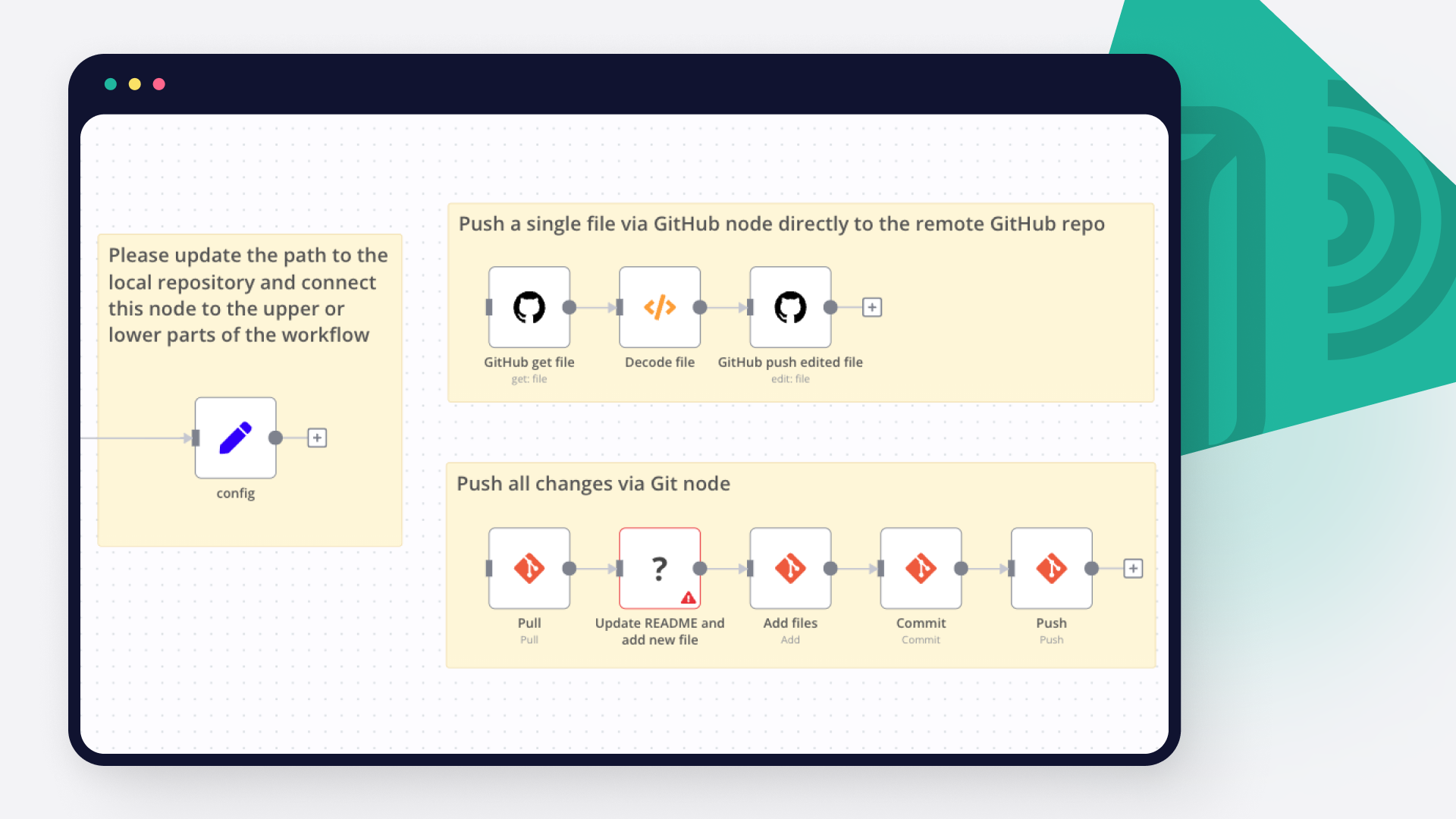
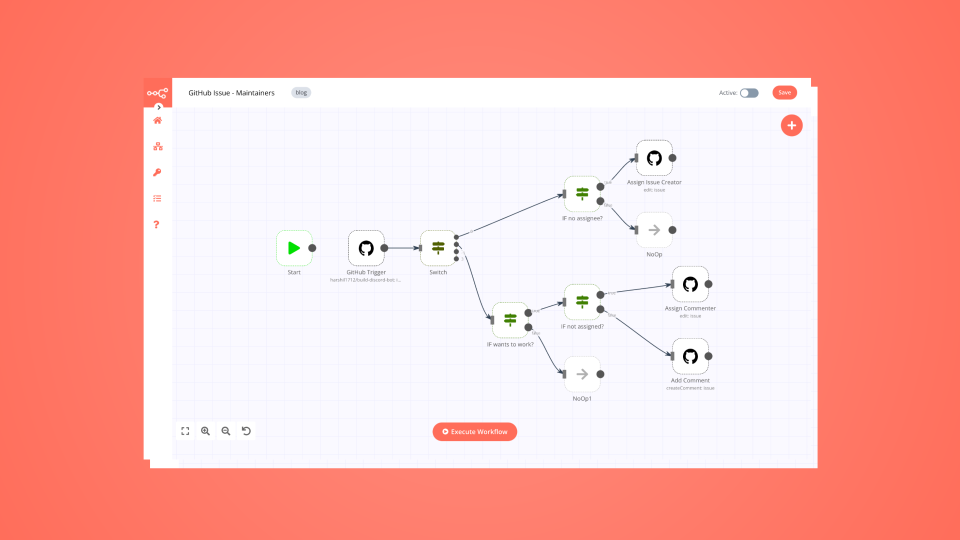
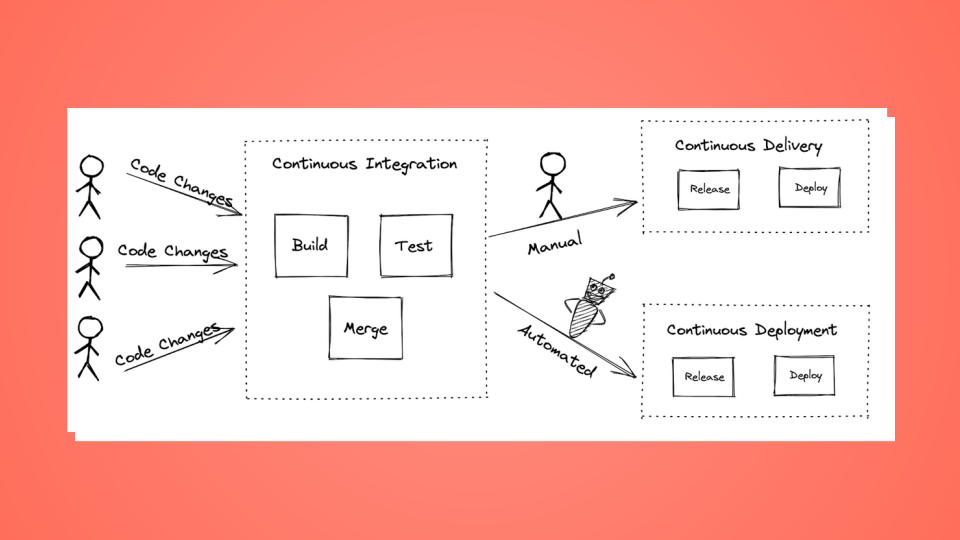
Automatically backs up your workflows to Github and generates documentation in a Notion database. Weekly run, uses the "internal-infra" tag to look for new or recently modified workflows Uses a Notion database page to hold the workflow summary, last updated date, and a link to the workflow Uses OpenAI's 4o-mini to generate a summarization of what the workflow does Stores a backup of the workflow in GitHub (recommend a private repo) Sends notification to Slack channel for new or updated workflows Who is this for Anyone seeking backup of their most important workflows Anyone seeking version control for their most important workflows Credentials required N8N: You will need an N8N credential created so the workflow can query the N8N instance to find all active workflows with the "internal-infra" tag Notion: You will need an Notion credential created OpenAI: You will need an OpenAI credential, unless you intend on rewiring this with your AI of choice (ollama, openrouter, etc.) GitHub: You will need an GitHub credential Slack: You will require an Slack credential, recommend a Bot / access token configuration Setup Notion Create a database with the following columns. Column type is specified in [type]. Workflow Name [text] isActive (dev) [checkbox] Error workflow setup [checkbox] AI Summary [text] Record last update [date/time] URL (dev) [text/url] Workflow created at [date/time] Workflow updated at [date/time] Slack Create a channel for updates to be posted into Github Create a private repo for your workflows to be exported into N8N Download & install the template Configure the blocks to use your N8N, Notion, OpenAI & Slack credentials for your own Edit the "Set Fields" block and change the URL to that of your N8N instance (cloud or self-hosted) Edit the "Add to Notion" action and specify the Database page you wish to update Edit the Slack actions to specify the Channel you want slack notifications posted to Edit the GitHub actions to specify the Repository Owner & Repository Name Sample output in Notion Workflow diagram

Back Up Your n8n Workflows To Github

This workflow will backup your workflows to Github. It uses the public api to export all of the workflow data using the n8n node. It then loops over the data checks in Github to see if a file exists that uses the workflow name. Once checked it will then update the file on Github if it exists, Create a new file if it doesn't exist and if it's the same it will ignore the file. Config Options repo_owner - Github owner repo_name - Github repository name repo_path - Path within the Github repository >This workflow has been updated to use the n8n node and the code node so requires at least version 0.198.0 of n8n

Send pre-meeting Slack briefings using Google Calendar, Notion, GitHub, and Jira

This n8n template from Intuz provides a complete and automated solution for preparing and delivering context-rich briefings directly to attendees before every meeting. It acts as an AI-powered executive assistant, gathering relevant information from all your key work tools to ensure everyone arrives prepared and aligned. Who's this workflow for? Engineering Managers & Team Leads Product Managers & Project Managers Scrum Masters & Agile Coaches Any team that holds regular status, planning, or technical meetings. How it works Trigger on New Calendar Event: The workflow starts automatically whenever a new meeting is created in a designated Google Calendar. Fetch Previous Context: It immediately connects to Notion to retrieve the notes from the most recent past meeting, ensuring continuity. Wait for the Right Moment: The workflow calculates a time 15 minutes before the meeting's scheduled start and pauses its execution until then. Gather Real-Time Project Data: Just before the meeting, the workflow wakes up and: Extracts keywords from the meeting title. Searches GitHub for recent Pull Requests (PRs) relevant to those keywords. Searches Jira for any tickets or issues that match the meeting's topic. Build the Intelligent Briefing: It assembles all the gathered information—previous notes from Notion, current PRs from GitHub, and relevant tickets from Jira—into a single, beautifully formatted Slack message. Deliver to Each Attendee: The workflow identifies all attendees from the Google Calendar invite, finds their corresponding Slack profiles via email, and sends the personalized briefing as a Direct Message (DM) to each one, ensuring everyone is prepared just in time. Key Requirements to Use This Template n8n Instance: An active n8n account (Cloud or self-hosted). Google Calendar Account: To trigger the workflow on new events. Notion Account: With a dedicated database for storing meeting notes. GitHub Account: To search for relevant pull requests. Jira Cloud Account: To search for relevant project tickets. Slack Workspace & App: A Slack workspace where you have permission to install an app. You will need a Bot Token with the necessary permissions. Setup Instructions Google Calendar Trigger: In the "Capture New Google Calendar Event" node, connect your Google Calendar account and select the calendar you want to monitor. Notion Connection: In the "Get Last Meeting Notes" node, connect your Notion account. Select the Notion Database ID that contains your meeting notes. GitHub & Jira Connections: In the "Get PRs from Repo" node, connect your GitHub account and select the repository to search. In the "Get Jira Issues Related to Meeting" node, connect your Jira Cloud account. You can customize the JQL query if needed. Slack Configuration (Crucial Step): Create a Slack App: Go to api.slack.com/apps, create a new app, and install it to your workspace. Set Permissions: In your app's "OAuth & Permissions" settings, add the following Bot Token Scopes: chat:write (to send messages) and users:read.email (this is critical for looking up attendees). Reinstall the app to your workspace. Get Bot Token: Copy the "Bot User OAuth Token" (it starts with xoxb-). Connect in n8n: In the "Get User Slack Info from Email" node, click "Header Parameters" and replace {{ slack oauth token }} with your actual Bot Token. In the "Send Meeting Context in Slack DM" node, connect your Slack credentials using the same Bot Token. Activate the Workflow: Save the workflow and toggle the "Active" switch to ON. Your automated pre-meeting bot is now live! Connect with us Website: https://www.intuz.com/n8n-workflow-automation-templates Email: [email protected] LinkedIn: https://www.linkedin.com/company/intuz Get Started: https://n8n.partnerlinks.io/intuz For Custom Workflow Automation Click here: Get Started

Build your own GitHub and Slack integration

Create custom GitHub and Slack workflows by choosing triggers and actions. Nodes come with global operations and settings, as well as app-specific parameters that can be configured. You can also use the HTTP Request node to query data from any app or service with a REST API.

GitHub supported actions

Create
Create a new file in repository
Delete
Delete a file in repository
Edit
Edit a file in repository
Get
Get the data of a single file
List
List contents of a folder
Create
Create a new issue
Create Comment
Create a new comment on an issue
Edit
Edit an issue
Get
Get the data of a single issue
Lock
Lock an issue
Get Repositories
Returns all repositories of an organization
Create
Creates a new release
Delete
Delete a release
Get
Get a release
Get Many
Get many repository releases
Update
Update a release
Get
Get the data of a single repository
Get Issues
Returns issues of a repository
Get License
Returns the contents of the repository's license file, if one is detected
Get Profile
Get the community profile of a repository with metrics, health score, description, license, etc
Get Pull Requests
Returns pull requests of a repository
List Popular Paths
Get the top 10 popular content paths over the last 14 days
List Referrers
Get the top 10 referrering domains over the last 14 days
Create
Creates a new review
Get
Get a review for a pull request
Get Many
Get many reviews for a pull request
Update
Update a review
Get Repositories
Returns the repositories of a user
Get Issues
Returns the issues assigned to the user
Invite
Invites a user to an organization
Disable
Disable a workflow
Dispatch
Dispatch a workflow event
Dispatch and Wait for Completion
Dispatch a workflow event and wait for a webhook to be called before proceeding
Enable
Enable a workflow
Get
Get a workflow
Get Usage
Get the usage of a workflow
List
List workflows

Slack supported actions

Archive
Archives a conversation
Close
Closes a direct message or multi-person direct message
Create
Initiates a public or private channel-based conversation
Get
Get information about a channel
Get Many
Get many channels in a Slack team
History
Get a conversation's history of messages and events
Invite
Invite a user to a channel
Join
Joins an existing conversation
Kick
Removes a user from a channel
Leave
Leaves a conversation
Member
List members of a conversation
Open
Opens or resumes a direct message or multi-person direct message
Rename
Renames a conversation
Replies
Get a thread of messages posted to a channel
Set Purpose
Sets the purpose for a conversation
Set Topic
Sets the topic for a conversation
Unarchive
Unarchives a conversation
Get
Get Many
Get & filters team files
Upload
Create or upload an existing file
Delete
Get Permalink
Search
Send
Send and Wait for Response
Update
Add
Adds a reaction to a message
Get
Get the reactions of a message
Remove
Remove a reaction of a message
Add
Add a star to an item
Delete
Delete a star from an item
Get Many
Get many stars of autenticated user
Get
Get information about a user
Get Many
Get a list of many users
Get User's Profile
Get a user's profile
Get User's Status
Get online status of a user
Update User's Profile
Update a user's profile
Add Users
Create
Disable
Enable
Get Many
Get Users
Update

FAQs

  • Can GitHub connect with Slack?

  • Can I use GitHub’s API with n8n?

  • Can I use Slack’s API with n8n?

  • Is n8n secure for integrating GitHub and Slack?

  • How to get started with GitHub and Slack integration in n8n.io?

Need help setting up your GitHub and Slack integration?

Discover our latest community's recommendations and join the discussions about GitHub and Slack integration.
Nicolas N
Muhammed Iqbal P B
Nicolas N

Looking to integrate GitHub and Slack in your company?

Over 3000 companies switch to n8n every single week

Why use n8n to integrate GitHub with Slack

Build complex workflows, really fast

Build complex workflows, really fast

Handle branching, merging and iteration easily.
Pause your workflow to wait for external events.

Code when you need it, UI when you don't

Simple debugging

Your data is displayed alongside your settings, making edge cases easy to track down.

Use templates to get started fast

Use 1000+ workflow templates available from our core team and our community.

Reuse your work

Copy and paste, easily import and export workflows.

Implement complex processes faster with n8n

red iconyellow iconred iconyellow icon














