Back to Integrations
integrationGoogle Sheets node
integrationSalesforce node

Google Sheets and Salesforce integration

Save yourself the work of writing custom integrations for Google Sheets and Salesforce and use n8n instead. Build adaptable and scalable Data & Storage, Productivity, Sales, and Communication workflows that work with your technology stack. All within a building experience you will love.

How to connect Google Sheets and Salesforce

  • Step 1: Create a new workflow
  • Step 2: Add and configure nodes
  • Step 3: Connect
  • Step 4: Customize and extend your integration
  • Step 5: Test and activate your workflow

Step 1: Create a new workflow and add the first step

In n8n, click the "Add workflow" button in the Workflows tab to create a new workflow. Add the starting point – a trigger on when your workflow should run: an app event, a schedule, a webhook call, another workflow, an AI chat, or a manual trigger. Sometimes, the HTTP Request node might already serve as your starting point.

Google Sheets and Salesforce integration: Create a new workflow and add the first step

Step 2: Add and configure Google Sheets and Salesforce nodes

You can find Google Sheets and Salesforce in the nodes panel. Drag them onto your workflow canvas, selecting their actions. Click each node, choose a credential, and authenticate to grant n8n access. Configure Google Sheets and Salesforce nodes one by one: input data on the left, parameters in the middle, and output data on the right.

Google Sheets and Salesforce integration: Add and configure Google Sheets and Salesforce nodes

Step 3: Connect Google Sheets and Salesforce

A connection establishes a link between Google Sheets and Salesforce (or vice versa) to route data through the workflow. Data flows from the output of one node to the input of another. You can have single or multiple connections for each node.

Google Sheets and Salesforce integration: Connect Google Sheets and Salesforce

Step 4: Customize and extend your Google Sheets and Salesforce integration

Use n8n's core nodes such as If, Split Out, Merge, and others to transform and manipulate data. Write custom JavaScript or Python in the Code node and run it as a step in your workflow. Connect Google Sheets and Salesforce with any of n8n’s 1000+ integrations, and incorporate advanced AI logic into your workflows.

Google Sheets and Salesforce integration: Customize and extend your Google Sheets and Salesforce integration

Step 5: Test and activate your Google Sheets and Salesforce workflow

Save and run the workflow to see if everything works as expected. Based on your configuration, data should flow from Google Sheets to Salesforce or vice versa. Easily debug your workflow: you can check past executions to isolate and fix the mistake. Once you've tested everything, make sure to save your workflow and activate it.

Google Sheets and Salesforce integration: Test and activate your Google Sheets and Salesforce workflow

Create Salesforce accounts based on Google Sheets data

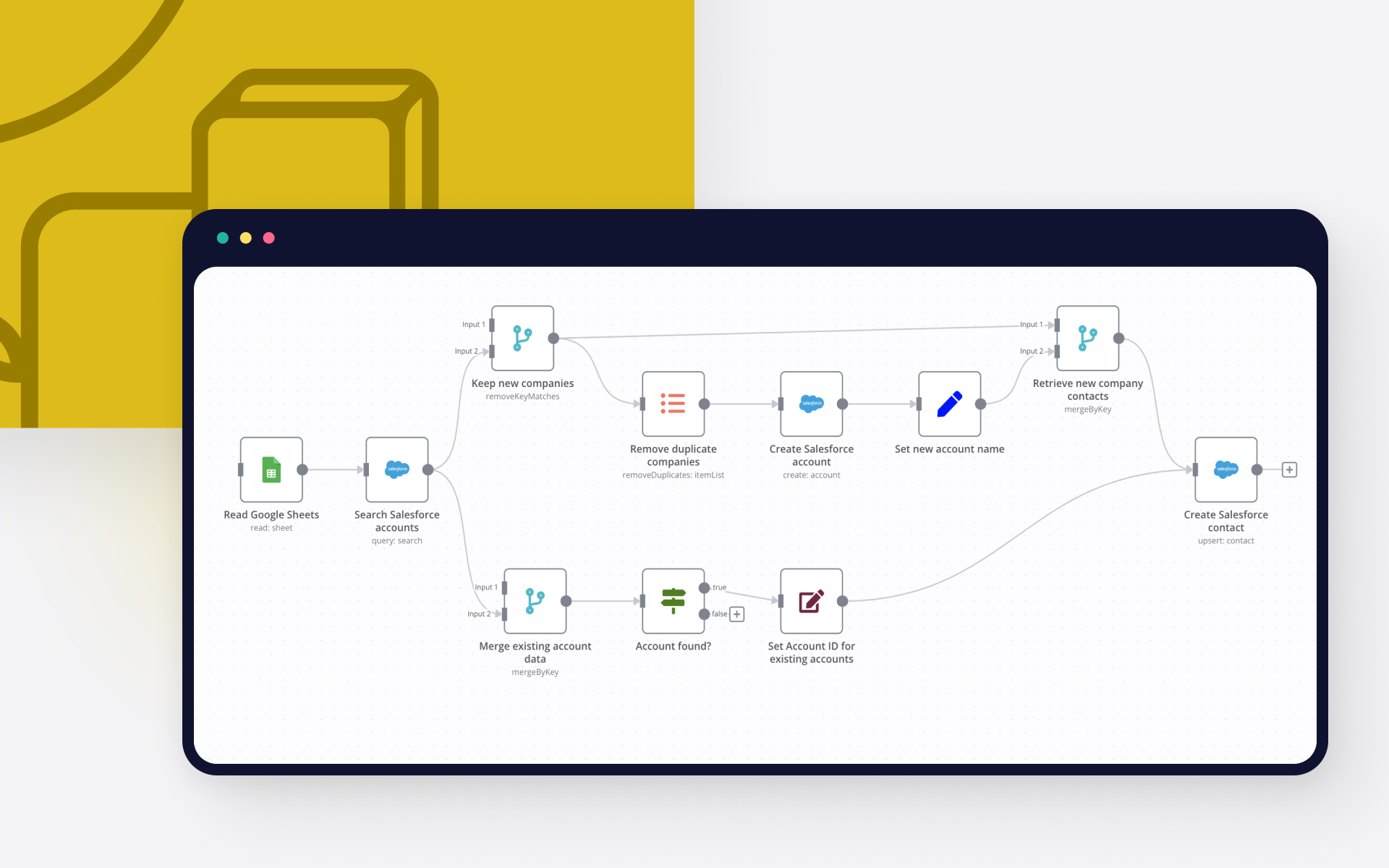
This workflow shows a no code approach to creating Salesforce accounts and contacts based on data coming from Google Sheets.

To run the workflow:

Make sure you have both Google Sheets and Salesforce authenticated with n8n.
Have a Google Sheet with contacts and their account names ready, copy the respective sheet ID from the URL:

Add the sheet ID to the Google Sheet node of the workflow:

Hit Execute Workflow

Here is how it works:

The workflow first searches for existing Salesforce accounts by name. It then branches out depending on whether the account already exists in Salesforce or not. If an account does not exist yet, it will be created. The data is then normalised before both branches converge again. Finally the contacts are created or updated as needed in Salesforce.

Nodes used in this workflow

Popular Google Sheets and Salesforce workflows

+4

Route and qualify email leads with Gmail, Gemini, Slack, Sheets and Salesforce

Email Lead Router: Gmail → Gemini → Salesforce Pipeline Who is this for? Event sales teams & conference organizers processing 100+ sponsor/partner emails weekly who need instant lead qualification, Salesforce automation, & pipeline analytics. What problem is this workflow solving? Event email chaos kills revenue: 200+ sponsor emails/week → manual Salesforce entry No sentiment/intent scoring = missed $ opps 10+ hours/week routing + logging Fragmented pipeline visibility Zero-drop AI qualification → auto-Salesforce → team routing. What this workflow does Gmail Trigger captures event inbox emails Gemini #1 scores sentiment (Positive/Neutral/Negative + confidence) Gemini #2 extracts topic, intent, urgency (1-10), org, budget signals Upserts Salesforce Lead (deduped by email) w/ 9 custom fields: Sentiment__c, Urgency_Score__c, etc. Hot leads (Positive + urgency ≥7) → auto Salesforce Opportunity Creates Salesforce Task w/ AI-suggested follow-up action Logs to email_analytics Data Table + Google Sheets (Looker Studio dashboard) Routes: Positive → Hot email + Slack #hot-leads (2h); Neutral → Follow-up + #follow-ups (24h); Negative → Insights + #insights Setup (8 minutes): Gmail OAuth2 (event inbox) Google Gemini API Salesforce OAuth2* + 9 custom Lead fields* (Sentiment__c, Urgency_Score__c, etc.) Slack OAuth2 + channels (#hot-leads, #follow-ups, #insights) email_analytics Data Table ID Update Send Email recipients Test w/ Evaluation Dataset How to customize: Tune urgency threshold (7→8) Add event keywords (webinar/tradeshow) Swap Slack → Teams; Salesforce → HubSpot Multi-inbox territory routing ROI: 100% Salesforce coverage** (no manual entry) 8x faster qualification** (2min vs 16h/week) 30% opp velocity** (auto opps/tasks) Live Looker dashboard** → data-driven decisions Need help customizing?: Contact me for consulting and support: LinkedIn / Message Keywords: event sales leads, Salesforce automation, Gemini lead scoring, email sentiment, sales pipeline n8n, AI sales routing
+4

Route event sales leads with Gmail, Google Gemini, Sheets and Salesforce

Email Sentiment Router for Event Sales Leads Who is this for? Event organizers, conference managers, and sales teams drowning in sponsor/exhibitor/partner emails who need zero-drop leads + real-time pipeline analytics. Key nodes: Gmail Trigger - Google Gemini (2x) - Data Table - Google Sheets - Send Email - Slack Category: Sales / AI / Event Management Level: Advanced Credits: Milo Bravo (BRaiA Labs) What problem is this workflow solving? Email overload kills event revenue: 200+ weekly sponsor/partner emails go unread No sentiment/intent analysis = missed hot leads Manual routing wastes 10+ hours/week Zero visibility into pipeline trends This workflow auto-classifies, routes, and analyzes every inbound lead. What this workflow does? Gmail Trigger monitors event inbox for new emails Gemini #1 scores sentiment (Positive/Neutral/Negative) Gemini #2 extracts topic, intent, urgency, org, budget signals Logs to email_analytics Data Table + Google Sheets Routes intelligently: Positive → Hot Lead email + Slack #hot-leads (2h SLA) Neutral → Nurture email + Slack #follow-ups (24-48h) Negative → Insights + Slack #insights Looker Studio dashboard auto-updates from Sheets Setup (5 minutes): Gmail OAuth2 (event inbox) Google Gemini API key Slack OAuth2 + channels (#hot-leads, #follow-ups, #insights) Create email_analytics Data Table → paste Table ID Update recipient emails (placeholders in Send Email nodes) Test with Evaluation Dataset before live How to customize: Add keywords for your niche (conferences, webinars, trade shows) Adjust sentiment thresholds or routing rules Swap Slack → Teams/CRM (HubSpot/Salesforce) Scale: Multi-inbox + team routing ROI: 100% lead capture (zero drops) 5x faster response (2h → 2min) 20% conversion lift from sentiment prioritization Pipeline dashboard = data-driven sales strategy Need help customizing?: Contact me for consulting and support: LinkedIn / Message Keywords: event sales leads, email sentiment analysis, Gmail AI routing, Google Gemini sales automation, conference sponsor leads, event pipeline analytics, sales lead qualification, sales dashboard
+6

Analyze customer feedback and send AI-written replies with GPT-4 and Gmail

How It Works This workflow automates customer feedback processing by analyzing sentiment, identifying key issues, generating personalized responses, and escalating critical cases to support teams when required. Designed for customer success managers, support teams, and product managers, it enables scalable feedback handling without compromising response quality or urgency. The workflow eliminates manual triage and response drafting by normalizing incoming feedback, performing sentiment and topic analysis, generating context-aware AI responses, validating tone and intent, escalating high-risk or negative feedback, logging all interactions for traceability, and delivering automated replies via email. Setup Steps Configure webhook trigger URL for feedback form integration or email parsing Add OpenAI API key for sentiment analysis and response generation Connect Anthropic Claude API for alternative response generation and validation Set up Google Sheets integration for feedback logging and analytics tracking Configure Gmail OAuth2 credentials for automated customer response delivery Integrate support ticket system (Zendesk, Freshdesk) for escalation routing Prerequisites OpenAI API key, Anthropic Claude API key (optional), Google Workspace account (Sheets, Gmail) Use Cases Product feedback management, customer support automation Customization Adjust sentiment scoring thresholds per industry standards, modify response templates Benefits Responds to feedback 95% faster, maintains consistent response quality across all interactions

AI-powered review sentiment analysis to Salesforce & Google Sheets with Decodo

What this workflow does This workflow scrapes customer reviews from Trustpilot, analyzes them with AI, and keeps both Salesforce and Google Sheets automatically updated with customer sentiment insights. It uses Decodo to reliably extract review content from Trustpilot, processes the text with OpenAI, and orchestrates everything using n8n. 👉 Deocodo How it works (high level) Reads Trustpilot review URLs and Salesforce Account IDs from Google Sheets Scrapes Trustpilot reviews using Decodo Uses AI to summarize sentiment, trends, and key positives/negatives Generates two outputs in parallel Outputs generated Salesforce Account update The workflow updates an existing Salesforce Account by writing the AI-generated sentiment summary into a custom text field (e.g. recent_trend_summary__c). This brings external customer feedback directly into Salesforce, allowing teams to work with real market perception inside the CRM. Google Sheets analytics dataset At the same time, structured review metrics are stored in Google Sheets: Ratings and sentiment distribution Top positive and negative keywords Trend summaries over time This creates a reusable dataset for dashboards and reporting. How to configure it (general) Google Sheets**: add review URLs + Salesforce Account IDs Decodo**: add your API key to scrape Trustpilot reliably OpenAI**: add your API key for AI analysis Salesforce**: Create a custom Text (255) field on Account Connect Salesforce credentials in n8n Only existing Accounts are updated

Qualify & Route Leads Across Channels with GPT-4o, Slack & CRM Integration

This n8n template demonstrates how to use AI to capture, qualify, and route inbound leads automatically from email or web forms. It extracts key business information using AI, scores the lead based on your ideal customer profile, creates CRM records, notifies your team on Slack, and logs all activity—including failures—to Google Sheets. Use cases include: automating sales inboxes, qualifying form leads for agencies or SaaS products, routing high-fit prospects to the right territory owner, and keeping your sales and ops teams aligned without manual data entry. Good to know The OpenAI model is used for lead data extraction and will incur a small cost per run depending on volume. This workflow supports either Salesforce or HubSpot as the CRM system—select which one in the configuration node. You’ll need valid credentials for Gmail (or another email service), OpenAI, Slack, Google Sheets, and your chosen CRM before running. How it works Triggers: A Gmail trigger polls for new inbound emails. A Webhook node receives submissions from any online form. Both sources merge into a single pipeline. Validation: Incoming data is checked for required fields (email or text). Invalid entries are routed to the Dead Letter Queue (DLQ) for review. AI Extraction: The OpenAI node extracts structured fields like company name, size, industry, role, region, problem statement, and budget signals from free-form text. Parsing & Scoring: The AI output is parsed, then a code node calculates a 0–100 lead score based on transparent criteria—industry, size, role, problem clarity, and budget mentions. It also assigns a lead tier (Hot, Warm, Cold, Unqualified). CRM Routing: Depending on your configuration, the workflow creates a Salesforce lead (default) or can be easily adapted for HubSpot. Territory or CRM owner routing can be extended here. Slack Notification: A rich Slack message summarizes the lead score and reasoning and includes a “Create intro email” button for quick action. Logging: All successful leads are logged to Google Sheets for reporting. Any failed or invalid leads are logged separately to the DLQ tab for auditing. How to use Configure your credentials for Gmail, OpenAI, Slack, Google Sheets, and your CRM. Open the Workflow Configuration node and fill in your target industries, buyer roles, company size, Slack channel ID, Google Sheets URL, and CRM choice. Create corresponding tabs in your Google Sheet for Leads and DLQ. Test by sending a sample email or form submission, then watch the workflow extract, score, route, and notify automatically. Requirements OpenAI account for text extraction Gmail (or other email provider) for the email trigger Slack for lead notifications Google Sheets for logging leads and DLQ entries Salesforce or HubSpot account for CRM integration Customizing this workflow This template can be expanded in many ways: Add HubSpot routing on the first Switch output. Integrate a Slack button handler to auto-generate intro emails. Add retry and backoff logic for resilience. Modify the scoring rubric in the code node to match your unique ICP. Connect additional sources, such as LinkedIn forms or landing page builders, for omnichannel lead capture.

Sync Companies from Google Sheets to Salesforce with Smart Duplicate Prevention

How it works Automatically imports company data from Google Sheets into Salesforce while intelligently preventing duplicate accounts. The workflow searches for existing companies, creates new accounts only when needed, and ensures all contact information is properly associated. Key features: Smart duplicate detection by company name matching Dual processing paths for new vs existing companies Automatic contact creation and association Comprehensive error handling and data validation Professional sectional documentation with setup guides Set up steps Configure Google Sheets API credentials (OAuth 2.0) Set up Salesforce Connected App with Account/Contact permissions Prepare Google Sheets with proper column headers (Company Name, Email, Phone, Industry) Map Salesforce field requirements in workflow nodes Test with small dataset before full deployment Estimated setup time: 15-30 minutes Processing time: 15-45 seconds per company All detailed configuration steps, troubleshooting guides, and security best practices are included in the comprehensive sticky note documentation within the workflow.

Build your own Google Sheets and Salesforce integration

Create custom Google Sheets and Salesforce workflows by choosing triggers and actions. Nodes come with global operations and settings, as well as app-specific parameters that can be configured. You can also use the HTTP Request node to query data from any app or service with a REST API.

Google Sheets supported actions

Create
Create a spreadsheet
Delete
Delete a spreadsheet
Append or Update Row
Append a new row or update an existing one (upsert)
Append Row
Create a new row in a sheet
Clear
Delete all the contents or a part of a sheet
Create
Create a new sheet
Delete
Permanently delete a sheet
Delete Rows or Columns
Delete columns or rows from a sheet
Get Row(s)
Retrieve one or more rows from a sheet
Update Row
Update an existing row in a sheet

Salesforce supported actions

Add Note
Add note to an account
Create
Create an account
Create or Update
Create a new account, or update the current one if it already exists (upsert)
Delete
Delete an account
Get
Get an account
Get Many
Get many accounts
Get Summary
Returns an overview of account's metadata
Update
Update an account
Create
Create a attachment
Delete
Delete a attachment
Get
Get a attachment
Get Many
Get many attachments
Get Summary
Returns an overview of attachment's metadata
Update
Update a attachment
Add Comment
Add a comment to a case
Create
Create a case
Delete
Delete a case
Get
Get a case
Get Many
Get many cases
Get Summary
Returns an overview of case's metadata
Update
Update a case
Add Contact To Campaign
Add contact to a campaign
Add Note
Add note to a contact
Create
Create a contact
Create or Update
Create a new contact, or update the current one if it already exists (upsert)
Delete
Delete a contact
Get
Get a contact
Get Many
Get many contacts
Get Summary
Returns an overview of contact's metadata
Update
Update a contact
Create
Create a custom object record
Create or Update
Create a new record, or update the current one if it already exists (upsert)
Delete
Delete a custom object record
Get
Get a custom object record
Get Many
Get many custom object records
Update
Update a custom object record
Upload
Upload a document
Get Many
Get many flows
Invoke
Invoke a flow
Add Lead To Campaign
Add lead to a campaign
Add Note
Add note to a lead
Create
Create a lead
Create or Update
Create a new lead, or update the current one if it already exists (upsert)
Delete
Delete a lead
Get
Get a lead
Get Many
Get many leads
Get Summary
Returns an overview of Lead's metadata
Update
Update a lead
Add Note
Add note to an opportunity
Create
Create an opportunity
Create or Update
Create a new opportunity, or update the current one if it already exists (upsert)
Delete
Delete an opportunity
Get
Get an opportunity
Get Many
Get many opportunities
Get Summary
Returns an overview of opportunity's metadata
Update
Update an opportunity
Query
Execute a SOQL query that returns all the results in a single response
Create
Create a task
Delete
Delete a task
Get
Get a task
Get Many
Get many tasks
Get Summary
Returns an overview of task's metadata
Update
Update a task
Get
Get a user
Get Many
Get many users

Google Sheets and Salesforce integration tutorials

featured image

How to use Google Sheets as a database

Dive into the versatility of Google Sheets as a database with our in-depth comparison of Python scripting and n8n automation. Get 7 free workflows to set up your Google Sheets database in n8n!

featured image

How to import CSV into Google Sheets: 3 best methods

Explore 3 efficient methods for importing CSV files into Google Sheets, comparing n8n's automated workflow with the manual import via native Google Sheets interface and the programmatic import via Python.

featured image

How to import XML to Google Sheets: 3 step-by-step techniques

Learn three different ways to import XML to Google sheets: with Google sheet’s IMPORTXML function, with Google AppScript and automation with n8n.
featured image

How to easily automate your Salesforce data import

Salesforce and other CRMs are built around the data they are being fed. This begs the question, where do we get this data from? Before switching to a CRM, it is common for organizations to have data pipelines of leads and customers stored in extant sources like spreadsheets and ERPs. These sources could store data that range from hundreds to billions. Thus, it is imperative that we explore some of the most efficient and effective ways to import data into Salesforce. And this is the crux of thi

featured image

How to pull data from Google Spreadsheet to HTML: Code and no code approaches

Learn how to pull data from Google Spreadsheet to HTML using Google Apps Script and n8n automation tool.

featured image

How to connect Google Sheets to MySQL: Code and no-code methods

Discover two ways to connect MySQL with Google Sheets, and learn to build no-code workflows for automating it.

FAQs

  • Can Google Sheets connect with Salesforce?

  • Can I use Google Sheets’s API with n8n?

  • Can I use Salesforce’s API with n8n?

  • Is n8n secure for integrating Google Sheets and Salesforce?

  • How to get started with Google Sheets and Salesforce integration in n8n.io?

Need help setting up your Google Sheets and Salesforce integration?

Discover our latest community's recommendations and join the discussions about Google Sheets and Salesforce integration.
Sergey Komardenkov
sérgio eduardo floresta filho
Julian
therealJMT
Guilherme

Looking to integrate Google Sheets and Salesforce in your company?

Over 3000 companies switch to n8n every single week

Why use n8n to integrate Google Sheets with Salesforce

Build complex workflows, really fast

Build complex workflows, really fast

Handle branching, merging and iteration easily.
Pause your workflow to wait for external events.

Code when you need it, UI when you don't

Simple debugging

Your data is displayed alongside your settings, making edge cases easy to track down.

Use templates to get started fast

Use 1000+ workflow templates available from our core team and our community.

Reuse your work

Copy and paste, easily import and export workflows.

Implement complex processes faster with n8n

red iconyellow iconred iconyellow icon











