Back to Integrations
integrationSalesforce node
integrationGoogle Sheets node

Salesforce and Google Sheets integration

Save yourself the work of writing custom integrations for Salesforce and Google Sheets and use n8n instead. Build adaptable and scalable Sales, Communication, Data & Storage, and Productivity workflows that work with your technology stack. All within a building experience you will love.

How to connect Salesforce and Google Sheets

  • Step 1: Create a new workflow
  • Step 2: Add and configure nodes
  • Step 3: Connect
  • Step 4: Customize and extend your integration
  • Step 5: Test and activate your workflow

Step 1: Create a new workflow and add the first step

In n8n, click the "Add workflow" button in the Workflows tab to create a new workflow. Add the starting point – a trigger on when your workflow should run: an app event, a schedule, a webhook call, another workflow, an AI chat, or a manual trigger. Sometimes, the HTTP Request node might already serve as your starting point.

Salesforce and Google Sheets integration: Create a new workflow and add the first step

Step 2: Add and configure Salesforce and Google Sheets nodes

You can find Salesforce and Google Sheets in the nodes panel. Drag them onto your workflow canvas, selecting their actions. Click each node, choose a credential, and authenticate to grant n8n access. Configure Salesforce and Google Sheets nodes one by one: input data on the left, parameters in the middle, and output data on the right.

Salesforce and Google Sheets integration: Add and configure Salesforce and Google Sheets nodes

Step 3: Connect Salesforce and Google Sheets

A connection establishes a link between Salesforce and Google Sheets (or vice versa) to route data through the workflow. Data flows from the output of one node to the input of another. You can have single or multiple connections for each node.

Salesforce and Google Sheets integration: Connect Salesforce and Google Sheets

Step 4: Customize and extend your Salesforce and Google Sheets integration

Use n8n's core nodes such as If, Split Out, Merge, and others to transform and manipulate data. Write custom JavaScript or Python in the Code node and run it as a step in your workflow. Connect Salesforce and Google Sheets with any of n8n’s 1000+ integrations, and incorporate advanced AI logic into your workflows.

Salesforce and Google Sheets integration: Customize and extend your Salesforce and Google Sheets integration

Step 5: Test and activate your Salesforce and Google Sheets workflow

Save and run the workflow to see if everything works as expected. Based on your configuration, data should flow from Salesforce to Google Sheets or vice versa. Easily debug your workflow: you can check past executions to isolate and fix the mistake. Once you've tested everything, make sure to save your workflow and activate it.

Salesforce and Google Sheets integration: Test and activate your Salesforce and Google Sheets workflow

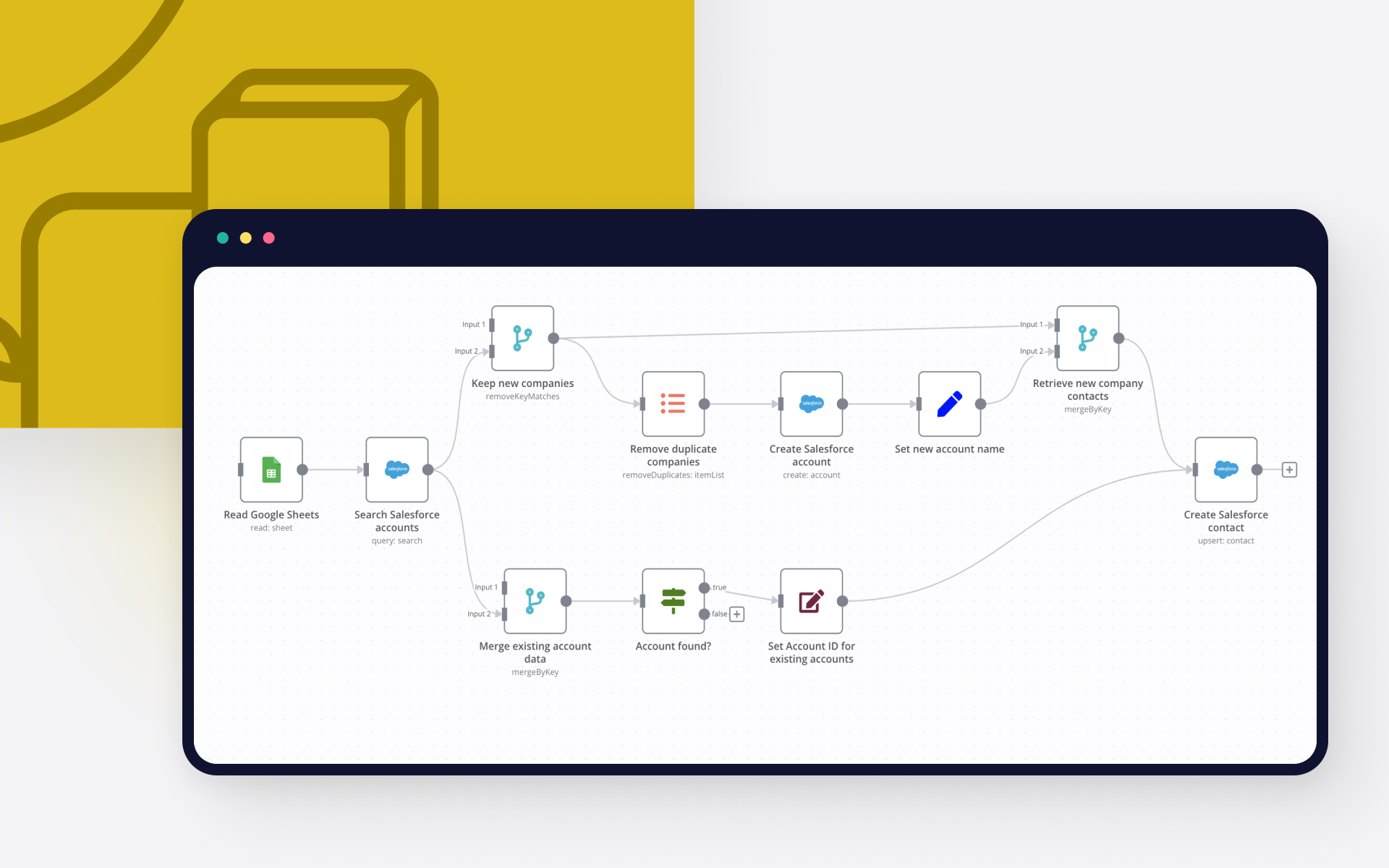
Create Salesforce accounts based on Google Sheets data

This workflow shows a no code approach to creating Salesforce accounts and contacts based on data coming from Google Sheets.

To run the workflow:

Make sure you have both Google Sheets and Salesforce authenticated with n8n.
Have a Google Sheet with contacts and their account names ready, copy the respective sheet ID from the URL:

Add the sheet ID to the Google Sheet node of the workflow:

Hit Execute Workflow

Here is how it works:

The workflow first searches for existing Salesforce accounts by name. It then branches out depending on whether the account already exists in Salesforce or not. If an account does not exist yet, it will be created. The data is then normalised before both branches converge again. Finally the contacts are created or updated as needed in Salesforce.

Nodes used in this workflow

Popular Salesforce and Google Sheets workflows

+2

Turn webinar recordings into Salesforce follow-up emails with WayinVideo and GPT-4o-mini

Description Submit your webinar recording URL along with the webinar title, host name, company name, date, and CTA link and the workflow automatically handles every follow-up. WayinVideo summarizes the webinar and extracts numbered highlights, then GPT-4o-mini writes a personalized 150–200 word email per registered Salesforce lead — addressing them by first name, referencing their role and company, and citing 2–3 specific things covered in the webinar. Gmail sends each email, Salesforce logs a completed Task activity on each lead record, and Google Sheets logs every send with the Salesforce Task ID. Built for marketing teams, sales teams, and agencies who want to follow up with every registered lead immediately after a webinar ends — without writing a single email manually. What This Workflow Does Summarizes the webinar automatically** — WayinVideo extracts a structured summary with numbered highlights from the recording so GPT has real content to reference in every email Fetches all registered leads from Salesforce** — A query pulls up to 500 leads where the webinar name matches your Salesforce custom field — no manual list export needed Writes a personalized email per lead** — GPT addresses each lead by first name, references their job title and company, and cites 2–3 specific webinar highlights relevant to their role Sends each email via Gmail** — Every lead receives a personalized email sent from your Gmail account with your company name as the sender Logs a completed Task on each Salesforce lead record** — A Task activity is created with WhoId linking it to the correct lead — so your CRM shows the follow-up was completed and when Logs every send to Google Sheets** — Each row captures the webinar title, lead details, email subject, personalized intro, Salesforce Lead ID, Salesforce Task ID, sent status, and timestamp Polls automatically until the summary is ready** — Waits 90 seconds then checks every 30 seconds until WayinVideo finishes processing the recording Setup Requirements Tools Needed n8n instance (self-hosted or cloud) WayinVideo account with API access OpenAI account with GPT-4o-mini API access Salesforce org with OAuth2 access and a Webinar_Name__c custom field on the Lead object Gmail account connected via OAuth2 Google Sheets (one sheet with a tab named Follow-up Log) Credentials Required WayinVideo API key (pasted into 2. WayinVideo — Submit Summarization and 4. WayinVideo — Get Summary Results) OpenAI API key Salesforce OAuth2 (used in 8. Salesforce — Query Registered Leads and 13. Salesforce — Log Email as Activity) Gmail OAuth2 Google Sheets OAuth2 > ⚠️ WayinVideo API key appears in 2 steps — replace YOUR_WAYINVIDEO_API_KEY in both 2. WayinVideo — Submit Summarization and 4. WayinVideo — Get Summary Results. Missing either one will cause the workflow to fail. Estimated Setup Time: 30–40 minutes Step-by-Step Setup Import the workflow — Open n8n → Workflows → Import from JSON → paste the workflow JSON → click Import Get your WayinVideo API key — Log in to your WayinVideo account → go to Account Settings → copy your API key Add your WayinVideo API key to node 2 — Open node 2. WayinVideo — Submit Summarization → find the Authorization header value Bearer YOUR_WAYINVIDEO_API_KEY → replace YOUR_WAYINVIDEO_API_KEY with your actual key Add your WayinVideo API key to node 4 — Open node 4. WayinVideo — Get Summary Results → find the same Authorization header → replace YOUR_WAYINVIDEO_API_KEY with the same key Connect OpenAI — Open node 10. OpenAI — GPT-4o-mini Model → click the credential dropdown → add your OpenAI API key → test the connection Verify your Salesforce custom field — In your Salesforce org, confirm the Lead object has a field with the API name Webinar_Name__c that is populated at registration time. If your field has a different API name, open node 8. Salesforce — Query Registered Leads and update the SOQL query to use your actual field name. Connect Salesforce for lead query — Open node 8. Salesforce — Query Registered Leads → click the credential dropdown → add Salesforce OAuth2 → complete the authorization flow in your browser Connect Salesforce for task logging — Open node 13. Salesforce — Log Email as Activity → click the credential dropdown → select the same Salesforce OAuth2 credential Connect Gmail — Open node 12. Gmail — Send Follow-Up Email → click the credential dropdown → add Gmail OAuth2 → complete the Google authorization flow Create your Google Sheet tab — Open your Google Sheet → add a tab named exactly Follow-up Log → add these 10 column headers in row 1: Webinar Title, Lead Email, Lead Name, Lead Company, Email Subject, Personalized Intro, Salesforce Lead ID, Salesforce Task ID, Sent Status, Sent On Get your Google Sheet ID — Open your Google Sheet in a browser → copy the string between /d/ and /edit in the URL — this is your Sheet ID Connect Google Sheets — Open node 14. Google Sheets — Log Follow-Up → click the document field → replace YOUR_GOOGLE_SHEET_ID by selecting your spreadsheet or entering the Sheet ID manually → click the credential dropdown → add Google Sheets OAuth2 → authorize access Activate the workflow — Toggle the workflow to Active → copy the Form URL from node 1. Form — Webinar URL + Details → open it in a browser to submit your first webinar How It Works (Step by Step) Step 1 — Form: Webinar URL + Details You open the form URL and fill in six fields: the webinar recording URL, the webinar title (which must match the value in your Salesforce Webinar_Name__c field exactly), the host or speaker name, the company or brand name, the webinar date, and the CTA link for the follow-up email. Submitting the form starts the entire pipeline. Step 2 — HTTP: WayinVideo — Submit Summarization The webinar URL is sent to WayinVideo's Summarization API. WayinVideo accepts the job and returns a task ID confirming the summarization has started. Step 3 — Wait: 90 Seconds The workflow pauses 90 seconds before the first status check, giving WayinVideo time to process the recording. Step 4 — HTTP: WayinVideo — Get Summary Results A GET request checks the summarization results endpoint using the task ID. It returns the current status and, once complete, the summary text, highlights array, and tags array. Step 5 — IF: Summary Complete? This is the polling gate. If the status equals SUCCEEDED (YES path), the summary is ready and the workflow moves forward. If still processing (NO path), the workflow routes to 6. Wait — 30 Seconds Retry which pauses 30 seconds then loops back to step 4. This repeats until SUCCEEDED. Step 6 — Wait: 30 Seconds Retry When the summary is not yet ready, the workflow waits 30 seconds then returns to step 4 for another check. Step 7 — Code: Extract Summary Data The summary text, numbered highlights (formatted as 1. highlight, 2. highlight, etc.), and tags are extracted from the WayinVideo results. All six form inputs are also packaged here. Everything is assembled into one clean object that feeds both the Salesforce query and the GPT email prompt. Step 8 — Salesforce: Query Registered Leads A SOQL query runs against your Salesforce org to fetch all leads where Webinar_Name__c matches the webinar title you entered in the form, with a limit of 500 leads. The results include each lead's first name, last name, email, company, and job title. Each lead becomes one email to send. Step 9 — AI Agent: Write Personalized Email GPT-4o-mini receives the full lead details (first name, last name, email, company, job title) alongside the webinar context (title, host name, company, date, CTA link, recording URL, full summary, and numbered highlights). It writes a 150–200 word email in three labeled sections: a subject line 45–55 characters long referencing the webinar topic, a 1–2 sentence personalized opening that references the lead's role or company, and the full email body starting with "Hi [FirstName]" — warm in tone, referencing 2–3 specific highlights, including the recording URL and CTA link, and ending with the host's name as the signature. Step 10 — OpenAI: GPT-4o-mini Model This is the language model powering the personalized email writing for each lead. Step 11 — Code: Parse Email Output The three labeled sections — SUBJECT_LINE, PERSONALIZED_INTRO, and EMAIL_BODY — are extracted from the GPT output using regex. Lead details from step 8 and webinar details from step 7 are also packaged for the Gmail, Salesforce, and Sheets steps. If the subject line is not found, a fallback subject using the webinar title is used. Step 12 — Gmail: Send Follow-Up Email The personalized email is sent to the lead's email address using the full email body from GPT. The sender name is set to your company name from the form. Each lead receives their own individual email — not a broadcast. Step 13 — Salesforce: Log Email as Activity A completed Task is created in Salesforce linked to the lead's record using their Salesforce Lead ID as the WhoId. The Task is marked Completed with today's date, Normal priority, and a description that includes the webinar title, email subject, and the lead's email address. This means your CRM reflects the follow-up as done immediately. Step 14 — Google Sheets: Log Follow-Up One row is appended to your Follow-up Log tab with all 10 columns: webinar title, lead email, lead full name, lead company, email subject, personalized intro, Salesforce Lead ID, Salesforce Task ID (returned by step 13), Sent Status set to Sent, and the current timestamp. The final result is a personalized email sent to every registered lead, a completed CRM Task on every lead record, and a full send log in Google Sheets — all triggered by one form submission. Key Features ✅ Personalized per lead using their first name, title, and company — Every email addresses the lead by name and frames the webinar highlights around their specific role — not a mass blast ✅ Webinar highlights referenced in every email — GPT cites 2–3 numbered highlights from the actual webinar content — making each email feel relevant to what the lead attended ✅ Salesforce Task logged with WhoId association — Each completed Task is linked to the correct lead record via WhoId — your CRM shows the follow-up is done without any manual logging ✅ Recording URL included in every email — Every lead gets a link to rewatch the recording so they can engage further without needing a separate reminder email ✅ Up to 500 leads processed per run — The Salesforce SOQL query fetches up to 500 registered leads so even large webinars are covered in one form submission ✅ Sender name set to your company — Gmail sends each email with your company or brand name as the sender — not a generic n8n address ✅ Salesforce Task ID captured in Google Sheets — The sheet log includes the Task ID returned by Salesforce so you can cross-reference sends against CRM records at any time Customisation Options Add a retry limit to stop infinite polling — Before node 6. Wait — 30 Seconds Retry, add a Set step that increments a poll counter, then add a second IF check to stop after 15 polls and send a Gmail error notification to the form submitter instead of looping indefinitely. Use a different Salesforce field to match leads — In node 8. Salesforce — Query Registered Leads, edit the SOQL query to use a different field if your org does not use Webinar_Name__c — for example Campaign_Name__c or a tag field — as long as it identifies which leads attended which webinar. Add a Salesforce lead status update after sending — After node 13. Salesforce — Log Email as Activity, add a Salesforce Update step that sets the lead's Status to "Webinar Follow-Up Sent" so your sales team can filter CRM views by follow-up status. Add a Slack notification when all emails are sent — After the last lead row is processed, add a Slack step that posts the webinar title and total number of emails sent to a #marketing or #sales channel so your team knows the follow-up campaign is complete. Change the email length — In the system prompt of node 9. AI Agent — Write Personalized Email, change the rule from 150-200 words to 100-150 words for shorter emails or 200-250 words for more detailed follow-ups depending on your audience preference. Troubleshooting WayinVideo returning an error on submission: Confirm YOUR_WAYINVIDEO_API_KEY in node 2. WayinVideo — Submit Summarization is replaced with your actual API key — not the placeholder Confirm the same replacement was made in node 4. WayinVideo — Get Summary Results — both steps require the key Check the execution log of node 2 for the raw error — a 401 means wrong key, a 422 means the URL format is unsupported Salesforce query returning zero leads: Confirm the Webinar Title you entered in the form exactly matches the value stored in the Webinar_Name__c field on your lead records — including capitalization and spacing Open node 8. Salesforce — Query Registered Leads and review the SOQL query — if your field name is different from Webinar_Name__c, update it to match your org's actual API field name Confirm the Salesforce OAuth2 credential is connected and your user has permission to query Lead records Gmail sending errors: Confirm the Gmail OAuth2 credential in node 12. Gmail — Send Follow-Up Email is connected and not expired — re-authorize if needed Check that the lead's Email field in Salesforce is populated — leads with empty email fields will cause this step to fail Gmail has a daily sending limit — if you are sending to more than ~500 leads in one run, consider using a transactional email service instead Salesforce Task not being created: Confirm the Salesforce OAuth2 credential in node 13. Salesforce — Log Email as Activity has permission to create Task records — some restricted Salesforce profiles block Task creation via API Check the execution log of node 13 for the raw Salesforce error — a common issue is the WhoId field not accepting Lead IDs if your org has Task configuration restrictions Confirm the lead ID from step 8 is being passed correctly — check the execution log of node 11. Code — Parse Email Output to verify leadId is populated Google Sheets not logging rows: Confirm YOUR_GOOGLE_SHEET_ID in node 14. Google Sheets — Log Follow-Up is replaced with your actual sheet ID from the URL Confirm the tab is named Follow-up Log exactly and all 10 column headers in row 1 match exactly Check that the Google Sheets OAuth2 credential is connected and not expired — re-authorize if needed Support Need help setting this up or want a custom version built for your team or agency? 📧 Email:[email protected] 🌐 Website:https://isawow.com

Predict deal close dates and update Salesforce with Groq and Google Sheets

AI-Powered Smart Deal Close Prediction and Salesforce CRM Auto-Update Workflow This workflow acts as an automated, intelligent sales operations assistant. It continuously monitors your Salesforce account for newly updated opportunities, compares them against your historical win data and uses a powerful AI (Groq Llama-3) to predict realistic close dates and win probabilities. If the AI is highly confident in its prediction, it automatically updates the deal in Salesforce. If the AI is uncertain, it emails a manager to review the deal manually. Everything is neatly logged in a Google Spreadsheet for easy tracking. Quick Implementation Steps Connect Credentials: Authenticate your Salesforce, Groq, Gmail and Google Sheets accounts within your n8n account. Prepare the Audit Sheet: Create a new Google Sheet and copy its Document ID into the two Google Sheets nodes. Set the Schedule: Adjust the Schedule Trigger to run at your preferred interval (default is optimized for frequent checks). Activate: Turn on the workflow and watch your pipeline automatically clean itself. What It Does First, the workflow wakes up on a set schedule and looks for two things in Salesforce: a small batch of your recently won deals (to understand what success looks like) and any open opportunities that were modified recently. It filters these to ensure it only spends time on active deals that actually have a dollar amount attached to them. Next, it acts like a data scientist. It grabs the recent task history for each deal and calculates custom metrics—like how fast the deal is moving, how long it has been open and a "Risk Score" based on user engagement. All this data is packaged up and securely sent to a Groq LLM agent. The AI acts as a seasoned sales strategist, weighing these factors to predict a realistic timeline and the actual chance of winning the deal. Finally, the workflow makes a smart decision based on the AI's confidence score. If the AI is 70% or more confident in its assessment, it goes straight into Salesforce and updates the target close date to keep your pipeline accurate. If the confidence is lower, it sends a formatted email via Gmail to alert a sales manager that a deal needs human attention. Regardless of the path taken, every single prediction and action is logged into a Google Sheet for your RevOps team to review. Who It's For Sales Managers & Directors** Who want an unbiased, data-driven view of when deals will actually close, rather than relying on gut feelings. Revenue Operations (RevOps)** Who need accurate pipeline data and want to automate the tedious process of "pipeline scrubbing." CRM Administrators** Who want to reduce the administrative burden on sales reps by automatically updating stagnant close dates. Requirements to use this workflow To use this workflow, you will need n8n account with the following active accounts: Salesforce:** With API access enabled to read opportunities and tasks and update opportunities. Groq:** An API key to access the Llama-3.3-70b AI model. Gmail:** To send the low-confidence alerts. Google Workspace / Sheets:** To maintain the automated audit logs. How It Works & Set Up App Authentication Before doing anything, ensure you have added your credentials for Salesforce (OAuth2), Groq (API Key), Gmail (OAuth2) and Google Sheets (OAuth2) in your n8n environment. Configure the Google Sheet You need a destination for the audit logs. Create a new Google Sheet and ensure it has the following exact column headers in the first row: timestamp opportunity_id opportunity_name stage_name current_amount risk_score risk_label predicted_close_date predicted_win_probability confidence_score reasoning next_best_action action_taken status Open both Google Sheets nodes ("Log Auto-Update Success" and "Log Pending Review") and replace the Document ID with the ID of your newly created sheet. Timing and Lookback Setup The workflow uses a "Set Lookback Timeframe" node to only grab deals modified in the last 5 minutes. If you change your "Run Schedule" to run every hour, you must also update the code in the "Set Lookback Timeframe" node to look back 60 minutes instead of 5, so you don't miss any deals. Review the AI Prompt Open the "AI Deal Timeline Predictor" LangChain node. Review the System Message. If your company has specific sales stages or unique risk factors, you can type them directly into the prompt to make the AI's predictions even smarter for your specific business. How To Customize Nodes Adjusting the Confidence Threshold** Open the check confidence score If node. It is currently set to 70. If you want the AI to be more aggressive with automatic updates, lower this number. If you want more manual reviews, raise it to 80 or 90. Modifying Risk Calculations** The Calculate Deal Risk & Velocity Code node contains JavaScript that assigns risk based on how long a deal has been open and how many tasks are associated with it. You can tweak the numbers in this code to better fit your typical sales cycle length. Changing the Alert System** If you don't use Gmail, you can easily delete the Gmail node and replace it with a Slack or Microsoft Teams node to send the review alerts directly to a sales channel. Add‑ons You can easily extend this workflow to do even more: Push AI Advice to CRM** Add another Salesforce update node to push the AI's next_best_action directly into a custom field on the Opportunity, giving the sales rep instant coaching. Urgent SMS Alerts** Connect a Twilio node alongside the Gmail node to text the VP of Sales if a massive deal (e.g., over $100k) receives a high risk score. Bi-Weekly Summary** Create a separate simple workflow that reads the Google Sheet every Friday and emails a summary of all AI predictions to the executive team. Use Case Examples Automated Pipeline Scrubbing Automatically push out the close dates of neglected deals to the next quarter, ensuring the current quarter's forecast remains mathematically realistic without nagging sales reps. Early Warning System for Stalled Deals Instantly alert managers when a high-value opportunity shows a sudden drop in engagement or task activity, allowing leadership to step in before the deal is lost. Data-Driven Sales Coaching Use the AI's generated reasoning and recommended next steps to help junior account executives figure out how to unblock a complex negotiation. Historical Win-Rate Benchmarking Compare the current active pipeline against what actually won in the past, giving RevOps a clear picture of whether the current pipeline quality is better or worse than the previous quarter. Enforcing CRM Hygiene Identify and flag opportunities that have a 90% probability but haven't had a single phone call or email logged in three weeks. Troubleshooting Guide | Issue | Possible Cause | Solution | | :--- | :--- | :--- | | Workflow isn't processing any deals | Schedule and lookback timeframes don't match or no deals were modified recently. | Ensure the minutes in the Schedule node match the mathematical subtraction in the "Set Lookback Timeframe" node. | | "Invalid JSON returned from AI" error | The LLM ignored instructions and added extra conversational text (like "Here is your data:"). | The workflow already has a "Parse AI Output" cleanup node. If it still fails, adjust the Groq prompt to strictly enforce JSON-only responses. | | Google Sheets node fails to write data | The Google Sheet ID is missing or the column headers in your sheet do not perfectly match the node. | Verify the Document ID. Ensure the headers in your Sheet exactly match the 14 fields listed in the setup instructions above. | | Salesforce API Limit errors | Fetching too much data too frequently. | Increase the interval on your Schedule trigger (e.g., run every 30 minutes instead of 5) to reduce API calls. | | AI Close Dates are completely wrong | The AI lacks context about your specific average sales cycle length. | Edit the AI's System Message prompt to tell it your average sales cycle (e.g., "Our standard enterprise deal takes 90 days to close"). | Need Help? Building dynamic, AI-driven automation workflows can transform your business, but getting the data logic perfectly tuned sometimes requires an expert touch. If you need help setting up this workflow, customizing the custom JavaScript risk scoring, integrating it with a different CRM or building more advanced automation solutions tailored to your unique operations, we are here for you. Reach out to our n8n workflow developers at WeblineIndia to get expert assistance and start maximizing the value of your business process automations today!
+2

Compare proposals and analyze gaps for Salesforce CRM with Groq AI

AI Proposal Comparison & Gap Analysis Workflow for Salesforce CRM This workflow automatically analyzes newly uploaded proposals by comparing them with past winning proposals using AI. It extracts proposal content, identifies the client, fetches reference data from Google Sheets and generates actionable insights. These insights are saved in Salesforce and shared on Slack for team visibility. Quick Implementation Steps Connect Google Drive, Google Sheets, Salesforce, Slack and Groq AI credentials in your n8n account. Set your Google Drive folder to monitor proposal uploads. Ensure your Google Sheet contains winning proposals with status = Won. Activate the workflow. Upload a proposal file to trigger analysis automatically. What It Does This workflow automates the process of analyzing business proposals by leveraging AI and historical data. When a new proposal file is uploaded to a specific Google Drive folder, the workflow downloads and extracts its content. It then identifies the client name using a simple pattern from the text. At the same time, the workflow fetches past winning proposals from a Google Sheets database filtered by status. Both the current and past proposals are combined and sent to an AI model for comparison. The AI generates concise insights highlighting missing elements, weak positioning, pricing gaps and improvement suggestions. Finally, the insights are formatted and stored in Salesforce as an Opportunity record. A notification is sent to Slack, ensuring the team is informed and can act quickly to improve proposal quality. Who It's For Sales teams managing multiple proposals Business development professionals Proposal review and strategy teams Organizations using Salesforce CRM Teams looking to improve win rates using AI Requirements n8n account (self-hosted or cloud) Google Drive account (with folder for proposals) Google Sheets account (with winning proposals data) Salesforce account (Opportunity access enabled) Slack workspace (channel for notifications) Groq API credentials (for AI model access) How It Works & Set Up Setup Google Drive Trigger Configure New Proposal Upload Trigger Select the folder where proposals will be uploaded Event: fileCreated Download and Extract Proposal Use Download Proposal node to fetch file Use Read Proposal Text node to extract content Extract Client Information Use Extract Client Info (Code node) Extract clientName using regex from text Store full proposal as currentProposal Fetch Winning Proposals Configure Get Winning Proposal Data (Knowledge Base) Connect Google Sheet Filter where status = Won Combine Data Use Combine Proposal Data (Merge node) Combine current proposal and past proposal AI Analysis Use AI Proposal Gap Analyzer Provide prompt to compare proposals Generate structured insights (8–10 bullet points) Format Output Use Format Analysis Output Map clientName and analysisSummary Save to Salesforce Use Save Insights to Salesforce Create Opportunity Add insights in description Prepare Final Output Use Prepare Final Output (Merge node) Add Delay (Optional Control) Use Wait for Save node (2 seconds delay) Send Slack Notification Use Send Notification to Slack Send formatted message with insights How To Customize Nodes Extract Client Info:** Modify regex if proposal format changes Google Sheets Node:** Change filter or add more columns AI Prompt:** Customize output format or analysis depth Salesforce Node:** Change stage, fields or object type Slack Node:** Update message format or channel Wait Node:** Adjust delay time if needed Add-ons Add email notification (Gmail node) Store results in Google Sheets for history Add error handling with IF node Add multiple proposal comparison logic Integrate dashboard (Notion, Airtable, etc.) Use Case Examples Improving proposal quality before client submission Training new sales team members using past wins Automating proposal review workflows Identifying common gaps in losing proposals Tracking proposal insights in CRM There can be many more use cases depending on how you extend this workflow. Troubleshooting Guide | Issue | Possible Cause | Solution | | --------------------------- | ------------------------------ | ----------------------------------------- | | No trigger on file upload | Incorrect folder selected | Verify Google Drive folder ID | | Client name not extracted | Proposal format mismatch | Update regex in Code node | | No data from Google Sheets | Filter mismatch (status = Won) | Check column name and values | | AI output empty | Prompt or input missing | Verify merged data structure | | Salesforce error | Invalid credentials or field | Check API credentials and field mapping | | Slack message not sent | Wrong channel or auth issue | Reconnect Slack credentials | | Workflow stops before Slack | Wait node misconfigured | Ensure correct connection after Wait node | Need Help? If you need assistance setting up this workflow, customizing nodes or adding advanced features, we’re here to help. Whether it's integrating additional tools, improving AI analysis or building custom automation workflows tailored to your business needs, feel free to reach out to our n8n developers at WeblineIndia. Get expert help to scale your automation and build powerful AI-driven workflows efficiently.

Automate social fan-out, marketplace outreach, and CRM alerts with Salesforce

⚠️ Heads up: this is satire. The "Hell Yeah!" workflow is a parody of "automate your whole life with AI agents" grindset content. The API endpoints are fictional and the function nodes are illustrative stubs. It's published as a template because the patterns underneath the joke — multi-channel social fan-out, marketplace scraping with follow-up sequences, CRM sync with chat alerts, cron-triggered daily chains — are genuinely useful starting points for n8n agencies building real lead-gen flows. Swap the jokes for your actual integrations and you've got a working skeleton. How it works A Rise and Grind cron kicks off a parallel "daily lifestyle" routine every morning A gambling → flex chain runs arbitrage math against a fake sportsbook and fans the "wins" out to Instagram, TikTok, Facebook, Threads, LinkedIn, and Twitter in one blast (this is the reusable multi-channel social posting pattern) A Facebook Marketplace lowball engine scrapes listings, filters them, fires templated lowball offers, and runs a relentless follow-up sequence (reusable pattern: scraper → filter → outreach → nurture) An eBay arbitrage loop finds profitable items, relists them, and logs every transaction to Google Sheets A Salesforce + Telegram branch handles "deal alerts" — the standard CRM-sync-with-chat-notification pattern every agency ships Extra satirical branches (Tinder auto-booking, Uber Black to the casino, steak delivery, playing Alice in Chains) are there for the bit — delete or replace them Set up steps Takes about 15–20 minutes if you're just importing to read through the patterns Takes 1–2 hours if you're stripping out the satirical branches and wiring the reusable patterns (social fan-out, marketplace outreach, CRM+Telegram) to your real credentials Replace every fictional HTTP endpoint with your actual API before activating Add credentials for whichever real nodes you keep: Salesforce, Telegram, Google Sheets, WhatsApp, Facebook Graph Detailed notes for each section live in the sticky notes inside the workflow itself
+4

Route and qualify email leads with Gmail, Gemini, Slack, Sheets and Salesforce

Email Lead Router: Gmail → Gemini → Salesforce Pipeline Who is this for? Event sales teams & conference organizers processing 100+ sponsor/partner emails weekly who need instant lead qualification, Salesforce automation, & pipeline analytics. What problem is this workflow solving? Event email chaos kills revenue: 200+ sponsor emails/week → manual Salesforce entry No sentiment/intent scoring = missed $ opps 10+ hours/week routing + logging Fragmented pipeline visibility Zero-drop AI qualification → auto-Salesforce → team routing. What this workflow does Gmail Trigger captures event inbox emails Gemini #1 scores sentiment (Positive/Neutral/Negative + confidence) Gemini #2 extracts topic, intent, urgency (1-10), org, budget signals Upserts Salesforce Lead (deduped by email) w/ 9 custom fields: Sentiment__c, Urgency_Score__c, etc. Hot leads (Positive + urgency ≥7) → auto Salesforce Opportunity Creates Salesforce Task w/ AI-suggested follow-up action Logs to email_analytics Data Table + Google Sheets (Looker Studio dashboard) Routes: Positive → Hot email + Slack #hot-leads (2h); Neutral → Follow-up + #follow-ups (24h); Negative → Insights + #insights Setup (8 minutes): Gmail OAuth2 (event inbox) Google Gemini API Salesforce OAuth2* + 9 custom Lead fields* (Sentiment__c, Urgency_Score__c, etc.) Slack OAuth2 + channels (#hot-leads, #follow-ups, #insights) email_analytics Data Table ID Update Send Email recipients Test w/ Evaluation Dataset How to customize: Tune urgency threshold (7→8) Add event keywords (webinar/tradeshow) Swap Slack → Teams; Salesforce → HubSpot Multi-inbox territory routing ROI: 100% Salesforce coverage** (no manual entry) 8x faster qualification** (2min vs 16h/week) 30% opp velocity** (auto opps/tasks) Live Looker dashboard** → data-driven decisions Need help customizing?: Contact me for consulting and support: LinkedIn / Message Keywords: event sales leads, Salesforce automation, Gemini lead scoring, email sentiment, sales pipeline n8n, AI sales routing
+4

Route event sales leads with Gmail, Google Gemini, Sheets and Salesforce

Email Sentiment Router for Event Sales Leads Who is this for? Event organizers, conference managers, and sales teams drowning in sponsor/exhibitor/partner emails who need zero-drop leads + real-time pipeline analytics. Key nodes: Gmail Trigger - Google Gemini (2x) - Data Table - Google Sheets - Send Email - Slack Category: Sales / AI / Event Management Level: Advanced Credits: Milo Bravo (BRaiA Labs) What problem is this workflow solving? Email overload kills event revenue: 200+ weekly sponsor/partner emails go unread No sentiment/intent analysis = missed hot leads Manual routing wastes 10+ hours/week Zero visibility into pipeline trends This workflow auto-classifies, routes, and analyzes every inbound lead. What this workflow does? Gmail Trigger monitors event inbox for new emails Gemini #1 scores sentiment (Positive/Neutral/Negative) Gemini #2 extracts topic, intent, urgency, org, budget signals Logs to email_analytics Data Table + Google Sheets Routes intelligently: Positive → Hot Lead email + Slack #hot-leads (2h SLA) Neutral → Nurture email + Slack #follow-ups (24-48h) Negative → Insights + Slack #insights Looker Studio dashboard auto-updates from Sheets Setup (5 minutes): Gmail OAuth2 (event inbox) Google Gemini API key Slack OAuth2 + channels (#hot-leads, #follow-ups, #insights) Create email_analytics Data Table → paste Table ID Update recipient emails (placeholders in Send Email nodes) Test with Evaluation Dataset before live How to customize: Add keywords for your niche (conferences, webinars, trade shows) Adjust sentiment thresholds or routing rules Swap Slack → Teams/CRM (HubSpot/Salesforce) Scale: Multi-inbox + team routing ROI: 100% lead capture (zero drops) 5x faster response (2h → 2min) 20% conversion lift from sentiment prioritization Pipeline dashboard = data-driven sales strategy Need help customizing?: Contact me for consulting and support: LinkedIn / Message Keywords: event sales leads, email sentiment analysis, Gmail AI routing, Google Gemini sales automation, conference sponsor leads, event pipeline analytics, sales lead qualification, sales dashboard

Build your own Salesforce and Google Sheets integration

Create custom Salesforce and Google Sheets workflows by choosing triggers and actions. Nodes come with global operations and settings, as well as app-specific parameters that can be configured. You can also use the HTTP Request node to query data from any app or service with a REST API.

Salesforce supported actions

Add Note
Add note to an account
Create
Create an account
Create or Update
Create a new account, or update the current one if it already exists (upsert)
Delete
Delete an account
Get
Get an account
Get Many
Get many accounts
Get Summary
Returns an overview of account's metadata
Update
Update an account
Create
Create a attachment
Delete
Delete a attachment
Get
Get a attachment
Get Many
Get many attachments
Get Summary
Returns an overview of attachment's metadata
Update
Update a attachment
Add Comment
Add a comment to a case
Create
Create a case
Delete
Delete a case
Get
Get a case
Get Many
Get many cases
Get Summary
Returns an overview of case's metadata
Update
Update a case
Add Contact To Campaign
Add contact to a campaign
Add Note
Add note to a contact
Create
Create a contact
Create or Update
Create a new contact, or update the current one if it already exists (upsert)
Delete
Delete a contact
Get
Get a contact
Get Many
Get many contacts
Get Summary
Returns an overview of contact's metadata
Update
Update a contact
Create
Create a custom object record
Create or Update
Create a new record, or update the current one if it already exists (upsert)
Delete
Delete a custom object record
Get
Get a custom object record
Get Many
Get many custom object records
Update
Update a custom object record
Upload
Upload a document
Get Many
Get many flows
Invoke
Invoke a flow
Add Lead To Campaign
Add lead to a campaign
Add Note
Add note to a lead
Create
Create a lead
Create or Update
Create a new lead, or update the current one if it already exists (upsert)
Delete
Delete a lead
Get
Get a lead
Get Many
Get many leads
Get Summary
Returns an overview of Lead's metadata
Update
Update a lead
Add Note
Add note to an opportunity
Create
Create an opportunity
Create or Update
Create a new opportunity, or update the current one if it already exists (upsert)
Delete
Delete an opportunity
Get
Get an opportunity
Get Many
Get many opportunities
Get Summary
Returns an overview of opportunity's metadata
Update
Update an opportunity
Query
Execute a SOQL query that returns all the results in a single response
Create
Create a task
Delete
Delete a task
Get
Get a task
Get Many
Get many tasks
Get Summary
Returns an overview of task's metadata
Update
Update a task
Get
Get a user
Get Many
Get many users

Google Sheets supported actions

Create
Create a spreadsheet
Delete
Delete a spreadsheet
Append or Update Row
Append a new row or update an existing one (upsert)
Append Row
Create a new row in a sheet
Clear
Delete all the contents or a part of a sheet
Create
Create a new sheet
Delete
Permanently delete a sheet
Delete Rows or Columns
Delete columns or rows from a sheet
Get Row(s)
Retrieve one or more rows from a sheet
Update Row
Update an existing row in a sheet

Salesforce and Google Sheets integration tutorials

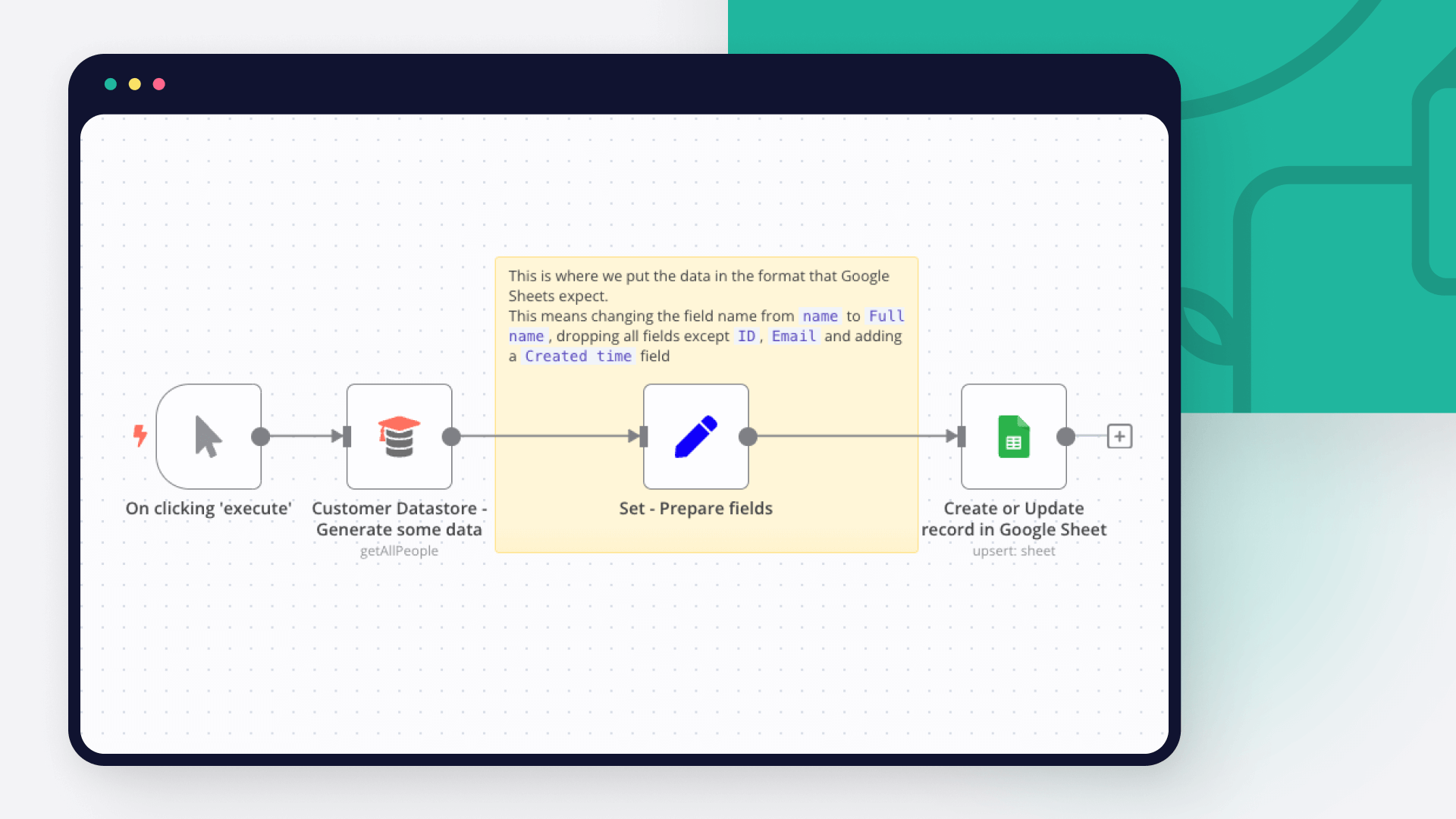
featured image

How to use Google Sheets as a database

Dive into the versatility of Google Sheets as a database with our in-depth comparison of Python scripting and n8n automation. Get 7 free workflows to set up your Google Sheets database in n8n!

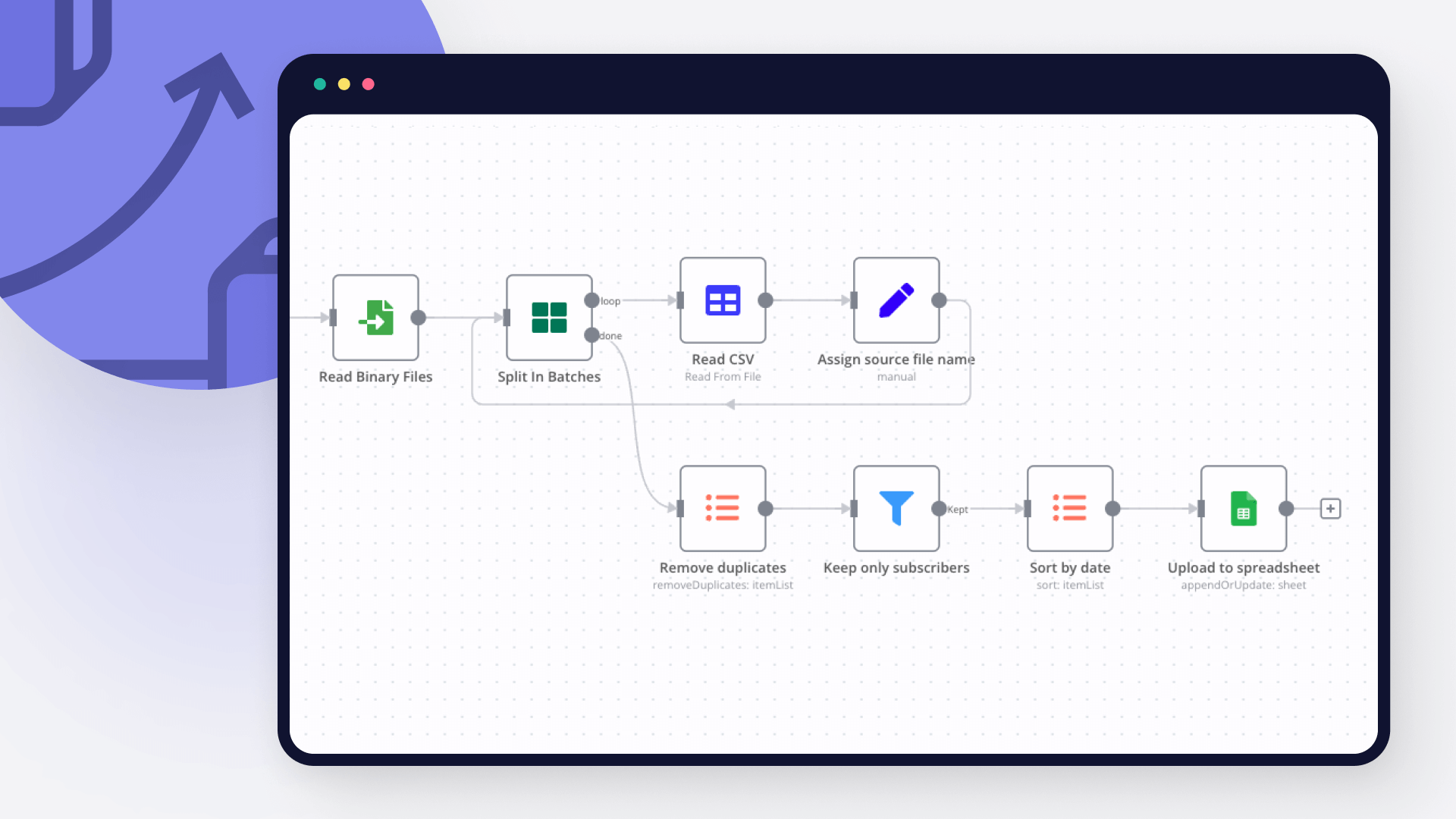
featured image

How to import CSV into Google Sheets: 3 best methods

Explore 3 efficient methods for importing CSV files into Google Sheets, comparing n8n's automated workflow with the manual import via native Google Sheets interface and the programmatic import via Python.

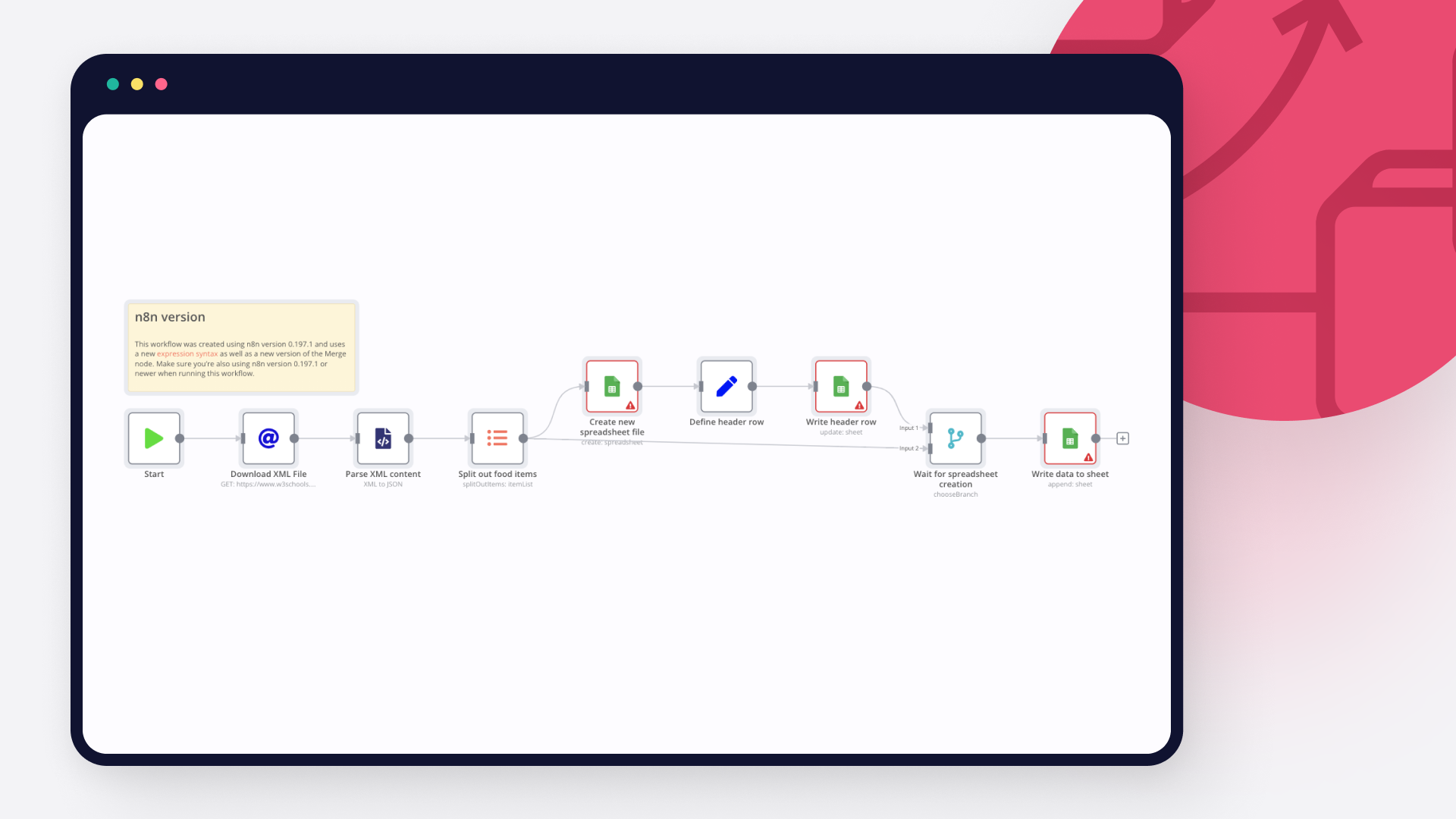
featured image

How to import XML to Google Sheets: 3 step-by-step techniques

Learn three different ways to import XML to Google sheets: with Google sheet’s IMPORTXML function, with Google AppScript and automation with n8n.

featured image

How to easily automate your Salesforce data import

Salesforce and other CRMs are built around the data they are being fed. This begs the question, where do we get this data from? Before switching to a CRM, it is common for organizations to have data pipelines of leads and customers stored in extant sources like spreadsheets and ERPs. These sources could store data that range from hundreds to billions. Thus, it is imperative that we explore some of the most efficient and effective ways to import data into Salesforce. And this is the crux of thi

featured image

How to pull data from Google Spreadsheet to HTML: Code and no code approaches

Learn how to pull data from Google Spreadsheet to HTML using Google Apps Script and n8n automation tool.

featured image

How to connect Google Sheets to MySQL: Code and no-code methods

Discover two ways to connect MySQL with Google Sheets, and learn to build no-code workflows for automating it.

FAQs

  • Can Salesforce connect with Google Sheets?

  • Can I use Salesforce’s API with n8n?

  • Can I use Google Sheets’s API with n8n?

  • Is n8n secure for integrating Salesforce and Google Sheets?

  • How to get started with Salesforce and Google Sheets integration in n8n.io?

Need help setting up your Salesforce and Google Sheets integration?

Discover our latest community's recommendations and join the discussions about Salesforce and Google Sheets integration.
Sergey Komardenkov
sérgio eduardo floresta filho
Julian
therealJMT
Guilherme

Looking to integrate Salesforce and Google Sheets in your company?

Over 3000 companies switch to n8n every single week

Why use n8n to integrate Salesforce with Google Sheets

Build complex workflows, really fast

Build complex workflows, really fast

Handle branching, merging and iteration easily.
Pause your workflow to wait for external events.

Code when you need it, UI when you don't

Simple debugging

Your data is displayed alongside your settings, making edge cases easy to track down.

Use templates to get started fast

Use 1000+ workflow templates available from our core team and our community.

Reuse your work

Copy and paste, easily import and export workflows.

Implement complex processes faster with n8n

red iconyellow iconred iconyellow icon