Back to Integrations
integrationHTTP Request node
integrationSalesforce node

HTTP Request and Salesforce integration

Save yourself the work of writing custom integrations for HTTP Request and Salesforce and use n8n instead. Build adaptable and scalable Development, Core Nodes, Sales, and Communication workflows that work with your technology stack. All within a building experience you will love.

How to connect HTTP Request and Salesforce

  • Step 1: Create a new workflow
  • Step 2: Add and configure nodes
  • Step 3: Connect
  • Step 4: Customize and extend your integration
  • Step 5: Test and activate your workflow

Step 1: Create a new workflow and add the first step

In n8n, click the "Add workflow" button in the Workflows tab to create a new workflow. Add the starting point – a trigger on when your workflow should run: an app event, a schedule, a webhook call, another workflow, an AI chat, or a manual trigger. Sometimes, the HTTP Request node might already serve as your starting point.

HTTP Request and Salesforce integration: Create a new workflow and add the first step

Step 2: Add and configure HTTP Request and Salesforce nodes

You can find HTTP Request and Salesforce in the nodes panel. Drag them onto your workflow canvas, selecting their actions. Click each node, choose a credential, and authenticate to grant n8n access. Configure HTTP Request and Salesforce nodes one by one: input data on the left, parameters in the middle, and output data on the right.

HTTP Request and Salesforce integration: Add and configure HTTP Request and Salesforce nodes

Step 3: Connect HTTP Request and Salesforce

A connection establishes a link between HTTP Request and Salesforce (or vice versa) to route data through the workflow. Data flows from the output of one node to the input of another. You can have single or multiple connections for each node.

HTTP Request and Salesforce integration: Connect HTTP Request and Salesforce

Step 4: Customize and extend your HTTP Request and Salesforce integration

Use n8n's core nodes such as If, Split Out, Merge, and others to transform and manipulate data. Write custom JavaScript or Python in the Code node and run it as a step in your workflow. Connect HTTP Request and Salesforce with any of n8n’s 1000+ integrations, and incorporate advanced AI logic into your workflows.

HTTP Request and Salesforce integration: Customize and extend your HTTP Request and Salesforce integration

Step 5: Test and activate your HTTP Request and Salesforce workflow

Save and run the workflow to see if everything works as expected. Based on your configuration, data should flow from HTTP Request to Salesforce or vice versa. Easily debug your workflow: you can check past executions to isolate and fix the mistake. Once you've tested everything, make sure to save your workflow and activate it.

HTTP Request and Salesforce integration: Test and activate your HTTP Request and Salesforce workflow

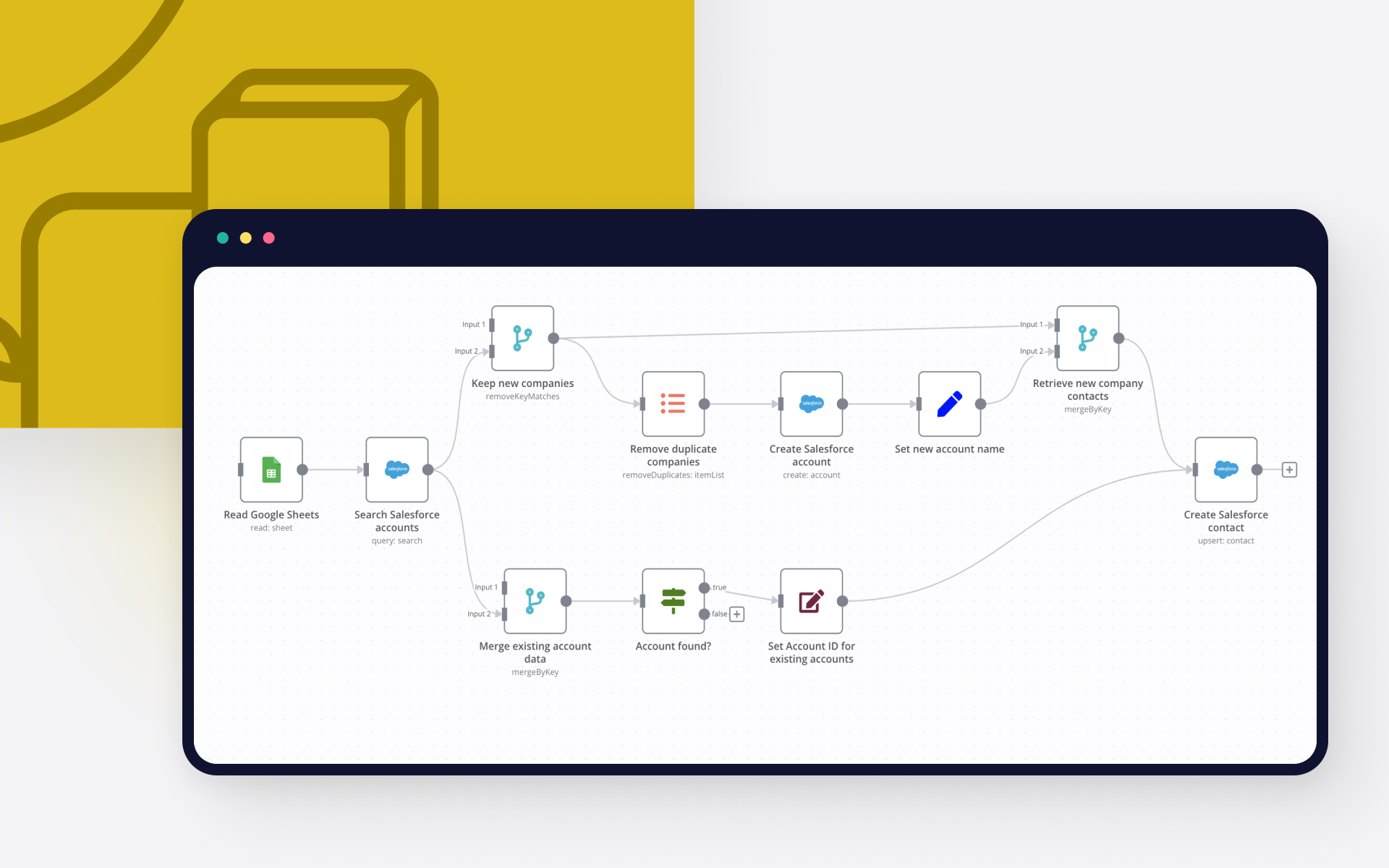
Create Salesforce accounts based on Excel file data

This workflow shows a no code approach to creating Salesforce accounts and contacts based on data coming from an Excel file. For Excel 365 (the online version of Microsoft Excel) check out this workflow instead.

To run the workflow:

Make sure your Salesforce account is authenticated with n8n.
Have a Microsoft Excel workbook with contacts and their account names ready. The workflow uses this example file, but you probably want to use your own data instead.

Hit the Execute Workflow button at the bottom of the n8n canvas.

Here is how it works:

The workflow first searches for existing Salesforce accounts by name. It then branches out depending on whether the account already exists in Salesforce or not. If an account does not exist yet, it will be created. The data is then normalised before both branches converge again. Finally the contacts are created or updated as needed in Salesforce.

Nodes used in this workflow

Popular HTTP Request and Salesforce workflows

Automate Invoice Processing with OCR, GPT-4 & Salesforce Opportunity Creation

PDF Invoice Extractor (AI) End-to-end pipeline: Watch Drive ➜ Download PDF ➜ OCR text ➜ AI normalize to JSON ➜ Upsert Buyer (Account) ➜ Create Opportunity ➜ Map Products ➜ Create OLI via Composite API ➜ Archive to OneDrive. Node by node (what it does & key setup) 1) Google Drive Trigger Purpose**: Fire when a new file appears in a specific Google Drive folder. Key settings**: Event: fileCreated Folder ID: google drive folder id Polling: everyMinute Creds: googleDriveOAuth2Api Output**: Metadata { id, name, ... } for the new file. 2) Download File From Google Purpose**: Get the file binary for processing and archiving. Key settings**: Operation: download File ID: ={{ $json.id }} Creds: googleDriveOAuth2Api Output**: Binary (default key: data) and original metadata. 3) Extract from File Purpose**: Extract text from PDF (OCR as needed) for AI parsing. Key settings**: Operation: pdf OCR: enable for scanned PDFs (in options) Output**: JSON with OCR text at {{ $json.text }}. 4) Message a model (AI JSON Extractor) Purpose: Convert OCR text into **strict normalized JSON array (invoice schema). Key settings**: Node: @n8n/n8n-nodes-langchain.openAi Model: gpt-4.1 (or gpt-4.1-mini) Message role: system (the strict prompt; references {{ $json.text }}) jsonOutput: true Creds: openAiApi Output (per item): $.message.content → the parsed **JSON (ensure it’s an array). 5) Create or update an account (Salesforce) Purpose: Upsert **Buyer as Account using an external ID. Key settings**: Resource: account Operation: upsert External Id Field: tax_id__c External Id Value: ={{ $json.message.content.buyer.tax_id }} Name: ={{ $json.message.content.buyer.name }} Creds: salesforceOAuth2Api Output: Account record (captures Id) for downstream **Opportunity. 6) Create an opportunity (Salesforce) Purpose**: Create Opportunity linked to the Buyer (Account). Key settings**: Resource: opportunity Name: ={{ $('Message a model').item.json.message.content.invoice.code }} Close Date: ={{ $('Message a model').item.json.message.content.invoice.issue_date }} Stage: Closed Won Amount: ={{ $('Message a model').item.json.message.content.summary.grand_total }} AccountId: ={{ $json.id }} (from Upsert Account output) Creds: salesforceOAuth2Api Output**: Opportunity Id for OLI creation. 7) Build SOQL (Code / JS) Purpose: Collect unique product **codes from AI JSON and build a SOQL query for PricebookEntry by Pricebook2Id. Key settings**: pricebook2Id (hardcoded in script): e.g., 01sxxxxxxxxxxxxxxx Source lines: $('Message a model').first().json.message.content.products Output**: { soql, codes } 8) Query PricebookEntries (Salesforce) Purpose**: Fetch PricebookEntry.Id for each Product2.ProductCode. Key settings**: Resource: search Query: ={{ $json.soql }} Creds: salesforceOAuth2Api Output**: Items with Id, Product2.ProductCode (used for mapping). 9) Code in JavaScript (Build OLI payloads) Purpose: Join lines with PBE results and Opportunity Id ➜ build **OpportunityLineItem payloads. Inputs**: OpportunityId: ={{ $('Create an opportunity').first().json.id }} Lines: ={{ $('Message a model').first().json.message.content.products }} PBE rows: from previous node items Output**: { body: { allOrNone:false, records:[{ OpportunityLineItem... }] } } Notes**: Converts discount_total ➜ per-unit if needed (currently commented for standard pricing). Throws on missing PBE mapping or empty lines. 10) Create Opportunity Line Items (HTTP Request) Purpose**: Bulk create OLIs via Salesforce Composite API. Key settings**: Method: POST URL: https://<your-instance>.my.salesforce.com/services/data/v65.0/composite/sobjects Auth: salesforceOAuth2Api (predefined credential) Body (JSON): ={{ $json.body }} Output**: Composite API results (per-record statuses). 11) Update File to One Drive Purpose: Archive the **original PDF in OneDrive. Key settings**: Operation: upload File Name: ={{ $json.name }} Parent Folder ID: onedrive folder id Binary Data: true (from the Download node) Creds: microsoftOneDriveOAuth2Api Output**: Uploaded file metadata. Data flow (wiring) Google Drive Trigger → Download File From Google Download File From Google → Extract from File → Update File to One Drive Extract from File → Message a model Message a model → Create or update an account Create or update an account → Create an opportunity Create an opportunity → Build SOQL Build SOQL → Query PricebookEntries Query PricebookEntries → Code in JavaScript Code in JavaScript → Create Opportunity Line Items Quick setup checklist 🔐 Credentials: Connect Google Drive, OneDrive, Salesforce, OpenAI. 📂 IDs: Drive Folder ID (watch) OneDrive Parent Folder ID (archive) Salesforce Pricebook2Id (in the JS SOQL builder) 🧠 AI Prompt: Use the strict system prompt; jsonOutput = true. 🧾 Field mappings: Buyer tax id/name → Account upsert fields Invoice code/date/amount → Opportunity fields Product name must equal your Product2.ProductCode in SF. ✅ Test: Drop a sample PDF → verify: AI returns array JSON only Account/Opportunity created OLI records created PDF archived to OneDrive Notes & best practices If PDFs are scans, enable OCR in Extract from File. If AI returns non-JSON, keep “Return only a JSON array” as the last line of the prompt and keep jsonOutput enabled. Consider adding validation on parsing.warnings to gate Salesforce writes. For discounts/taxes in OLI: Standard OLI fields don’t support per-line discount amounts directly; model them in UnitPrice or custom fields. Replace the Composite API URL with your org’s domain or use the Salesforce node’s Bulk Upsert for simplicity.

Automate Stale Deal Follow-Ups in Salesforce with GPT-5.1, Email, Slack & Tasks

How it works Runs every morning at 8:00 using the Schedule Trigger. Sets a stale_days value and queries Salesforce for Opportunities where Stage_Unchanged_Days__c equals that value and the stage is not Closed Won / Closed Lost. For each “stale” Opportunity, loads full deal details and sends them to an OpenAI model. The model uses the query_soql tool to pull recent Notes, the primary Contact, and the Opportunity Owner, then returns a single JSON object with: a personalized follow-up email for the client, a short SMS template, a concise Slack summary for the sales team, and a ready-to-use Task payload for Salesforce. n8n parses that JSON, sends the email via SMTP, posts the Slack message to your chosen channel, and creates a Salesforce Task assigned to the Opportunity Owner so every stalled deal has a clear next step. Setup steps Estimated setup time: ~30–45 minutes if your Salesforce, OpenAI, SMTP and Slack credentials are ready. Create Stage_Unchanged_Days__c on Opportunity (Salesforce) Field Type: Formula (Number, 0 decimal places) Formula: IF( ISBLANK(LastStageChangeDate), TODAY() - DATEVALUE(CreatedDate), TODAY() - DATEVALUE(LastStageChangeDate) ) This field tracks how many days the Opportunity has been in the current stage. Connect credentials in n8n Salesforce OAuth2 for the Salesforce nodes and the query_soql HTTP Tool. OpenAI (or compatible) credential for the “Message a model” node. SMTP credential for the customer email node. Slack credential for the internal notification node. Configure your follow-up rules In Edit Fields (Set), set stale_days to the threshold that defines a stalled deal (e.g. 7, 14, 30). In Perform a query, optionally refine the SOQL (record types, owners, minimum amount, etc.) to match your pipeline. Update the Send Email SMTP Customer node with your real “from” address and tweak the wording if needed. Point Send Message To Internal Team (Slack) to the right channel or user. Test safely Turn off the Schedule Trigger and run the workflow manually with a few test Opportunities. Inspect the AI output in Message a model and Parse JSON to confirm the structure (email, sms, slack, task.api_body). Check that the email and Slack messages look good and that Salesforce Tasks are created, assigned to the right Owner, and linked to the correct Opportunity. Go live Re-enable the Schedule Trigger. Monitor the first few days to confirm that follow-ups, Slack alerts, and Tasks all behave as expected, then let the automation quietly keep your pipeline clean and moving.
+5

Automate B2B SaaS Renewal Risk Management with CRM, Support & Usage Data

Description This workflow is designed for B2B/SaaS teams who want to secure renewals before it’s too late. It runs every day, identifies all accounts whose licenses are up for renewal in J–30, enriches them with CRM, product usage and support data, computes an internal churn risk level, and then triggers the appropriate playbook: HIGH risk** → full escalation (tasks, alerts, emails) MEDIUM risk** → proactive follow-up by Customer Success LOW risk** → light renewal touchpoint / monitoring Everything is logged into a database table so that you can build dashboards, run analysis, or plug additional automations on top. How it works Daily detection (J–30 renewals) A scheduled trigger runs every morning and queries your database (Postgres / Supabase) to fetch all active subscriptions expiring in 30 days. Each row includes the account identifier, name, renewal date and basic commercial data. Data enrichment across tools For each account, the workflow calls several business systems to collect context: HubSpot → engagement history Salesforce → account profile and segment Pipedrive → deal activities and associated products Analytics API → product feature usage and activity trends Zendesk → recent support tickets and potential friction signals All of this is merged into a single, unified item. Churn scoring & routing An internal scoring step evaluates the risk for each account based on multiple signals (engagement, usage, support, timing). The workflow then categorizes each account into one of three risk levels: HIGH – strong churn signals → needs immediate attention MEDIUM – some warning signs → needs proactive follow-up LOW – looks healthy → light renewal reminder A Switch node routes each account to the relevant playbook. Automated playbooks 🔴 HIGH risk Create a Trello card on a dedicated “High-Risk Renewals” board/list Create a Jira ticket for the CS / AM team Send a Slack alert in a designated channel Send a detailed email to the CSM and/or account manager 🟠 MEDIUM risk Create a Trello card in a “Renewals – Follow-up” list Send a contextual email to the CSM to recommend a proactive check-in 🟢 LOW risk Send a soft renewal email / internal note to keep the account on the radar Logging & daily reporting For every processed account, the workflow prepares a structured log record (account, renewal date, risk level, basic context). A Postgres node is used to insert the data into a churn_logs table. At the end of each run, all processed accounts are aggregated and a daily summary email is sent (for example to the Customer Success leadership team), listing the renewals and their risk levels. Requirements Database A table named churn_logs (or equivalent) to store workflow decisions and history. Example fields: account_id, account_name, end_date, riskScore, riskLevel, playbook, trello_link, jira_link, timestamp. External APIs HubSpot (engagement data) Salesforce (account profile) Pipedrive (deals & products) Zendesk (support tickets) Optional: product analytics API for usage metrics Communication & task tools Gmail (emails to CSM / AM / summary recipients) Slack (alert channel for high-risk cases) Trello (task creation for CS follow-up) Jira (escalation tickets for high-risk renewals) Configuration variables Thresholds are configured in the Init config & thresholds node: days_before_renewal churn_threshold_high churn_threshold_medium These parameters let you adapt the detection window and risk sensitivity to your own business rules. Typical use cases Customer Success teams who want a daily churn watchlist without exporting spreadsheets. RevOps teams looking to standardize renewal playbooks across tools. SaaS companies who need to prioritize renewals based on real risk signals rather than gut feeling. Product-led organizations that want to combine usage data + CRM + support into one automated process. Tutorial video Watch the Youtube Tutorial video About me : I’m Yassin a Project & Product Manager Scaling tech products with data-driven project management. 📬 Feel free to connect with me on Linkedin

Automatically Enrich Salesforce Accounts with Web Crawling, LinkedIn Data, GPT

Crawl the web, mine LinkedIn, think with GPT, and auto‑enrich Salesforce—all inside n8n. 🔧 How It Works (High-Level) Listen – Trigger on new Salesforce Accounts. Discover – Crawl the company site (depth-limited) + grab/parse LinkedIn. Distill – GPT (JSON mode) returns a clean insight object + HTML summary. Enrich – Update the Account record in Salesforce automatically. 🛠 Setup Steps (≈15–25 minutes) Import the workflow JSON into n8n. Connect Credentials: Salesforce OAuth2 + OpenAI API key. Tune Settings: Set maxDepth (default = 1), confirm the model (e.g., gpt‑4o). Test with a sample Account to verify crawl + update. Enable Trigger and let it run. 💼 Business Impact Zero manual research**: Insights appear in Salesforce instantly. Consistent data**: Unified JSON schema + confidence rating. Faster qualification**: Reps see services, size, HQ, etc., without leaving SF. Scalable & automated**: Works 24/7 on every new Account. AI-ready outputs**: Raw JSON for automations, HTML for dashboards/Lightning. 🌟 Optional Enhancements Push insights to Slack/Teams. Auto-create tasks if rating < 60 or data missing. Archive raw HTML to S3 for audits.

Automate HubSpot to Salesforce Lead Creation with Explorium AI Enrichment

Automatically enrich prospect data from HubSpot using Explorium and create leads in Salesforce This n8n workflow streamlines the process of enriching prospect information by automatically pulling data from HubSpot, processing it through Explorium's AI-powered tools, and creating new leads in Salesforce with enhanced prospect details. Credentials Required To use this workflow, set up the following credentials in your n8n environment: HubSpot Type**: App Token (or OAuth2 for broader compatibility) Used for**: triggering on new contacts, fetching contact data Explorium API Type**: Generic Header Auth Header**: Authorization Value**: Bearer YOUR_API_KEY Get explorium api key Salesforce Type**: OAuth2 or Username/Password Used for**: creating new lead records Go to Settings → Credentials, create these three credentials, and assign them in the respective nodes before running the workflow. Workflow Overview Node 1: HubSpot Trigger This node listens for real-time events from the connected HubSpot account. Once triggered, the node passes metadata about the event to the next step in the flow. Node 2: HubSpot This node fetches contact details from HubSpot after the trigger event. Credential**: Connected using a HubSpot App Token Resource**: Contact Operation**: Get Contact Return All**: Disabled This node retrieves the full contact details needed for further processing and enrichment. Node 3: Match prospect This node sends each contact's data to Explorium's AI-powered prospect matching API in real time. Method**: POST Endpoint**: https://api.explorium.ai/v1/prospects/match Authentication**: Generic Header Auth (using a configured credential) Headers**: Content-Type: application/json The request body is dynamically built from contact data, typically including: full_name, company_name, email, phone_number, linkedin. These fields are matched against Explorium's intelligence graph to return enriched or validated profiles. Response Output: total_matches, matched_prospects, and a prospect_id. Each response is used downstream to enrich, validate, or create lead information. Node 4: Filter This node filters the output from the Match prospect step to ensure that only valid, matched results continue in the flow. Only records that contain at least one matched prospect with a non-null prospect_id are passed forward. Status: Currently deactivated (as shown by the "Deactivate" label) Node 5: Extract Prospect IDs from Matched Results This node extracts all valid prospect_id values from previously matched prospects and compiles them into a flat array. It loops over all matched items, extracts each prospect_id from the matched_prospects array and returns a single object with an array of all prospect_ids. Node 6: Explorium Enrich Contacts Information This node performs bulk enrichment of contacts by querying Explorium with a list of matched prospect_ids. Node Configuration: Method**: POST Endpoint**: https://api.explorium.ai/v1/prospects/contacts_information/bulk_enrich Authentication**: Header Auth (using saved credentials) Headers**: "Content-Type": "application/json", "Accept": "application/json" Returns enriched contact information, such as: emails**: professional/personal email addresses phone_numbers**: mobile and work numbers professions_email, **professional_email_status, mobile_phone Node 7: Explorium Enrich Profiles This additional enrichment node provides supplementary contact data enhancement, running in parallel with the primary enrichment process. Node 8: Merge This node combines multiple data streams from the parallel enrichment processes into a single output, allowing you to consolidate data from different Explorium enrichment endpoints. The "combine" setting indicates it will merge the incoming data streams rather than overwriting them. Node 9: Code - flatten This custom code node processes and transforms the merged enrichment data before creating the Salesforce lead. It can be used to: Flatten nested data structures Format data according to Salesforce field requirements Apply business logic or data validation Map Explorium fields to Salesforce lead properties Handle data type conversions Node 10: Salesforce This final node creates new leads in Salesforce using the enriched data returned by Explorium. Credential**: Salesforce OAuth2 or Username/Password Resource**: Lead Operation**: Create Lead The node creates new lead records with enriched information including contact details, company information, and professional data obtained through the Explorium enrichment process. Workflow Flow Summary Trigger: HubSpot webhook triggers on new/updated contacts Fetch: Retrieve contact details from HubSpot Match: Find prospect matches using Explorium Filter: Keep only successfully matched prospects (currently deactivated) Extract: Compile prospect IDs for bulk enrichment Enrich: Parallel enrichment of contact information through multiple Explorium endpoints Merge: Combine enrichment results Transform: Flatten and prepare data for Salesforce (Code node) Create: Create new lead records in Salesforce This workflow ensures comprehensive data enrichment while maintaining data quality and providing a seamless integration between HubSpot prospect data and Salesforce lead creation. The parallel enrichment structure maximizes data collection efficiency before creating high-quality leads in your CRM system.

Salesforce to S3 File Migration & Cleanup

Salesforce to S3 File Migration & Cleanup Automate archiving old Salesforce files to Amazon S3, log them back in Salesforce, and free up org storage — all from a scheduled n8n workflow. 🔧 How It Works (High-Level) Schedule Trigger kicks off (e.g., daily). Query Salesforce for ContentDocument records older than 365 days. Loop Each File → download binary via REST. Upload to S3 with the original filename. Lookup Links (ContentDocumentLink) to keep the parent record reference. Filter Out Users (ignore LinkedEntityId starting with 005). Create S3_File__c record in Salesforce for traceability. Delete Original File from Salesforce to reclaim storage. Notify via Slack when the batch is done. 🚀 Set Up Steps (Time: ~45–90 mins) Import n8n Workflow JSON and wire up credentials (Salesforce OAuth2, AWS S3, Slack). Install Salesforce Unmanaged Package (Custom Object S3_File__c, Apex controller, LWC, settings). Fill S3Settings__c (bucket, region, keys, expiry) or swap to Named Credentials. Test with a Sandbox Batch (e.g., small date range) and verify upload/delete. Schedule & Monitor (tweak interval, Slack channel). 💖 Why you’ll love it 💸 Slash storage costs — offload gigabytes to S3 🔍 Full traceability — every file still tracked in Salesforce 🧰 Plug & play — import JSON, install package, plug in creds 🧱 Modular & extensible — swap S3, add approvals, build an uploader UI ⏱ Set it & forget it — scheduled automation + Slack alerts 📦 What’s Included n8n JSON Flow** – ready to import. Salesforce Unmanaged Package** – Apex (S3FilesController.cls), LWC (s3FilesViewer), S3_File__c, S3Settings__c. S3 + Salesforce Setup Guide** – quick reference for configuring keys, permissions, and the LWC. All components are editable — extend, replace, or integrate with your own processes. 🧱 Requirements n8n instance (self-hosted or Cloud) with HTTP Request, AWS S3, Slack, and Salesforce nodes. Salesforce org with API access & permission to install unmanaged packages. You have to have Query All Files permission. Setup-> Permission Sets / Profile -> App Permission -> Content -> Query All Files. Allows View All Data users to SOQL query all files in the org. AWS S3 bucket + IAM user/role with GetObject/PutObject (and optional ListBucket).

Build your own HTTP Request and Salesforce integration

Create custom HTTP Request and Salesforce workflows by choosing triggers and actions. Nodes come with global operations and settings, as well as app-specific parameters that can be configured. You can also use the HTTP Request node to query data from any app or service with a REST API.

Salesforce supported actions

Add Note
Add note to an account
Create
Create an account
Create or Update
Create a new account, or update the current one if it already exists (upsert)
Delete
Delete an account
Get
Get an account
Get Many
Get many accounts
Get Summary
Returns an overview of account's metadata
Update
Update an account
Create
Create a attachment
Delete
Delete a attachment
Get
Get a attachment
Get Many
Get many attachments
Get Summary
Returns an overview of attachment's metadata
Update
Update a attachment
Add Comment
Add a comment to a case
Create
Create a case
Delete
Delete a case
Get
Get a case
Get Many
Get many cases
Get Summary
Returns an overview of case's metadata
Update
Update a case
Add Contact To Campaign
Add contact to a campaign
Add Note
Add note to a contact
Create
Create a contact
Create or Update
Create a new contact, or update the current one if it already exists (upsert)
Delete
Delete a contact
Get
Get a contact
Get Many
Get many contacts
Get Summary
Returns an overview of contact's metadata
Update
Update a contact
Create
Create a custom object record
Create or Update
Create a new record, or update the current one if it already exists (upsert)
Delete
Delete a custom object record
Get
Get a custom object record
Get Many
Get many custom object records
Update
Update a custom object record
Upload
Upload a document
Get Many
Get many flows
Invoke
Invoke a flow
Add Lead To Campaign
Add lead to a campaign
Add Note
Add note to a lead
Create
Create a lead
Create or Update
Create a new lead, or update the current one if it already exists (upsert)
Delete
Delete a lead
Get
Get a lead
Get Many
Get many leads
Get Summary
Returns an overview of Lead's metadata
Update
Update a lead
Add Note
Add note to an opportunity
Create
Create an opportunity
Create or Update
Create a new opportunity, or update the current one if it already exists (upsert)
Delete
Delete an opportunity
Get
Get an opportunity
Get Many
Get many opportunities
Get Summary
Returns an overview of opportunity's metadata
Update
Update an opportunity
Query
Execute a SOQL query that returns all the results in a single response
Create
Create a task
Delete
Delete a task
Get
Get a task
Get Many
Get many tasks
Get Summary
Returns an overview of task's metadata
Update
Update a task
Get
Get a user
Get Many
Get many users
Use case

Save engineering resources

Reduce time spent on customer integrations, engineer faster POCs, keep your customer-specific functionality separate from product all without having to code.

Learn more
Use case

Supercharge your CRM

Need a more powerful integration with your CRM? n8n lets you go beyond standard integrations offered by popular CRMs!

Learn more

FAQs

  • Can HTTP Request connect with Salesforce?

  • Can I use HTTP Request’s API with n8n?

  • Can I use Salesforce’s API with n8n?

  • Is n8n secure for integrating HTTP Request and Salesforce?

  • How to get started with HTTP Request and Salesforce integration in n8n.io?

Need help setting up your HTTP Request and Salesforce integration?

Discover our latest community's recommendations and join the discussions about HTTP Request and Salesforce integration.
Moiz Contractor
theo
Jon
Dan Burykin
Tony

Looking to integrate HTTP Request and Salesforce in your company?

Over 3000 companies switch to n8n every single week

Why use n8n to integrate HTTP Request with Salesforce

Build complex workflows, really fast

Build complex workflows, really fast

Handle branching, merging and iteration easily.
Pause your workflow to wait for external events.

Code when you need it, UI when you don't

Simple debugging

Your data is displayed alongside your settings, making edge cases easy to track down.

Use templates to get started fast

Use 1000+ workflow templates available from our core team and our community.

Reuse your work

Copy and paste, easily import and export workflows.

Implement complex processes faster with n8n

red iconyellow iconred iconyellow icon