Back to Integrations
integrationOpenAI node
integrationSalesforce node

OpenAI and Salesforce integration

Save yourself the work of writing custom integrations for OpenAI and Salesforce and use n8n instead. Build adaptable and scalable AI, Langchain, Sales, and Communication workflows that work with your technology stack. All within a building experience you will love.

How to connect OpenAI and Salesforce

  • Step 1: Create a new workflow
  • Step 2: Add and configure nodes
  • Step 3: Connect
  • Step 4: Customize and extend your integration
  • Step 5: Test and activate your workflow

Step 1: Create a new workflow and add the first step

In n8n, click the "Add workflow" button in the Workflows tab to create a new workflow. Add the starting point – a trigger on when your workflow should run: an app event, a schedule, a webhook call, another workflow, an AI chat, or a manual trigger. Sometimes, the HTTP Request node might already serve as your starting point.

OpenAI and Salesforce integration: Create a new workflow and add the first step

Step 2: Add and configure OpenAI and Salesforce nodes

You can find OpenAI and Salesforce in the nodes panel. Drag them onto your workflow canvas, selecting their actions. Click each node, choose a credential, and authenticate to grant n8n access. Configure OpenAI and Salesforce nodes one by one: input data on the left, parameters in the middle, and output data on the right.

OpenAI and Salesforce integration: Add and configure OpenAI and Salesforce nodes

Step 3: Connect OpenAI and Salesforce

A connection establishes a link between OpenAI and Salesforce (or vice versa) to route data through the workflow. Data flows from the output of one node to the input of another. You can have single or multiple connections for each node.

OpenAI and Salesforce integration: Connect OpenAI and Salesforce

Step 4: Customize and extend your OpenAI and Salesforce integration

Use n8n's core nodes such as If, Split Out, Merge, and others to transform and manipulate data. Write custom JavaScript or Python in the Code node and run it as a step in your workflow. Connect OpenAI and Salesforce with any of n8n’s 1000+ integrations, and incorporate advanced AI logic into your workflows.

OpenAI and Salesforce integration: Customize and extend your OpenAI and Salesforce integration

Step 5: Test and activate your OpenAI and Salesforce workflow

Save and run the workflow to see if everything works as expected. Based on your configuration, data should flow from OpenAI to Salesforce or vice versa. Easily debug your workflow: you can check past executions to isolate and fix the mistake. Once you've tested everything, make sure to save your workflow and activate it.

OpenAI and Salesforce integration: Test and activate your OpenAI and Salesforce workflow

AI-powered lead scoring with Salesforce, GPT-4o, and Slack with data masking

Boost your sales team’s efficiency with an end-to-end, privacy-first lead-scoring engine—ready to drop straight into your n8n instance.

🔹 What it does

Salesforce Trigger watches for new or updated Leads every hour.

HTTP Request fetches the full record so you never miss a field.

Mask Data (JS Code) automatically tokenises PII (name, email, address, etc.) before any external call—ideal for GDPR/SOC 2 compliance.

OpenAI (GPT-4o) scores each lead 0-100, assigns a grade A-F, lists key reasons, recommends one next action, and even drafts a personalised email template.

Unmask Data (JS Code) swaps the tokens back in only when you explicitly need them—so sensitive data never leaks to logs or AI prompts.

Slack Node delivers a concise, team-friendly summary (score, grade, reasons, next step, and draft email) right to the rep who needs it.

🔹 Why you’ll love it

Security by design – field-level masking with reversible tokens.

No-code friendly – clear sticky notes explain every step; swap Salesforce for any CRM in minutes.

AI you can trust – scoring rubric baked into the system prompt for consistent results.

Instant hand-off – reps get an actionable Slack message instead of another spreadsheet.

Perfect for rev-ops teams that want smarter prioritisation without rebuilding their stack—or exposing customer data. Plug it in, set your own masking list, and start converting the leads that matter most.

Nodes used in this workflow

Popular OpenAI and Salesforce workflows

Automate Invoice Processing with OCR, GPT-4 & Salesforce Opportunity Creation

PDF Invoice Extractor (AI) End-to-end pipeline: Watch Drive ➜ Download PDF ➜ OCR text ➜ AI normalize to JSON ➜ Upsert Buyer (Account) ➜ Create Opportunity ➜ Map Products ➜ Create OLI via Composite API ➜ Archive to OneDrive. Node by node (what it does & key setup) 1) Google Drive Trigger Purpose**: Fire when a new file appears in a specific Google Drive folder. Key settings**: Event: fileCreated Folder ID: google drive folder id Polling: everyMinute Creds: googleDriveOAuth2Api Output**: Metadata { id, name, ... } for the new file. 2) Download File From Google Purpose**: Get the file binary for processing and archiving. Key settings**: Operation: download File ID: ={{ $json.id }} Creds: googleDriveOAuth2Api Output**: Binary (default key: data) and original metadata. 3) Extract from File Purpose**: Extract text from PDF (OCR as needed) for AI parsing. Key settings**: Operation: pdf OCR: enable for scanned PDFs (in options) Output**: JSON with OCR text at {{ $json.text }}. 4) Message a model (AI JSON Extractor) Purpose: Convert OCR text into **strict normalized JSON array (invoice schema). Key settings**: Node: @n8n/n8n-nodes-langchain.openAi Model: gpt-4.1 (or gpt-4.1-mini) Message role: system (the strict prompt; references {{ $json.text }}) jsonOutput: true Creds: openAiApi Output (per item): $.message.content → the parsed **JSON (ensure it’s an array). 5) Create or update an account (Salesforce) Purpose: Upsert **Buyer as Account using an external ID. Key settings**: Resource: account Operation: upsert External Id Field: tax_id__c External Id Value: ={{ $json.message.content.buyer.tax_id }} Name: ={{ $json.message.content.buyer.name }} Creds: salesforceOAuth2Api Output: Account record (captures Id) for downstream **Opportunity. 6) Create an opportunity (Salesforce) Purpose**: Create Opportunity linked to the Buyer (Account). Key settings**: Resource: opportunity Name: ={{ $('Message a model').item.json.message.content.invoice.code }} Close Date: ={{ $('Message a model').item.json.message.content.invoice.issue_date }} Stage: Closed Won Amount: ={{ $('Message a model').item.json.message.content.summary.grand_total }} AccountId: ={{ $json.id }} (from Upsert Account output) Creds: salesforceOAuth2Api Output**: Opportunity Id for OLI creation. 7) Build SOQL (Code / JS) Purpose: Collect unique product **codes from AI JSON and build a SOQL query for PricebookEntry by Pricebook2Id. Key settings**: pricebook2Id (hardcoded in script): e.g., 01sxxxxxxxxxxxxxxx Source lines: $('Message a model').first().json.message.content.products Output**: { soql, codes } 8) Query PricebookEntries (Salesforce) Purpose**: Fetch PricebookEntry.Id for each Product2.ProductCode. Key settings**: Resource: search Query: ={{ $json.soql }} Creds: salesforceOAuth2Api Output**: Items with Id, Product2.ProductCode (used for mapping). 9) Code in JavaScript (Build OLI payloads) Purpose: Join lines with PBE results and Opportunity Id ➜ build **OpportunityLineItem payloads. Inputs**: OpportunityId: ={{ $('Create an opportunity').first().json.id }} Lines: ={{ $('Message a model').first().json.message.content.products }} PBE rows: from previous node items Output**: { body: { allOrNone:false, records:[{ OpportunityLineItem... }] } } Notes**: Converts discount_total ➜ per-unit if needed (currently commented for standard pricing). Throws on missing PBE mapping or empty lines. 10) Create Opportunity Line Items (HTTP Request) Purpose**: Bulk create OLIs via Salesforce Composite API. Key settings**: Method: POST URL: https://<your-instance>.my.salesforce.com/services/data/v65.0/composite/sobjects Auth: salesforceOAuth2Api (predefined credential) Body (JSON): ={{ $json.body }} Output**: Composite API results (per-record statuses). 11) Update File to One Drive Purpose: Archive the **original PDF in OneDrive. Key settings**: Operation: upload File Name: ={{ $json.name }} Parent Folder ID: onedrive folder id Binary Data: true (from the Download node) Creds: microsoftOneDriveOAuth2Api Output**: Uploaded file metadata. Data flow (wiring) Google Drive Trigger → Download File From Google Download File From Google → Extract from File → Update File to One Drive Extract from File → Message a model Message a model → Create or update an account Create or update an account → Create an opportunity Create an opportunity → Build SOQL Build SOQL → Query PricebookEntries Query PricebookEntries → Code in JavaScript Code in JavaScript → Create Opportunity Line Items Quick setup checklist 🔐 Credentials: Connect Google Drive, OneDrive, Salesforce, OpenAI. 📂 IDs: Drive Folder ID (watch) OneDrive Parent Folder ID (archive) Salesforce Pricebook2Id (in the JS SOQL builder) 🧠 AI Prompt: Use the strict system prompt; jsonOutput = true. 🧾 Field mappings: Buyer tax id/name → Account upsert fields Invoice code/date/amount → Opportunity fields Product name must equal your Product2.ProductCode in SF. ✅ Test: Drop a sample PDF → verify: AI returns array JSON only Account/Opportunity created OLI records created PDF archived to OneDrive Notes & best practices If PDFs are scans, enable OCR in Extract from File. If AI returns non-JSON, keep “Return only a JSON array” as the last line of the prompt and keep jsonOutput enabled. Consider adding validation on parsing.warnings to gate Salesforce writes. For discounts/taxes in OLI: Standard OLI fields don’t support per-line discount amounts directly; model them in UnitPrice or custom fields. Replace the Composite API URL with your org’s domain or use the Salesforce node’s Bulk Upsert for simplicity.

Salesforce Lead Capture with GPT-4 Personalized Email & SMS Follow-Up

How It Works This workflow transforms n8n into a smart Web Lead Form alternative to Salesforce's traditional Web-to-Lead, capturing leads, creating Salesforce records, and sending AI-personalized responses via email or SMS. Capture Submission**: User submits form data (name, email, phone, description, preference) via n8n's hosted form. Create Lead**: Maps data to a new Salesforce Lead. Personalize Message**: Uses OpenAI to generate a tailored welcome based on description and preference (detailed for email, concise for SMS). Route Outreach**: Branches to send via Twilio SMS or SMTP email depending on preference. Set Up Steps Setup takes about 15-30 minutes if you have credentials ready. Focus on connecting services; detailed configs are in workflow sticky notes. Duplicate this template in n8n. Add your Salesforce, OpenAI, Twilio, and SMTP credentials (no hardcoding—use n8n's credential manager). Customize form fields if needed and test with sample data. Activate and share the form URL on your site. n8n Web to Lead Form.json

Automatically Enrich Salesforce Accounts with Web Crawling, LinkedIn Data, GPT

Crawl the web, mine LinkedIn, think with GPT, and auto‑enrich Salesforce—all inside n8n. 🔧 How It Works (High-Level) Listen – Trigger on new Salesforce Accounts. Discover – Crawl the company site (depth-limited) + grab/parse LinkedIn. Distill – GPT (JSON mode) returns a clean insight object + HTML summary. Enrich – Update the Account record in Salesforce automatically. 🛠 Setup Steps (≈15–25 minutes) Import the workflow JSON into n8n. Connect Credentials: Salesforce OAuth2 + OpenAI API key. Tune Settings: Set maxDepth (default = 1), confirm the model (e.g., gpt‑4o). Test with a sample Account to verify crawl + update. Enable Trigger and let it run. 💼 Business Impact Zero manual research**: Insights appear in Salesforce instantly. Consistent data**: Unified JSON schema + confidence rating. Faster qualification**: Reps see services, size, HQ, etc., without leaving SF. Scalable & automated**: Works 24/7 on every new Account. AI-ready outputs**: Raw JSON for automations, HTML for dashboards/Lightning. 🌟 Optional Enhancements Push insights to Slack/Teams. Auto-create tasks if rating < 60 or data missing. Archive raw HTML to S3 for audits.

AI-Powered Lead Scoring with Salesforce, GPT-4o, and Slack with Data Masking

Boost your sales team’s efficiency with an end-to-end, privacy-first lead-scoring engine—ready to drop straight into your n8n instance. 🔹 What it does Salesforce Trigger watches for new or updated Leads every hour. HTTP Request fetches the full record so you never miss a field. Mask Data (JS Code) automatically tokenises PII (name, email, address, etc.) before any external call—ideal for GDPR/SOC 2 compliance. OpenAI (GPT-4o) scores each lead 0-100, assigns a grade A-F, lists key reasons, recommends one next action, and even drafts a personalised email template. Unmask Data (JS Code) swaps the tokens back in only when you explicitly need them—so sensitive data never leaks to logs or AI prompts. Slack Node delivers a concise, team-friendly summary (score, grade, reasons, next step, and draft email) right to the rep who needs it. 🔹 Why you’ll love it Security by design – field-level masking with reversible tokens. No-code friendly – clear sticky notes explain every step; swap Salesforce for any CRM in minutes. AI you can trust – scoring rubric baked into the system prompt for consistent results. Instant hand-off – reps get an actionable Slack message instead of another spreadsheet. Perfect for rev-ops teams that want smarter prioritisation without rebuilding their stack—or exposing customer data. Plug it in, set your own masking list, and start converting the leads that matter most.

Automate Weekly Timesheet Reporting with Salesforce, OpenAI and Gmail

Weekly Timesheet Report + Pending Submissions Workflow Overview This workflow automates the entire weekly timesheet reporting cycle by integrating Salesforce, OpenAI, Gmail, and n8n. It retrieves employee timesheets for the previous week, identifies which were submitted or not, summarizes all line-item activities using OpenAI, and delivers a consolidated, manager-ready summary that mirrors the final email output. The workflow eliminates manual checking, reduces repeated follow-ups, and ensures leadership receives an accurate, structured, and consistent weekly report. Workflow Structure Data Source: Salesforce DBT Timesheet App This workflow requires the Digital Biz Tech – Simple Timesheet managed package to be installed in Salesforce. Install the Timesheet App: https://appexchange.salesforce.com/appxListingDetail?listingId=a077704c-2e99-4653-8bde-d32e1fafd8c6 The workflow retrieves: dbt__Timesheet__c — weekly timesheet records dbt__Timesheet_Line_Item__c — project and activity entries dbt__Employee__c — employee reference and metadata Billable, non-billable, and absence hour details Attendance information These combined objects form the complete dataset used for both submitted and pending sections. Trigger Weekly n8n Schedule Trigger — runs once every week. Submitted Path Retrieve submitted timesheets → Fetch line items → Convert to HTML → OpenAI summary → Merge with employee details. Pending Path Identify “New” timesheets → Fetch employee details → Generate pending submission list. Final Output Merge both paths → Build formatted report → Gmail sends weekly email to managers. Detailed Node-by-Node Explanation Schedule Trigger Runs weekly without manual intervention and targets the previous full week. Timesheet – Salesforce GetAll Fetches all dbt__Timesheet__c records matching: Timesheet for <week-start> to <week-end> Extracted fields include: Employee reference Status Billable, non-billable, absence hours Total hours Reporting period Feeds both processing paths. Processing Path A — Submitted Timesheets Filter Submitted Filters timesheets where dbt__Status__c == "Submitted". Loop Through Each Submitted Record Each employee’s timesheet is processed individually. Retrieve Line Items Fetches all dbt__Timesheet_Line_Item__c entries: Project / Client Activity Duration Work description Billable category Convert Line Items to HTML (Code Node) Transforms line items into well-structured HTML tables for clean LLM input. OpenAI — Weekly Activity Summary OpenAI receives the HTML + Employee ID and returns a 4-point activity summary avoiding: Hours Dates Repeated or irrelevant metadata Fetch Employee Details Retrieves employee name, email, and additional fields if needed. Merge Employee + Summary Combines: Timesheet data Employee details OpenAI summary Creates a unified object. Prepare Submitted Section (Code Node) Produces the formatted block used in the final email: Employee: Name Period: Start → End Status: Submitted Total Hours: ... Timesheet Line Items Breakdown: summary point summary point summary point summary point Processing Path B — Not Submitted Timesheets Identify Not Submitted Timesheets still in dbt__Status__c == "New" are flagged. Retrieve Employee Information Fetches employee name and email. Merge Pending Information Maps each missing submission with its reporting period. Prepare Pending Reporting Block Creates formatted pending entries: TIMESHEET NOT SUBMITTED Employee Name Email: [email protected] Final Assembly & Report Delivery Merge Submitted + Pending Sections Combines all processed data. Create Final Email (Code Node) Builds: Subject HTML body Section headers Manager recipient group Matches the final email layout. Send Email via Gmail Automatically delivers the weekly summary to managers via Gmail OAuth. No manual involvement required. What Managers Receive Each Week 👤 Employee: Name 📅 Period: Start Date → End Date 📌 Status: Submitted 🕒 Total Hours: XX hrs Billable: XX hrs Non-Billable: XX hrs Absence: XX hrs Weekly Requirement Met: ✔️ / ❌ 📂 Timesheet Line Items Breakdown: • Summary point 1 • Summary point 2 • Summary point 3 • Summary point 4 🟥 TIMESHEET NOT SUBMITTED 🟥 Employee Name 📧 Email: [email protected] Data Flow Summary Salesforce → Filter Submitted / Not Submitted ↳ Submitted → Line Items → HTML → OpenAI Summary → Merge ↳ Not Submitted → Employee Lookup → Merge → Code Node formats unified report → Gmail sends professional weekly summary Technologies & Integrations | System | Purpose | Authentication | |------------|----------------------------------|----------------| | Salesforce | Timesheets, Employees, Timesheet Line Items | Salesforce OAuth | | OpenAI | Weekly activity summarization | API Key | | Gmail | Automated email delivery | Gmail OAuth | | n8n | Workflow automation & scheduling | Native | Agent System Prompt Summary > You are an AI assistant that extracts and summarizes weekly timesheet line items. Produce a clean, structured summary of work done for each employee. Focus only on project activities, tasks, accomplishments, and notable positives or negatives. Follow a strict JSON-only output format with four short points and no extra text or symbols. Key Features AI-driven extraction: Converts raw line items into clean weekly summaries. Strict formatting: Always returns controlled 4-point JSON summaries. Error-tolerant: Works even when timesheet entries are incomplete or messy. Seamless integration: Works smoothly with Salesforce, n8n, Gmail, or OpenAI. Setup Checklist Install DBT Timesheet App from Salesforce AppExchange Configure Salesforce OAuth Configure Gmail OAuth Set OpenAI model for summarization Update manager recipient list Activate the weekly schedule Summary This unified workflow delivers a complete, automated weekly reporting system that: Eliminates manual timesheet checking Identifies missing submissions instantly Generates high-quality AI summaries Improves visibility into employee productivity Ensures accurate billable/non-billable tracking Automates end-to-end weekly reporting Need Help or More Workflows? We can integrate this into your environment, tune the agent prompt, or extend it for more automation. We can also help you set it up for free — from connecting credentials to deployment. Contact: [email protected] Website: https://www.digitalbiz.tech LinkedIn: https://www.linkedin.com/company/digital-biz-tech/ You can also DM us on LinkedIn for any help.

Qualify & Route Leads Across Channels with GPT-4o, Slack & CRM Integration

This n8n template demonstrates how to use AI to capture, qualify, and route inbound leads automatically from email or web forms. It extracts key business information using AI, scores the lead based on your ideal customer profile, creates CRM records, notifies your team on Slack, and logs all activity—including failures—to Google Sheets. Use cases include: automating sales inboxes, qualifying form leads for agencies or SaaS products, routing high-fit prospects to the right territory owner, and keeping your sales and ops teams aligned without manual data entry. Good to know The OpenAI model is used for lead data extraction and will incur a small cost per run depending on volume. This workflow supports either Salesforce or HubSpot as the CRM system—select which one in the configuration node. You’ll need valid credentials for Gmail (or another email service), OpenAI, Slack, Google Sheets, and your chosen CRM before running. How it works Triggers: A Gmail trigger polls for new inbound emails. A Webhook node receives submissions from any online form. Both sources merge into a single pipeline. Validation: Incoming data is checked for required fields (email or text). Invalid entries are routed to the Dead Letter Queue (DLQ) for review. AI Extraction: The OpenAI node extracts structured fields like company name, size, industry, role, region, problem statement, and budget signals from free-form text. Parsing & Scoring: The AI output is parsed, then a code node calculates a 0–100 lead score based on transparent criteria—industry, size, role, problem clarity, and budget mentions. It also assigns a lead tier (Hot, Warm, Cold, Unqualified). CRM Routing: Depending on your configuration, the workflow creates a Salesforce lead (default) or can be easily adapted for HubSpot. Territory or CRM owner routing can be extended here. Slack Notification: A rich Slack message summarizes the lead score and reasoning and includes a “Create intro email” button for quick action. Logging: All successful leads are logged to Google Sheets for reporting. Any failed or invalid leads are logged separately to the DLQ tab for auditing. How to use Configure your credentials for Gmail, OpenAI, Slack, Google Sheets, and your CRM. Open the Workflow Configuration node and fill in your target industries, buyer roles, company size, Slack channel ID, Google Sheets URL, and CRM choice. Create corresponding tabs in your Google Sheet for Leads and DLQ. Test by sending a sample email or form submission, then watch the workflow extract, score, route, and notify automatically. Requirements OpenAI account for text extraction Gmail (or other email provider) for the email trigger Slack for lead notifications Google Sheets for logging leads and DLQ entries Salesforce or HubSpot account for CRM integration Customizing this workflow This template can be expanded in many ways: Add HubSpot routing on the first Switch output. Integrate a Slack button handler to auto-generate intro emails. Add retry and backoff logic for resilience. Modify the scoring rubric in the code node to match your unique ICP. Connect additional sources, such as LinkedIn forms or landing page builders, for omnichannel lead capture.

Build your own OpenAI and Salesforce integration

Create custom OpenAI and Salesforce workflows by choosing triggers and actions. Nodes come with global operations and settings, as well as app-specific parameters that can be configured. You can also use the HTTP Request node to query data from any app or service with a REST API.

OpenAI supported actions

Message a Model
Generate a model response with GPT 3, 4, 5, etc. using Responses API
Classify Text for Violations
Check whether content complies with usage policies
Analyze Image
Take in images and answer questions about them
Generate an Image
Creates an image from a text prompt
Edit Image
Edit an image
Generate Audio
Creates audio from a text prompt
Transcribe a Recording
Transcribes audio into text
Translate a Recording
Translates audio into text in English
Delete a File
Delete a file from the server
List Files
Returns a list of files that belong to the user's organization
Upload a File
Upload a file that can be used across various endpoints
Create
Create a conversation
Get
Get a conversation
Remove
Remove a conversation
Update
Update a conversation
Generate
Creates a video from a text prompt

Salesforce supported actions

Add Note
Add note to an account
Create
Create an account
Create or Update
Create a new account, or update the current one if it already exists (upsert)
Delete
Delete an account
Get
Get an account
Get Many
Get many accounts
Get Summary
Returns an overview of account's metadata
Update
Update an account
Create
Create a attachment
Delete
Delete a attachment
Get
Get a attachment
Get Many
Get many attachments
Get Summary
Returns an overview of attachment's metadata
Update
Update a attachment
Add Comment
Add a comment to a case
Create
Create a case
Delete
Delete a case
Get
Get a case
Get Many
Get many cases
Get Summary
Returns an overview of case's metadata
Update
Update a case
Add Contact To Campaign
Add contact to a campaign
Add Note
Add note to a contact
Create
Create a contact
Create or Update
Create a new contact, or update the current one if it already exists (upsert)
Delete
Delete a contact
Get
Get a contact
Get Many
Get many contacts
Get Summary
Returns an overview of contact's metadata
Update
Update a contact
Create
Create a custom object record
Create or Update
Create a new record, or update the current one if it already exists (upsert)
Delete
Delete a custom object record
Get
Get a custom object record
Get Many
Get many custom object records
Update
Update a custom object record
Upload
Upload a document
Get Many
Get many flows
Invoke
Invoke a flow
Add Lead To Campaign
Add lead to a campaign
Add Note
Add note to a lead
Create
Create a lead
Create or Update
Create a new lead, or update the current one if it already exists (upsert)
Delete
Delete a lead
Get
Get a lead
Get Many
Get many leads
Get Summary
Returns an overview of Lead's metadata
Update
Update a lead
Add Note
Add note to an opportunity
Create
Create an opportunity
Create or Update
Create a new opportunity, or update the current one if it already exists (upsert)
Delete
Delete an opportunity
Get
Get an opportunity
Get Many
Get many opportunities
Get Summary
Returns an overview of opportunity's metadata
Update
Update an opportunity
Query
Execute a SOQL query that returns all the results in a single response
Create
Create a task
Delete
Delete a task
Get
Get a task
Get Many
Get many tasks
Get Summary
Returns an overview of task's metadata
Update
Update a task
Get
Get a user
Get Many
Get many users

OpenAI and Salesforce integration details

Use case

Supercharge your CRM

Need a more powerful integration with your CRM? n8n lets you go beyond standard integrations offered by popular CRMs!

Learn more

OpenAI and Salesforce integration tutorials

featured image

How to create a ChatGPT Discord bot

In this tutorial, we dive deep into how to create an AI bot for analyzing user requests and automating notifications in different Discord channels. Read on!

featured image

How to create an AI bot in Telegram

Learn how to create an AI chatbot for Telegram with our easy-to-follow guide. Ideal for users who are interested in exploring the realm of bot development without coding.

featured image

How to use OpenAI node with n8n to automate your workflows

Learn how to use OpenAI node together with n8n to automate your workflows – discover these 6 existing automation ideas!
featured image

How to get started with ChatGPT in your n8n projects: 5 simple workflows

Learn how to connect n8n with ChatGPT and effectively use this chatbot. Prompt engineering and prompt chaining is the trick!
featured image

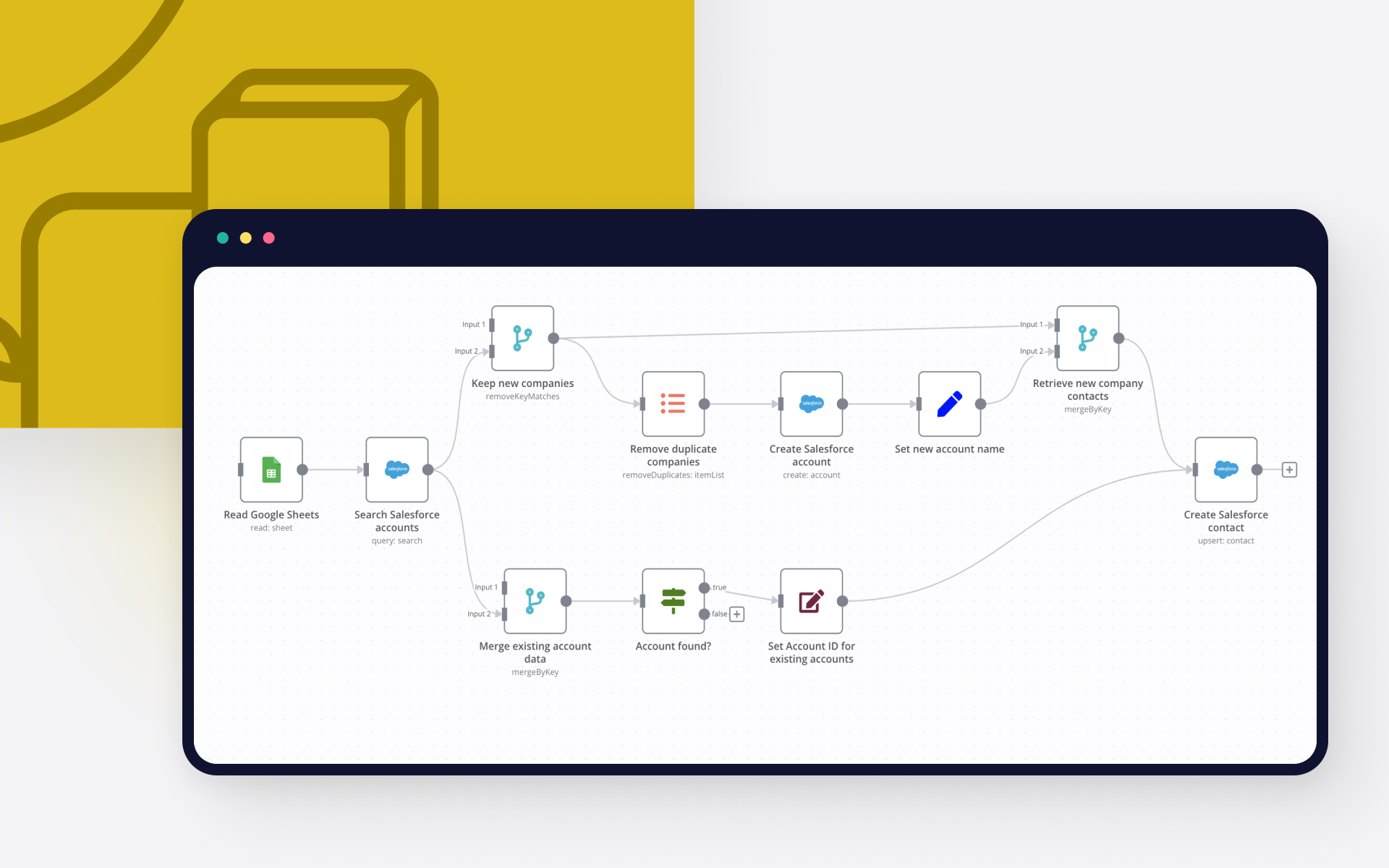
How to easily automate your Salesforce data import

Salesforce and other CRMs are built around the data they are being fed. This begs the question, where do we get this data from? Before switching to a CRM, it is common for organizations to have data pipelines of leads and customers stored in extant sources like spreadsheets and ERPs. These sources could store data that range from hundreds to billions. Thus, it is imperative that we explore some of the most efficient and effective ways to import data into Salesforce. And this is the crux of thi

featured image

How to create an AI-driven tweet generator bot in 10 minutes

Lacking time or inspiration for your tweets? Then leverage OpenAI and n8n to generate tweets for you and store them in Airtable for further review.

FAQs

  • Can OpenAI connect with Salesforce?

  • Can I use OpenAI’s API with n8n?

  • Can I use Salesforce’s API with n8n?

  • Is n8n secure for integrating OpenAI and Salesforce?

  • How to get started with OpenAI and Salesforce integration in n8n.io?

Need help setting up your OpenAI and Salesforce integration?

Discover our latest community's recommendations and join the discussions about OpenAI and Salesforce integration.
Artem
sérgio eduardo floresta filho
Andrew adawdad
PinkFloyd
Steve Warburton

Looking to integrate OpenAI and Salesforce in your company?

Over 3000 companies switch to n8n every single week

Why use n8n to integrate OpenAI with Salesforce

Build complex workflows, really fast

Build complex workflows, really fast

Handle branching, merging and iteration easily.
Pause your workflow to wait for external events.

Code when you need it, UI when you don't

Simple debugging

Your data is displayed alongside your settings, making edge cases easy to track down.

Use templates to get started fast

Use 1000+ workflow templates available from our core team and our community.

Reuse your work

Copy and paste, easily import and export workflows.

Implement complex processes faster with n8n

red iconyellow iconred iconyellow icon